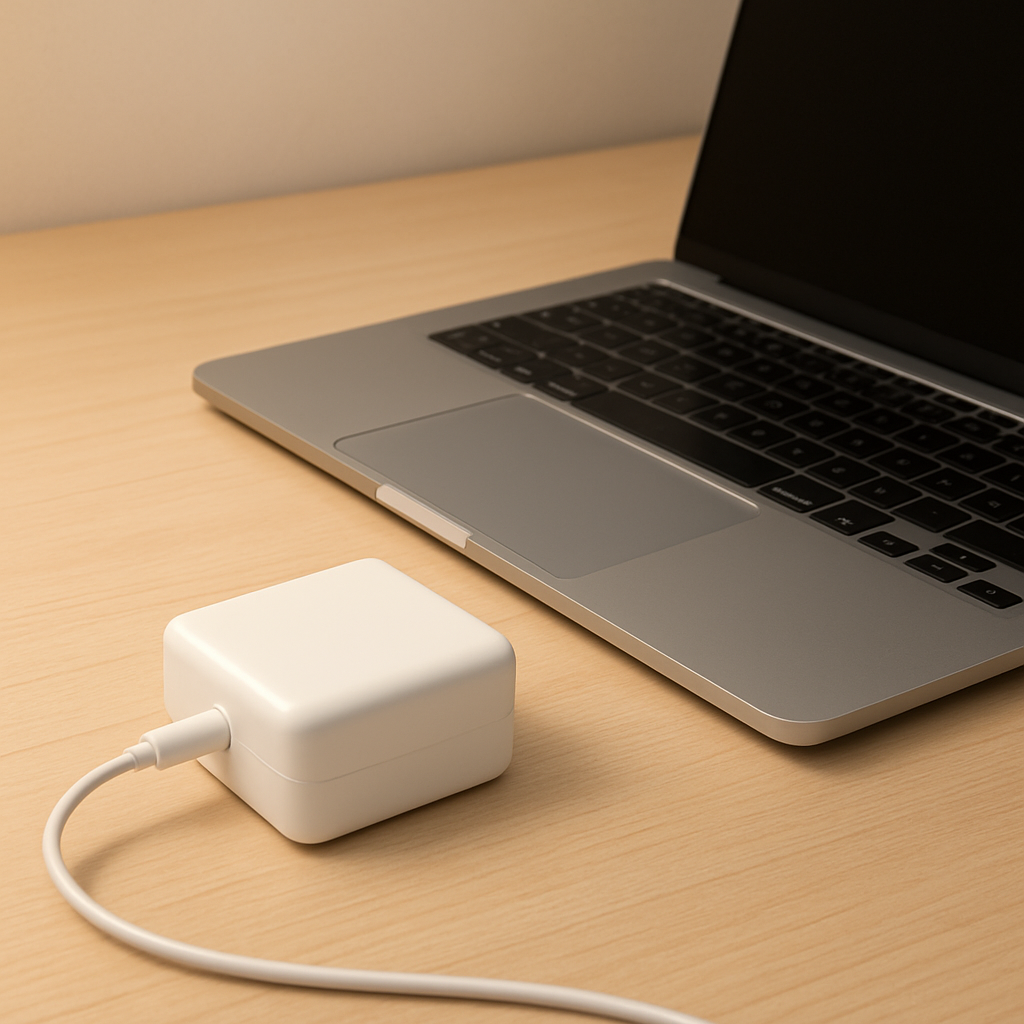
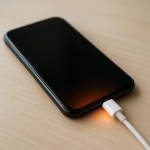
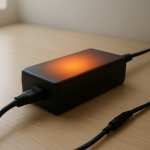
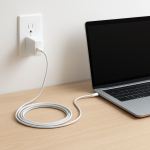
Most laptop chargers overheat because they are being pushed near (or beyond) their rated output for long periods, or because the heat they naturally make cannot escape well from the charger brick. High electrical load turns more power into heat inside the adapter, and poor ventilation traps that heat until the casing feels uncomfortably hot.
It’s common for a charger to feel warm during charging, especially from 10–30 minutes after plugging in. If it becomes too hot to comfortably hold, smells “hot,” or gets hotter over time instead of leveling off, it often means load stress, blocked cooling, or early internal failure.
If you need a fast fix
Unplug the charger and let it cool for 10–15 minutes, then plug it into a different wall outlet (no power strip) and re-test.
Charge on a hard, open surface and keep the charger brick uncovered and uncoiled (don’t bury it in bedding, a bag, or behind a couch).
Reduce load: close heavy apps, pause gaming, and if possible charge while the laptop is asleep or powered off.
Quick Diagnosis Table
Symptom
Most likely cause
Charger gets very hot only while gaming or video editing
High electrical load stress (adapter near its watt limit)
Charger brick is hottest when it’s on carpet/bed or tucked behind furniture
Poor ventilation and heat trapped around the adapter
Charger is hot and charging is slow or keeps cutting in/out
Worn cable/connector, unstable power delivery, or internal adapter wear
Charger is hot even with the laptop off, and there’s a hot-plastic smell
Internal component failure or overheating due to age/damage
Why This Happens
A laptop charger converts high-voltage AC power from the wall into lower-voltage DC power your laptop can use. During that conversion, some energy is always lost as heat, which is why warm chargers are normal.
Heat becomes a problem when the charger has to supply maximum power for long stretches, such as charging a low battery while also running a demanding workload. It can also happen when airflow around the brick is blocked, like when the adapter is on a soft surface or wrapped in a tight coil of cable.
When the internal parts run hot, the outer case warms up, the charging may become unstable, and protective circuits may reduce output or shut off to prevent damage.
Most Common Causes (Ranked)
1) Running near the charger’s wattage limit: Gaming, 3D work, or fast charging from a very low battery can push the adapter close to its maximum output, making it noticeably hotter.
2) Poor ventilation around the charger brick: Chargers cool mostly by letting heat escape through the casing; covering the brick or placing it on insulating surfaces traps heat.
3) Cable or connector resistance: A bent plug, frayed wire, or loose DC tip/USB-C connection increases electrical resistance, which creates extra heat right where power is flowing.
4) Dust and grime acting like insulation: Dirt buildup on the charger case or packed lint in nearby spaces can reduce heat shedding and raise surface temperature.
5) Wrong charger type or under-wattage adapter: Using a lower-watt adapter than your laptop requires (common with USB-C sharing) forces the charger to run at full output constantly.
6) Internal aging or damage: Over time, internal components can degrade, and a charger that used to run warm may start running hot even at normal loads.
If the charger runs cooler after improving airflow or reducing workload, that gradual improvement usually indicates the issue was load stress or heat trapping rather than a sudden internal failure.
How to Check the Problem Safely
Check 1: Feel for heat patterns: is the hottest area the brick, the wall plug, the cable, or the laptop-side connector? Hot at the connector often points to resistance or a poor connection.
Check 2: Verify you’re using the correct wattage: compare the charger label (W or V/A) to your laptop’s recommended adapter wattage. If the charger is lower, overheating is more likely.
Check 3: Test a low-load scenario: shut down the laptop and charge for 20 minutes with the lid closed. If it stays much cooler, the heat is likely load-related.
Check 4: Inspect for physical damage: look for kinks, exposed wire, melted spots, discoloration, or a plug that wiggles in the laptop port.
Check 5: Try a different outlet and orientation: plug directly into a wall socket and ensure the brick isn’t pressed against fabric, carpet, or other warm electronics.
Safety note: if you notice smoke, crackling, sparking, or a strong burning smell, unplug immediately and do not reuse the charger.
How to Fix It
Fix 1 (easiest): Improve cooling: place the charger on a hard, open surface and keep it uncovered. Better airflow lets it shed heat faster and stabilizes temperature.
Fix 2: Reduce electrical load while charging: pause games, rendering, or heavy downloads, or charge while the laptop sleeps. Lower draw means less heat generated inside the adapter.
Fix 3: Uncoil and reposition the cable: tightly coiled cables can trap heat and might increase stress at bends. A gentle, loose cable path reduces hot spots and connector strain.
Fix 4: Replace the charger or cable if it’s underpowered or worn: use an OEM or high-quality certified replacement with the correct wattage. A properly rated adapter runs cooler because it isn’t operating at the edge.
Fix 5 (advanced/last resort): Address laptop-side causes: if the laptop battery is failing or the USB-C/DC port is loose, power draw and resistance can spike. Have a technician test the port and battery health rather than forcing a charger to compensate.
Signs of Battery or Hardware Damage
Battery swelling (trackpad bulging, bottom cover bowing, or the laptop rocking on a flat surface).
Charging repeatedly starts/stops, or the charger disconnects with small movements of the plug.
Burning smell, visible discoloration, or melted plastic on the charger, plug, or laptop port.
Laptop gets unusually hot near the charging port or battery area during charging.
Battery percentage jumps around, drains fast, or won’t charge past a certain point.
Random shutdowns under load even when plugged in.
Buzzing, whining, or crackling sounds from the charger brick.
When Repair Is No Longer Worth It
If the charger is overheating enough to trip protection (charging cuts out), shows melted parts, or smells burnt, replacement is usually the safest choice. Chargers are sealed devices, and internal repairs are rarely cost-effective or reliable for everyday users.
As a rule, replace the adapter if a known-good outlet and correct wattage still results in “too hot to touch” temperatures, or if the cable/connector damage is visible. If the laptop’s charging port or battery is the real problem, paying for a diagnostic can be worth it, especially on newer laptops where a port repair is cheaper than replacing the device.
How to Prevent This Problem in the Future
Use the correct wattage charger for your laptop, especially for performance models that draw more power under load.
Keep the charger brick in open air on a hard surface; avoid beds, carpets, and enclosed spaces like tight cable boxes.
Don’t coil the cable tightly during use; reduce sharp bends near the connectors to prevent resistance and heat.
Charge strategically: when doing heavy work, consider plugging in before the battery is very low to reduce peak charging stress.
Keep the charger clean and dry; wipe dust off the casing so it can shed heat more effectively.
Avoid cheap non-certified replacements; poor internal design can run hotter even at normal loads.
Unplug by the plug, not the cable, to prevent gradual connector damage that creates hot spots.
FAQ
Is it normal for a laptop charger to get hot?
Warm is normal, especially during the first part of a charge or when the laptop is working hard. It should level off and remain only comfortably warm. If it becomes too hot to hold, smells hot, or keeps getting hotter over time, treat it as a problem.
Can an overheating charger damage my laptop or battery?
Yes, it can contribute to unstable charging and stress the charging port, and in worst cases it can damage the adapter, cable, or port. Most laptops and chargers have protection that reduces power or shuts off, but you shouldn’t rely on that as a “fix.” Repeated overheating is a sign to reduce load, improve airflow, or replace the adapter.
Does using a lower-watt USB-C charger cause overheating?
It can. If your laptop needs more power than the charger can comfortably provide, the adapter may run at its maximum output for long periods and get hotter, while charging slower or not at all under load. Using a charger that meets or exceeds the laptop’s recommended wattage usually reduces heat and improves stability.
Battery issues rarely come from a single cause. Mark Reynolds focuses on identifying patterns and simple fixes that apply in most situations. For more details, read the complete guide.