Laptop Charger Overheating When Plugged In — Load or Internal Failure Causes
Quick Answer
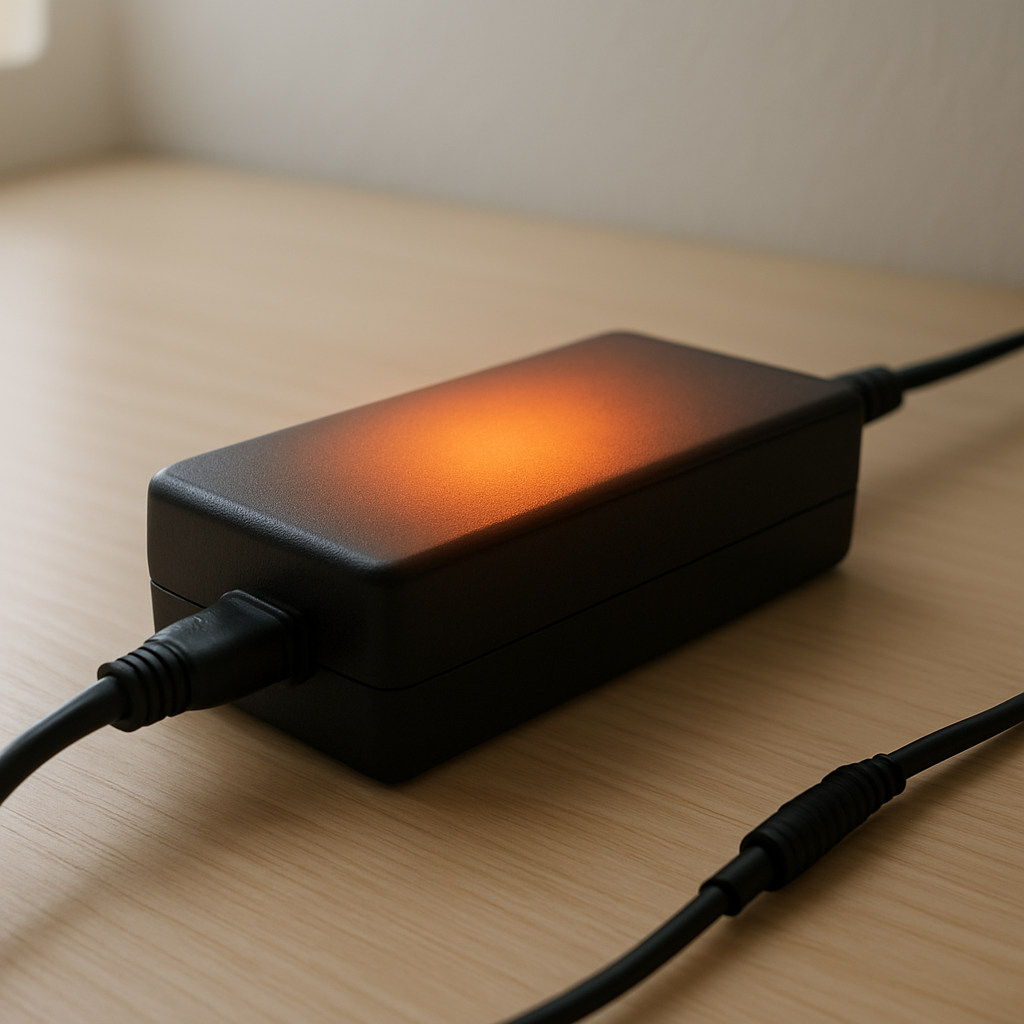
A laptop charger usually overheats when it is being pushed too hard under electrical load or when a failing internal component (like a capacitor, diode, or transformer winding) creates extra resistance and wasted heat. In simple terms, the adapter is working harder than it should, so it turns more electricity into heat instead of usable power.
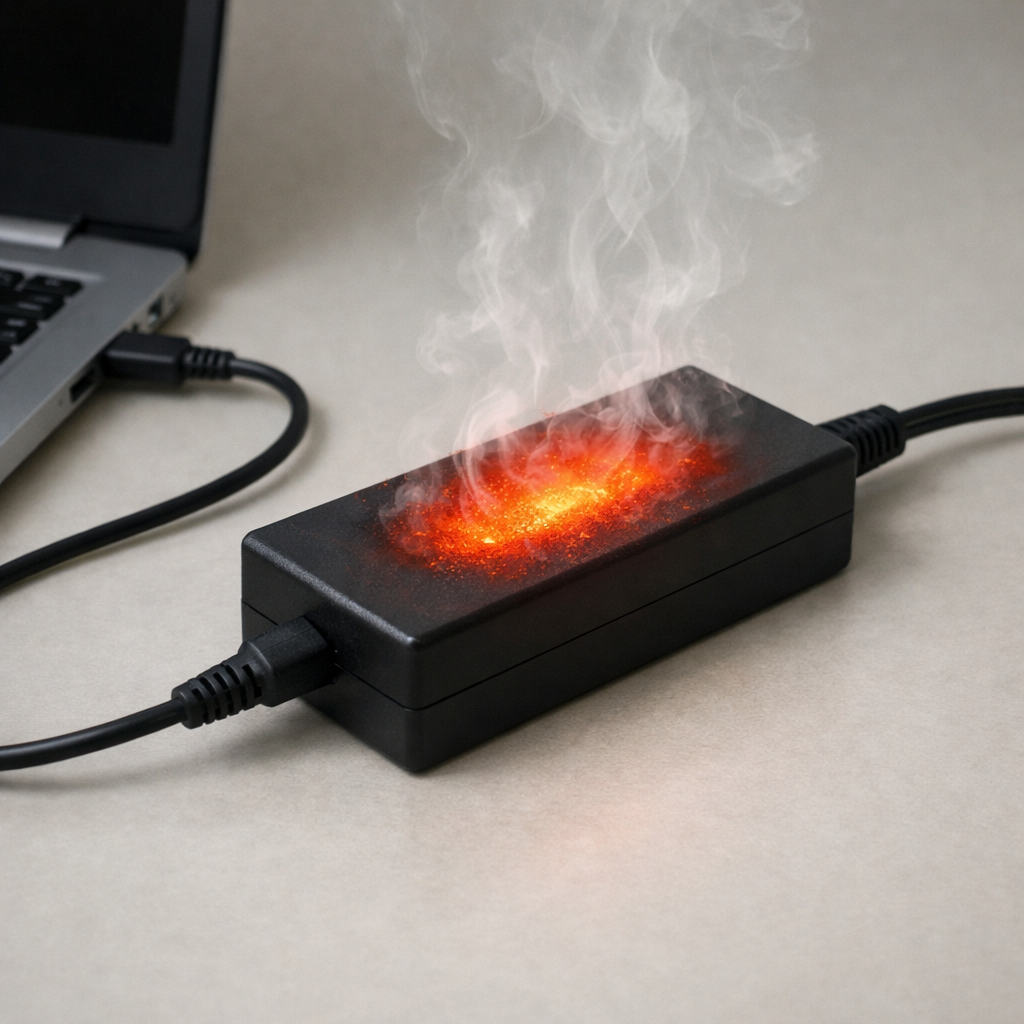
A mild warm-to-hot feeling can be normal during heavy charging, but it should not become painfully hot or smell within minutes. If overheating starts quickly (within 5–15 minutes) or gets worse over days, that often points to internal adapter stress, a damaged cable/plug, or a power draw problem from the laptop.
If you need a fast fix
Unplug the charger from the wall and the laptop, let it cool for 15–30 minutes, then plug it back in using a different wall outlet (no power strip) for a quick comparison.
Stop heavy usage while charging (gaming, video editing), turn on Battery Saver mode, and check if the charger temperature drops within 10–20 minutes.
Inspect the cable and plug for kinks, discoloration, or looseness, and avoid bending the cord near the brick or the laptop connector.
Quick Diagnosis Table
Symptom
Most likely cause
Charger becomes very hot within 5–10 minutes, even with the laptop idle
Internal adapter component failing under load (capacitors/rectifier) or wrong/low-quality replacement charger
Charger gets hot only when charging from low battery (0–30%) or during heavy laptop use
Normal high load or near-max output draw; airflow around the brick is restricted
Heat is concentrated at the connector tip or cable near the plug
Worn connector, damaged cable strands, or loose DC jack causing resistance and heat
Charging cuts in/out, laptop shows “plugged in, not charging,” or the adapter buzzes
Adapter protection kicking in due to overload, internal failure, or intermittent cable/jack contact
Burning smell, discoloration on the brick, or melting marks on plug
Unsafe internal failure or arcing at the connection; stop using immediately
Why This Happens
A laptop charger (AC adapter) converts wall power into lower-voltage DC power for the laptop and battery. During that conversion, some heat is normal, especially when the battery is low and charging at full speed.
Overheating becomes a problem when the charger is consistently near its limit or has an internal defect that wastes extra energy as heat. For example, a laptop that is running a demanding game while charging can pull close to the adapter’s maximum output, and a slightly degraded adapter may not handle that load without getting dangerously hot.
In many cases, the chain is simple: higher load or higher resistance inside the adapter (or at the plug) causes extra heat, and the heat makes the weak part even worse, leading to hotter operation, charging dropouts, and eventual failure.
Most Common Causes (Ranked)
1) Failing components inside the charger brick: Aging capacitors and heat-stressed parts can make the adapter less efficient, so it runs hotter under the same load and may start buzzing or cutting out.
2) Charger is undersized or not the correct model: If wattage is too low, the adapter runs at (or above) its design limit, which creates excess heat, especially during charging and heavy CPU/GPU use.
3) Damaged cable or connector causing resistance: Broken wire strands, a bent plug, or a loose connector can act like a “heater,” concentrating warmth at the cable end or DC tip.
4) Laptop is drawing abnormally high power: A failing battery, shorting DC jack, or power circuit issue can pull more current than usual, making even a good charger run very hot.
5) Poor ventilation around the charger: Chargers shed heat through the casing, so placing the brick on a bed, carpet, or under a pile of cables traps heat and raises temperatures fast.
6) Cheap third-party or counterfeit charger: Lower-quality parts and weaker safety margins can lead to higher operating heat and earlier component breakdown.
If the charger runs cooler after reducing load or improving airflow, that gradual improvement usually indicates it was load-related rather than an immediate internal failure.
How to Check the Problem Safely
Check 1: Feel where the heat is strongest: the brick, the cable near the brick, or the plug tip near the laptop. Concentrated heat at one spot often points to a bad connection or damaged cable.
Check 2: Test a different wall outlet and skip power strips or surge protectors for the test. A loose outlet or overloaded strip can cause unstable power and extra heat in the adapter.
Check 3: Reduce load and compare temperature: close demanding apps, lower screen brightness, and let the laptop sit idle while charging for 15 minutes. If the charger runs much cooler, overload is likely.
Check 4: Check adapter rating versus laptop needs: compare the charger’s wattage (W) and output voltage (V) on the label to what your laptop requires. A lower-watt adapter can overheat even if it “works.”
Check 5: Look for physical warning signs: discoloration, soft/melted plastic, a scorched smell, or a crackling sound. These are strong signs of internal failure or arcing.
Safety note: If you smell burning, see smoke, or the plug is melting, unplug immediately and do not “test it again” until it is replaced.
How to Fix It
Fix 1 (easiest): Improve cooling around the brick by placing it on a hard surface with space around it and uncoiling the cable. Better heat shedding often drops temperatures quickly under normal loads.
Fix 2: Lower charging load by pausing heavy tasks while the battery charges, or charge while the laptop is asleep. This reduces current draw, which reduces heat inside both the adapter and the connector.
Fix 3: Replace the charger with the correct wattage, voltage, and connector type (preferably OEM or certified). A properly rated, higher-quality adapter runs cooler and is less likely to overheat under peak demand.
Fix 4: Address cable/connection issues: if the cable is stiff, kinked, or heats near the plug, replace the charger (most cables are not safely repairable). If the laptop’s DC jack is loose, have it serviced to prevent arcing and heat buildup.
Fix 5 (advanced/last resort): If overheating persists with a known-good charger, have the laptop checked for high power draw issues (battery health, charging circuit, motherboard power rails). This targets the root cause when the adapter is not at fault.
Signs of Battery or Hardware Damage
Battery percentage jumps around, drains unusually fast, or the laptop shuts down at 20–40%.
The battery swells (trackpad lifts, bottom panel bulges) or the laptop wobbles on a flat surface.
Charging repeatedly starts and stops, especially when the connector is touched or moved.
DC-in port feels loose, makes crackling sounds, or shows dark marks around the jack.
Laptop becomes very hot near the charging port area even at idle.
Adapter makes buzzing/whining noises that are new, louder, or get worse as it heats up.
You notice a burnt smell from the adapter, plug, or laptop port.
When Repair Is No Longer Worth It
If the adapter is overheating due to internal failure, replacement is usually the best option because most laptop chargers are sealed and not economical or safe to repair. If the laptop’s charging port or motherboard power section is damaged, the repair can range from affordable (DC jack replacement) to costly (board-level work).
As a rule, replace the charger first with a correct, known-good unit and retest. If the issue remains and the repair estimate is a large fraction of the laptop’s current value, consider replacement, especially for older models with weak batteries and limited upgrade options.
How to Prevent This Problem in the Future
Use the correct wattage charger for your model, and avoid “close enough” adapters with lower W ratings.
Keep the charger brick on a hard surface with airflow, and avoid charging on beds, couches, or carpet.
Uncoil the cable during use and avoid tight bends near the brick and the connector.
Don’t pull the charger out by the cable; grip the plug to protect internal wire strands.
Reduce peak load while charging when possible, especially on compact chargers that run hotter.
Replace chargers that show intermittent charging, new buzzing, or heat concentrated at a single point.
Choose reputable OEM or certified replacements to reduce the risk of inefficient, overheating internals.
FAQ
Is it normal for a laptop charger to get hot when plugged in?
Warm is normal, especially when the battery is low or the laptop is working hard. It is not normal if it becomes painfully hot, smells like burning plastic, or starts overheating quickly even when the laptop is idle. Those signs usually point to internal adapter stress or a bad connection.
Why does my charger overheat even when the laptop is off?
Some laptops still draw power when “off” to charge the battery, run standby features, or power USB charging. If the charger overheats with the laptop off and the battery is already near full, that can indicate an internal charger defect or an inefficient/counterfeit adapter. Testing with a known-good charger is the fastest way to separate charger trouble from laptop trouble.
Can an overheating charger damage my laptop or battery?
Yes, it can. Excess heat and unstable power can cause charging dropouts, stress the battery, and in worst cases damage the charging port or power circuitry. If you see melting, discoloration, or smell burning, stop using that charger and replace it before continuing to charge.
Most battery issues are easier to understand once you break them down step by step. That’s the approach Mark Reynolds takes across all troubleshooting guides. For more details, visit the complete guide.