Laptop Charger Not Working Intermittently — Loose Connection or Internal Fault?
Quick Answer
When a laptop charger works only sometimes, the most common reason is an intermittent fault inside the power adapter or unstable wiring where the cable meets the brick or the plug. The charger may still look fine outside, but a broken wire strand or cracked solder joint can open and close as the cable is moved.
This usually shows up gradually over days or weeks, then becomes more frequent until the charger stops working entirely. Many people notice it first when charging fails unless the cable is held at a certain angle.
If you need a fast fix
Try a different wall outlet and remove any power strip or loose extension cord in between.
Fully unplug and re-seat every connection (wall, adapter brick, and laptop), then charge without moving the cable for 10 minutes.
Reduce strain on the cord by laying the charger flat and supporting the connector so it is not pulling downward.
Quick Diagnosis Table
Symptom
Most likely cause
Charging icon turns on/off when the cord is touched or moved
Broken cable strands near the plug or adapter brick, causing a momentary connection
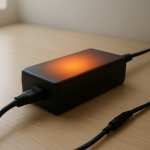
Adapter brick light flickers or goes out during use
Internal adapter fault (failing components) or a loose DC output cable inside the brick
Charges on one outlet but not another
Loose wall outlet, worn power strip, or unstable AC input connection
Laptop says “Plugged in, not charging” after brief charging
Wrong/weak adapter output, failing adapter regulation, or power negotiation issue (common with USB-C)
Charging stops under heavy load (gaming/video calls) but resumes when idle
Adapter can’t maintain stable voltage/current due to internal wear or overheating
Why This Happens
Chargers and cables bend in the same spots every day, especially near the laptop connector and where the cable enters the adapter brick. Over time, the copper wires inside can fracture even if the outer insulation still looks normal.
Inside the adapter brick, heat cycles also matter. Each time it warms up and cools down, internal parts expand and contract slightly. A weak solder joint or aging component can become unstable, so the adapter works at first and then cuts out as it heats.
When the connection opens for even a split second, the laptop detects a power loss and stops charging. That is why you may hear the “plugged/unplugged” sound, see the battery icon switch repeatedly, or lose performance as the laptop drops back to battery.
Most Common Causes (Ranked)
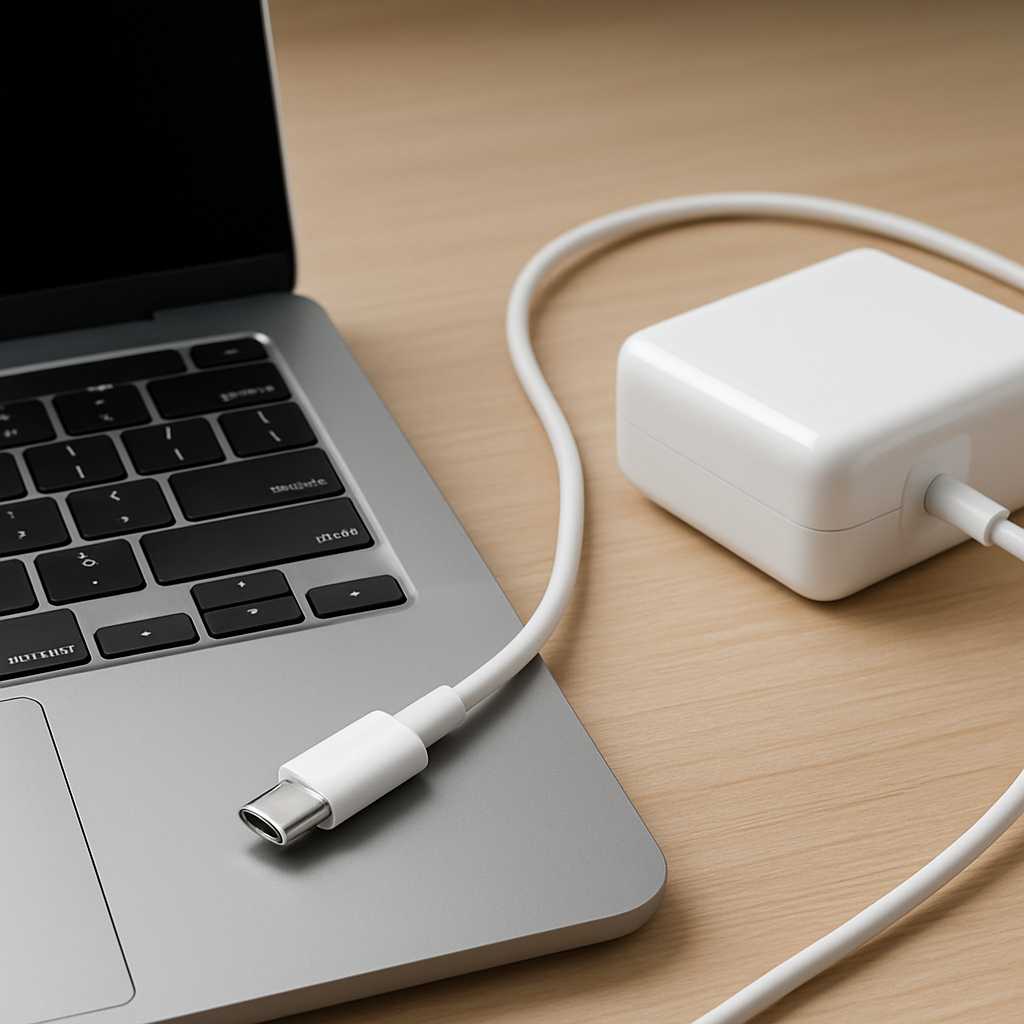
1) Cable break near the laptop plug: The highest-stress point is usually the last few inches before the connector. A partial break will work only when held in a specific position.
2) Internal adapter (brick) fault: A failing capacitor, overheated component, or cracked solder joint can make output voltage unstable, especially after the brick warms up.
3) Loose or dirty DC input connection at the laptop: Dust, wear, or a slightly loose jack can cause brief disconnects. This is common on older barrel-jack laptops and on USB-C ports that have been tugged.
4) Unstable AC input path: A worn wall outlet, loose plug fit, or failing power strip can create intermittent power that looks like a charger problem.
5) USB-C power mismatch or weak replacement charger: Some USB-C chargers advertise high wattage but cannot sustain it, leading to disconnects or “not charging” messages under load.
6) Overheating protection triggering: If the adapter is covered, trapped in bedding, or running hot, it may shut down briefly and restart when cooled.
If the problem improves when the cable is left completely still and the brick runs cooler, that often indicates a strain-related wiring issue rather than a laptop motherboard fault.
How to Check the Problem Safely
Check 1: Inspect the full cable length in bright light and look for kinks, flattened sections, shiny “stress” spots, or splitting near either end.
Check 2: Do a gentle wiggle test at the connector and at the brick end while watching the charging indicator. Move only a little and stop if you see flickering.
Check 3: Feel for heat after 10–15 minutes of charging. Warm is normal, but a very hot brick or a hot connector can point to internal failure or poor contact.
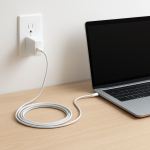
Check 4: Try a known-good outlet and plug the charger directly into the wall, not through a strip. Make sure the plug fits snugly and does not sag.
Check 5: If you can borrow a compatible charger with the same voltage and adequate wattage, test it on your laptop to confirm whether the issue follows the charger or stays with the laptop.
Safety note: if you smell burning, see sparks, or notice a melting plug, unplug immediately and do not test further.
How to Fix It
Fix 1 (easiest): Remove strain from the cable by charging on a stable surface with the brick flat and the connector supported. This helps prevent the broken strands from separating.
Fix 2: Replace the charger (or the detachable cable, if your model uses one) with the correct rating. A new adapter resolves most intermittent issues caused by internal brick faults or hidden cable breaks.
Fix 3: Clean the laptop charging port carefully using dry, non-metal tools and compressed air. Better contact reduces micro-disconnects, especially with USB-C and barrel jacks.
Fix 4: Address the power source by replacing a loose power strip, changing outlets, or using a snug-fitting grounded outlet. Stable AC input prevents the adapter from repeatedly resetting.
Fix 5 (advanced/last resort): If the laptop port is loose, wobbly, or only charges when pushed upward/downward, a repair shop can replace the DC jack or USB-C charging board. This fixes the root cause when the laptop’s connector is worn or cracked.
Signs of Battery or Hardware Damage
Battery percentage jumps up and down or drops quickly even when the charger appears connected.
The charger plug or USB-C tip becomes unusually hot to the touch.
Burning smell, discoloration, or melted plastic on the plug, port, or adapter brick.
The laptop shuts off instantly when the charger disconnects, even at moderate battery levels.
Charging works only at a very specific angle and the port feels loose or “gritty.”
Repeated “power surge” or “USB device disabled” warnings (more common with USB-C charging).
Buzzing, clicking, or high-pitched whining from the adapter brick that wasn’t there before.
When Repair Is No Longer Worth It
If the issue is clearly in the charger or cable, replacing the adapter is usually the best value and avoids safety risks from a failing unit. If the laptop’s charging port or motherboard power circuit is involved, costs can rise quickly depending on the model and parts availability.
As a rule, if repair approaches a large fraction of the laptop’s current value, consider putting that money toward a replacement, especially if the battery is also worn. For newer or higher-end laptops, a port or DC jack repair is often worth it because it restores reliable charging without replacing the whole device.
How to Prevent This Problem in the Future
Avoid tight bends at the connector by leaving a gentle loop of slack before the cable reaches the laptop.
Unplug by gripping the plug or connector, not by pulling on the cable.
Keep the adapter brick ventilated and off soft surfaces so it can shed heat.
Use the correct wattage charger for your laptop, especially for USB-C models that negotiate power.
Don’t wrap the cable tightly around the brick; use loose coils to reduce internal wire fatigue.
Protect the charging area from trips and tugs by routing the cable along a desk edge or using a cable clip.
Periodically clean lint from ports and check for wobble before it becomes a hard-to-fix failure.
FAQ
Is it safe to keep using a charger that works only at a certain angle?
It is a sign of a failing cable or connector, and continued use can create heat at the bad contact point. That heat can damage the laptop port and, in rare cases, cause melting. It is better to replace the charger or have the port repaired soon.
Why does my charger work for a few minutes, then stop charging?
This often happens when the adapter warms up and an internal fault causes the output to drop or shut down. Overheating protection can also trigger if the brick is covered or running near its limit. Try charging with the brick in open air and, if it still cuts out, replace the adapter with the correct rating.
Could this be a battery problem instead of the charger?
A weak battery usually causes shorter runtime, not a charger that disconnects when the cord moves. However, a failing battery or power-management issue can show “plugged in, not charging” or stop charging under load. The quickest way to separate the two is to test with a known-good compatible charger and see if the problem disappears.
Most battery issues are easier to understand once you break them down step by step. That’s the approach Mark Reynolds takes across all troubleshooting guides. For more details, visit the complete guide.