Laptop Charger Gets Extremely Hot — Overload or Internal Failure Warning Signs
Quick Answer
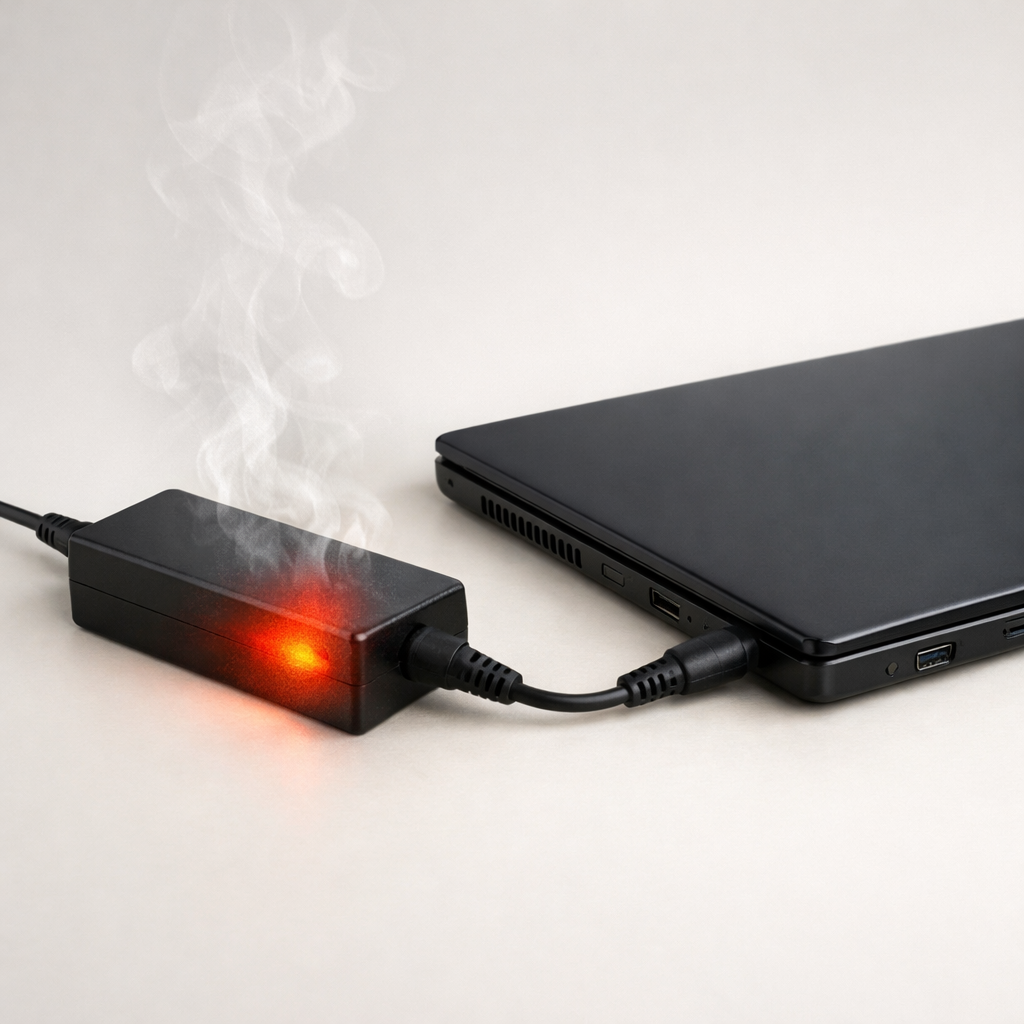
If your laptop charger gets extremely hot, the most common reason is internal overheating from overload or aging insulation inside the adapter. When components or wiring inside the “brick” degrade, more energy turns into heat instead of clean power.
A charger may feel warm during normal use, but “too hot to comfortably hold” is not normal. This often shows up gradually over weeks or months, but it can also appear suddenly after a higher workload, a cable bend, or using the wrong adapter.
If you need a fast fix
- Unplug the charger from the wall and the laptop, let it cool for 15–30 minutes, and don’t cover it while it’s cooling.
- Switch to a known-good, correct-wattage charger (same voltage, equal or higher wattage) to see if heat is coming from the charger or the laptop load.
- Stop using the charger if you notice a burnt smell, crackling, or a soft/swollen cable section, and replace it to reduce fire risk.
Quick Diagnosis Table
| Symptom | Most likely cause |
|---|---|
| Charger brick becomes too hot to touch within 10–20 minutes | Internal component stress from overload or failing capacitors/insulation |
| Heat concentrates near the cable end (brick-side or laptop-side) | Cable damage, broken strands, or insulation breakdown creating resistance |
| Charger gets hotter when gaming/video calls, cooler when idle | High power draw pushing a marginal or under-wattage adapter past its comfort zone |
| Intermittent charging, flickering charge light, or random disconnects | Loose connector, damaged DC plug, or internal solder joint heating up |
Why This Happens
A laptop charger converts high-voltage AC power from the wall into lower-voltage DC power your laptop can use. When the charger is overloaded or its internal insulation and components have aged, it wastes more power as heat.
Real-world triggers are common: running a heavy workload while charging, using a charger with too low a wattage, wrapping the cable tightly around the brick every day, or pinching the cord under a desk leg. Even if the charger still “works,” damaged insulation or weakened components can make it run far hotter than it should.
The basic chain is simple: higher resistance or internal leakage makes the adapter work harder, the temperature rises, and that heat further accelerates wear, which can turn into a fast failure if you keep using it.
Most Common Causes (Ranked)
- 1) Under-wattage or overloaded charger: If the adapter’s watt rating is too low for your laptop (or a dock/USB devices), it runs at its limit and overheats, especially under high CPU/GPU load.
- 2) Degraded internal capacitors or insulation: Aging parts inside the brick can leak or lose efficiency, so more energy becomes heat even during normal charging.
- 3) Damaged cable strands near a bend point: Repeated flexing near the connector or brick can break internal wires; the remaining strands heat up under load like a bottleneck.
- 4) Poor ventilation or heat trapping: Chargers left on carpet, under blankets, inside a bag, or wedged behind furniture can’t shed heat, so normal warmth becomes extreme heat.
- 5) Dirty, loose, or arcing connection: A worn plug or debris in the port can create tiny sparks (arcing), which generates heat and can discolor the connector.
- 6) Power strip or wall voltage issues: A failing power strip, loose outlet, or unstable input can make the charger run hotter and behave inconsistently.
If the charger runs noticeably cooler after reducing load or improving airflow, that usually indicates you were near the adapter’s limits rather than facing an immediate internal short.
How to Check the Problem Safely
- Check 1: Confirm the charger’s rating matches your laptop’s needs by comparing voltage (must match) and wattage (equal or higher is usually required) on the labels.
- Check 2: Feel where the heat is strongest after 10 minutes of use: the brick, the wall plug end, or the laptop connector end, and note the hottest spot.
- Check 3: Inspect the cable slowly under good light, especially near strain reliefs, for kinks, shiny spots, cracks, bulges, or areas that feel softer than the rest.
- Check 4: Test with a known-good compatible charger (borrowed or spare) and see if the laptop charges normally without excessive heat.
- Check 5: Reduce load and isolate variables by charging while the laptop is asleep or shut down; if heat drops a lot, the issue may be overload rather than a constant internal fault.
If you smell burning plastic, hear buzzing/crackling, or see discoloration, stop testing and unplug everything immediately.
How to Fix It
- Fix 1 (easiest): Improve ventilation by moving the brick to a hard surface and keeping it uncovered; better airflow reduces normal heat buildup fast.
- Fix 2: Reduce charging load by closing heavy apps, disabling high-performance mode temporarily, or charging while the laptop sleeps; this lowers current draw so the adapter runs cooler.
- Fix 3: Replace the charger with a correct, reputable model (OEM or certified equivalent); if internal insulation or capacitors are degrading, replacement is the safest solution.
- Fix 4: Replace or repair the power cable only if it is a detachable AC cable or detachable DC lead designed for your adapter; damaged conductors cause localized heating that can worsen quickly.
- Fix 5 (advanced/last resort): Have a technician check the laptop’s charging port and power circuitry if multiple chargers overheat on the same laptop; a short or abnormal draw can overload even a good adapter.
Signs of Battery or Hardware Damage
- Battery percentage jumps, stalls, or drops suddenly while plugged in.
- Battery or laptop bottom feels unusually hot even when the charger is removed.
- Swollen battery symptoms: touchpad lifting, case bulging, wobbling on a flat surface, or a gap along seams.
- Charging only works at certain cable angles or stops when the connector is touched.
- Burnt odor from the charger, connector, or laptop port, or visible brown/black marks.
- Frequent “plugged in, not charging” messages or rapid cycling between charging and not charging.
- Unexpected shutdowns under load even when plugged in.
When Repair Is No Longer Worth It
If the charger brick is getting dangerously hot, smells burnt, or shows cable damage, replacement is usually the best choice because internal adapter repairs are rarely safe or cost-effective. Chargers are sealed, and overheating often means insulation or components have already degraded.
As a rule, replace the adapter first (especially if it’s older or off-brand) before paying for deeper diagnostics. If a new correct-wattage charger still runs extremely hot or the laptop shows port damage, then a repair quote makes sense, and you can compare it to the laptop’s age and value.
How to Prevent This Problem in the Future
- Use the correct voltage and an equal-or-higher wattage charger recommended for your laptop model.
- Keep the charger brick on a hard surface with airflow, not on carpet, bedding, or inside a backpack while charging.
- Avoid tight cable wraps around the brick; use loose loops to prevent internal wire fatigue and insulation cracking.
- Unplug by gripping the plug, not pulling the cord, to reduce strain on the connector and internal strands.
- Keep ports and plugs clean and dry; remove lint gently and avoid charging in dusty environments when possible.
- Don’t daisy-chain unreliable power strips; use a quality surge protector and a firm wall outlet to prevent arcing and heat.
- Monitor heat during high-load activities; if the brick gets very hot, reduce load or charge before/after heavy use.
FAQ
Is it normal for a laptop charger to get hot?
A charger getting warm is normal, especially while fast charging or during heavy laptop use. Extremely hot (too hot to hold comfortably) is not normal and often points to overload, poor ventilation, or internal aging. If it’s getting hotter than it used to under the same conditions, treat that as a warning sign.
Can an overheating charger damage my laptop or battery?
Yes, it can. An adapter that’s overheating may deliver unstable power, which can stress the battery charging system and potentially damage the charging port over time. In worst cases, failing insulation or arcing connections can create a safety hazard, so replacement is the safer route than “waiting to see.”
What’s safer: a higher-wattage charger or the exact same wattage?
A higher-wattage charger is usually safe as long as the voltage and connector type are correct and it’s designed for your laptop standard (such as USB-C PD where applicable). The laptop draws only the power it needs, and the adapter runs with more headroom, often staying cooler. Avoid cheap, uncertified adapters because poor internal insulation and components are a common cause of overheating.
For a full overview of this issue and step-by-step solutions, read the complete troubleshooting guide.
Battery issues rarely come from a single cause. Mark Reynolds focuses on identifying patterns and simple fixes that apply in most situations. For more details, read the complete guide.