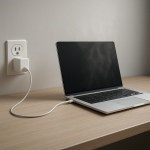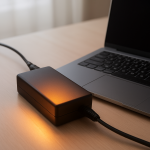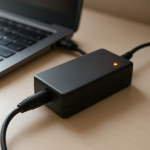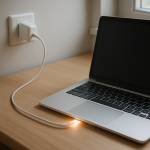
Laptop Charger Overheating When Laptop Is Off — Phantom Load or Electrical Fault?
Quick Answer
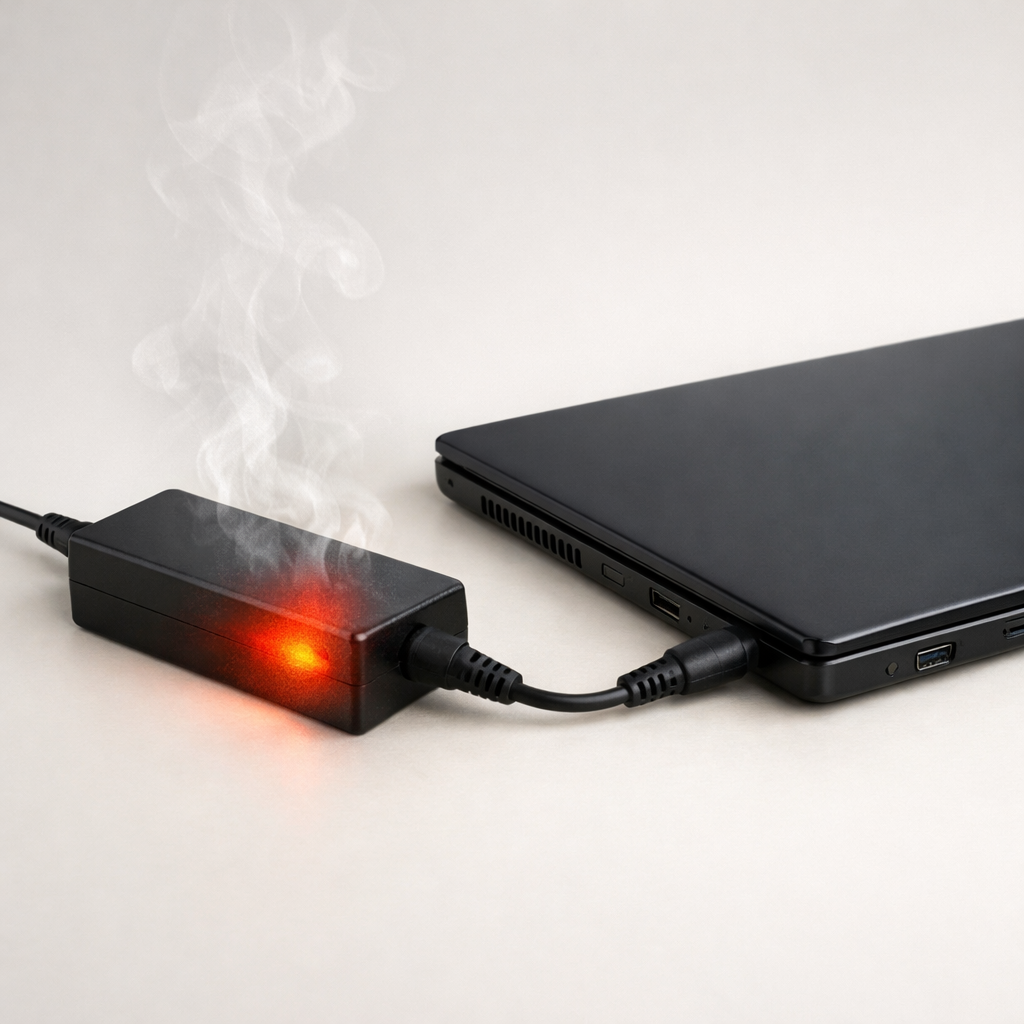
If your laptop charger gets hot even when the laptop is “off,” the most common explanation is a small residual electrical draw (phantom load) or a fault that leaks power as heat, such as damaged insulation in the cable or aging components inside the adapter.
A little warmth can be normal if the charger stays plugged into the wall, but it should not become uncomfortably hot. If it heats up within 10–30 minutes while the laptop is shut down or not connected, treat it as a warning sign and troubleshoot.
If you need a fast fix
- Unplug the charger from the wall and let it cool fully before touching the brick or wrapping the cable.
- Plug the charger directly into a wall outlet (not a power strip) and keep it in open air (not on a bed, couch, or carpet).
- If it gets hot again quickly, stop using it and switch to a known-good original/OEM charger with the correct wattage.
Quick Diagnosis Table
| Symptom | Most likely cause |
|---|---|
| Charger brick is warm even when laptop is fully off and unplugged | Normal standby/phantom draw inside the adapter, amplified by poor ventilation or high ambient temperature |
| Charger gets very hot within 10–20 minutes with nothing connected | Internal adapter fault (failing capacitors/transformer) or insulation breakdown causing energy to turn into heat |
| Heat is concentrated near the cable strain relief or connector | Cable damage, broken strands, or shorting at the bend point |
| Charger only overheats when connected to the laptop (even when laptop is “off”) | Laptop still drawing power for sleep/USB charging/always-on ports, or a charging-circuit issue on the laptop |
| Outlet or plug feels hot, or you see discoloration | Loose outlet contact, overloaded power strip, or poor connection causing resistive heating |
Why This Happens
Many laptop chargers keep a small part of their circuitry “awake” whenever they’re plugged into the wall. That standby power is usually tiny, but it can still make the brick slightly warm, especially in a warm room or if the charger is under a pillow or behind a desk.
When the heat is more than mild warmth, it often points to electricity turning into heat where it shouldn’t. That can happen inside the adapter as parts age, or in a damaged cable where the insulation or wire strands are compromised and current meets extra resistance.
In simple terms: a charger that’s heating while “doing nothing” is either doing a little something (phantom load) or wasting power due to a fault, and that wasted power shows up as overheating.
Most Common Causes (Ranked)
- 1) Normal standby (phantom) draw in the adapter: Even with no laptop attached, many adapters consume a small amount of power and may feel slightly warm, especially if left plugged in 24/7.
- 2) Poor airflow or heat trapping: Chargers dissipate heat through their case, so placing the brick on fabric, carpet, or in a cable pile can make normal warmth become excessive.
- 3) Cable or connector insulation damage: Repeated bending near the brick or laptop plug can break wire strands and raise resistance, creating a localized hot spot that worsens over time.
- 4) Aging or failing adapter components: Capacitors and internal joints can degrade and waste energy as heat, sometimes before any obvious charging problem appears.
- 5) Laptop still drawing power while “off”: Fast startup, sleep-like shutdown, USB power sharing, or always-on ports can keep the charging circuit partially active, making the adapter work when you think it shouldn’t.
- 6) Outlet, power strip, or plug contact issue: A loose wall outlet or worn strip can heat at the plug blades, and the whole charger may feel hotter because the input side is overheating.
If the charger becomes cooler after improving ventilation, using a better outlet, or replacing a damaged cable, that gradual improvement usually indicates the issue was environmental or connection-related rather than a laptop motherboard fault.
How to Check the Problem Safely
- Check 1: Test “wall only” heat. Plug the charger into the wall with nothing connected for 15 minutes, then feel the brick briefly with the back of your fingers; mild warmth is normal, but strong heat is not.
- Check 2: Inspect the entire cable run. Look for kinks, flattened sections, shiny spots, cracking, or fraying, especially at both strain reliefs (where the cable enters the brick and the laptop tip).
- Check 3: Identify where the heat is strongest. If the hottest point is the wall plug or outlet area, stop and try a different wall outlet; if the hottest point is the connector, suspect cable damage.
- Check 4: Compare behavior with and without the laptop. If it stays cool when unplugged from the laptop but overheats when connected, check your laptop’s power settings (shutdown vs sleep) and disable USB charging in off/sleep if available.
- Check 5: Verify charger match. Confirm the charger is the correct wattage and voltage for your laptop; an underpowered or generic unit may run hot because it’s working at its limit.
Safety note: if you smell burnt plastic, hear buzzing/crackling, see arcing, or the brick is too hot to hold comfortably, unplug it immediately and do not keep testing.
How to Fix It
- Fix 1 (easiest): Improve cooling conditions by placing the brick on a hard surface with space around it; this helps normal standby warmth stay at a safe level.
- Fix 2: Use a different wall outlet and avoid loose power strips; better contact reduces resistive heating at the plug and prevents heat buildup on the input side.
- Fix 3: Turn off features that keep power flowing when “off,” such as Fast Startup (Windows) or “USB power in sleep/off” (BIOS/UEFI or vendor utility); this reduces residual draw that can keep the adapter warmer than expected.
- Fix 4: Replace the charger if heat is severe, sudden, or localized to the brick; failing internal parts can worsen quickly, and replacement is safer than continued use.
- Fix 5 (advanced/last resort): If multiple known-good chargers run hot only when connected to your laptop, have the laptop’s DC-in/USB-C power circuitry inspected; a fault on the device side can force the adapter to work abnormally even when the laptop appears off.
Signs of Battery or Hardware Damage
- Burning smell, melting plastic, or discoloration on the brick, cable, connector, or wall plug.
- Charging stops and starts, or the laptop rapidly switches between “plugged in” and “on battery.”
- Battery swelling, trackpad lifting, or the bottom case starting to bulge.
- Adapter buzzing/whining that is new or getting louder, especially along with heat.
- Connector feels loose, sparks when wiggled, or the charging port gets unusually hot.
- Laptop shuts down under light load, reboots when unplugged, or shows “not charging” unexpectedly.
- Repeated “power surge” or “USB overcurrent” warnings, especially on USB-C charging systems.
When Repair Is No Longer Worth It
If the charger overheats quickly when nothing is connected, or shows any signs of melting, arcing, or burnt odor, replacement is usually the best option. Chargers are sealed units and internal repairs are rarely cost-effective or safe for everyday users.
If the issue follows the laptop (multiple chargers get hot only on that device), weigh repair cost against laptop value and age. As a rule, if a power-port or motherboard power repair approaches a large fraction of the laptop’s resale value, putting that money toward a newer system is often the smarter choice.
How to Prevent This Problem in the Future
- Unplug the charger from the wall when you don’t need it for long periods to eliminate standby heating and reduce component aging.
- Keep the brick in open air on a hard surface; avoid beds, couches, and enclosed cable trays where heat can’t escape.
- Reduce sharp bends: route the cable with gentle curves and avoid tight wrapping around the brick, which stresses insulation.
- Use the correct OEM or certified charger with the proper wattage; underpowered chargers often run hotter.
- Periodically check the strain relief areas for early cracking or stiffness and replace at the first sign of damage.
- Avoid worn outlets and overloaded power strips; a solid wall connection reduces input-side heat and intermittent power.
- Review power settings so “Shut down” is truly off (disable Fast Startup if it causes unwanted standby behavior).
FAQ
Is it normal for a laptop charger to be warm when the laptop is off?
Slight warmth can be normal because many chargers draw a small standby (phantom) load whenever they’re plugged into the wall. It should feel mildly warm, not hot. If it becomes uncomfortably hot or heats quickly with no laptop connected, suspect a failing adapter or cable issue.
Why does my charger overheat only when it’s plugged into the laptop, even if the laptop is “off”?
Some laptops still draw power while “off” due to Fast Startup, always-on USB ports, or background charging behavior. That means the charger is still working and can warm up. If heat is excessive, the laptop’s charging circuitry or port may be faulty, especially if the problem happens with more than one charger.
Can an overheating charger damage my laptop or battery?
Yes, it can. Excess heat can worsen cable insulation, damage the connector or charging port, and in severe cases contribute to battery stress or charging instability. If you notice burning smells, melting, or repeated disconnects, stop using the charger and replace it or have the laptop inspected.
For a full overview of this issue and step-by-step solutions, read the complete troubleshooting guide.
Understanding how batteries behave over time can make troubleshooting much easier. Mark Reynolds breaks these patterns down in simple terms. You can explore more in the full guide.