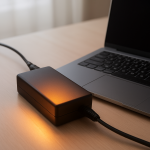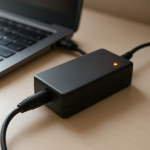
Laptop Charger Overheating Solutions — Safe Fixes and When to Replace It
Quick Answer
A laptop charger usually overheats because it is working harder than it should: poor airflow, high power demand, or worn internal components can push it into thermal overload. In many cases, simple cooling and reducing load stops the heat, but if the charger stays hot during normal use, replacement is the safest fix.
It’s normal for a charger brick to feel warm after 30–60 minutes of charging, especially when the battery is low. It is not normal if it becomes too hot to hold comfortably, smells like hot plastic, or keeps overheating even after you improve ventilation.
If you need a fast fix
- Unplug the charger from the wall and laptop, let it cool on a hard surface for 15–30 minutes, then try again.
- Move the power brick into open air (not on a bed, couch, or carpet) and straighten the cable so it is not coiled.
- Reduce load while charging: close heavy apps, lower screen brightness, and avoid gaming or video exporting until the charger runs cooler.
Quick Diagnosis Table
| Symptom | Most likely cause |
|---|---|
| Charger is too hot to touch within 10–20 minutes | Thermal overload from poor airflow, coiled cable, or an aging power brick |
| Heat is worst near the wall plug or power brick seam | Loose internal connection or failing components inside the charger |
| Heat is worst near the laptop charging tip (connector) | Damaged cable/connector, poor contact, or debris causing resistance and heat |
| Overheats mainly during heavy use (games, editing) while charging | Laptop pulling near maximum wattage; charger undersized or battery charging at high rate |
| Overheats and charging cuts in/out | Safety shutdown from overheating, unstable cable, or power brick nearing failure |
Why This Happens
Your charger converts high-voltage wall power into the lower voltage your laptop can use. During that conversion, some energy becomes heat, and the charger is designed to shed that heat through its casing and internal components.
Problems start when heat can’t escape (like when the brick is on a blanket) or when the charger has to push extra power (like charging a low battery while you run demanding tasks). Aging parts can also increase internal resistance, which creates even more heat from the same workload.
In plain terms: more electrical resistance or more power demand leads to more heat, and once it crosses a threshold, the charger may feel scorching, smell hot, or shut down to protect itself.
Most Common Causes (Ranked)
- 1) Blocked airflow and heat trapping: Chargers cool passively, so placing the brick on fabric, inside a bag, or under papers can quickly push it into thermal overload.
- 2) High power load while charging: Gaming, video calls, external monitors, or fast-charging a low battery can make the charger run near its limit and heat up more than usual.
- 3) Coiled or tightly bent cable: A cable wrapped tightly around the brick or bent sharply near the ends can act like a heater by increasing resistance and trapping heat.
- 4) Wrong or low-wattage charger: Using an underpowered or non-matching adapter (or a questionable replacement) forces it to run at maximum output and overheat.
- 5) Failing internal components: Over time, capacitors, solder joints, and insulation can degrade, making the brick run hotter even under normal use.
- 6) Dirty or damaged connector/port: Debris, oxidation, or a loose charging port can cause a poor connection, which creates localized heat at the tip or port.
If the charger runs noticeably cooler after improving airflow or reducing load, that gradual improvement usually indicates thermal overload rather than sudden catastrophic failure.
How to Check the Problem Safely
- Check 1: Feel for where the heat is strongest (brick, wall plug area, cable, or laptop tip) after 5–10 minutes of charging.
- Check 2: Inspect the full cable length for kinks, crushed spots, fraying, or discoloration, especially near the strain relief on both ends.
- Check 3: Make sure the charger is the correct wattage for your laptop (match the label on the charger and the laptop’s recommended wattage).
- Check 4: Test a different wall outlet and avoid power strips temporarily to rule out a loose connection causing arcing and heat.
- Check 5: If possible, try a known-good compatible charger or USB-C PD charger of the correct wattage to compare temperatures.
Safety note: if you notice melting, sparking, crackling sounds, or a burning smell, stop testing immediately and unplug from the wall first.
How to Fix It
- Fix 1 (easiest): Improve cooling: place the brick on a hard, open surface and keep it uncovered; better airflow lowers casing temperature fast.
- Fix 2: Stop coiling the cable during use and remove tight bends near the ends; this reduces resistance and prevents heat buildup in the wire.
- Fix 3: Lower power draw while charging by using Battery Saver, closing heavy apps, and pausing gaming/rendering; less load means less heat in the power stage.
- Fix 4: Replace the charger with a genuine or certified equivalent of the correct wattage; a properly sized, high-quality adapter runs cooler and is less likely to fail.
- Fix 5 (advanced/last resort): Have the laptop’s charging port and internal power circuitry checked if heat concentrates at the connector or charging is intermittent; a loose DC jack or board issue can cause repeated overheating.
Signs of Battery or Hardware Damage
- Charging repeatedly stops and starts, even with a different outlet.
- Battery percentage jumps, drains unusually fast, or refuses to charge above a certain level.
- The laptop gets unusually hot near the charging port or bottom case during charging.
- You smell hot plastic, electrical “burning,” or see discoloration on the charger, plug, or laptop port.
- The charging connector feels loose, wobbly, or must be held at an angle to work.
- The charger makes buzzing, crackling, or clicking noises (beyond a faint normal hum).
- The power brick casing is bulging, separating at the seam, or feels sticky/soft from heat.
When Repair Is No Longer Worth It
If the charger overheats under light use, has a burning smell, or shows physical damage, replacement is usually the right call because internal repairs are unsafe for most users. Chargers are sealed, high-voltage devices, and “taping a cable” or using a damaged brick can create fire risk.
As a rule of thumb, if a new OEM or certified charger costs less than a diagnostic visit (or less than the value of the laptop’s remaining lifespan), replace the charger first. If a new charger still overheats or charging remains unstable, put the money toward a port repair or consider replacing the laptop if the motherboard power section is failing.
How to Prevent This Problem in the Future
- Charge on hard surfaces and keep the power brick in open air, not under blankets or inside bags.
- Avoid running heavy workloads while the battery is fast-charging from low levels; plug in earlier or reduce load temporarily.
- Do not coil the cable tightly around the brick during charging; use a loose loop for storage after it cools.
- Use the correct wattage charger (or higher if approved for your laptop), and avoid cheap unbranded replacements.
- Keep the charging port and connector clean and dry; gently remove visible lint and avoid yanking the cable.
- Unplug by the plug body, not the cord, to prevent internal wire breakage and hot spots.
- Give the charger breaks during long sessions if it runs hot, and replace it at the first signs of cracking, odor, or intermittent charging.
FAQ
Is it normal for a laptop charger to get hot?
Warm is normal, especially while charging a low battery or powering the laptop under load. It should not be painfully hot, smell like burning, or make the charger shut off. If it’s too hot to hold comfortably, treat it as overheating and correct airflow or replace it.
Can an overheating charger damage my laptop or battery?
Yes. Repeated overheating can cause charging to cut out and can stress the laptop’s charging port and power circuitry, and unstable power can affect battery health over time. A failing charger can also create heat at the connector, which may damage the port.
Should I keep using the charger if it still works but gets very hot?
No, not if it becomes very hot under normal use or shows warning signs like odor, discoloration, buzzing, or intermittent charging. Working “for now” can still mean the components are deteriorating and may fail suddenly. Using a correct, certified replacement is the safer option.
For a full overview of this issue and step-by-step solutions, read the complete troubleshooting guide.
Mark Reynolds covers common battery and charging problems with straightforward explanations and real-world context. For more detailed steps, visit the full guide here.