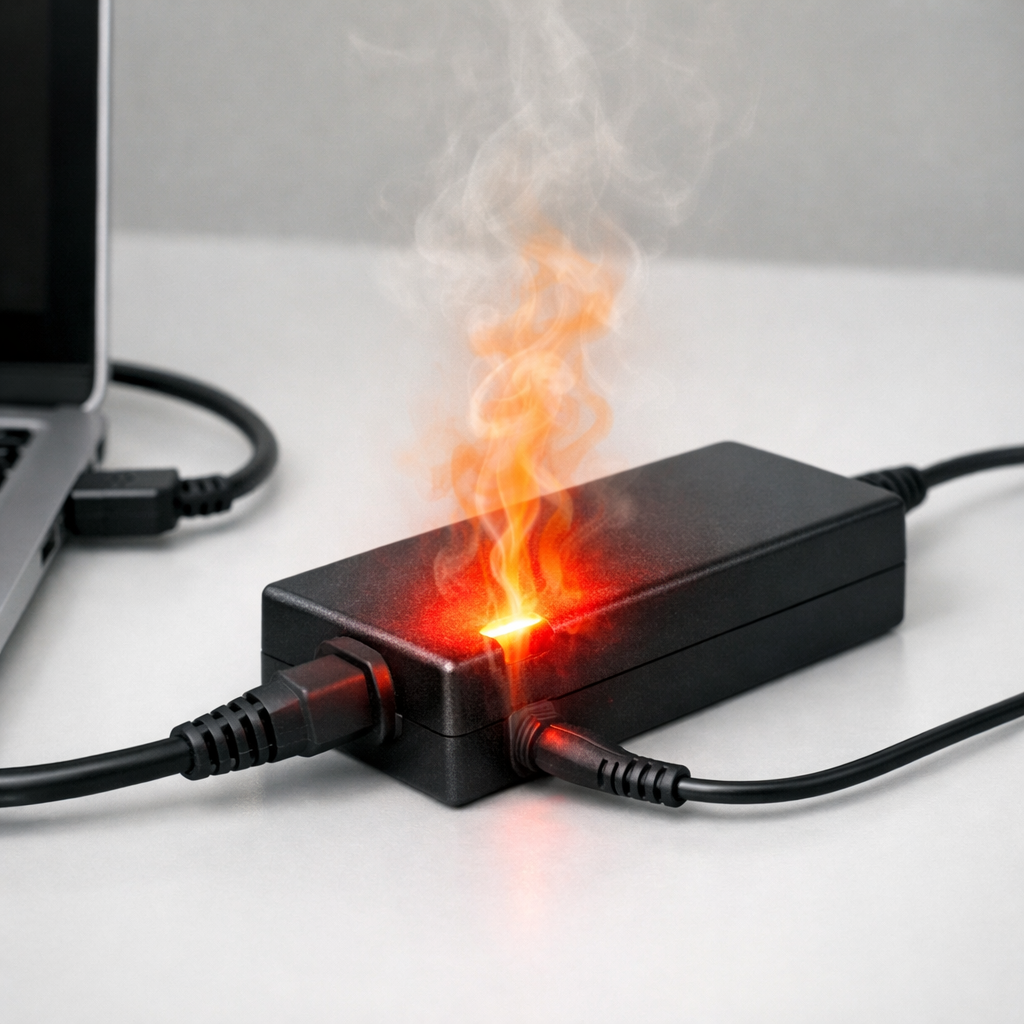
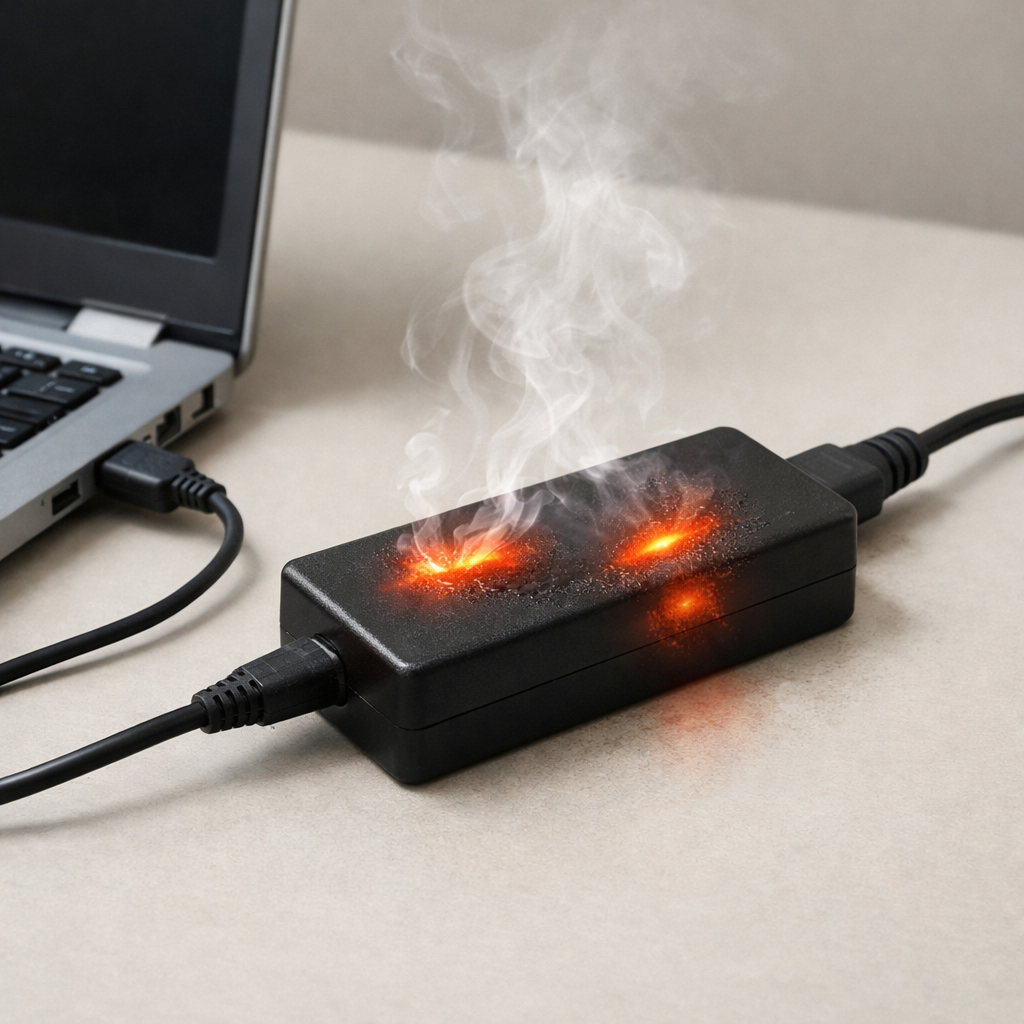
Laptop Charger Overheating — Normal or a Sign of Hardware Failure?
Quick Answer
A laptop charger usually gets warm because it’s converting wall power into the lower voltage your laptop needs, and that conversion creates heat. Under sustained electrical load (gaming, video calls, charging from low battery, or powering a dock), the adapter works harder, so heat accumulates inside the “brick.”
Warm to hot can be normal within 15–45 minutes of heavy use, especially on higher-watt chargers. It becomes a concern when the charger is too hot to hold, smells hot, causes charging to cut in and out, or gets dramatically hotter than it used to in the same situation.
If you need a fast fix
Move the adapter onto a hard, open surface (desk or tile), not a bed, couch, carpet, or inside a bag.
Unplug and let it cool for 10–15 minutes, then retry with a lighter load (close games, pause charging a phone from the laptop).
Inspect the cable ends and connector for damage, then reseat all plugs firmly (wall, brick, and laptop).
Quick Diagnosis Table
Symptom
Most likely cause
Charger is hot only during gaming or heavy work
Normal heat buildup from sustained high watt draw and conversion loss
Charger is hot even when laptop is idle or fully charged
Adapter running near its limit, poor ventilation, or internal wear increasing resistance
Charging cuts out, then returns after cooling
Over-temperature protection triggering due to heat accumulation under load
Hot smell, buzzing, or crackling from the brick
Failing internal components or arcing at a damaged connector
Connector or cable is hotter than the brick
Loose plug, bent pin, frayed cable, or dirty port causing resistance heating
Why This Happens
Your charger is a small power converter. It takes high-voltage AC from the wall and turns it into a stable DC output for the laptop, and no conversion is 100% efficient, so some energy becomes heat.
Heat gets worse when the laptop demands more power for longer periods, like running a game, exporting video, charging a nearly empty battery, or powering accessories through USB-C. If the adapter is also sitting on fabric or tucked behind a desk with little airflow, that heat can’t escape and builds up inside the casing.
In simple terms: the more watts your laptop pulls and the longer it pulls them, the more heat the adapter has to shed, and poor airflow makes it feel much hotter.
Most Common Causes (Ranked)
1) High sustained power draw: Gaming, creative apps, and fast charging can push the adapter close to its rated wattage for long stretches, so internal heat accumulates.
2) Poor ventilation or heat trapping: Bricks run much hotter on carpet, blankets, couches, or inside bags because heat can’t dissipate.
3) Undersized or non-matching charger: Using a lower-watt or generic charger can force it to operate at its ceiling, increasing temperature and triggering thermal cutoffs.
4) Cable/connector resistance: A slightly loose USB-C tip, bent barrel pin, frayed wire, or dusty port can create resistance that turns into heat near the connector.
5) Aging adapter components: Over time, internal capacitors and solder joints can degrade, making the charger less efficient and hotter under the same load.
6) Hot environment or direct sunlight: A warm room, heater nearby, or sun on the brick reduces how much heat it can shed, so it runs hotter even with normal use.
If the charger runs noticeably cooler after improving airflow or reducing load, that usually indicates normal heat buildup rather than a serious failure.
How to Check the Problem Safely
Check 1: Feel for where the heat is concentrated (brick vs cable vs connector) after 20 minutes of use; a very hot connector points to a contact or cable issue.
Check 2: Compare temperatures under two scenarios: laptop idle versus doing something demanding; a big difference suggests load-related heat, which is often normal.
Check 3: Verify the charger wattage matches your laptop’s requirement (look at the laptop label/manual and the charger output rating); an under-watt charger often runs hottest.
Check 4: Try a different wall outlet and avoid power strips temporarily; a loose strip connection can add resistance and heat at the plug.
Check 5: If you have access to a known-good OEM charger, test with it for one full charging cycle; cooler operation strongly suggests your original adapter is wearing out.
Safety note: if you smell burning plastic, hear buzzing/crackling, or see discoloration, unplug immediately and do not continue testing.
How to Fix It
Fix 1 (easiest): Improve airflow by placing the brick on a hard surface with space around it; better heat shedding reduces internal temperature fast.
Fix 2: Reduce sustained load while charging (close heavy apps, pause gaming, dim the screen); lower watt draw means less conversion heat.
Fix 3: Use the correct wattage OEM or certified USB-C PD charger and cable; a properly rated adapter runs cooler because it isn’t operating at its limit.
Fix 4: Address connector problems: clean dust from the port gently, stop using a cable with kinks or exposed insulation, and avoid side-loading the plug; better contact reduces resistance heating.
Fix 5 (advanced/last resort): Have a technician inspect the laptop charging port or motherboard power circuitry if multiple chargers overheat or charging is unstable; the laptop itself may be drawing power inefficiently.
Signs of Battery or Hardware Damage
Charger becomes too hot to touch or causes pain within a few seconds of contact.
Burning smell, visible melting, discoloration, or deformation on the brick, plug, or connector.
Charging repeatedly stops and starts, especially after the charger gets hot.
Sparks at the outlet or at the laptop connector, or crackling/buzzing sounds.
Laptop reports “plugged in, not charging,” “slow charger,” or rapidly drops battery percentage under load.
Battery swelling, trackpad lifting, or the bottom case bulging.
Port feels loose, wobbly, or only charges at certain angles.
When Repair Is No Longer Worth It
If the charger shows heat damage, smells burnt, or repeatedly triggers cutoffs, replacing the adapter is usually the best move because internal components are sealed and not safely serviceable. For laptops with a damaged charging port, repair can be worthwhile if the device is otherwise in good condition and parts are available.
As a rule, consider replacement when repair costs approach 30–50% of the laptop’s current used value, or when you rely on the device daily and need predictable charging. Spending a bit more on a genuine high-watt adapter and quality cable often prevents repeat failures.
How to Prevent This Problem in the Future
Keep the adapter in open air while charging; do not cover it with clothing, bedding, or papers.
Avoid charging while the charger is inside a backpack or wedged behind furniture where heat can’t escape.
Use the correct wattage charger for your laptop and workload, especially for gaming laptops and USB-C docks.
Replace worn cables early; frays, kinks, and loose connectors increase resistance and heat.
Don’t strain the connector; route the cable so it doesn’t tug sideways on the laptop port.
Reduce sustained load during long charging sessions when possible, or take breaks so the adapter can cool.
Keep ports clean and dry, and unplug by the plug body rather than yanking the cable.
FAQ
Is it normal for a laptop charger brick to get hot?
Yes, some heat is normal because power conversion creates heat, and it builds up during long, high-demand sessions. Warm to moderately hot after 15–45 minutes can be expected, especially with higher-watt chargers. It’s not normal if it becomes too hot to hold, smells, or causes charging to cut out.
Why does my charger overheat only when I’m gaming or using a dock?
Gaming and docks can raise power demand for long periods, so the adapter stays near its limit and heat accumulates inside the brick. If airflow is poor, the temperature climbs faster. Improving ventilation and using a correctly rated charger often fixes this.
Should I keep using a charger that gets hot but still works?
If it only gets warm/hot under heavy load and there are no smells, noises, melting, or charging dropouts, it’s usually fine with better ventilation. If the heat is new, extreme, or concentrated at the connector or cable, stop using it and replace the adapter or cable. When in doubt, an OEM or certified replacement is safer than “pushing through” with an overheating brick.
Mark Reynolds writes about battery behavior, charging issues, and practical troubleshooting for everyday device problems. For a step-by-step overview, see the full battery troubleshooting guide.