Laptop Charger Overheating Problem — Common Causes and Real Fixes
Quick Answer
The most likely reason a laptop charger overheats is that your power source or power settings are making the charger work harder than normal. A loose wall outlet, a failing power strip, or a recent software power-management change can cause unstable charging that repeatedly ramps power up and down, which creates extra heat in the adapter.
It usually means the charger is converting power inefficiently or delivering a higher-than-usual load for long periods. Mild warmth during charging is common, but overheating that starts within 5–20 minutes, smells hot, or makes charging cut in and out is a sign to troubleshoot now.
If you need a fast fix
- Unplug the charger from the wall and laptop for 10 minutes, then plug it directly into a known-good wall outlet (skip power strips and extension cords).
- Move the charging brick onto a hard, open surface and untangle the cable so heat can escape (do not cover it with bedding or clothing).
- On the laptop, switch to a balanced power mode and stop heavy tasks for 10–15 minutes to reduce charging load and heat.
Quick Diagnosis Table
| Symptom | Most likely cause |
|---|---|
| Charger gets hot fast, but only in one room/outlet | Loose outlet, unstable mains power, or a worn power strip causing fluctuating input |
| Heat spike started after an OS update or new power utility | Changed power management, fast-charge behavior, or higher CPU background activity while charging |
| Charging repeatedly switches between “plugged in” and “on battery” | Intermittent connection at the outlet, adapter cable, or DC jack causing power cycling |
| Charger is hottest at the brick, while laptop stays normal | Adapter running near its limit due to higher requested wattage or poor ventilation around the brick |
| Charger and laptop both run hot, battery drains while plugged in | System drawing high power (gaming, high performance mode) or battery aging causing inefficient charge/discharge behavior |
Why This Happens
Your charger turns AC power from the wall into the DC power your laptop needs. If the input power is unstable or the laptop suddenly asks for more power due to settings or background activity, the adapter has to work harder, and extra work shows up as heat.
A common real-world example is charging through a tired power strip that has a loose socket. The connection “micro-disconnects” as you bump the desk, so the charger repeatedly restarts and ramps up again, which warms it quickly.
Another example is after a system update: the laptop may switch to a more aggressive charging curve, enable fast charging, or run indexing and updates in the background. That combination raises the load while the battery is also charging.
When power input fluctuates or the charge rate jumps around, the adapter runs hotter, and you may notice buzzing, flickering charge icons, or a brick that becomes uncomfortable to touch.
Most Common Causes (Ranked)
- 1) Unstable wall power or a failing power strip: Loose outlets, worn power strips, and cheap extension cords can create voltage drops that force the charger to compensate and heat up.
- 2) Software power-management change increasing demand: An OS update, BIOS update, or vendor utility can change performance mode or charging behavior, increasing average wattage while plugged in.
- 3) Intermittent connection at the plug, cable, or DC jack: If the connection is not solid, the adapter repeatedly re-negotiates power and surges, which creates extra heat.
- 4) Charger running near or over its rated wattage: Using a lower-watt adapter, a third-party USB-C charger that cannot sustain full power, or a dock that shares power can overwork the brick.
- 5) Poor ventilation around the charging brick: Chargers need airflow; heat builds up quickly when the brick is on carpet, under blankets, or pressed against other warm devices.
- 6) Background load while charging: Gaming, video rendering, external GPUs, or many USB devices can keep the laptop drawing high power, making the charger run hot for hours.
If the charger runs a bit cooler after changing outlets or power mode, that gradual improvement usually means you’ve removed the biggest load or instability and the adapter is no longer working as hard.
How to Check the Problem Safely
- Check 1: Try a different wall outlet on a different circuit, and plug the charger directly into the wall to rule out power strips and extension cords.
- Check 2: Watch the battery icon for 2–3 minutes and see if it flips between charging and not charging. Any rapid switching suggests a loose connection or unstable power.
- Check 3: Feel where the heat is concentrated: the wall plug, the middle of the brick, the cable, or the laptop port. Heat mainly at the brick points to adapter load or ventilation.
- Check 4: Check your power mode and recent changes. Look for a new vendor “power manager,” “battery health,” or “fast charge” setting that may have been enabled after an update.
- Check 5: If you use USB-C, verify the charger wattage matches your laptop’s requirement and that the cable is rated for that wattage, not just “charging compatible.”
If the charger is too hot to hold comfortably, unplug it and let it cool before continuing, and do not test by “pushing through” the heat.
How to Fix It
- Fix 1 (easiest): Switch to a known-good wall outlet and remove all intermediates (power strip, extension, travel adapter). This stabilizes input power and stops repeated ramp-ups that generate heat.
- Fix 2: Change power settings to reduce load while charging. Use balanced mode, lower screen brightness, and pause heavy apps so the charger supplies steady, lower wattage.
- Fix 3: Disable or adjust fast-charging or charging boost features if available. Slower, steadier charging often reduces adapter temperature noticeably during the first 30–60 minutes of use.
- Fix 4: Inspect and improve physical setup: straighten tight bends, untangle the cable, and place the brick on a hard surface with airflow. Heat trapped by fabric or carpet can make a normal charger feel dangerously hot.
- Fix 5 (advanced/last resort): Update or roll back the BIOS/power utility if the problem started immediately after an update, and consider testing with an OEM charger of the correct wattage. This helps confirm whether the issue is a new power profile or an adapter that cannot meet sustained demand.
Signs of Battery or Hardware Damage
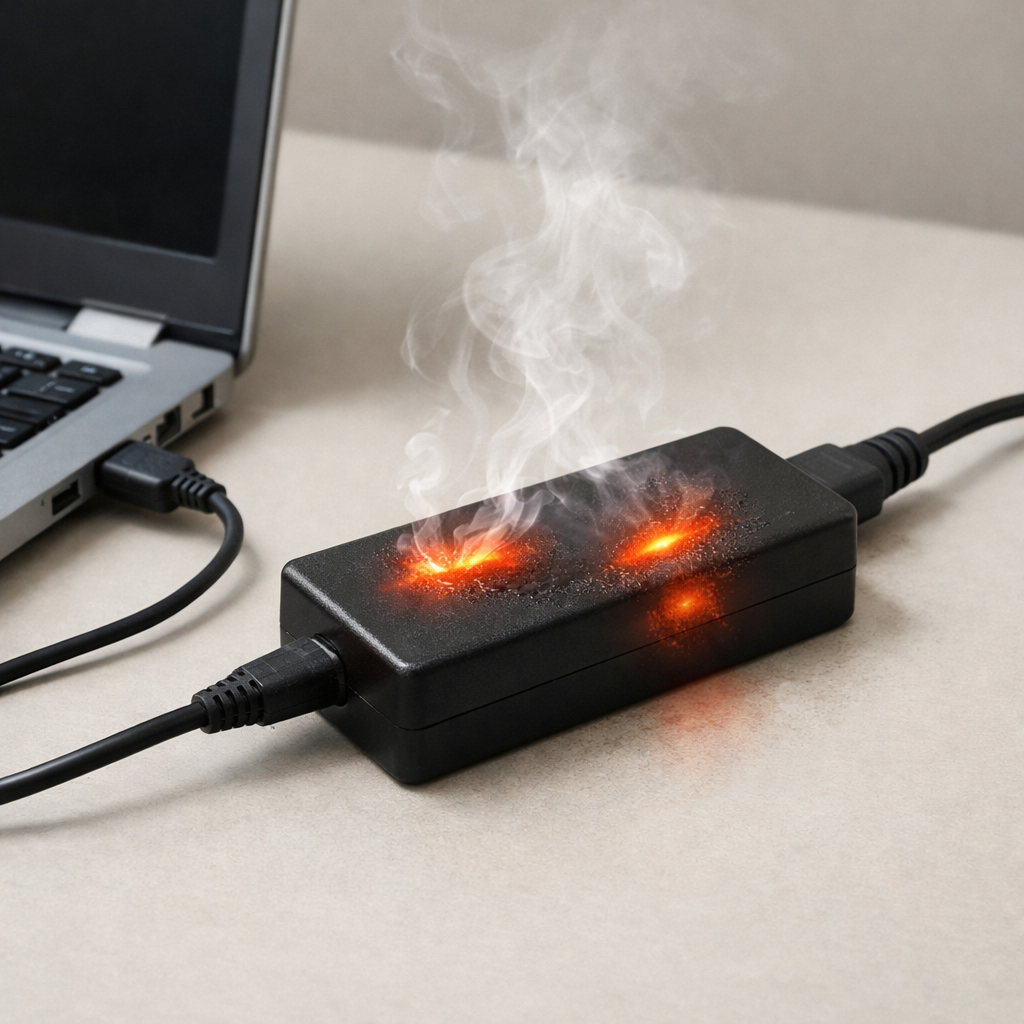
- Burning smell, visible smoke, or discoloration on the adapter, plug, or laptop charging port
- Charger makes crackling sounds, buzzing that is new, or gets hot even when the laptop is off
- Battery percentage jumps up and down or drops while plugged in during light use
- Laptop reports “plugged in, not charging” frequently or charging stops at a low percentage unexpectedly
- Charging port feels loose, wiggles, or only works when the cable is held in a certain position
- Battery swelling, trackpad bulging, or the laptop no longer sits flat
- Repeated shutdowns or sudden performance throttling when the charger is connected
When Repair Is No Longer Worth It
If the charger overheats across multiple outlets, with multiple chargers, or the charging port is loose and the laptop power cuts out, repair may be the safer option than continued troubleshooting. Persistent overheating can damage the battery, charging circuit, or the port, increasing the total repair cost later.
As a rule, replacing a questionable adapter is usually worth it because it is relatively low-cost and removes a major fire risk. If the laptop also needs a DC jack repair or motherboard power repair and the device is older, compare the repair quote to the price of a reliable replacement laptop with a warranty.
How to Prevent This Problem in the Future
- Plug the charger directly into a solid wall outlet when possible, and replace power strips that feel loose or run hot.
- Keep the charger brick in open air on a hard surface, not on carpet, bedding, or inside a crowded bag while charging.
- Use the correct wattage charger and a properly rated cable, especially for USB-C where underpowered adapters can run hot.
- After major OS or BIOS updates, re-check power mode and any vendor battery settings that may reset to “high performance” or “fast charge.”
- Avoid heavy workloads while the battery is rapidly charging if you notice heat issues; let it charge first, then run demanding tasks.
- Don’t sharply bend the cable near the brick or connector, and replace cables that show kinks, fraying, or intermittent charging.
- Use a quality surge protector if your area has unstable power, but replace it when outlets become loose or the unit is old.
FAQ
Is it normal for a laptop charger to get warm?
Yes, warm is normal because the adapter converts power and loses some energy as heat. It becomes a problem when it gets hot quickly, is uncomfortable to touch, smells hot, or charging becomes unstable. If the heat is new, treat it as a change in power demand or power stability that needs checking.
Why did my charger start overheating after an update?
Updates can change power plans, enable background tasks, or adjust charging behavior, which raises the average load while plugged in. That extra load makes the adapter work harder and run hotter. Check your power mode, battery/charging utilities, and whether fast charging was enabled.
Can a bad outlet or power strip really cause overheating?
Yes, loose or worn connections can cause small interruptions and voltage drops, which forces the charger to repeatedly ramp back up. That constant correcting behavior generates extra heat and can also make charging flicker. If the problem disappears when you use a different wall outlet, the outlet or strip is a strong suspect.
For a full overview of this issue and step-by-step solutions, read the complete troubleshooting guide.
If you’re dealing with repeated battery issues, Mark Reynolds recommends focusing on simple checks before assuming hardware failure. You can find a broader breakdown in the battery troubleshooting guide.