Device Charging Suddenly Slow — Power Delivery or Thermal Limitation?
Quick Answer
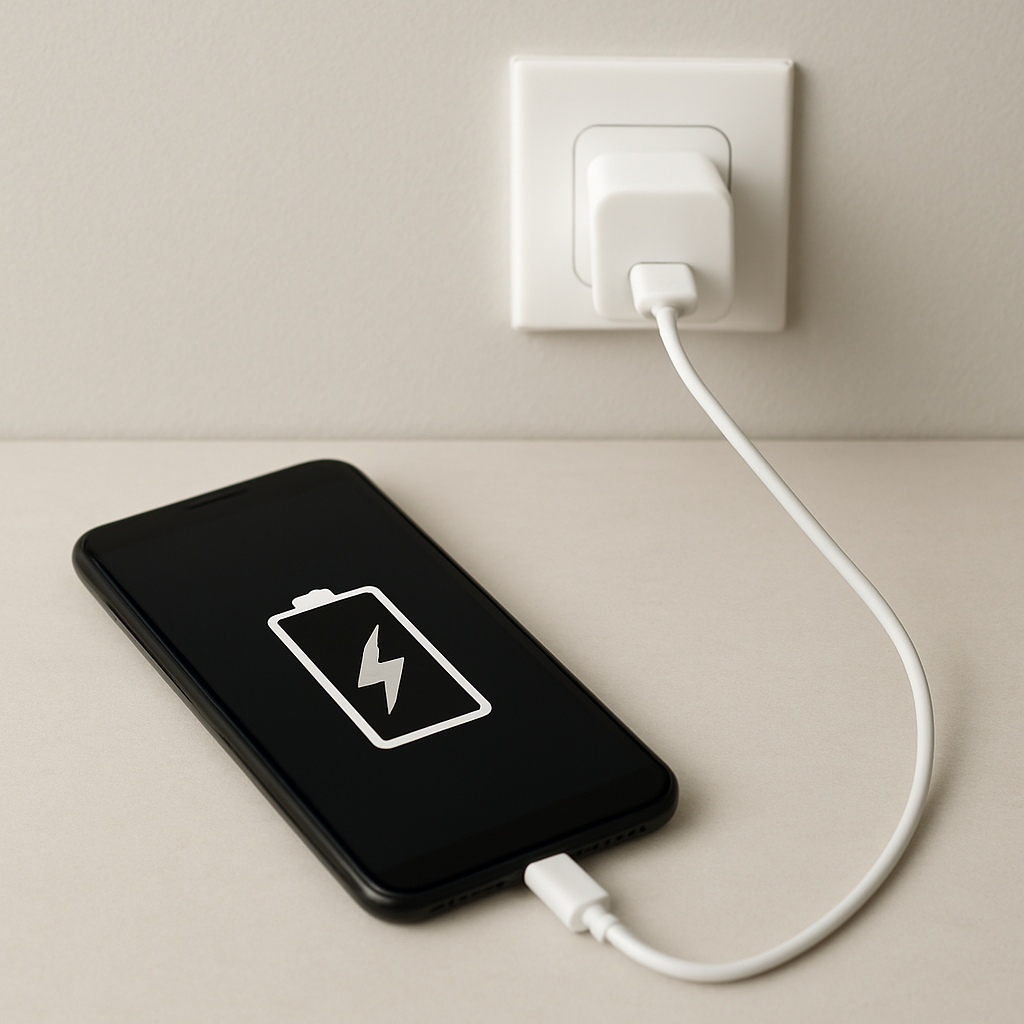
Sudden slow charging is most often caused by intermittent power supply fluctuation: the charger, cable, outlet, or port briefly loses stable power, so your device keeps dropping in and out of fast charging. The phone/tablet/laptop then falls back to a slower “safe” charging mode, which looks like the battery is barely moving.
This usually means the device is repeatedly renegotiating power (especially with USB-C Power Delivery) or protecting itself from unstable input. It commonly happens in short cycles over minutes, or it can persist for hours until the weak link (cable, adapter, or port) is fixed.
If you need a fast fix
- Swap to a known-good cable and wall charger (preferably the original or a reputable PD charger), then plug directly into a wall outlet.
- Unplug, wait 10 seconds, and reconnect firmly on both ends to reset the charging “handshake” and stop partial connections.
- Let the device cool for 10–15 minutes and remove thick cases; heat can combine with unstable power and force slow charging.
Quick Diagnosis Table
| Symptom | Most likely cause |
|---|---|
| Charging speed jumps up and down (fast, then slow) | Loose cable/port contact causing power to drop and reconnect |
| Fast charging only works at certain angles | Worn, dirty, or damaged port; cable tip not seating fully |
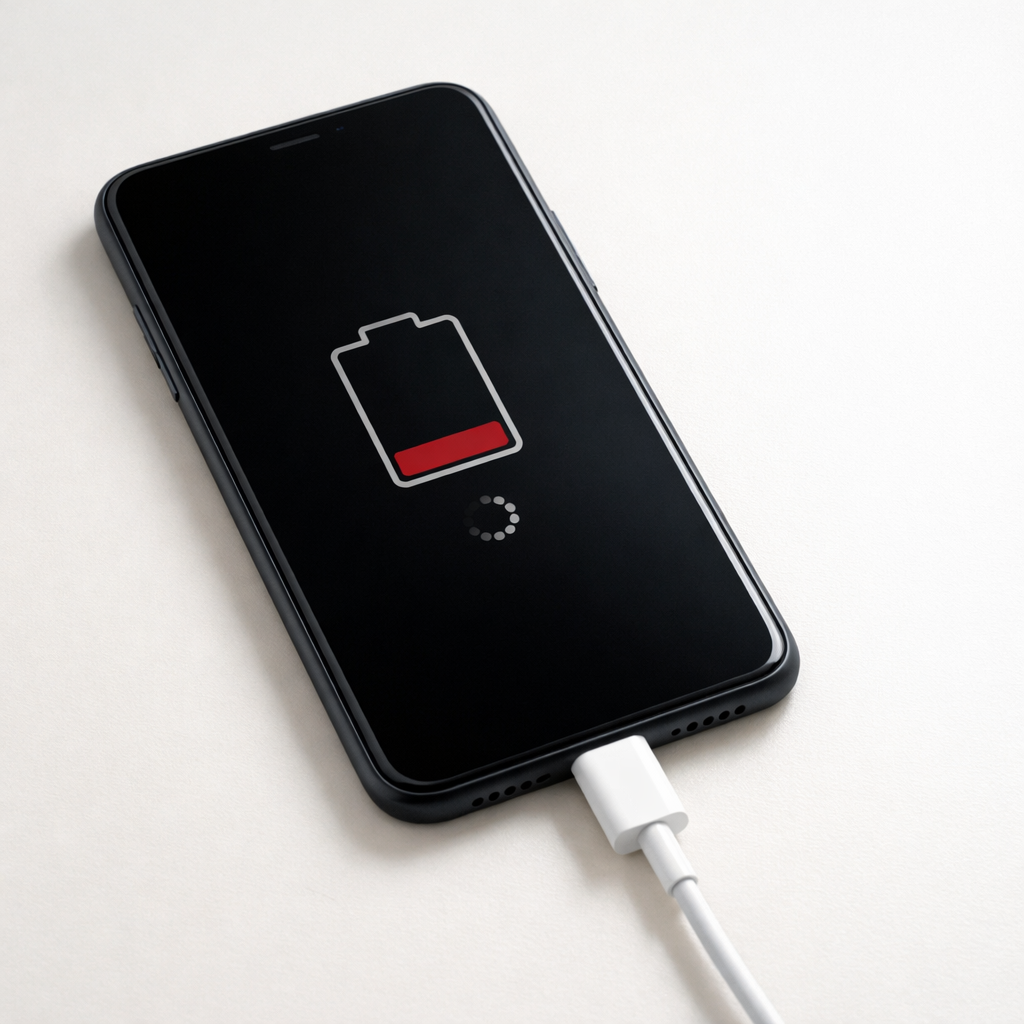
| “Charging” shows, but battery % barely increases | Adapter/cable can’t hold stable wattage; device falls back to low power |
| Slow charging starts after the device warms up | Thermal limiting triggered, often made worse by fluctuating input |
| Charging is slow in one room/outlet but normal elsewhere | Outlet/power strip issues or overloaded circuit causing unstable input |
Why This Happens
Modern devices don’t just “take power.” They communicate with the charger to agree on what voltage and current to use. If that power delivery keeps getting interrupted, even for a split second, the device often resets the connection and chooses a slower, safer level.
Real-world examples are common: a cable that looks fine but has an internal break, a USB-C plug that wiggles slightly, a power strip with a worn socket, or a laptop charger that overheats and reduces output. Even pocket lint in a phone’s port can stop the plug from clicking in all the way, which makes the connection unstable.
When the input power fluctuates, the device protects itself by reducing charging speed, which causes the “suddenly slow” behavior and inconsistent battery percentage gains.
Most Common Causes (Ranked)
- 1) Loose or worn cable connection: Small movements can interrupt power briefly, forcing the device to restart charging and drop out of fast charge.
- 2) Cable failure (internal break or counterfeit cable): The cable may pass some power but can’t sustain higher wattage without voltage drops, so charging slows or cycles.
- 3) Dirty or damaged charging port: Lint, corrosion, or bent pins prevent a solid electrical contact, leading to constant micro-disconnects.
- 4) Power adapter instability or heat throttling: Some adapters reduce output when warm, or they can’t keep PD output steady under load.
- 5) Outlet, power strip, or vehicle USB port fluctuations: Shared circuits and low-quality power strips can create inconsistent input that looks like charger “randomness.”
- 6) Thermal limitation on the device: If the battery or internal board gets hot, the device may limit charging even if your charger is fine, and unstable power makes it happen sooner.
If charging becomes more consistent after swapping one item (like the cable) or after the device cools, that gradual improvement usually points to a connection or heat issue rather than a failing battery.
How to Check the Problem Safely
- Check 1: Try a different wall outlet (not a power strip) and see if charging speed becomes steady for at least 10 minutes.
- Check 2: Swap in a known-good cable and charger that support your device’s fast charging standard (USB-C PD for many phones, tablets, and laptops).
- Check 3: Inspect the cable ends for looseness, discoloration, kinks, or a plug that feels “mushy” instead of snug.
- Check 4: Look inside the charging port with a bright light; if you see lint packed at the back or obvious damage, that’s a strong clue.
- Check 5: Feel for heat: if the device or adapter is hot to the touch, unplug and let both cool, then retest charging in a cooler spot.
Safety note: avoid poking the port with metal objects and don’t force a connector that doesn’t seat smoothly.
How to Fix It
- Fix 1 (easiest): Use a different cable (short, reputable, and rated for fast charging) because stable, low-resistance cables prevent voltage drops that trigger slow mode.
- Fix 2: Change the power source: plug the charger directly into a wall outlet and remove power strips or multi-adapters to eliminate an unstable link.
- Fix 3: Clean the port carefully: power off the device, then use a wooden toothpick or soft plastic pick to gently lift lint out without scraping; a clean port helps the plug lock in firmly.
- Fix 4: Reduce heat while charging: remove the case, stop gaming/video calls, keep the device out of sunlight, and charge on a hard surface so the device doesn’t thermal-limit as quickly.
- Fix 5 (advanced/last resort): If the port is loose, charges only at angles, or disconnects when touched, schedule a port inspection/replacement; a worn port can’t maintain stable power no matter what charger you use.
Signs of Battery or Hardware Damage
- Battery percentage drops quickly even when you are not using the device.
- Device gets unusually hot during light tasks or while charging.
- Charging repeatedly starts and stops with no cable movement.
- Swollen back cover, screen lifting, or a device that won’t sit flat.
- Burning smell, crackling, or visible discoloration near the port or charger.
- Port feels loose, pins look bent, or the connector will not seat fully.
- Random shutdowns or reboots when the charger is connected.
When Repair Is No Longer Worth It
If the charging port, power management board, or battery is failing, repairs can be worthwhile on newer or higher-value devices, but less so on older models with multiple issues. When slow charging comes with overheating, swelling, or frequent disconnects, prioritize safety and consider professional service quickly.
As a rule, if the repair estimate is close to half the cost of a reliable refurbished replacement, replacement often makes more sense. Also consider downtime, warranty status, and whether you’ve already tried a new cable and charger, since those are low-cost fixes that solve a large share of intermittent power problems.
How to Prevent This Problem in the Future
- Use high-quality cables rated for your device’s charging level (PD/fast-charge capable), and replace cables at the first sign of looseness.
- Avoid charging from worn power strips, loose outlets, or low-quality car USB ports that can fluctuate under load.
- Plug and unplug by holding the connector head, not the cable, to prevent internal wire breakage.
- Keep the charging port clean by periodically checking for lint, especially if the device goes in pockets or bags.
- Charge in a cool, ventilated area and avoid heavy use while charging to reduce thermal limiting.
- Don’t bend the cable sharply near the connector; use gentle loops and strain relief.
- If your device supports it, use optimized/battery health charging features overnight and reserve fast charging for when you need it.
FAQ
Is this more likely Power Delivery (PD) trouble or battery aging?
If charging speed changes in bursts (fast then slow) or depends on cable angle, it’s more likely a PD handshake or connection stability issue. Battery aging usually causes shorter runtime and slower charging near higher percentages, but it’s typically more consistent. Try a known-good PD charger and cable first because that test is quick and often conclusive.
Why does my device say “fast charging” but still charge slowly?
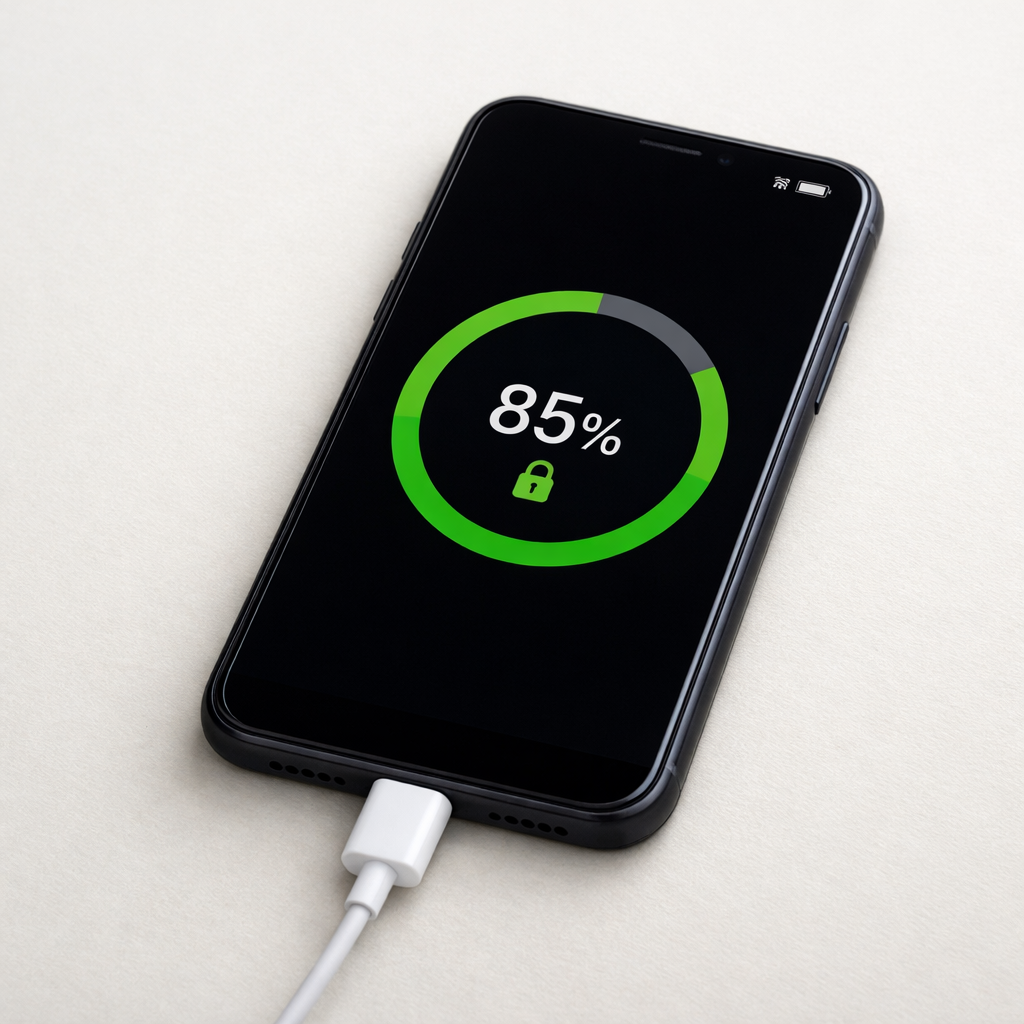
The label can appear briefly during connection, then the device drops to a lower rate if it detects unstable power or rising temperature. Another common reason is background usage: navigation, gaming, hotspot, or video calls can consume most of the incoming power. For a fair test, enable airplane mode and let the screen stay off for 10–15 minutes.
Can heat alone cause sudden slow charging?
Yes, many devices reduce charging speed to protect the battery when temperatures rise. However, heat often works together with intermittent power: unstable input creates extra inefficiency and can warm the charger and device faster. If slow charging improves after cooling and stays stable with a better cable/adapter, you’ve likely found the cause.
Mark Reynolds covers common battery and charging problems with straightforward explanations and real-world context. For more detailed steps, visit the full guide here.
For a full overview of this issue and step-by-step solutions, read the complete troubleshooting guide.