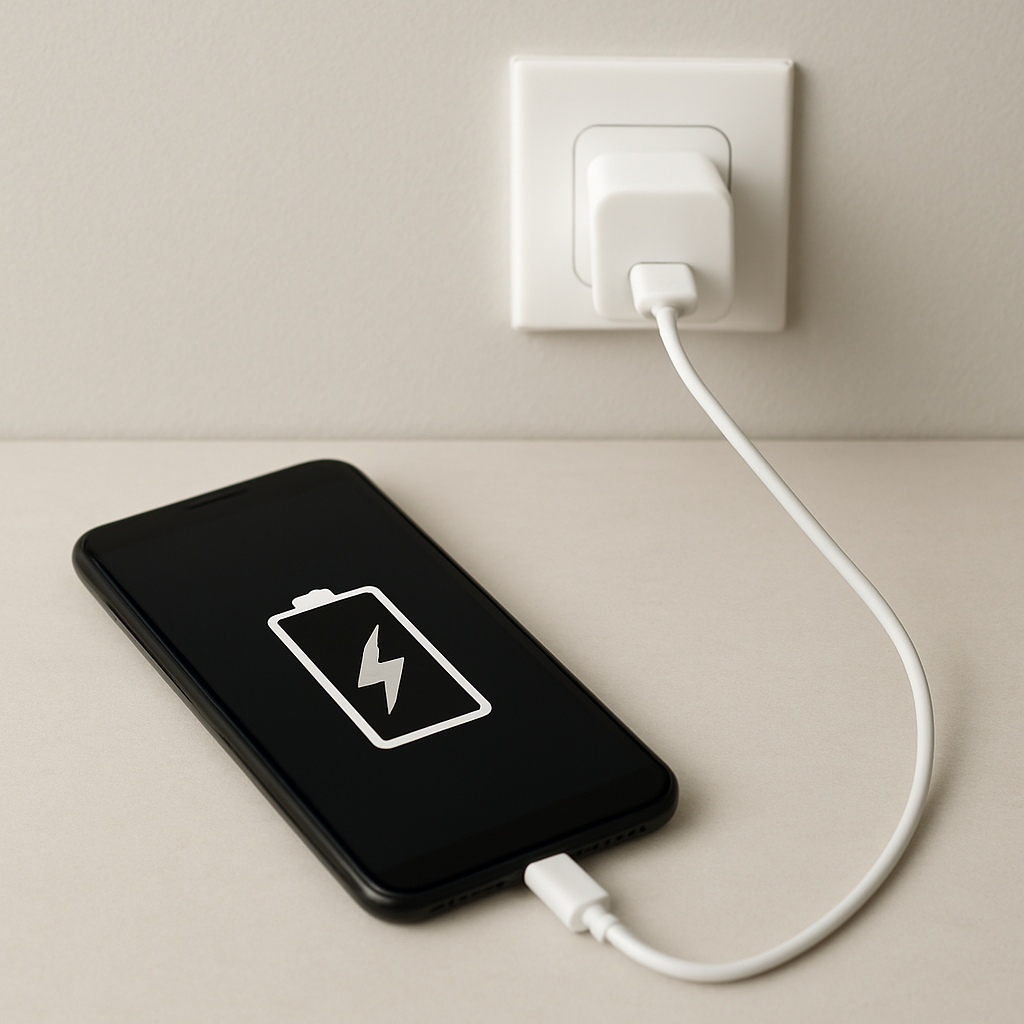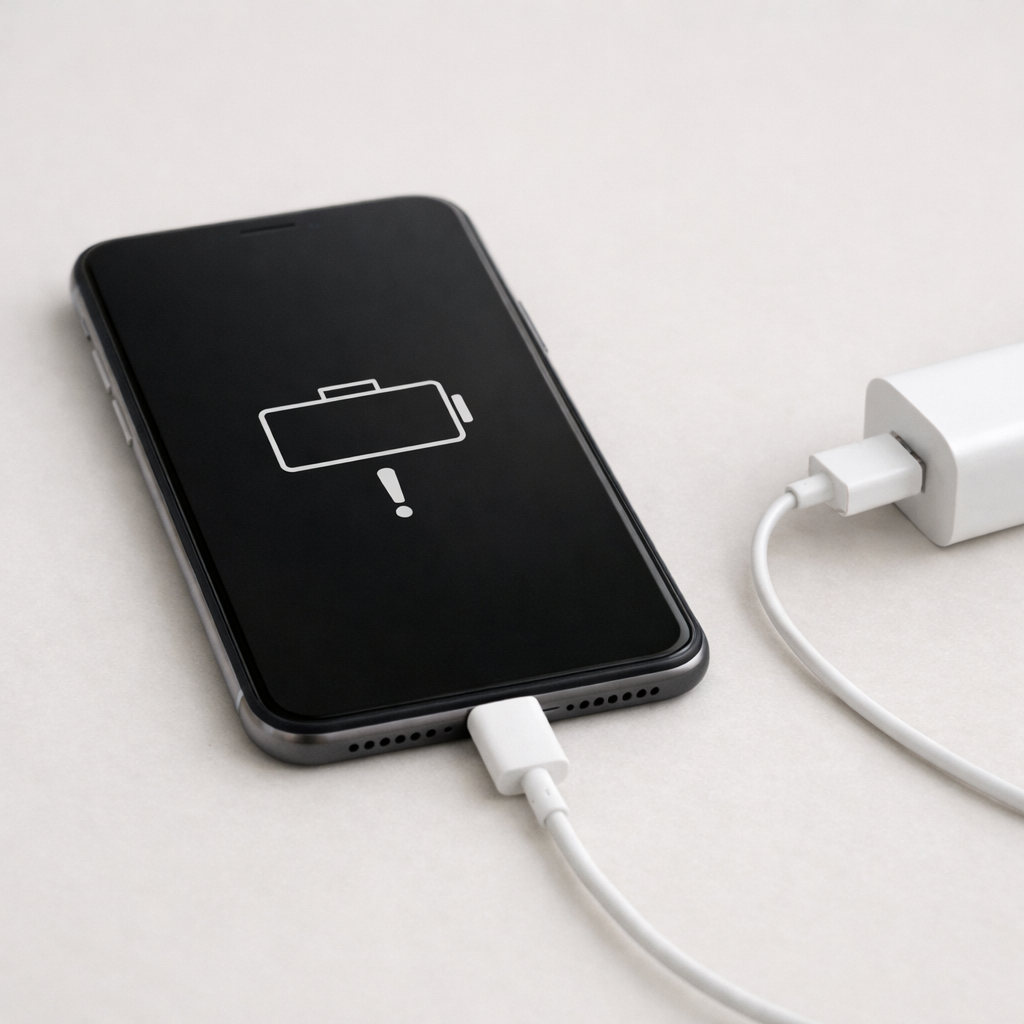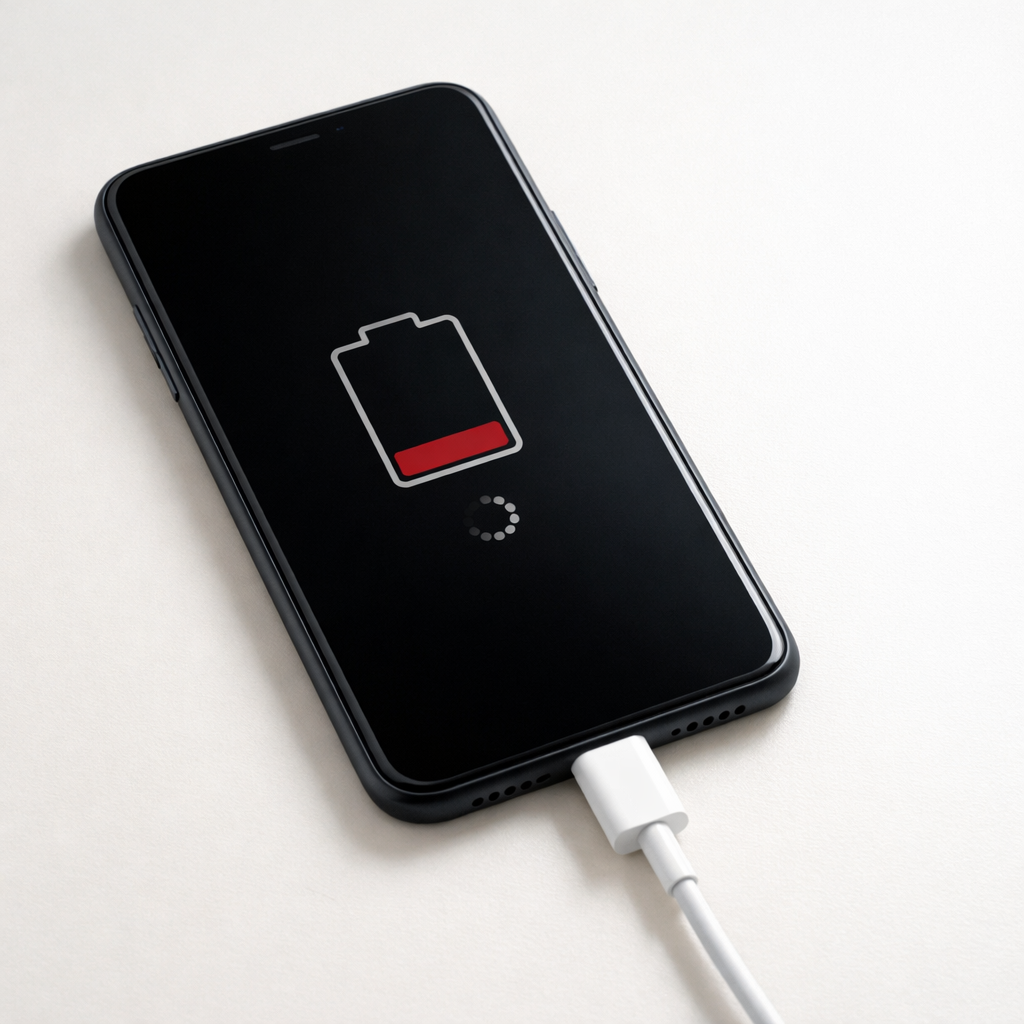
Device Charging Slow All of a Sudden — Power Source or Thermal Limitation?
Quick Answer
When a device starts charging much slower all of a sudden, the most common reason is heat. If the battery, charging port, or internal power circuits get too warm, the device will deliberately reduce charging speed to protect the battery and prevent damage.
This “thermal throttling” can happen within minutes of plugging in, especially while using the device, charging in a warm room, or charging under a pillow/blanket. Once it cools down, charging speed often returns to normal, though it may take 10–30 minutes to fully recover.
If you need a fast fix
- Unplug the charger, remove any case, and let the device cool for 10–15 minutes in open air.
- Plug into a wall outlet using a known-good charging cable and the original (or certified) charger.
- Stop heavy use while charging (gaming, video calls, hotspot) and turn on Airplane mode or Low Power Mode for a quick boost.
Quick Diagnosis Table
| Symptom | Most likely cause |
|---|---|
| Charging is fast at first, then slows a lot after 5–15 minutes | Thermal limitation: the device warms up and reduces power to protect the battery |
| Charging is slow only when you use the device (games, GPS, video) | Heat plus high power draw: the device can’t charge fast and run hard workloads at the same time |
| Charging is slow on one charger/outlet but normal elsewhere | Power source issue: weak adapter, damaged cable, dirty port, or low-power USB port |
| Charging pauses or cycles between charging/not charging | Overheating, unstable cable connection, or port contamination causing intermittent contact |
Why This Happens
Modern phones, tablets, laptops, and handheld devices constantly monitor temperature and charging conditions. When sensors detect too much heat, the device lowers the charging current or voltage so the battery doesn’t get stressed.
In real life, this often shows up when you charge in a car on a sunny day, play a graphics-heavy game while plugged in, or fast-charge with a thick case that traps heat. Even a warm charger brick, a warm room, or poor airflow on a couch can push the temperature over the limit.
The cause leads directly to the symptom: as internal temperature rises, charging speed drops on purpose, so the percentage climbs much more slowly than you’re used to.
Most Common Causes (Ranked)
- 1) Device overheating during charging: Fast charging creates heat, and the device will reduce charging power when it crosses a safe temperature threshold.
- 2) Heavy usage while charging: High CPU/GPU use generates extra heat and uses power, so less energy goes into the battery and the device throttles charging sooner.
- 3) Poor airflow or heat trapped by a case/soft surface: Charging on a bed, couch, or under a pillow prevents heat from escaping and triggers thermal limits.
- 4) Power source not delivering steady wattage: A low-quality adapter, worn cable, loose connector, or weak USB port can force the device into slow charging, which may look like a sudden change.
- 5) Port contamination or moisture detection: Lint, debris, or moisture prompts safety modes that reduce or stop charging to prevent corrosion or overheating at the connector.
- 6) Battery aging increasing heat and resistance: An older battery can warm up faster and accept power more slowly, so the device limits charging earlier than it used to.
If charging gradually improves after cooling or after you stop using the device, that usually indicates normal protective throttling rather than a serious hardware failure.
How to Check the Problem Safely
- Check 1: Feel for heat buildup. If the back near the battery, the charging area, or the adapter is uncomfortably warm, unplug and let everything cool before testing again.
- Check 2: Compare wall outlet vs computer USB. Test with a wall outlet and a known-good adapter; many computer USB ports provide less power and can appear “suddenly slow.”
- Check 3: Try a different cable and adapter that you trust. If charging speed returns immediately, the original cable/brick is likely the bottleneck.
- Check 4: Inspect and gently clean the charging port. Use a bright light; if you see lint, carefully remove it with a wooden toothpick or soft plastic pick (no metal).
- Check 5: Check charging behavior when the device is idle. Plug in, close apps, and leave the screen off for 15 minutes; if it speeds up, heat and usage were the main triggers.
Safety note: if you notice swelling, burning smell, or the device gets hot very quickly, stop charging and don’t continue troubleshooting while plugged in.
How to Fix It
- Fix 1 (easiest): Cool it down and improve airflow. Remove the case, place the device on a hard surface, and charge in a cooler room; this reduces thermal throttling quickly.
- Fix 2: Lower the workload while charging. Turn on Airplane mode, Low Power Mode, and reduce screen brightness; less heat means the device can accept more charging power.
- Fix 3: Use the right power source. Use the original or certified charger and a good cable, and avoid low-power USB ports; stable wattage helps the device stay in faster charging modes.
- Fix 4: Clean and stabilize the connection. Remove lint from the port and ensure the connector seats firmly; a poor connection can cause repeated renegotiation and slow charging.
- Fix 5 (advanced/last resort): Update software and check battery health. Firmware updates can improve power management, and a battery health reading showing significant wear may justify a battery replacement to reduce heat and restore charge rate.
Signs of Battery or Hardware Damage
- Battery swelling, bulging back cover, or screen lifting from the frame.
- Device becomes hot very quickly even during light charging or idle use.
- Charging repeatedly starts and stops with the same cable and charger, even after cleaning the port.
- Random shutdowns, sudden drops in battery percentage, or the device stuck at a certain percent for a long time.
- Burning smell, discoloration near the port, or melted-looking cable ends.
- Charging works only at a certain angle or with pressure on the cable (possible port damage).
- Significantly reduced battery life compared with a few weeks ago, plus slower charging and more heat.
When Repair Is No Longer Worth It
If the device overheats during charging despite good cables, a known-good charger, a clean port, and light usage, the issue may be a failing battery or charging hardware. Repairs are usually worth it when a battery replacement restores normal temperatures and charge speed, but less worth it if the device also has port or mainboard damage.
As a rule of thumb, if repair costs approach 40–60% of a comparable replacement (or the device is already near end-of-support for updates), replacement is often the better value. If you rely on the device daily and it shows safety symptoms like swelling or a burning smell, prioritize safety over cost and stop using it until serviced.
How to Prevent This Problem in the Future
- Charge in open air on a hard surface, not on fabric, bedding, or inside a bag.
- Avoid heavy gaming, hotspot use, or long video calls while fast charging.
- Use certified chargers and quality cables that match your device’s fast-charge standard.
- Remove thick cases during fast charging if the device tends to run warm.
- Keep the charging port clean and dry; periodically check for lint buildup.
- Don’t leave the device in hot environments (sunny car, near heaters) while charging.
- Consider slower charging overnight if your device frequently gets warm with fast charging.
FAQ
Does fast charging slow down when the battery gets high?
Yes. Many devices charge quickly up to a certain level (often around 50–80%) and then slow down to reduce heat and battery stress. If the slowdown feels more sudden than usual, extra heat or a weak power source may be adding to the normal tapering behavior.
Can a phone charge slowly because the charger is “too powerful”?
Typically no. A higher-wattage charger does not force extra power into the device; the device decides what it can safely take. Slow charging with a powerful charger is more often caused by heat throttling, a poor cable, or the charger not supporting the device’s charging standard.
Is it safe to put the device in the fridge to cool it faster?
No. Rapid cooling can create condensation, and moisture near the charging port or inside the device can cause damage or trigger safety lockouts. Let it cool naturally in a cool, dry room with good airflow, and only resume charging once it’s back to a normal temperature.
Mark Reynolds writes about real-world charging and battery behavior, with a focus on clear, practical troubleshooting. For more help, read the full step-by-step guide.
For a full overview of this issue and step-by-step solutions, read the complete troubleshooting guide.