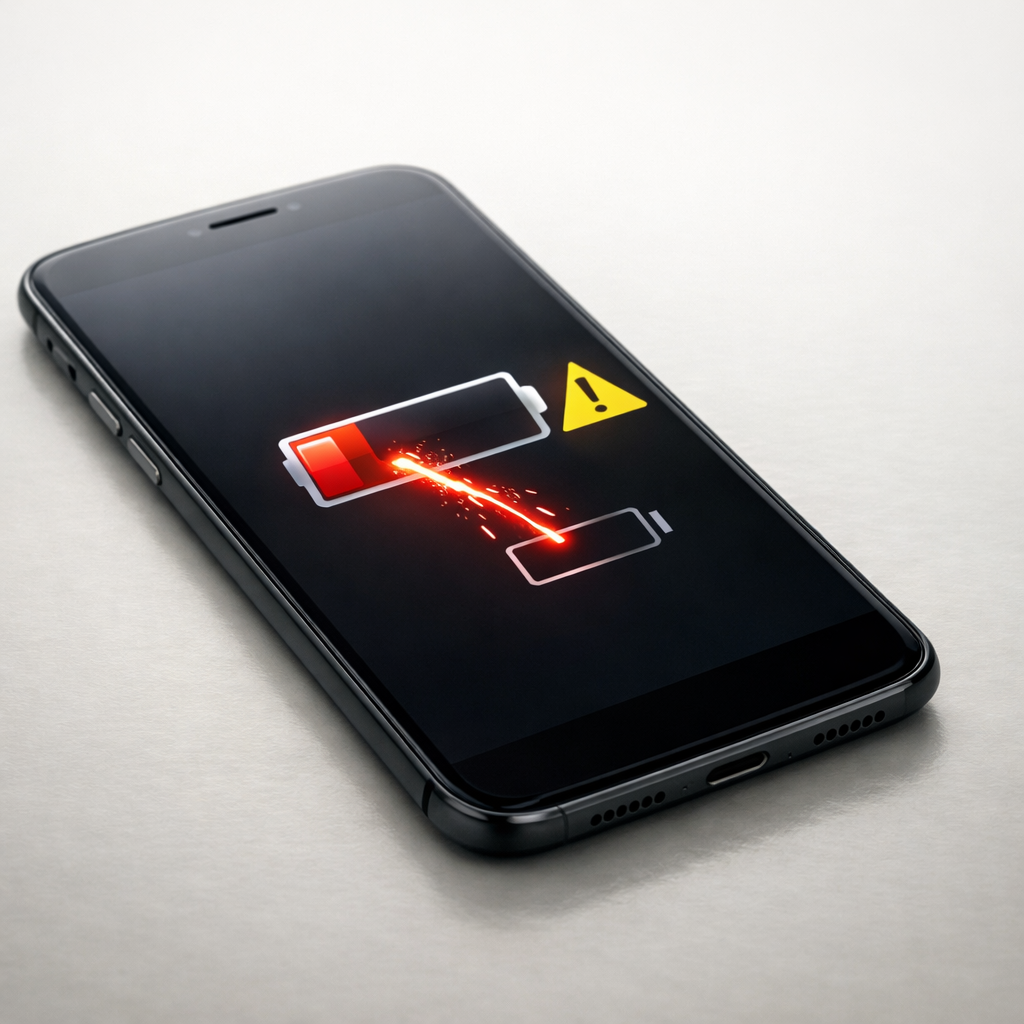
Device Battery Draining Suddenly — Software Process or Hardware Failure?
Quick Answer
Sudden battery drain is most often caused by a background software process that got stuck (an app, sync service, location tracking, or an update loop) and is keeping the CPU, network, or screen active. The second most common cause is accelerated lithium battery aging, where the battery can no longer hold the same charge and drops quickly under normal use.
If it’s software, the drain usually starts right after an app install, settings change, or system update and may improve within 24–72 hours once you stop the culprit. If it’s battery aging, the change is usually noticeable over weeks but can feel “sudden” once capacity crosses a tipping point, especially after 1.5–3 years of daily charging.
If you need a fast fix
Restart the device and wait 10 minutes before opening apps; this clears many runaway background tasks.
Turn on Battery Saver/Low Power mode and temporarily disable Bluetooth, GPS/location, and 5G to reduce constant background radio use.
Find the top battery-using app in Battery settings and force stop/close it (or uninstall if it’s new or suspicious).
Quick Diagnosis Table
Symptom
Most likely cause
Battery drops fast even while idle, and the phone feels warm
Runaway background process (sync loop, stuck update, app bug) keeping CPU active
Battery percentage jumps (e.g., 40% to 20% quickly) or shuts off early
Aged lithium cell with high internal resistance; voltage sags under load
Drain started right after a system update and lasts 1–3 days
Post-update indexing, app optimization, photo/library scanning, or re-sync activity
Battery drains mostly when signal is weak (basement, train, rural)
Radio power ramping up (cell/Wi‑Fi) plus background network retries
Why This Happens
Your battery drains when the device is doing work: running the processor, lighting the screen, and constantly using Wi‑Fi/cellular, GPS, or Bluetooth. A single misbehaving app can keep the device “awake” in the background, so it never truly rests even if the screen is off.
After an update, it’s common for the system to re-index files, analyze photos, rebuild caches, or re-sync messages and cloud content. That work can look like sudden drain, but it usually settles down after the device finishes those tasks and returns to normal sleep behavior.
With lithium batteries, aging changes how the battery behaves under load. As the cell gets older, it may still charge to 100% but deliver less real capacity and drop faster, especially during camera use, gaming, navigation, or in cold weather. More work or more resistance means faster voltage drop, which shows up as rapid percentage loss.
Most Common Causes (Ranked)
1) Runaway app or service: A social app, messenger, browser tab, or VPN can get stuck syncing or retrying network requests and chew through power while idle.
2) Post-update background tasks: System updates often trigger indexing and optimization that temporarily increases drain for a day or two.
3) Location and background refresh: Always-on location, geofencing, fitness tracking, and frequent background refresh can turn “idle time” into constant activity.
4) Weak signal or network thrashing: Poor cellular reception forces the radio to transmit harder and retry more often, which can double the drain even with light use.
5) Accelerated lithium cell aging: If the battery is older or heavily used, the device may drain faster and drop sharply under load even if settings look normal.
6) Heat exposure and fast charging habits: Regular high temperatures (hot car, direct sun, heavy gaming while charging) speed up battery wear and make sudden drain more likely.
If battery life improves noticeably after you stop or remove one app, or after 24–72 hours post-update, that usually indicates a software cause rather than a failing battery.
How to Check the Problem Safely
Check 1: Open Battery settings and look for the top 3 apps by usage; pay attention to “background” time or unusually high percentages.
Check 2: Feel for heat: if the device is warm in your pocket or on the table while the screen is off, something is running when it shouldn’t.
Check 3: Check signal conditions: note whether drain is worse in low-service areas; try Airplane mode for 30–60 minutes (with Wi‑Fi off) and compare drop rate.
Check 4: Check battery health (if available): on many devices you can view battery health/capacity; a low maximum capacity or “service recommended” points to aging.
Check 5: Note timing: if drain started immediately after a new app, update, or account sign-in, that correlation is a strong clue.
Safety note: if you notice swelling, a strong chemical smell, or the device becomes extremely hot, stop charging and stop using it until it’s inspected.
How to Fix It
Fix 1 (easiest): Restart and let the device sit locked for 15–30 minutes; it resets stuck services and gives the system a chance to finish short background tasks.
Fix 2: Identify and remove the culprit app: force stop it, disable background activity, sign out, or uninstall; this stops runaway syncing and wake-ups.
Fix 3: Reduce background load: disable always-on location for non-essential apps, turn off background refresh for rarely used apps, and lower push email frequency; fewer wake-ups means less idle drain.
Fix 4: Stabilize network use: switch to strong Wi‑Fi when possible, disable 5G temporarily, or turn off “Wi‑Fi/Bluetooth scanning” features; this reduces radio power spikes and retry loops.
Fix 5 (advanced/last resort): Backup and reset settings (or factory reset) if drain persists across clean boots and safe-mode testing; this clears corrupted configs and persistent background issues.
Signs of Battery or Hardware Damage
Battery percentage drops rapidly under load (camera, flashlight, navigation) and recovers after you stop.
Unexpected shutdowns even when the battery shows 10–40% remaining.
Noticeable swelling, screen lifting, or the back cover separating.
Device gets unusually hot during light tasks or while charging with a known-good charger.
Charging is erratic: it stalls, takes far longer than before, or only charges at certain angles (possible port/cable issues).
Battery health/capacity reading is low (for example, well under 80%) or the device reports battery service is needed.
Drain remains severe even after uninstalling recent apps and testing in a minimal setup (suggests hardware or battery aging).
When Repair Is No Longer Worth It
If the device is older and the battery health is poor, a battery replacement is usually the most cost-effective repair. If you also have charging-port issues, overheating, or board-level problems, repair costs can stack up quickly.
As a rule, if a battery replacement costs more than 30–50% of what a reliable used or refurbished replacement device costs, consider replacing the device instead. Also factor in your needs: if you rely on all-day battery for work or travel, paying for a fresh battery (or upgrading) often saves daily frustration.
How to Prevent This Problem in the Future
Keep apps updated, and uninstall apps you don’t use; fewer background services reduces surprise drain.
Limit background permissions: allow location “only while using” for most apps, and turn off background refresh where it’s not needed.
After major OS updates, give the device a night on the charger and Wi‑Fi; it can finish indexing more efficiently and settle sooner.
Avoid heat: don’t leave the device in a hot car, and avoid heavy gaming or navigation while fast charging.
Use quality chargers and cables; unstable charging and excess heat can accelerate battery wear.
Don’t worry about occasional full charges, but avoid keeping the battery at 100% in heat for long periods; moderate charge levels are gentler on lithium cells.
Watch for early warning signs (warm idle, sudden drops, shutdowns) and address them quickly before the battery degrades further.
FAQ
Why did my battery start draining right after an update?
Many updates trigger background work like indexing, app optimization, and cloud re-sync. That can temporarily increase power use for 24–72 hours, especially if you have lots of photos or apps. If drain continues beyond a few days, look for a specific app or service stuck in a loop.
How can I tell if it’s the battery aging or a software problem?
Software drain often correlates with a recent change and shows heavy background use for one or two apps in Battery settings. Battery aging tends to show as fast drops under load, early shutdowns, or low battery health/capacity readings. If you fix or remove suspect apps and idle drain stays high, aging becomes more likely.
Is it safe to keep using a device that gets warm while idle?
Mild warmth can happen during syncing or updates, but it should not stay warm for hours with the screen off. Persistent heat can speed up battery wear and may indicate a runaway process or a hardware issue. If the device becomes very hot, swells, or smells unusual, stop charging and get it checked promptly.
If you’re dealing with repeated battery issues, Mark Reynolds recommends focusing on simple checks before assuming hardware failure. You can find a broader breakdown in the battery troubleshooting guide.