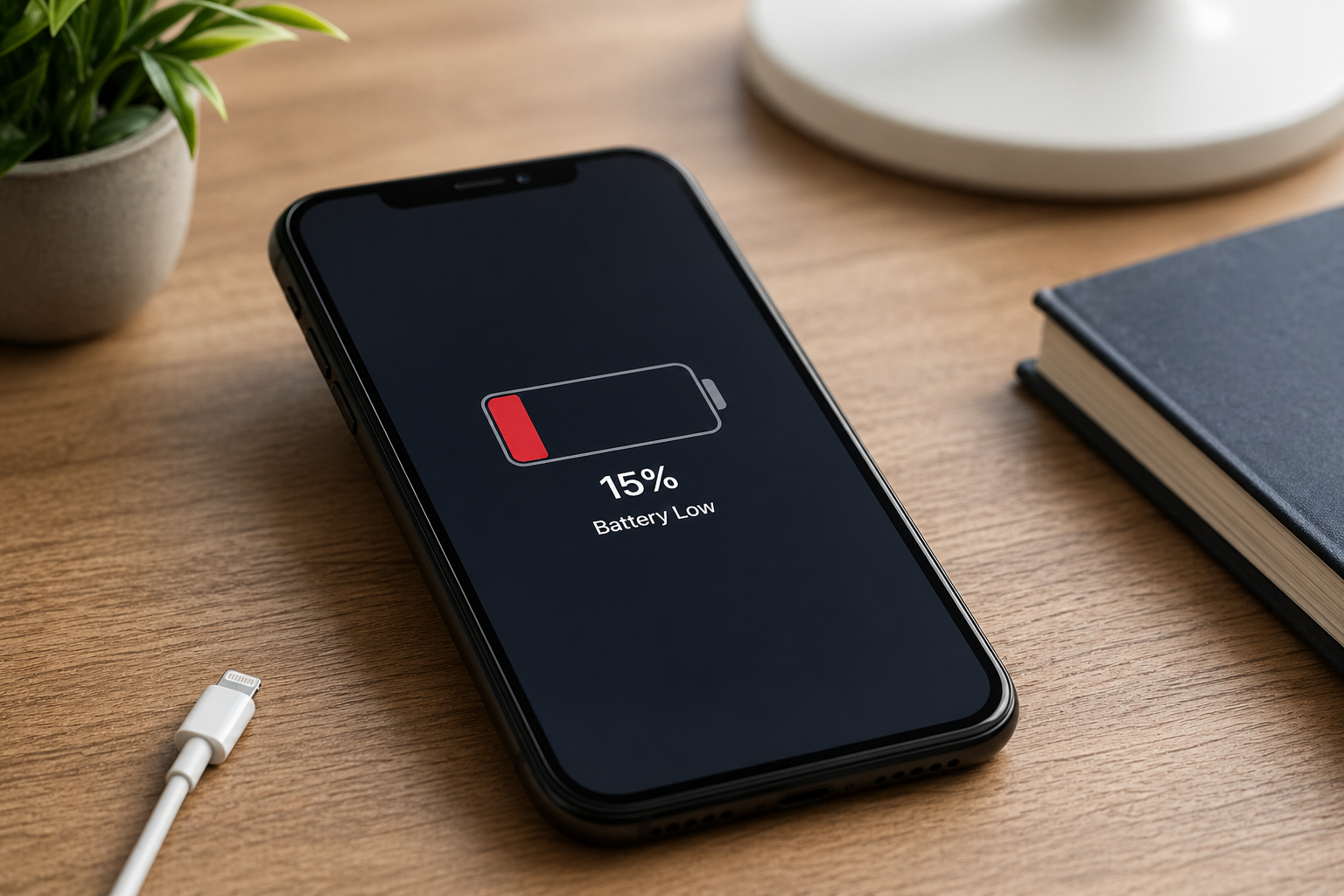
A phone can lose battery even when it is sitting on a table, locked, and apparently doing nothing. That can feel confusing because the screen is off, no app is open in front of you, and the phone still drops from 80% to 65% or lower without much obvious use.
The important thing to understand is that a phone is rarely doing “nothing.” Even when you are not touching it, it may still be checking the network, syncing apps, updating services, tracking location, refreshing widgets, scanning for Bluetooth devices, or trying to maintain a weak signal.
In many cases, a sudden battery drop is not caused by one dramatic problem. It is usually the result of several small background activities happening at the same time. This guide explains the most common reasons your phone battery drops suddenly when you are not using it, what is normal, and what you can do before assuming the battery itself needs to be replaced.
At Power & Battery Guide, Mark Reynolds focuses on practical battery explanations that help readers separate normal phone behavior from signs that something may need attention.
Why a Phone Can Drain Battery While It Is Idle
When your phone is locked, the display uses much less power, but the device is still active in the background. It remains connected to cellular networks, Wi-Fi, Bluetooth, notifications, cloud services, system processes, and app activity.
That background activity is usually normal. The problem starts when one of those processes becomes too active, gets stuck, or keeps waking the phone repeatedly. This can make the battery drop faster than expected even if you are not actively using the device.
If your main issue is general daily drain rather than sudden drops, you may also want to start with the Battery Drain Troubleshooting guide for a broader overview.
Common Reasons Your Phone Battery Drops Suddenly When You Are Not Using It
Sudden idle battery drain can come from several sources. The exact cause depends on your phone model, settings, apps, signal quality, battery age, and recent updates.
1. Background Apps Are Still Running
Many apps continue working after you close them. Messaging apps, email clients, social media apps, cloud storage, weather widgets, fitness apps, and smart home apps may refresh in the background so they can deliver notifications or stay updated.
That is useful when it works normally. But if an app keeps syncing, refreshing, or checking for updates too often, it can drain battery while the phone is locked.
A common sign is a noticeable drop overnight or during a few hours when the phone was not used much. If one app appears unusually high in battery usage, it may be refreshing too often or failing to sleep properly.
2. Poor Signal Makes the Phone Work Harder
A weak cellular signal can drain battery quickly. When your phone struggles to stay connected, it may keep searching for a stronger tower or switching between network bands. This can happen even when the phone is idle.
This is one reason battery can drop faster in certain locations, such as underground rooms, large buildings, trains, rural areas, airports, or places where the signal moves between one and two bars.
If the battery drops suddenly in one location but behaves normally elsewhere, signal quality may be part of the problem.
3. Location Services Are Waking the Phone
Location access can be useful for maps, weather, delivery apps, ride apps, photos, and security features. But if too many apps have location permission, the phone may wake more often in the background.
Some apps only need location while you are actively using them. If they are allowed to use location all the time, they may contribute to idle battery drain.
You do not have to turn location off completely. A better first step is to review which apps are allowed to use it in the background.
4. Syncing and Cloud Backups Are Active
Photos, videos, messages, contacts, notes, emails, and app data may sync automatically. This can use more battery when the phone has many files to upload or when the connection is unstable.
For example, if you took many photos, installed a new app, restored a phone, changed accounts, or recently connected to Wi-Fi after being offline, your phone may start catching up in the background.
This kind of battery drop may be temporary. If the drain stops after a few hours, it may simply have been a heavy sync session rather than a battery fault.
5. A Recent Update Changed Background Behavior
After a system update or app update, battery behavior can feel different for a while. The phone may re-index files, rebuild caches, update app data, or adjust background services.
It is common for battery life to feel worse shortly after a major update. Usually, it settles down after normal use. But if the drain continues for several days, one app or setting may be causing ongoing background activity.
If the issue started immediately after an update, give the phone some time, then check battery usage by app to see whether anything looks unusual.
6. The Battery Percentage Is Not Reporting Smoothly
Sometimes the battery is not truly losing power as quickly as it appears. Instead, the percentage may be updating unevenly. For example, it may stay at one number for a long time, then suddenly drop several percent at once.
This can happen more often with older batteries, after software updates, or when the phone has been charged in irregular patterns. It does not always mean the battery is broken or unsafe, but it can be a sign that the battery health is no longer as stable as it used to be.
Temperature can affect battery behavior. A phone that is warm may drain faster because internal components and background processes are using more energy. A phone that is cold may show a sudden percentage drop because battery performance temporarily changes at low temperatures.
If the battery drop happens while the phone is in a hot car, under a pillow, near sunlight, or in a very cold place, temperature may be involved.
Repeated heat exposure can also affect long-term battery health. If your phone often feels hot while charging or sitting idle, check the Overheating & Power Problems Troubleshooting guide.
How Much Idle Battery Drain Is Normal?
A small amount of battery drain while idle is normal. Your phone still needs power for the network, notifications, background services, and system tasks.
What feels normal depends on your phone, battery age, signal quality, and settings. A few percent over several hours may not be a problem. A large drop in a short period, especially while the phone is locked and cool, is more worth investigating.
As a practical rule, pay attention to patterns rather than one single drop. One bad night of battery drain may be caused by a sync, update, weak signal, or app activity. Repeated drops every day usually point to a setting, app, signal issue, or aging battery.
What to Check First
Before changing every setting, start with a simple check. The goal is to find the likely cause without making the phone harder to use.
Check battery usage by app: Look for apps using much more battery than expected.
Notice where it happens: If it happens mainly in one location, weak signal may be involved.
Think about recent changes: Updates, new apps, travel, new accounts, or cloud backups can affect drain.
Check temperature: A warm phone can drain faster even when locked.
Look for repeated patterns: A one-time drop is less useful than a pattern that happens daily.
How to Reduce Battery Drops When You Are Not Using the Phone
You do not need to turn your phone into a stripped-down device to improve idle battery drain. Start with the settings that usually make the biggest difference.
Limit Background App Refresh
Review which apps are allowed to refresh in the background. Keep it enabled for apps that genuinely need it, such as messaging or navigation tools, and limit apps that do not need to update constantly.
This can reduce small background wake-ups that slowly drain battery during the day or overnight.
Adjust Location Permissions
Set location access to “while using” for apps that do not need constant tracking. Weather, delivery, shopping, and social apps often do not need full-time location access.
This is a good balance because you are not turning location off entirely. You are simply preventing unnecessary background checks.
Use Wi-Fi When Cellular Signal Is Weak
If your phone drains faster in places with poor cellular coverage, connecting to reliable Wi-Fi may help. In very weak signal areas, the phone may use more power trying to stay connected to the mobile network.
If you are in a location with almost no service and do not need calls or mobile data, Airplane Mode can stop the phone from constantly searching for signal. Just remember that this also disables normal cellular communication until you turn it off.
Restart the Phone
A simple restart can stop a stuck process or app that is draining battery in the background. It is not a magic fix, but it is a useful first step when battery drain starts suddenly for no clear reason.
Update Apps Carefully
App updates can fix battery bugs, but they can also introduce new ones. Keep important apps updated, but if one app starts draining battery right after an update, check its settings or temporarily restrict its background activity.
Check Battery Health
If your phone is older and the battery drops sharply even after you reduce background activity, battery health may be part of the issue. An aging battery can lose charge less predictably and may show sudden percentage changes.
Battery health does not explain every sudden drop, but it becomes more relevant if the phone is older, shuts down early, gets warm easily, or drops quickly under light use.
When Sudden Battery Drops May Point to a Bigger Problem
Most idle battery drain issues are caused by settings, apps, signal, or temporary background activity. Still, there are times when the issue deserves more attention.
The phone loses a large amount of battery every night, even after background settings are adjusted.
The battery drops sharply from a high percentage to a much lower one.
The phone shuts down before reaching 0%.
The phone gets hot while idle or while charging.
The battery percentage jumps up or down in an unusual way.
The issue started after water exposure, physical damage, or a charging problem.
If charging behavior also seems unusual, such as the phone charging slowly, stopping early, or refusing to charge, use the Charging Issues Troubleshooting guide as the next step.
A Simple Overnight Test
If you are not sure whether your phone has a real idle drain problem, try a simple overnight check.
Charge the phone to a normal level before bed.
Close unused apps.
Leave the phone in a cool place with decent signal.
Do not plug it in overnight for this test.
Check the battery percentage in the morning.
This does not diagnose everything, but it gives you a useful baseline. If the phone drops only a little, the battery may be behaving normally. If it drops heavily every night, background activity, signal, or battery health is more likely involved.
What Not to Do
When battery drain feels random, it is tempting to change every setting at once. That can make the phone annoying to use and still not reveal the real cause.
Do not delete every app immediately without checking battery usage first.
Do not turn off all notifications if only one app is causing the problem.
Do not assume the battery is failing after one sudden drop.
Do not ignore heat, swelling, or charging problems if they appear.
Do not rely only on battery percentage if the behavior happens once and then disappears.
A better approach is to check the likely causes one by one: background apps, signal, location, sync, recent updates, temperature, and battery health.
Final Thoughts
If your phone battery drops suddenly when you are not using it, the phone is probably not as idle as it looks. Background apps, weak signal, syncing, location access, updates, temperature, and battery age can all make the percentage fall while the screen is off.
Start with the simple checks: review battery usage, limit unnecessary background activity, adjust location permissions, notice signal quality, and restart the phone if the drain began suddenly. If the problem keeps happening, compare it with your phone’s battery health and charging behavior.
For a broader path through related battery problems, start with Battery Drain Troubleshooting, then move to charging, overheating, or battery health guides if the symptoms point in that direction.
Why does my phone battery drop when I am not using it?
Your phone can lose battery while idle because apps, network services, notifications, location, syncing, and system processes may still run in the background. The screen is off, but the phone is still active.
Is it normal for a phone battery to drain overnight?
A small amount of overnight battery drain is normal. A large drop every night may point to background apps, weak signal, cloud syncing, location access, or an aging battery.
Can poor signal drain battery while the phone is locked?
Yes. If your phone struggles to maintain a cellular connection, it may use extra power searching for a stronger signal, even when you are not using it.
Can an app drain battery even if I do not open it?
Yes. Some apps refresh, sync, track location, or send notifications in the background. If one app is unusually active, it can drain battery even when it is not open on the screen.
Does a sudden battery drop always mean the battery is bad?
No. A sudden drop can be caused by background activity, weak signal, syncing, temperature, or software behavior. Battery health becomes more likely if the phone is older, drops sharply often, shuts down early, or behaves unpredictably.