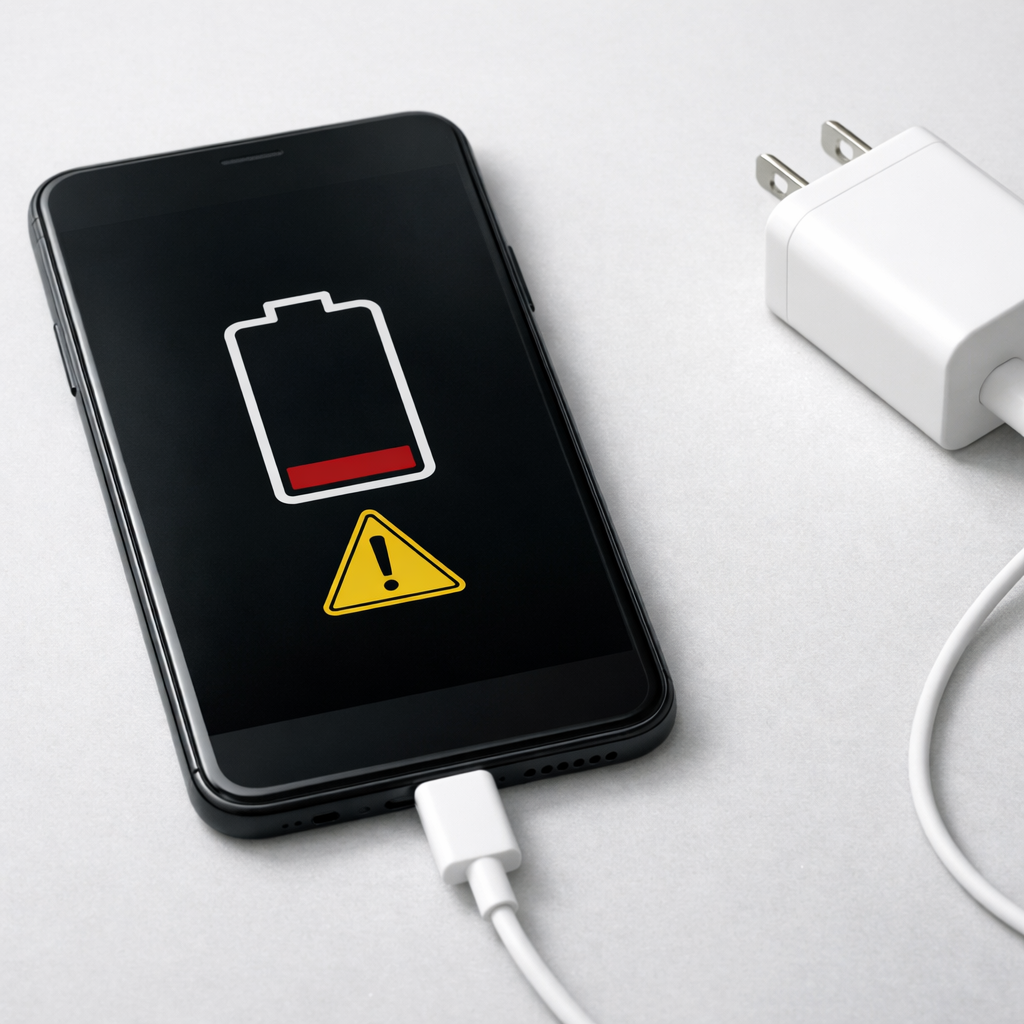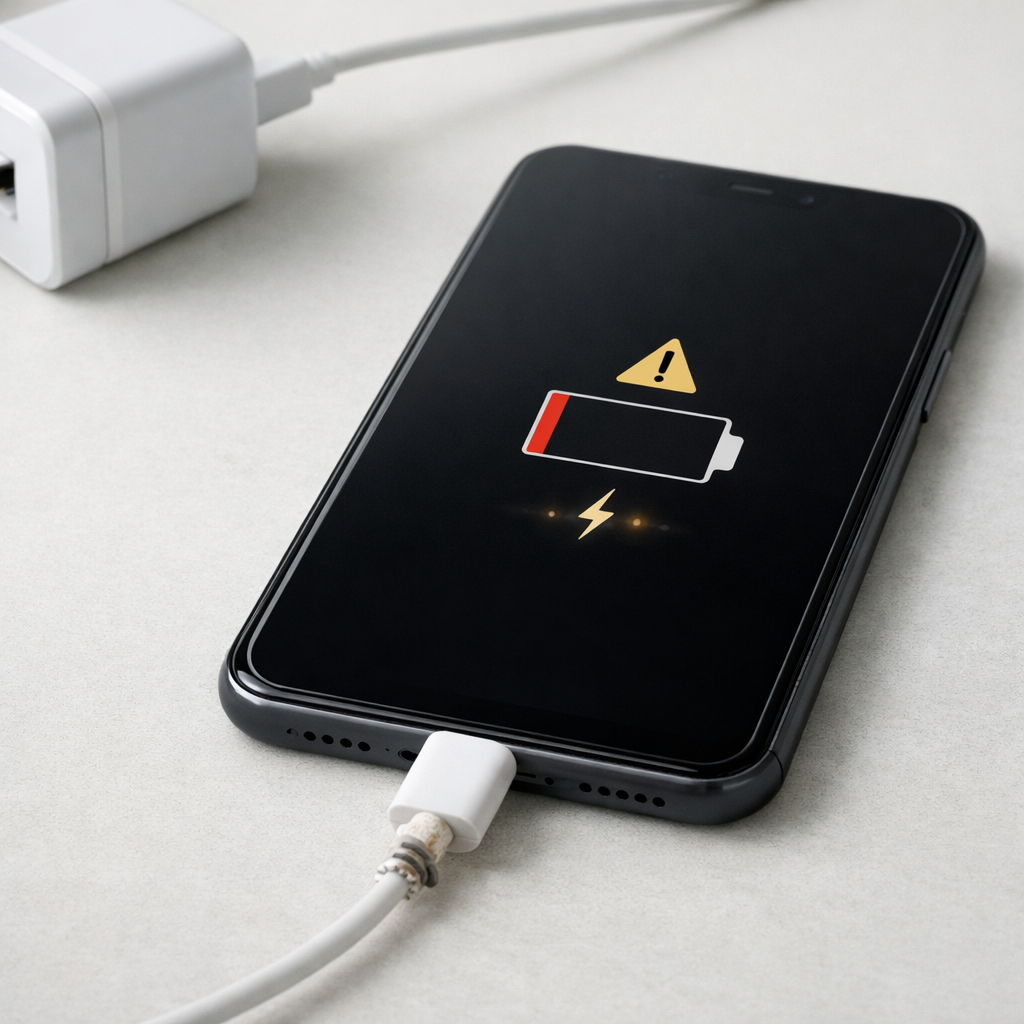
Device Not Charging Properly — Charging System or Battery Health Issue?
Quick Answer
Most of the time, a device that stops charging at 80–95% (or reaches 100% very slowly) is not “broken” at all. It is usually the charging controller intentionally limiting the last part of the charge to protect the battery from heat and stress.
This behavior is common on phones, tablets, laptops, earbuds cases, and power banks, especially after an update or when the device is warm. The final 10–20% can take much longer than the first 50–70%, and it may pause or hover for 10–60 minutes depending on temperature, usage, and charger power.
If you need a fast fix
- Let the device cool down (remove thick case, stop gaming, keep it out of sunlight) and then charge again for 20–40 minutes.
- Use a known-good cable and the original or certified charger, plugged into a wall outlet (not a weak USB port).
- Restart the device, then charge with the screen off to reduce heat and speed up the final percentage.
Quick Diagnosis Table
| Symptom | Most likely cause |
|---|---|
| Stops around 80–90% and won’t go higher while you’re using it | Charge protection logic (heat and load) slowing or pausing top-off charging |
| Charges fast to 70% then crawls from 80–100% | Normal constant-current to constant-voltage behavior plus controller protection near full |
| Only reaches 95–99% and then drops to 94–97% later | Battery gauge calibration and top-off thresholds (controller avoids constantly “topping up”) |
| Shows “Charging” but percentage barely moves | Low-power charger/cable, dirty port, or the device limiting charge due to temperature |
| Used to reach 100% easily, but now takes much longer | Battery aging increasing internal resistance, causing more heat and more conservative charging |
Why This Happens
Your device has a charging controller that decides how much power to accept and when to slow down. Near full charge, the controller intentionally reduces charging speed because keeping a battery at very high voltage for long periods increases wear.
Modern devices also watch temperature closely. If the battery or charging area gets warm from fast charging, heavy apps, a thick case, or a hot room, the controller may pause or “cap” charging at 80–90% until things cool down.
In practical terms: the controller sees conditions that could stress the battery, so it limits the final percentage, which looks like “not charging properly” even though it is working as designed.
Most Common Causes (Ranked)
- 1) Charging protection near full: The controller slows charging above roughly 80% to reduce heat and battery wear, so the last 10–20% can be noticeably slower.
- 2) Temperature-based throttling: If the device is warm (fast charger, gaming, sunlight, car dashboard), charging may pause at a high percentage until the battery cools.
- 3) Optimized or adaptive charging features: Many devices intentionally stop at 80% or delay the final top-off based on your routine, then finish closer to when it expects you’ll unplug.
- 4) Weak charger, cable, or power source: A low-watt charger, worn cable, or underpowered USB port can make the “top off” phase look stuck because the device is barely adding power.
- 5) Battery aging (higher resistance): Older batteries heat up more and accept charge more slowly near full, which triggers stricter protection behavior.
- 6) Battery percentage calibration drift: The percentage displayed can lag behind reality, causing 95–99% to linger or bounce even though the battery is nearly full.
If the max percentage slowly increases after the device cools or after you switch to a better charger, that usually indicates normal protection behavior rather than a failing battery.
How to Check the Problem Safely
- Check 1: Feel for heat during charging. If the back or charging area is hot to the touch, unplug, let it cool for 10–20 minutes, then try again with the screen off.
- Check 2: Try a different known-good cable and wall charger. If the device suddenly completes the last 10–20%, the original charger or cable was likely limiting power.
- Check 3: Charge in Airplane mode or with the device powered off (if possible). If the percentage climbs normally, your device load was competing with charging.
- Check 4: Check battery settings for features like “Optimized charging,” “Battery protection,” “Charge limit 80%,” or “Adaptive charging,” and note whether a limit is enabled.
- Check 5: Inspect and gently clean the charge port. Look for lint; if visible, use a dry wooden toothpick or soft brush carefully, then retest.
Safety note: never use metal tools in a charging port, and stop charging immediately if you notice swelling, a burning smell, or crackling noises.
How to Fix It
- Fix 1 (easiest): Cool the device and reduce usage while charging. Less heat allows the controller to finish the final percentage faster and more consistently.
- Fix 2: Use the correct charger and a high-quality cable. A certified, higher-watt charger helps the device maintain stable input so the top-off phase can complete without stalling.
- Fix 3: Disable or adjust optimized charging features (if you need a full charge now). Turning off a charge cap or “optimized” mode can allow the device to go from 80% to 100% immediately, though you may want to re-enable it later for battery longevity.
- Fix 4: Clean the port and re-seat connections. A slightly loose connection or lint can cause tiny disconnects that slow charging and confuse the percentage near full.
- Fix 5 (advanced/last resort): Update the operating system and consider recalibrating the battery gauge. An update can fix charging logic bugs, and an occasional full cycle (down to around 10–15%, then up to 100% without heavy use) can improve percentage accuracy on some devices.
Signs of Battery or Hardware Damage
- Battery percentage drops quickly after unplugging, especially above 50%.
- Device shuts off unexpectedly at 10–40% remaining.
- Battery or device casing looks swollen, warped, or the screen is lifting.
- Charging port feels loose, charger wiggles, or charging cuts in and out with slight movement.
- Noticeable burning smell, buzzing, crackling, or excessive heat during charging.
- Charging only works at a specific cable angle or only with one particular charger.
- Device takes dramatically longer to charge than it used to even with a known-good fast charger.
When Repair Is No Longer Worth It
If the device is older and shows strong signs of battery wear (rapid drain, random shutdowns, swelling), a battery replacement is usually the only meaningful repair. If it also has port damage or charging IC issues, the combined repair cost can exceed the device’s remaining value.
As a rule, consider repair if the cost is low compared to replacement and the device otherwise works well. Consider replacement if repair approaches 30–50% of the cost of a comparable new device, or if safety-related issues like swelling or overheating are present.
How to Prevent This Problem in the Future
- Keep the device cool while charging, especially above 80% (avoid pillows, blankets, and direct sunlight).
- Use reputable chargers and cables; unstable power causes heat and slows top-off behavior.
- Avoid heavy gaming or video recording while charging, since extra load increases temperature and triggers throttling.
- If your device offers it, use “optimized/adaptive charging” for overnight charging to reduce time spent at 100%.
- Don’t routinely force 0% to 100% cycles; partial cycles are easier on most lithium batteries.
- Clean the charging port occasionally to prevent poor contact and heat from resistance.
- Store devices around 40–60% charge if they will sit unused for weeks to reduce battery stress.
FAQ
Why does my device stop at 80% even though it says it’s charging?
Many devices deliberately limit charging to 80% when a battery protection or optimized charging feature is enabled. It reduces battery wear and heat, especially if the device expects you won’t need a full charge right away. Check Battery settings for a charge limit or optimized charging toggle.
Is it bad if my device never reaches 100%?
Not necessarily. If it consistently stops between 80–95% and the device runs normally, it is often the charging controller protecting the battery due to temperature, usage, or a charge limit feature. It becomes more concerning if you also see fast drain, random shutdowns, swelling, or charging disconnects.
Why does the last 10% take so long compared to the first 50%?
This is normal for lithium batteries. Charging slows near full to prevent overheating and over-stressing the battery, and the controller may reduce power even more if the device is warm or being used heavily. Using a good charger, turning the screen off, and keeping the device cool usually helps.
There’s a quiet relief in letting the noise fall away. What looked tangled starts to feel ordinary—less like a riddle and more like weather you can finally name.
Even the frustration feels smaller afterward, like the problem lost its audience. And for once, the day goes on without that lingering “wait, what now?”
For a full overview of this issue and step-by-step solutions, read the complete troubleshooting guide.