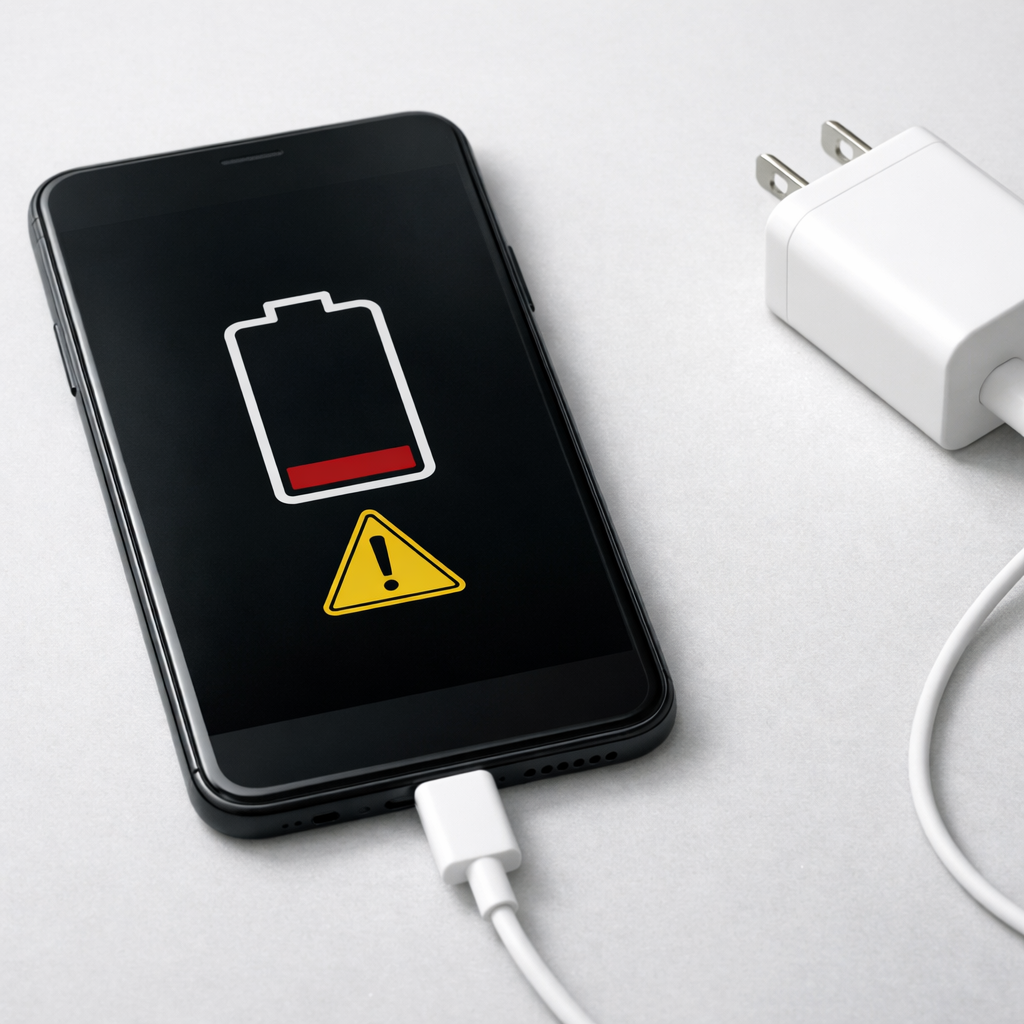
Device Not Turning On After Charging — Power Circuit or Battery Failure?
Quick Answer
If your device won’t turn on right after charging, the most common reasons are that it’s stuck finishing background power-management tasks (like updates, indexing, or battery calibration) or a hardware part in the charging path is failing (battery, charging port, or power circuit).
In many cases, a healthy device will recover within 5–30 minutes after being unplugged or after a forced restart, especially if it got very hot, was charging overnight, or recently updated. If it stays totally dead across multiple chargers and outlets, a battery or charging/power component is more likely.
If you need a fast fix
- Unplug the charger, then hold the power button (or power + volume down) for 15–30 seconds to force a restart.
- Try a known-good wall charger and cable, then charge for 20–30 minutes before attempting to power on again.
- Check for heat: if the device is warm, let it cool at room temperature for 15–20 minutes before retrying.
Quick Diagnosis Table
| Symptom | Most likely cause |
|---|---|
| Charging icon appears, but device won’t boot past logo | Background system process stalled (update, app optimization) or storage/OS issue |
| No signs of life (no screen, no vibration, no sound), even after charging | Battery protection triggered, deeply discharged battery, or failed charging/power circuit |
| Turns on only while plugged in, shuts off when unplugged | Worn battery, loose battery connection, or failing power-management circuit |
| Charges very slowly or gets unusually hot during charging | Port debris, damaged cable/adapter, battery aging, or short in charging path |
| Randomly powers off at high percentages (30–80%) | Battery capacity collapse, calibration drift, or failing power-management IC |
Why This Happens
Charging doesn’t just fill the battery. While plugged in, many devices run background tasks like installing updates, optimizing apps, encrypting files, syncing large photo libraries, or rebuilding indexes.
If those tasks hit a snag, the device can appear “dead” or stuck even though the battery has power. For example, a phone that updated overnight may take longer to start in the morning, or it may hang on a logo while it completes system setup.
On the hardware side, charging stresses key parts: the battery itself, the charging port, and the power-management circuitry that decides when it’s safe to turn on. When one of these fails or trips a safety cutoff, the device may refuse to boot to protect itself, leading to a no-power symptom right after charging.
Most Common Causes (Ranked)
- 1) Background update or startup task stuck: After charging, the device may be finishing an OS update, app optimization, or file system checks, and it can look frozen or unresponsive.
- 2) Deep discharge and battery protection mode: If the battery dropped extremely low, the protection circuit may block startup until it receives a minimum charge level.
- 3) Charging cable, adapter, or outlet problem: The device may show a charging symbol but still not get enough stable power to boot, especially with weak adapters or damaged cables.
- 4) Dirty or damaged charging port: Lint or corrosion can cause intermittent charging, heat, or “phantom charging” that never truly replenishes the battery.
- 5) Aging battery or sudden capacity failure: A worn battery can report an incorrect percentage or collapse under load, causing shutdowns or refusal to power on.
- 6) Failing power-management or charging circuit: A fault in the power circuit (often after drops, liquid exposure, or overheating) can prevent the battery from delivering power to the system reliably.
If the device gradually improves after cooling down, charging longer, or after a forced restart, that usually points to a temporary background process or a protection cutoff rather than a permanent hardware failure.
How to Check the Problem Safely
- Check 1: Inspect the basics: try a different wall outlet, then use a known-good charger and cable that you trust with another device.
- Check 2: Look for any response: connect the charger and watch for a charging icon, LED, vibration, sound, or slight warmth near the battery area.
- Check 3: Force restart correctly: hold the power button for 15–30 seconds, or power + volume down for 15–30 seconds, then wait 60 seconds and try again.
- Check 4: Check the charging port: shine a light into the port and look for lint or bent pins; if you see debris, gently remove it with a wooden toothpick.
- Check 5: Try a “long charge” test: charge for 30–60 minutes without touching the device, then attempt to turn it on once, not repeatedly.
Safety note: if the device is swollen, smells odd, or becomes very hot, stop charging immediately and keep it away from flammable materials.
How to Fix It
- Fix 1 (easiest): Do a forced restart after unplugging for 1 minute, then reconnect power and try again. This clears stalled background processes and resets power states.
- Fix 2: Use a different charger and cable (ideally the original or a certified equivalent) and charge for at least 30 minutes. Many “dead” devices are simply not receiving enough stable current to boot.
- Fix 3: Clean the charging port carefully and re-seat the cable firmly. A better physical connection reduces heat and prevents partial charging that looks successful but isn’t.
- Fix 4: Let it cool down, then retry with a single boot attempt after 20–30 minutes of charging. Overheating can trigger safety limits that block startup until temperatures normalize.
- Fix 5 (advanced/last resort): Attempt recovery mode or safe mode (device-specific) to finish updates or repair startup files. If recovery fails or the device can’t enter recovery at all, hardware diagnosis is likely needed.
Signs of Battery or Hardware Damage
- The device only works while plugged in and shuts off instantly when unplugged.
- Battery percentage jumps around (for example, 70% to 10%) or drops quickly during simple tasks.
- Charging creates excessive heat, especially near the port or battery area.
- The back cover or screen is lifting, or the device feels swollen or uneven.
- The charging port feels loose, the cable won’t stay seated, or it only charges at a certain angle.
- No response at all with multiple known-good chargers and cables (no icon, no LED, no vibration).
- It recently had liquid exposure, a hard drop, or overheated during charging, and the issue started immediately after.
When Repair Is No Longer Worth It
If the device is older and needs both a new battery and power/charging board work, the repair cost can approach the value of the device. Devices with swelling batteries or liquid-damaged boards can also become unreliable even after partial fixes.
As a rule, consider replacement if repair is more than 40–60% of the cost of a similar used or refurbished model, or if the device is essential and downtime matters. If the data is important, prioritize data recovery and a safe battery shutdown over repeated charging attempts.
How to Prevent This Problem in the Future
- Use a quality charger and cable that match the device’s recommended power rating.
- Avoid charging on soft surfaces (beds, couches) that trap heat and stress the battery and power circuit.
- Keep the charge range moderate when possible (for many devices, 20% to 80% is gentler than constant 0% to 100%).
- Install updates when you have time and power, then let the device finish post-update tasks without interruption.
- Clean the charging port occasionally and keep it dry to prevent corrosion and poor contact.
- Don’t repeatedly force power on every few seconds; give it time to charge and complete background work.
- If the device starts getting hotter than normal while charging, change the cable/adapter and consider a battery health check.
FAQ
Why won’t my device turn on even though it was charging all night?
It may not have been truly charging due to a bad cable, weak adapter, dirty port, or a loose connection, even if it showed a charging symbol. Another common cause is an overnight update or background task that stalled and needs a forced restart. If it shows no signs of life after trying a known-good charger for 30–60 minutes, suspect battery or power-circuit failure.
Can a battery be “too dead” to start the device?
Yes. When a battery is deeply discharged, protection circuitry can block startup until the battery reaches a safe minimum voltage. In that case, leaving it on a reliable charger for 30–60 minutes and then trying a single forced restart often works.
How do I tell if it’s a software hang or hardware failure?
A software hang often still shows some life: a logo loop, charging icon, vibration, or it eventually boots after a forced restart and extra time. Hardware problems are more likely when there is zero response across multiple chargers, the device only runs while plugged in, or there are clear warning signs like swelling, overheating, or a loose charging port. If the symptoms persist for more than a day with basic troubleshooting, professional diagnosis is usually the quickest path.
Mark Reynolds writes about battery behavior, charging issues, and practical troubleshooting for everyday device problems. For a step-by-step overview, see the full battery troubleshooting guide.
For a full overview of this issue and step-by-step solutions, read the complete troubleshooting guide.