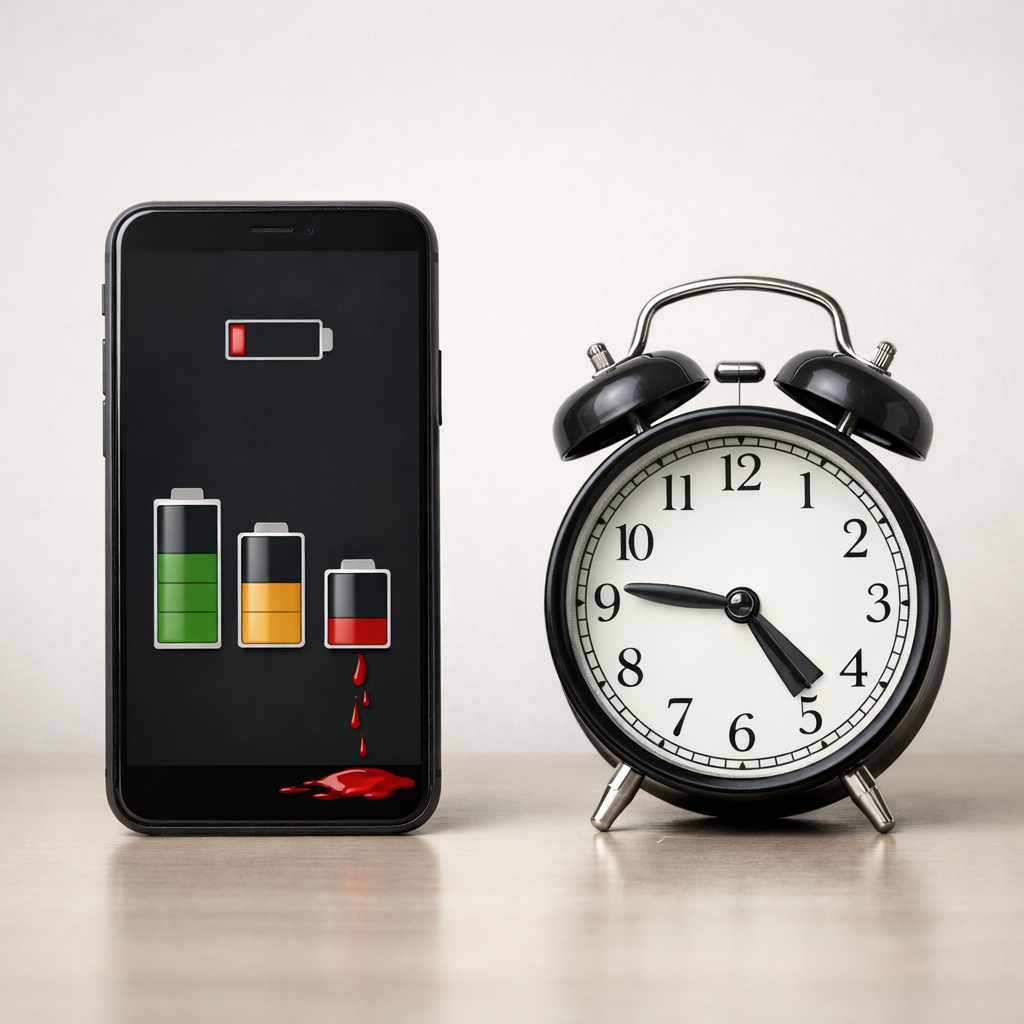
Device Battery Drains Faster Over Time — Normal Aging or Excessive Wear?
Quick Answer
If your device battery is draining faster over time even when you’re not using it, the most likely cause is a power delivery fault that prevents the device from fully “sleeping.” Instead of dropping into a low-power idle state, something keeps drawing power in the background (charging circuitry, a misbehaving accessory, a port issue, or a stuck wake signal).
Normal battery aging usually shows up as shorter runtime during active use, not rapid loss while idle. Many people first notice excessive idle drain over weeks to a few months, often after a new charger/cable, a port contamination issue, or a system update that changes power management behavior.
If you need a fast fix
- Power down fully for 2 minutes, then restart and leave it idle for 30–60 minutes to see if the drain calms down.
- Unplug everything (charger, dock, USB devices, headphones) and test idle drain with no accessories connected.
- Switch to a known-good OEM (or certified) cable and charger, then avoid topping up from questionable USB ports for a day.
Quick Diagnosis Table
| Symptom | Most likely cause |
|---|---|
| Loses 10–30% overnight with screen off and no use | Device not entering deep sleep due to power management or charging/port fault |
| Battery drains faster when plugged in or right after unplugging | Unstable power delivery from charger/cable, causing repeated charge “handshakes” and background wake-ups |
| Device feels warm while idle or in a bag | Constant low-level power draw from charging circuitry, accessory negotiation, or a stuck wake condition |
| Drain gets worse after switching chargers, cables, or using a hub/dock | Incompatible/low-quality power adapter, cable, or multiport dock creating noisy power or partial connections |
Why This Happens
When your device is inactive, it should drop into a low-power state where only essential functions run. If power delivery is unstable or a circuit is misreading the connection at the charging port, the device can keep waking up to “check” power, negotiate charging, or protect itself from voltage/current changes.
In real life this looks like a phone that loses a lot of battery overnight, a laptop that drops 20% in a closed backpack, or a tablet that drains quickly even though no apps seem open. Sometimes the battery is fine, but the device is behaving as if it can’t safely settle into standby.
In short: a power delivery problem keeps the device partially active, and that extra awake time shows up as unexpected idle battery drain.
Most Common Causes (Ranked)
- 1) Unstable charger or cable: A low-quality or damaged adapter/cable can create fluctuating power that triggers repeated charging checks, preventing deep sleep and increasing idle drain.
- 2) Dirty, worn, or loose charging port: Lint, corrosion, or a slightly loose connector can cause brief disconnects and reconnects that keep the power circuit and system awake.
- 3) Dock, hub, or accessory “wake” behavior: USB-C hubs, external drives, game controllers, and some audio adapters can keep the device negotiating power or data, even when you think it’s idle.
- 4) Battery calibration drift hiding the real pattern: The battery percentage can “fall fast” at certain levels if the gauge is out of sync, making a power delivery issue look worse (or masking it).
- 5) Fast charging or high-watt charging mismatch: Using a charger profile your device only partially supports can lead to frequent renegotiation and extra heat, both of which increase standby drain.
- 6) Failing charging IC or power path component: A hardware fault in the charging/power management circuitry can cause ongoing background draw, warmth, and inconsistent charging behavior.
If the drain improves gradually after changing the charger/cable or cleaning the port, that usually indicates a connection or power-quality issue rather than a suddenly “bad” battery.
How to Check the Problem Safely
- Check 1: Measure idle drain with everything unplugged. Charge to around 80%, turn the screen off, don’t use it for 60 minutes, then check the percentage drop.
- Check 2: Repeat the test after using a different known-good charger and cable. If idle drain changes noticeably, the original power setup is a strong suspect.
- Check 3: Inspect and clean the charging port carefully. Power off the device, use a flashlight, and gently remove lint with a wooden toothpick or soft anti-static brush.
- Check 4: Test with “no accessories” and “no hubs.” Remove cases with battery packs, disconnect docks, and avoid USB devices for a day to see if standby stabilizes.
- Check 5: Note heat and charging behavior. If it becomes warm while “doing nothing,” or if charging repeatedly starts/stops, that points to power path issues.
Safety note: never spray liquid into a charging port and never use metal tools that can short contacts.
How to Fix It
- Fix 1 (easiest): Swap to a certified/OEM charger and cable. Clean power reduces renegotiation events and helps the device stay in low-power idle.
- Fix 2: Clean and stabilize the port connection. After removing debris, ensure the plug seats firmly; a solid connection prevents micro-disconnects that keep the device awake.
- Fix 3: Stop charging from “noisy” sources. Avoid car USB ports, cheap power strips with USB, airline ports, and unknown hubs; inconsistent power commonly causes idle drain patterns.
- Fix 4: Reduce background wake triggers tied to charging. Turn off features that activate on power events (for example: USB accessories, always-on listening, or “wake on connect” options when available) and reboot after changing settings.
- Fix 5 (advanced/last resort): If symptoms persist across chargers and a clean port, schedule diagnostics or service for the charging port or power management hardware. A failing charging IC or port assembly won’t be fixed by software tweaks.
Signs of Battery or Hardware Damage
- Device gets warm or hot while idle, especially near the charging port or battery area.
- Charging starts and stops repeatedly, or the device only charges at certain angles.
- Battery percentage drops in large jumps during standby (for example, 80% to 60% with no use).
- Swollen battery symptoms: bulging back cover, lifted screen, or a rocking device on a flat table.
- Unusual smells, crackling sounds, or discoloration around the port.
- Device shuts down at 20–40% or reboots when unplugging/plugging in.
- Charging is much slower than before, even with a known-good charger.
When Repair Is No Longer Worth It
If the device needs a new battery plus charging port or power management repair, the combined cost can approach the value of the device, especially on older models. It’s also less worth repairing if the device overheats while idle or shows swelling, because safety becomes the top priority.
As a rule, consider replacement if the repair estimate is more than 40–60% of the cost of a comparable replacement device, or if you rely on the device daily and can’t risk inconsistent power behavior. If the issue is limited to a port cleaning, new cable/charger, or a straightforward battery swap, repair is usually worthwhile.
How to Prevent This Problem in the Future
- Use certified or OEM chargers and cables, especially for fast charging.
- Avoid charging from loose USB ports, cheap hubs, and unknown public USB power sources.
- Keep the charging port clean and dry; periodically check for lint buildup if the device lives in pockets or bags.
- Don’t bend the cable sharply at the connector; strain at the plug can create intermittent connections.
- Unplug accessories and docks when you’re not using them, particularly overnight.
- Keep the device cool while charging; heat increases power loss and stresses the battery and charging circuitry.
- If you notice new idle drain after a new accessory or charger, stop using it and retest before the pattern becomes “normal.”
FAQ
Is faster battery drain over time always “normal aging”?
No. Normal aging mainly reduces total capacity, so you notice shorter time during active use. If the device loses a lot of charge while idle, it often points to a sleep/power delivery issue, a port problem, or an accessory that keeps the system awake.
Why would my device drain faster when it’s plugged in?
If the charger, cable, or port connection is unstable, the device may repeatedly negotiate charging and switch power states. That extra activity can increase heat and background power draw, so the battery can drop more than expected during standby or shortly after unplugging.
How can I tell if it’s the charger/cable or the battery itself?
Test idle drain with everything unplugged, then repeat with a known-good certified charger and cable. If the drain pattern changes significantly, power delivery is the likely culprit. If drain is high in all cases and the device shows heat, shutdowns, or swelling, the battery or charging hardware may be failing.
Mark Reynolds covers battery health, charging limits, and common device issues with a focus on clarity and practical fixes. For a deeper look, visit the full troubleshooting guide.
For a full overview of this issue and step-by-step solutions, read the complete troubleshooting guide.