
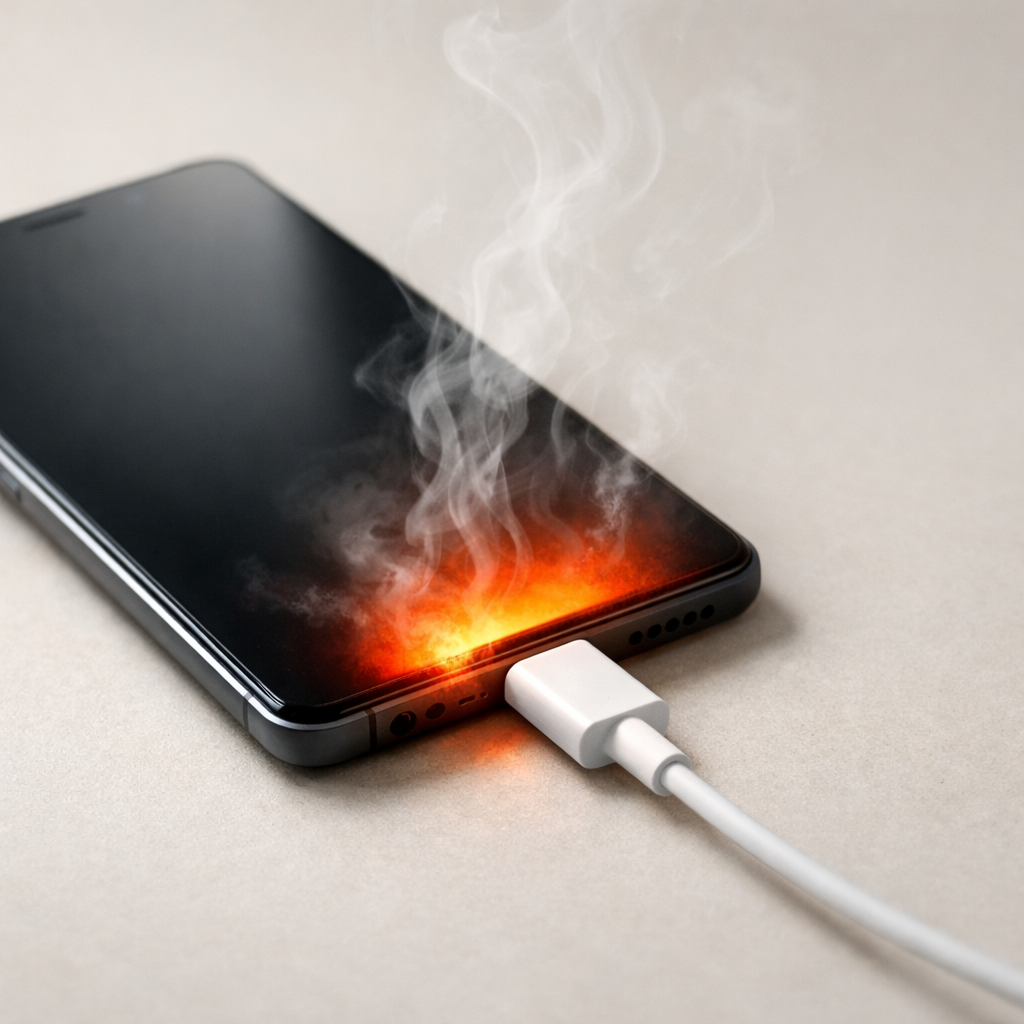
Device Overheating While Charging — Power Regulation or Battery Stress?
Quick Answer
Most cases of overheating while charging come from a sudden power demand spike at the same time the device is trying to charge. That spike is commonly caused by a failing battery cell (it can’t accept power efficiently) or a rogue app/process that keeps the processor busy and pulls extra current.
Usually this shows up within the first 5–20 minutes of plugging in, especially if the battery is low or if the screen is on. If the heat keeps building every time you charge over several days, it’s often a trend toward battery wear rather than a one-off glitch.
If you need a fast fix
- Unplug the device, remove any case, and let it cool on a hard surface for 10–15 minutes before charging again.
- Charge with the screen off and turn on Airplane Mode (or at least disable hotspot, gaming, and video calls) to reduce sudden discharge spikes.
- Switch to a known-good cable and the original (or certified) charger, then try a wall outlet instead of a PC/extension strip.
Quick Diagnosis Table
| Symptom | Most likely cause |
|---|---|
| Device gets hot fast, but battery percentage barely increases | Failing battery cell causing poor charge acceptance and extra heat |
| Heats mostly during use while plugged in (gaming, video, navigation) | Rogue app/background process creating a discharge spike during charging |
| Charging starts/stop repeatedly, or percentage jumps up and down | Battery health issue, worn charging port, or unstable cable/charger |
| Hot at the connector/port area more than the back of the device | High resistance from damaged cable, dirty port, or poor-quality charger |
Why This Happens
Charging should be a calm, steady flow of power into the battery. When the device suddenly demands more power than usual, the charger and internal power system have to juggle “run the phone” and “charge the battery” at the same time.
A failing battery cell is like a sponge that doesn’t soak up water evenly. The charger tries to push energy in, but the battery converts more of that energy into heat instead of storage, so the device warms up and charging slows.
A rogue app process causes the opposite problem: the battery is fine, but the device is working hard in the background. That extra work increases current draw, which raises heat and can make charging feel “stuck” even though power is flowing.
Most Common Causes (Ranked)
- 1) Failing battery cell or degraded battery health: As batteries age, internal resistance rises, so charging creates more heat and less stored energy. This often pairs with sudden drops from 30% to 10% or random shutdowns.
- 2) Rogue app, stuck sync, or runaway background process: An app can keep the CPU and radios busy while plugged in, creating a discharge spike that cancels out charging. This is common after an app update, OS update, or a new “security/cleaner” app.
- 3) Fast charging mismatch (charger/cable not negotiating correctly): A weak or non-certified cable can force inefficient charging, increasing heat and slowing charge speed. Some devices also run hotter when “fast charge” repeatedly toggles on and off.
- 4) Poor heat dissipation (case, bed/sofa charging, hot room): Even normal charging can feel like overheating if the device can’t dump heat. Thick cases and charging under a pillow push temperatures into the danger zone quickly.
- 5) Charging port contamination or wear: Lint or corrosion adds resistance, concentrating heat near the port and causing unstable charge behavior. This can mimic battery problems by making charging inconsistent.
- 6) Wireless charging alignment issues (if you use a pad): Off-center placement wastes energy as heat. The phone may get warm while charging slowly, especially through thick cases or metal accessories.
If the device runs noticeably cooler and charges more steadily after you reduce background activity or change the cable/charger, that gradual improvement usually points to a power-demand spike or accessory issue rather than sudden hardware failure.
How to Check the Problem Safely
- Check 1: Feel where the heat is strongest: back center (battery area) suggests battery stress, while heat near the bottom/connector suggests cable/port resistance.
- Check 2: Watch charging behavior for 10 minutes: if the percentage stalls or drops while plugged in, the device is likely drawing more power than it’s receiving.
- Check 3: Check battery usage and temperature indicators: look for an app with unusually high “battery in background” or “screen off” usage since the last charge.
- Check 4: Try a controlled test: close all apps, reboot, then charge for 15 minutes with the screen off and Airplane Mode on. If heat is still high, suspect battery/charging hardware.
- Check 5: Swap accessories: test a different known-good cable and charger that match your device’s specs. If the heat drops, the original accessory is likely the culprit.
Safety note: if the device becomes too hot to comfortably hold, unplug it immediately and let it cool fully before doing any further tests.
How to Fix It
- Fix 1 (easiest): Reboot and charge with the screen off for the first 20 minutes. This clears stuck processes and reduces the chance of a discharge spike overpowering the charger.
- Fix 2: Identify and remove the power hog: uninstall recently added apps, disable battery-draining permissions (constant location, always-on VPN), and update apps that show abnormal background usage. This directly reduces heat by lowering current draw.
- Fix 3: Replace the cable first, then the charger (use certified gear). A high-resistance cable turns charging into heat, especially at higher currents, and can cause unstable fast charging.
- Fix 4: Reduce charging stress: turn off fast charging (if your device allows it), avoid using the device while charging, and keep it out of warm areas. Slower, steadier charging often runs dramatically cooler on worn batteries.
- Fix 5 (advanced/last resort): Backup your data and do a full reset or start in Safe Mode to confirm whether third-party apps are causing the spike. If overheating persists even in a clean state, schedule battery/port diagnostics or a battery replacement.
Signs of Battery or Hardware Damage
- Battery percentage drops suddenly (for example, 40% to 15%) without heavy use.
- Device shuts down at 10–30% battery or reboots when you open the camera or a game.
- Noticeable swelling, lifting screen, or a case that no longer fits correctly.
- Charging is erratic: starts and stops, takes far longer than it used to, or only works at certain cable angles.
- Heat is strongest at the battery area even when the phone is idle and charging.
- Burning smell, crackling sound, or visible discoloration near the port or battery area.
- Battery health (if shown) reports “service,” “replace soon,” or a very low maximum capacity.
When Repair Is No Longer Worth It
If the device overheats even during idle charging with known-good accessories, and you also see sudden shutdowns or swelling, a battery replacement is usually the minimum safe repair. If the charging port is loose or the device has board-level power issues, repair costs can rise quickly.
As a rule, if repair costs exceed about one-third to one-half of what it would cost to replace the device with a comparable model, replacement often makes more sense. For older devices with short software support left, investing in a new battery may still help, but only if the device is otherwise stable and meets your daily needs.
How to Prevent This Problem in the Future
- Avoid heavy use while charging, especially gaming, video editing, or hotspot use, which can create discharge spikes.
- Use certified chargers and cables that match your device’s fast-charge standard to prevent inefficient power delivery.
- Keep the device cool while charging: remove thick cases, don’t charge on beds/sofas, and avoid direct sunlight.
- Don’t run to 0% regularly; frequent deep discharges can stress aging cells and increase heat during recharge.
- Update apps and remove “battery saver/cleaner” apps that run constant background scans and trigger high CPU usage.
- Enable optimized charging (if available) to reduce time spent at high charge levels, which can age batteries faster.
- Periodically check battery usage for apps that drain heavily in the background and limit their background activity.
FAQ
Is it normal for a device to get warm while charging?
Mild warmth can be normal, especially with fast charging or in a warm room. It becomes a problem when the device gets hot quickly, charging slows dramatically, or the heat is uncomfortable to touch. Repeated overheating is a sign that power is being wasted as heat due to battery stress or high device load.
How can I tell if it’s a bad battery cell or just an app?
Try charging after a reboot with the screen off and Airplane Mode on for 15–20 minutes. If it stays hot and charges poorly in that “quiet” state, the battery or charging hardware is more likely. If it runs cooler and charges normally, a rogue app or background service is the more common cause.
Should I keep charging if the battery percentage is going down while plugged in?
No, unplug and troubleshoot first. A percentage drop while plugged in usually means the device is drawing more power than it’s receiving, often from high CPU use, a bad cable/charger, or unstable charging. Continued charging in that state can increase heat and stress the battery further.
If the issue keeps coming back, it’s usually worth looking at broader battery behavior rather than a single fix. That’s the approach Mark Reynolds follows in the complete battery guide.
For a full overview of this issue and step-by-step solutions, read the complete troubleshooting guide.





