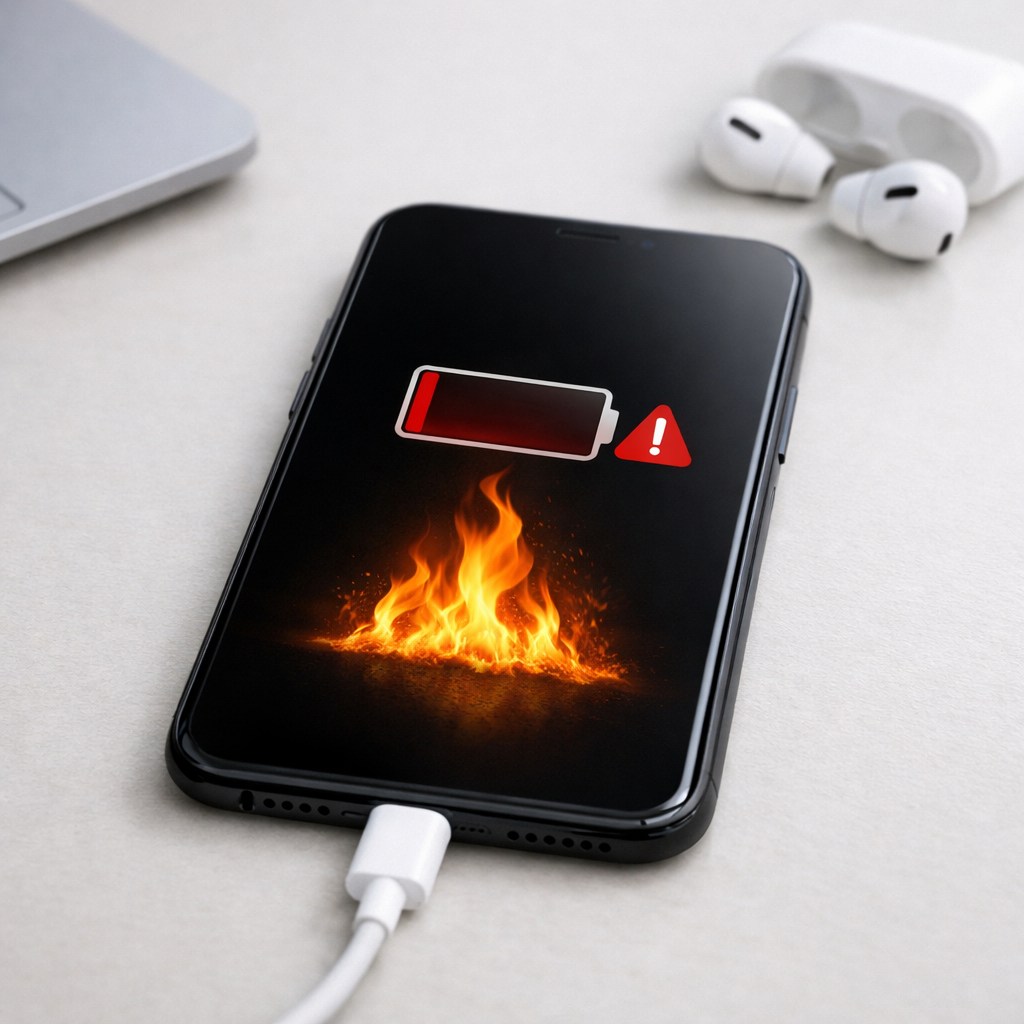
Device Battery Draining Faster Than Usual — Background Activity or Battery Aging?
Quick Answer
Most sudden “battery drain” problems are caused by hidden background activity, not the battery itself. A stuck app, a syncing loop, weak signal hunting, or a new update can keep the processor and radios working even when your device looks idle.
If the drain started within the last few days, it’s usually a software or network issue and can improve within 24–72 hours after a few changes. If it has been steadily getting worse over months, battery aging or a failing internal component becomes more likely.
If you need a fast fix
Restart the device, then leave it unused with the screen off for 10–15 minutes to see if it settles.
Turn on Battery Saver/Low Power Mode and temporarily disable Bluetooth and Location to stop common background drains.
Check battery usage for the last 24 hours and force stop or uninstall any app that suddenly jumped to the top.
Quick Diagnosis Table
Symptom
Most likely cause
Battery drops fast even when not using the device
Hidden background app activity, syncing loop, or runaway notifications
Battery drain started right after an update or new app
Indexing, app bug, permission change, or update-related background tasks
Device is warm in your pocket or on a desk
Background CPU use, cellular/Wi-Fi scanning, or internal component drawing power
Battery percentage jumps or shuts off early (e.g., at 20–30%)
Battery aging, poor calibration data, or failing battery connection
Drain is worst on mobile data or in low-signal areas
Modem “signal hunting” and repeated reconnect attempts in the background
Why This Happens
Your device saves power by letting the processor “sleep” and by pausing background work. When something prevents sleep, the battery can drain two to five times faster even if you barely touch the screen.
Common triggers include a messaging app stuck uploading media, a cloud photo backup retrying the same files, or an email account repeatedly failing to authenticate. Another frequent cause is poor signal: the phone keeps increasing radio power and reconnecting, which quietly eats battery.
When background processes run nonstop, you’ll see faster percentage drops, warmer temperatures, and shorter standby time. If the battery is aging or a component is failing, the device may also show sudden dips, unexpected shutdowns, or charging that feels “inconsistent.”
Most Common Causes (Ranked)
1) Runaway background app or service: A single app can keep the CPU awake, fetch data repeatedly, or spam location requests, draining the battery even with the screen off.
2) Syncing loop (cloud backup, email, photos): When an account keeps retrying uploads or logins, the device stays active and uses extra network power in the background.
3) Poor signal or frequent network switching: Low cellular signal, unstable Wi-Fi, or bouncing between 5G/LTE makes the modem work harder and reconnect over and over.
4) Recent update, indexing, or corrupted cache: After updates, devices may rebuild search indexes, optimize apps, or re-scan media; if something gets stuck, the drain continues.
5) Battery aging (higher internal resistance): Over time, batteries hold less charge and drop faster under load, especially in cold weather or during camera/gaming use.
6) Defective internal component (rare but real): A failing battery, charging circuit, or radio module can draw power abnormally and cause warmth and rapid drain.
If battery life improves gradually after you remove a suspicious app or finish a big sync, that’s a strong sign the battery itself is still okay.
How to Check the Problem Safely
Check 1: Open your Battery/Power settings and review usage for the last 24 hours. Look for apps with unusually high “background” time or an app you barely used.
Check 2: Feel for abnormal heat. A device that’s warm while idle usually has a background process or a hardware draw that needs attention.
Check 3: Test standby drain. Charge to around 80–100%, turn the screen off, and don’t use it for one hour; a drop of more than about 3–5% suggests background activity or weak signal conditions.
Check 4: Compare Wi-Fi vs mobile data. Use the device on Wi-Fi for a few hours, then on mobile data; if drain spikes on mobile data, the modem and signal conditions are likely involved.
Check 5: Check battery health (if available). If health is below roughly 80% or the device reports “service recommended,” aging is a significant factor.
Safety note: if you notice swelling, cracking, a strong chemical smell, or extreme heat, stop using the device and seek professional service immediately.
How to Fix It
Fix 1 (easiest): Restart the device and update apps. This stops stuck processes and installs bug fixes that often resolve runaway background activity.
Fix 2: Identify and control the top drainer. Restrict background activity, disable unnecessary notifications, remove location access, or uninstall the app to prevent constant wake-ups.
Fix 3: Fix sync loops. Sign out/in of the problematic account, pause cloud backup temporarily, and ensure passwords and two-factor prompts are completed so the device stops retrying.
Fix 4: Reduce radio load. Turn off Bluetooth when not needed, disable “always scanning” options if present, and prefer stable Wi-Fi; in weak areas, consider forcing LTE/4G instead of 5G to reduce reconnect churn.
Fix 5 (advanced/last resort): Back up data and perform a factory reset, then set up as new (not from a full restore) to eliminate corrupted settings and persistent background loops. If drain remains on a clean setup, hardware is more likely.
Signs of Battery or Hardware Damage
Battery percentage drops in big jumps (for example, 60% to 40% quickly) without heavy use.
Unexpected shutdowns, especially below 30% or during camera use, calls, or gaming.
Device or charger area becomes hot during light use or while idle.
Battery takes much longer to charge than it used to, or charging speed fluctuates wildly.
Visible bulging, lifted screen/back panel, or the device no longer sits flat.
Crackling sounds, chemical smell, or discoloration around the charging port.
Battery health shows “service,” “replace soon,” or a severely reduced maximum capacity.
When Repair Is No Longer Worth It
If the device is older and the battery health is low, a battery replacement is usually the best value repair, but only if the device still runs smoothly and receives security updates. If a clean reset doesn’t improve drain and you also see heat, random reboots, or charging instability, the issue may be a board-level fault that’s expensive to fix.
As a rule, consider replacement if repair costs approach 40–60% of the price of a comparable replacement device, or if you rely on it daily and can’t risk unpredictable shutdowns. For mid-range and older models, a new battery is often worthwhile; repeated issues after that point usually signal it’s time to move on.
How to Prevent This Problem in the Future
Review battery usage weekly and remove apps that consistently show high background activity.
Limit “always-on” permissions like Location, microphone access, and background refresh to only the apps that truly need them.
Keep apps and the operating system updated, but wait a day or two after major updates for indexing to finish before judging battery life.
Use stable networks when possible; weak signal is a hidden battery killer, especially during streaming and uploads.
Turn off Bluetooth, hotspot, and extra device scanning when you’re not using them.
Avoid heavy heat: don’t leave the device in a hot car, and remove thick cases while fast charging if it gets warm.
For battery longevity, aim for partial charges when convenient and avoid routinely running to 0%.
FAQ
Why is my battery draining overnight when I’m not using the device?
Overnight drain is usually caused by background activity such as app syncing, notifications, cloud backups, or poor signal. Check Battery settings for high background usage, and test one night with Wi-Fi on but mobile data off (or Airplane Mode on) to isolate network-related drain. If the device is warm while idle, something is likely keeping it awake.
Is fast battery drain always a sign the battery is old?
No. Sudden changes are more often tied to software, a new app, or a network issue than battery aging. Aging tends to show up as gradual loss over months, shorter screen-on time, and bigger drops under load. Battery health tools and shutdown behavior help separate aging from background drain.
When should I replace the battery versus troubleshooting apps?
Troubleshoot apps first if the drain started recently, especially after an update or install. Replace the battery if health is low, the phone shuts off early, or the percentage drops in jumps even after a clean setup. If a factory reset doesn’t change standby drain and the device runs hot, get it checked for a hardware fault.
Mark Reynolds explains battery and charging issues in a practical way, focusing on what actually helps in real situations. For more guidance, see the step-by-step troubleshooting guide.