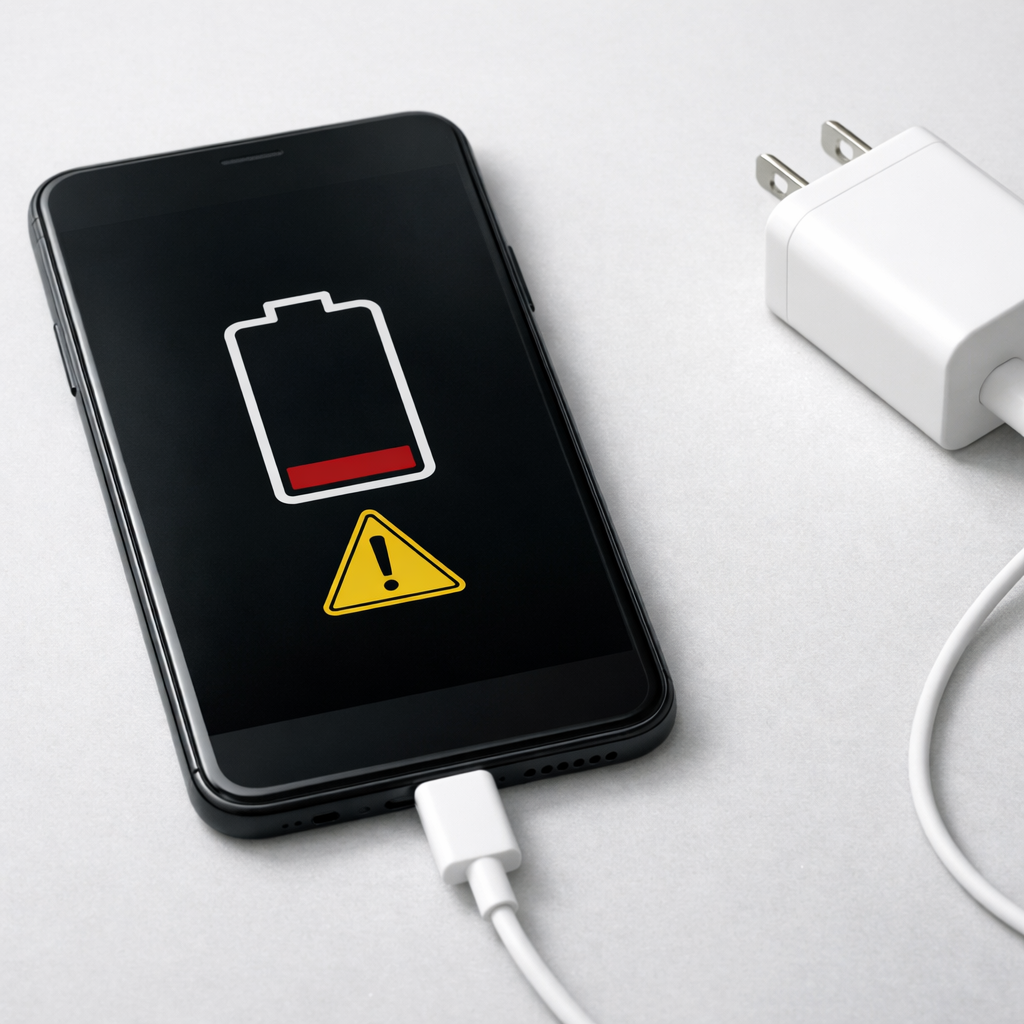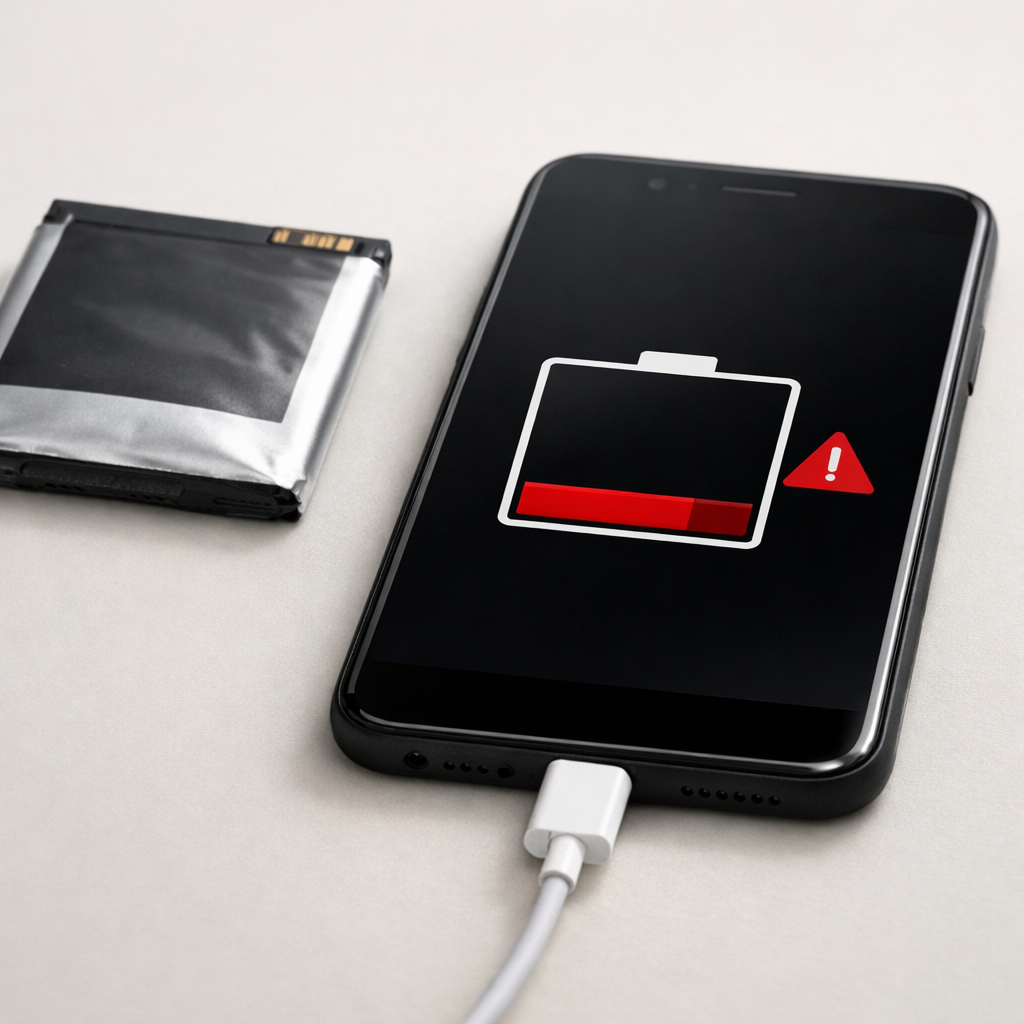
Device Battery Not Holding Charge — Battery Wear or Internal Failure?
Quick Answer
Most of the time, a device that “won’t hold a charge” is not failing to charge at all—it’s charging at a much lower rate than you expect because the charger and device can’t agree on fast charging, or because the battery has aged and can’t safely accept higher power anymore.
In everyday use, this often shows up after 1–3 years of regular charging, especially if the device is used while charging or frequently gets hot. The result is a battery that seems to drain quickly, charges slowly, or stalls at certain percentages.
If you need a fast fix
- Try a different known-good cable and a higher-quality wall charger (not a laptop USB port), then charge for 20–30 minutes with the screen off.
- Clean the charging port gently (power off first) and remove lint; a poor connection can force “slow charge” mode.
- Let the device cool to room temperature before charging; heat often makes batteries refuse fast charging for safety.
Quick Diagnosis Table
| Symptom | Most likely cause |
|---|---|
| Battery percentage goes up very slowly, even with a “fast charger” | Power negotiation falls back to low wattage due to cable/charger limits or dirty/loose connector |
| Charges normally to 70–90% then slows to a crawl or stops | Battery aging reduces charge acceptance; device limits current near the top for safety |
| Percentage jumps up/down, shuts off early, or drops fast from 20% to 0% | Battery wear or unreadable capacity data causing inaccurate reporting and early cutoff |
| Charges only when positioned “just right” or disconnects when touched | Worn port, damaged cable plug, or internal connector issue preventing stable higher-power charging |
| Gets unusually warm while charging and still gains little charge | High internal resistance battery or background load; device throttles charging to control heat |
Why This Happens
Modern devices don’t simply “take power” from any charger. They negotiate charging speed and voltage, then constantly adjust based on temperature, battery condition, and what the device is doing.
If the charger, cable, or port can’t reliably deliver the required signal or current, the device plays it safe and drops to a slower mode. For example, a worn cable may still charge, but only at basic USB power, which can feel like the battery never improves—especially if you’re using the screen or mobile data at the same time.
As batteries age, their internal resistance rises. That makes them heat up more when charged, so the device reduces charging power to protect the battery, which looks like “not holding charge” because the battery can’t fill quickly and can drain faster under load.
Most Common Causes (Ranked)
- 1) Charger/cable can’t negotiate fast charging: Many “fast chargers” are fast only with the right standard and cable; otherwise the device falls back to slow charging that can’t keep up with normal use.
- 2) Battery age causing reduced charge acceptance: A worn battery may still charge, but it won’t accept higher current for long, so it fills slowly and loses percentage quickly.
- 3) Dirty port or loose connection: Lint, oxidation, or a slightly loose port makes charging unstable, so the device reduces power or disconnects intermittently.
- 4) Heat or temperature limits: Charging slows drastically when the device is warm (gaming, sunlight, thick case) because the battery management system throttles power.
- 5) Background drain while charging: Navigation, hotspot, high brightness, or a busy app can use more power than the charger supplies, making the battery appear stuck.
- 6) Internal hardware fault: A failing charging IC, port solder joints, or battery connector can reduce charging power or cause erratic percentages.
If charging gradually gets better after switching to a known-good charger/cable and letting the device cool, that usually points to a negotiation, connection, or heat issue rather than a sudden internal failure.
How to Check the Problem Safely
- Check 1: Use a different wall charger and cable you trust, ideally the original or a reputable brand, and test a 15-minute charge with the screen off.
- Check 2: Inspect and clean the port carefully: power off, shine a light inside, and remove lint with a wooden toothpick or soft brush (no metal tools).
- Check 3: Feel for heat: if the device becomes hot quickly while charging, remove the case, stop heavy use, and try again after it cools.
- Check 4: Test for “can’t keep up” charging: plug in, then use the device normally for 10 minutes; if the percentage drops while plugged in, the charger is likely too weak or negotiation has fallen back.
- Check 5: Review battery health info if available (phone settings or manufacturer app); a very low health percentage strongly suggests wear and reduced capacity.
Safety note: if you notice swelling, a burning smell, liquid, or crackling sounds, stop charging immediately and do not puncture or press the battery area.
How to Fix It
- Fix 1 (easiest): Swap to a quality charger and the correct cable type for your device (USB-C to USB-C for many fast-charge modes). This restores proper negotiation and higher wattage when supported.
- Fix 2: Clean the port and ensure a firm connection. A stable connection prevents dropouts that force slow charging or repeated reconnect cycles.
- Fix 3: Reduce heat and load while charging: remove thick cases, lower brightness, disable hotspot, and avoid gaming. Cooler batteries accept charge faster and more consistently.
- Fix 4: Recalibrate the percentage reading (helps with jumps, not true capacity loss): charge to 100%, keep it plugged in for 30–60 minutes, then use it down to around 10–15% and charge again without interruption.
- Fix 5 (advanced/last resort): Replace the battery or have the charging port/charging circuit inspected. If fast charging never works with known-good accessories and the port is solid, the issue may be internal.
Signs of Battery or Hardware Damage
- Battery swelling, screen lifting, or the back cover bulging
- Device shuts off suddenly at 30–60% remaining
- Percentage jumps wildly (for example, 55% to 20% in minutes) with light use
- Charging stops and starts repeatedly even with a new cable
- Port feels loose, plug won’t click/seat properly, or charging works only at an angle
- Unusual heat while charging or while idle, especially near the battery area
- Noticeable burning smell, discoloration near the port, or sizzling/crackling sounds
When Repair Is No Longer Worth It
If the device is older and the battery health is low, a battery replacement is usually the most cost-effective fix—unless there are also port or motherboard issues. Multiple charging-related symptoms together (loose port plus overheating plus random shutdowns) can mean the repair may snowball.
As a rule of thumb, if a professional repair costs close to a large fraction of the device’s current replacement value, consider replacing the device. If it’s otherwise in good shape and the problem is clearly battery wear, a battery swap can restore normal charging behavior and runtime.
How to Prevent This Problem in the Future
- Use a reputable charger and the right cable for your device’s fast-charging standard to avoid constant fallback to slow charging.
- Keep the device cooler while charging: don’t leave it in a hot car, in direct sun, or under a pillow.
- Avoid heavy use while charging (gaming, hotspot, navigation) when you need the battery to fill quickly.
- Don’t routinely run the battery to 0%; frequent deep discharges accelerate wear and can worsen percentage accuracy.
- If your device offers battery protection features (charge limit to 80–90% or optimized charging), enable them to reduce long-term stress.
- Keep the charging port clean and protect it from pocket lint and moisture; a dusty port often causes slow charging long before it fails completely.
- Replace cheap or damaged cables promptly; intermittent connections create heat and reduce charging speed.
FAQ
Why does my device say it’s charging but the battery still goes down?
This usually means the charger is supplying less power than the device is using at that moment. It can happen with weak chargers, bad cables, or when fast charging fails to negotiate and the device falls back to a low-power mode. Reduce usage and test with a stronger wall charger and a known-good cable.
Is slow charging always a worn-out battery?
No. Slow charging is very often a charger, cable, or port issue, or a temperature limit that forces the device to charge gently. Battery wear is more likely if runtime has shortened a lot and the device shuts off early or can’t take higher charging speeds even with verified accessories.
What’s the quickest way to tell if it’s the charger/cable or the battery?
Try charging with a known-good, higher-quality charger and matching cable, then leave the device idle with the screen off for 15–30 minutes. If the percentage rises normally and the device stays cool, the battery is probably acceptable and the issue was negotiation/accessories or heat. If it barely rises and the device warms up quickly, battery wear or internal charging hardware is more likely.
Understanding how batteries behave over time can make troubleshooting much easier. Mark Reynolds breaks these patterns down in simple terms. You can explore more in the full guide.
For a full overview of this issue and step-by-step solutions, read the complete troubleshooting guide.