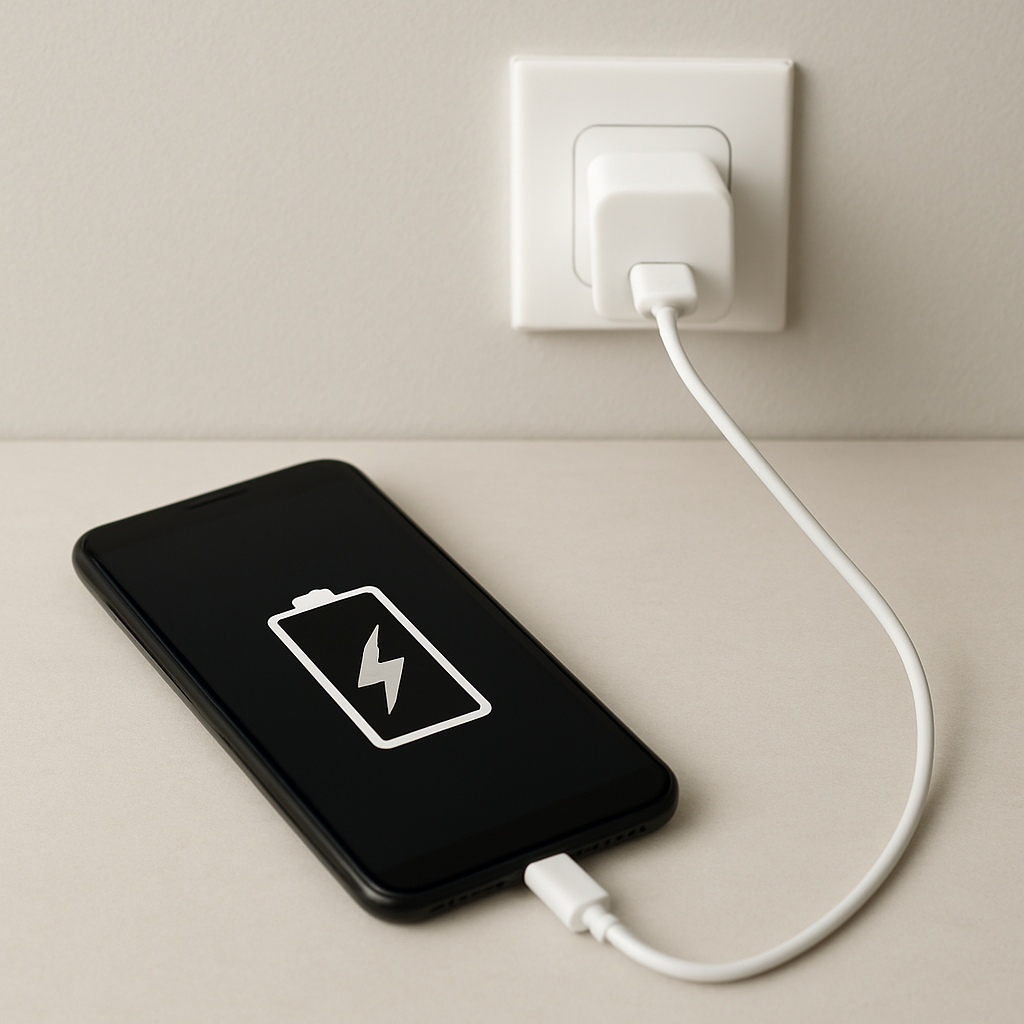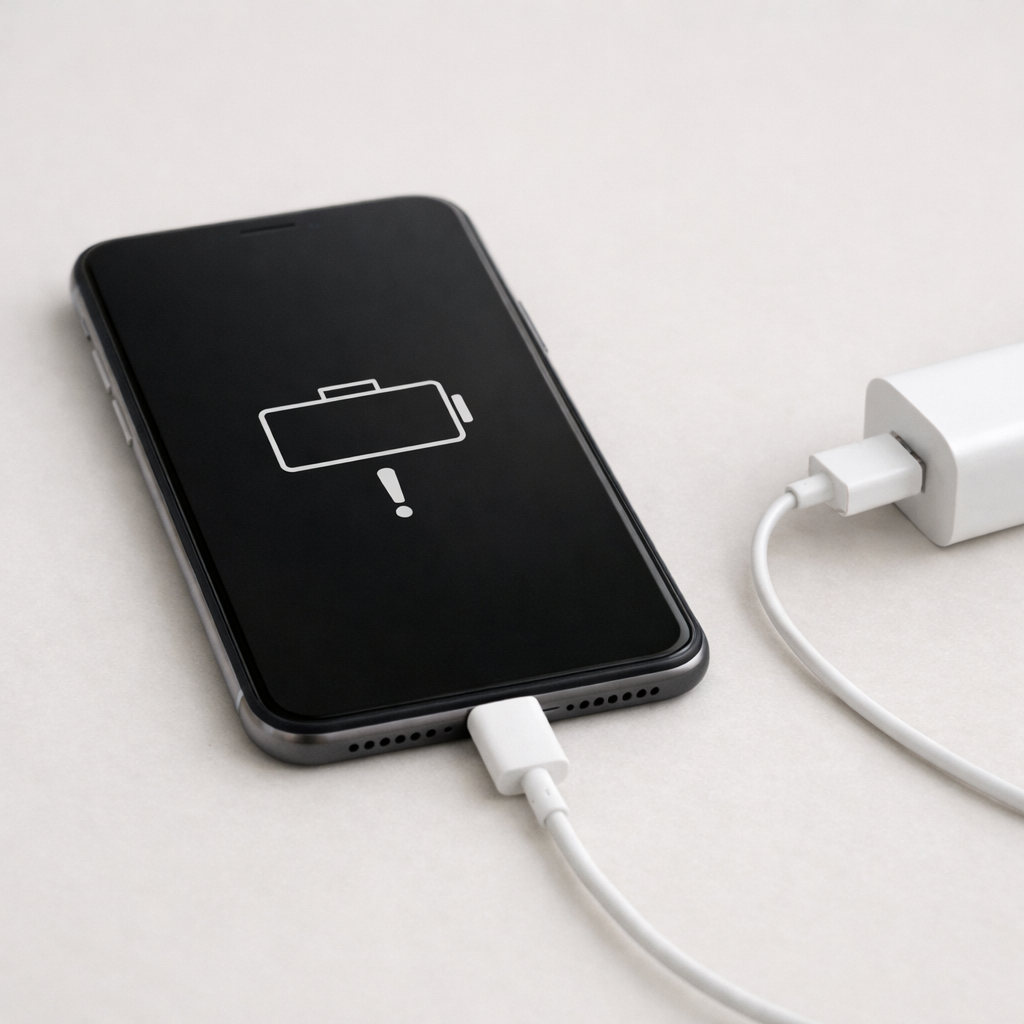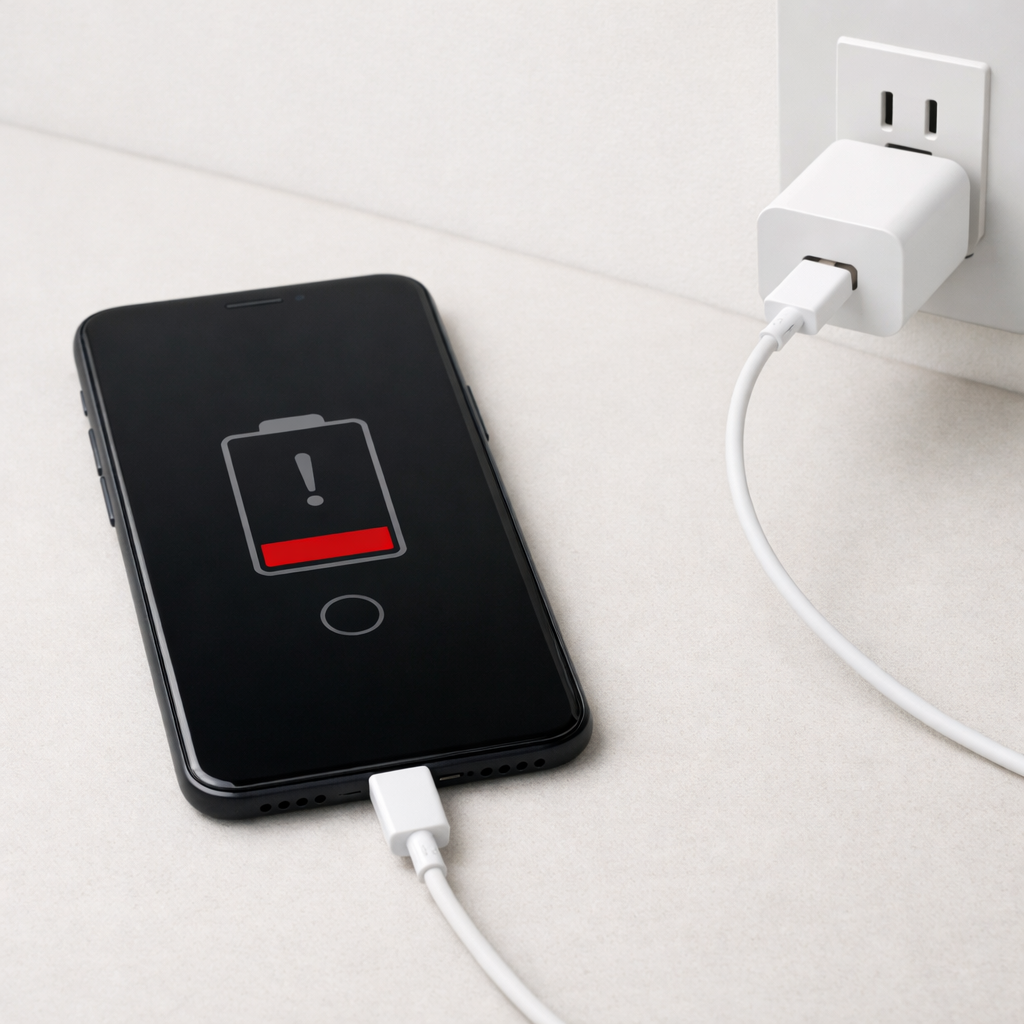
Device Charging Stops Randomly — Power Interruption or Software Regulation?
Quick Answer
The most common reason charging seems to “stop randomly” is that the device never reaches a true idle state because background services keep waking it up. When the phone/tablet/laptop is busy (syncing photos, indexing files, running backups, tracking location, or checking notifications), it may reduce charging speed, pause briefly, or switch between charging states to control heat and battery wear.
This usually means the device is protecting the battery while it performs background work, not that the charger is failing. Short pauses of a few minutes are common, especially during the first 30–60 minutes after plugging in, after a software update, or when many apps are syncing.
If you need a fast fix
- Switch on Airplane Mode for 15–30 minutes while charging (or at least turn off Wi-Fi and Bluetooth) to reduce background wake-ups.
- Close heavy apps and reboot once, then charge with the screen off to help the device enter an idle, low-power state.
- Use a known-good wall charger and cable, and plug directly into a wall outlet (avoid laptops, hubs, or loose power strips).
Quick Diagnosis Table
| Symptom | Most likely cause |
|---|---|
| Charging icon appears, then stops when the screen turns on or apps open | Background activity and higher power draw interrupts “net charging” and triggers charge regulation |
| Charging pauses during photo backup, update, or “optimizing” tasks | System services (sync/indexing) keep the device active, increasing heat and causing temporary limits |
| Charges fine in Airplane Mode or when powered off, but not in normal use | Apps/services preventing idle sleep and causing frequent wake events |
| Charging stops only at a certain percentage (often 80–90%) | Battery protection features like Optimized Charging or charge limit settings |
| Random stops happen mainly when the device is warm | Thermal management reduces or pauses charging to protect the battery |
Why This Happens
Modern devices don’t just “take power” continuously until 100%. They balance charging speed with temperature, battery health, and what the device is doing in the background.
If background services keep the CPU and radios active, the device generates more heat and uses more electricity at the same time it is trying to charge. Examples include cloud photo uploads, app updates, email syncing, antivirus scans, file indexing, and location-based services.
The result is a charge controller that repeatedly slows, pauses, or resumes charging: the device keeps itself safe, but to you it looks like charging is cutting out.
Most Common Causes (Ranked)
- 1) Background syncing and “maintenance” tasks: Cloud backups, photo syncing, update downloads, and indexing can run for hours after setup or updates, preventing deep idle and making charging appear inconsistent.
- 2) Push notifications and chat apps waking the device: Messaging, social, and work apps can trigger frequent network activity, especially on unstable Wi-Fi, keeping the device in a semi-awake state.
- 3) Optimized charging or charge limit features: Many phones and laptops intentionally pause at around 80% and finish later to reduce battery wear, which can look like a random stop.
- 4) Heat-triggered charging regulation: A warm room, thick case, fast charging, gaming, or hotspot use can raise temperatures enough that the device throttles or pauses charging.
- 5) Weak power source or unstable connection: Worn cables, dirty ports, loose power strips, and low-power USB ports can cause brief disconnects that resemble software pauses.
- 6) A misbehaving app or service loop: Occasionally, one app gets stuck syncing or crash-restarting in the background, constantly waking the device and disrupting stable charging.
If charging becomes more consistent after a day or two (especially after a major update or restore), that usually indicates the background housekeeping finished and the device can idle normally again.
How to Check the Problem Safely
- Check 1: Charge for 20 minutes with the screen off and Airplane Mode on, then see if the percentage rises smoothly without pauses.
- Check 2: Look at battery usage in Settings and identify apps with unusually high “background” use; note any that keep running when you are not using them.
- Check 3: Feel for heat near the battery area after 10–15 minutes of charging; noticeable warmth often correlates with charging slowdowns or pauses.
- Check 4: Try a different cable and wall charger you trust, and gently reseat the connector; watch whether the charging state stays stable when you lightly move the cable.
- Check 5: If available, check system battery/charging health status (or laptop power report) for “charging paused due to temperature” or charge limit settings.
Safety note: if the device is hot to the touch, smells unusual, or the battery is swollen, stop charging and do not continue troubleshooting while plugged in.
How to Fix It
- Fix 1 (easiest): Charge with the screen off and enable Airplane Mode for 30–60 minutes; this reduces background wake-ups so the device can enter a low-power state and charge steadily.
- Fix 2: Disable or schedule heavy background tasks (cloud photo backup, app updates, system indexing) to run on Wi-Fi overnight; fewer active services means fewer charge interruptions and less heat.
- Fix 3: Turn off “Optimized Charging” or adjust charge limit settings temporarily if you need a full charge now; this removes intentional pauses near 80–90% (turn it back on later for battery longevity).
- Fix 4: Reduce heat while charging: remove thick cases, keep the device out of direct sunlight, avoid gaming/hotspot use, and use a slower charger if fast charging makes it warm; cooler batteries charge more consistently.
- Fix 5 (advanced/last resort): Identify and remove the bad actor: update or uninstall apps with excessive background activity, reset network settings if connectivity is flapping, and consider a safe backup and system reset if background wake loops persist after updates.
Signs of Battery or Hardware Damage
- Charging stops and starts even with the device powered off and using a known-good charger and cable.
- The charging port feels loose, the plug won’t seat firmly, or charging changes when the cable is barely touched.
- The device gets excessively hot during light use or while charging slowly.
- Battery percentage jumps up or down (for example, drops from 40% to 20% suddenly).
- Unexpected shutdowns at moderate battery levels (like 30–50%).
- Visible bulging, screen lift, or the device no longer sits flat (possible battery swelling).
- Burning smell, crackling, discoloration around the port, or repeated “moisture/debris” warnings with a clean, dry port.
When Repair Is No Longer Worth It
If the issue happens across multiple chargers and cables, continues in Airplane Mode/power-off charging, and you also see heat, swelling, or sudden shutdowns, the problem is likely a worn battery or a failing charging circuit/port. In those cases, troubleshooting settings won’t provide a reliable fix.
As a rule, a battery replacement is usually worth it when the device is otherwise in good shape and still receives updates. If repair costs approach a large fraction of the device’s resale value, or if there are multiple failures (battery plus port plus overheating), replacement is often the smarter and safer choice.
How to Prevent This Problem in the Future
- Keep background syncing under control: schedule cloud backups and large uploads for overnight charging on stable Wi-Fi.
- Review battery settings monthly and restrict background activity for apps that don’t need constant updates.
- After major updates, expect a few hours of indexing; plug in and leave the device idle so those tasks finish faster.
- Avoid heavy workloads while charging (gaming, hotspot, video editing), especially in warm environments.
- Use quality chargers and cables rated for your device, and replace cables that feel loose or intermittently disconnect.
- Keep the charging port clean and dry; lint in the port can cause micro-disconnects that look like “random stops.”
- If your device offers it, use optimized charging most days to reduce long-term battery wear, and disable it only when you truly need 100% quickly.
FAQ
Why does my device say “charging” but the percentage doesn’t go up?
That typically means the device is using power at about the same rate it is receiving it. Background services, a bright screen, weak signal, or heavy apps can consume enough energy that the battery level holds steady or rises very slowly. Let it charge with the screen off and fewer connections to confirm.
Is it normal for charging to pause around 80%?
Yes, many devices intentionally slow down or pause near 80–90% to reduce heat and battery aging. Features like Optimized Charging may wait to finish the last part until it predicts you’ll need the device. If you need a full charge immediately, temporarily disable the feature or use a manual “charge to 100% now” option if available.
How can I tell if an app is preventing idle and interrupting charging?
Check battery usage for high background activity and look for apps that appear at the top even when you barely open them. Also test charging in Airplane Mode; if charging becomes stable, background network activity is a strong suspect. Updating, restricting background access, or uninstalling one problematic app often restores normal charging behavior.
Mark Reynolds focuses on everyday battery and charging problems, helping users understand what’s normal and what isn’t. For a full overview, check the battery troubleshooting guide.
For a full overview of this issue and step-by-step solutions, read the complete troubleshooting guide.