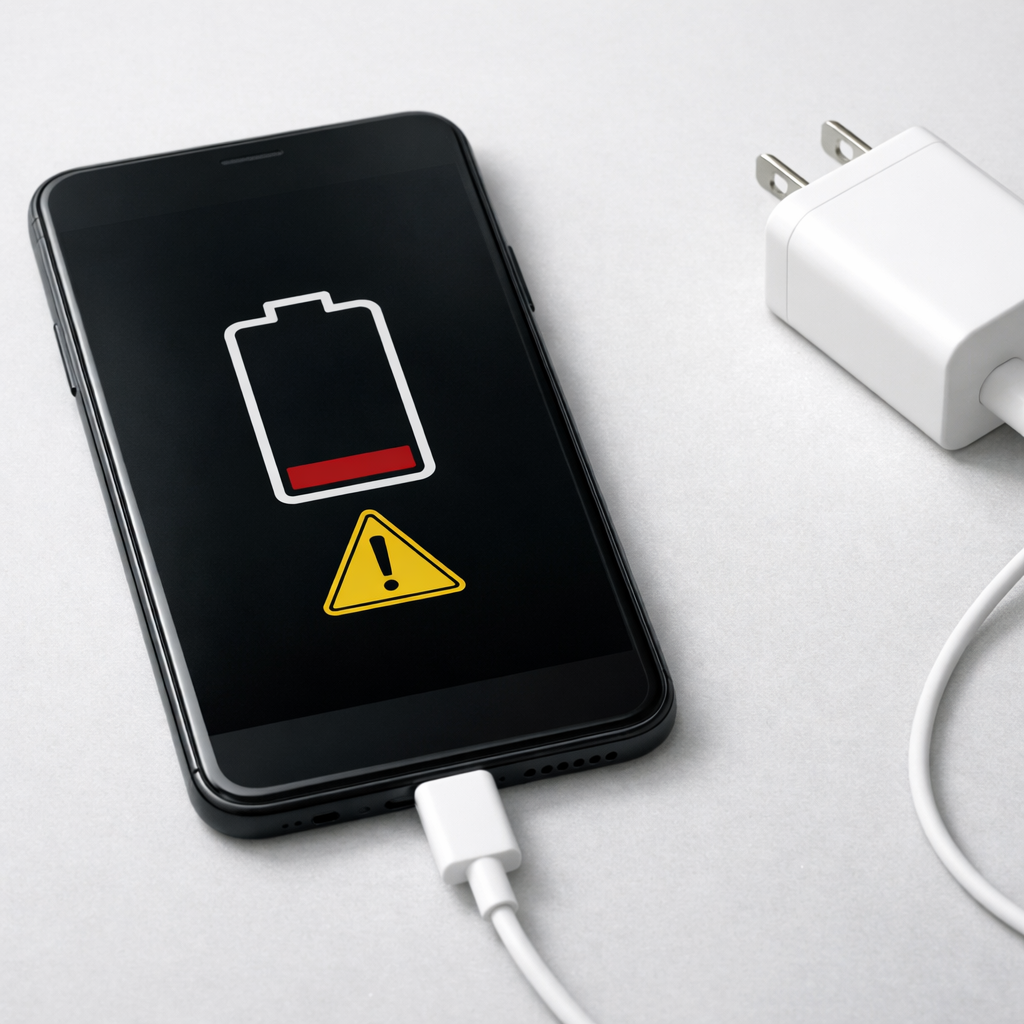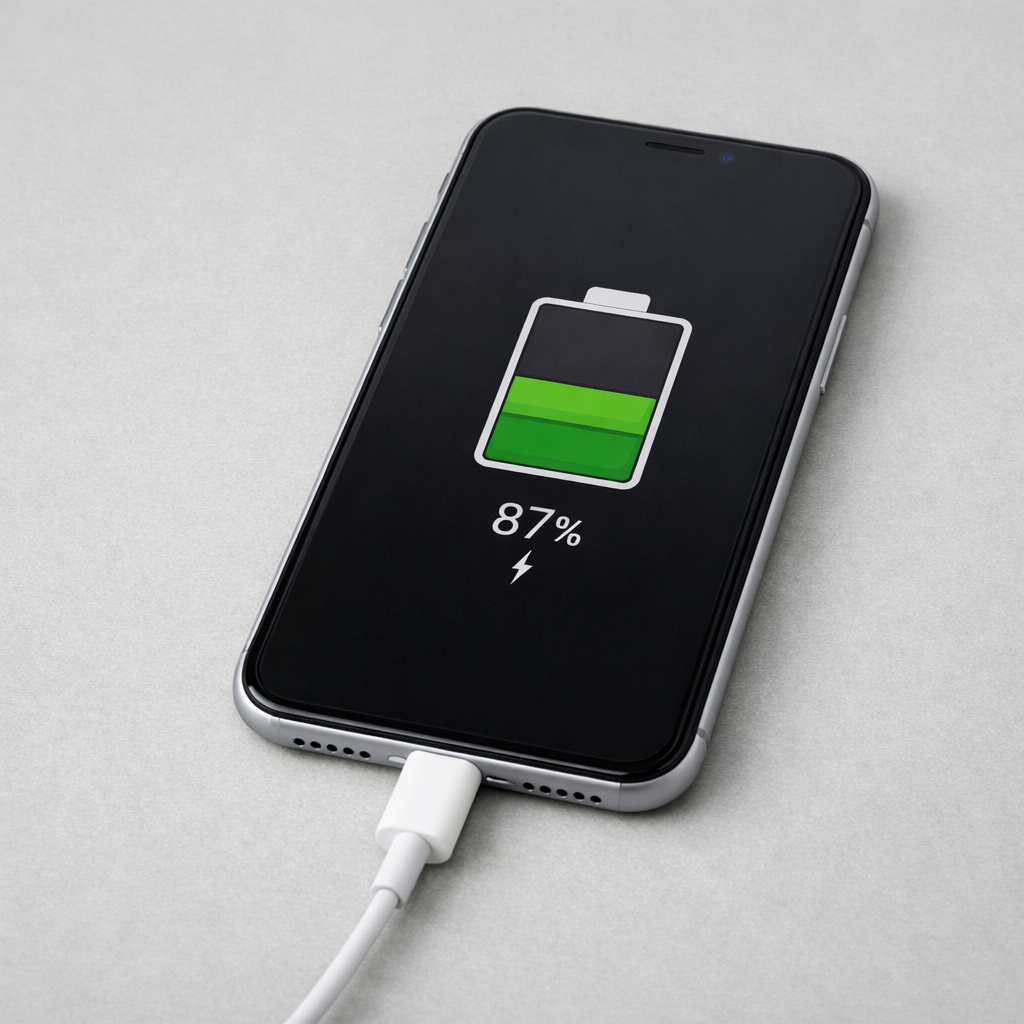
Device Not Charging to 100 Percent — Battery Protection or Capacity Loss?
Quick Answer
Most of the time, a device that stops at 80–99% is working as designed: adaptive charging (battery protection) slows down or briefly pauses charging during long plug-in periods to reduce heat and battery wear.
This commonly happens overnight or when your device predicts it will stay plugged in for hours. You may see it hover at 80%, 85%, 90%, or 95–99% and then finish to 100% closer to when you usually unplug.
If you need a fast fix
- Unplug, wait 30–60 seconds, then plug back in and watch for “charging” to resume.
- Try a different wall outlet and a known-good cable/charger to rule out a weak connection.
- Restart the device and leave it on a cool, hard surface while charging to reduce heat limits.
Quick Diagnosis Table
| Symptom | Most likely cause |
|---|---|
| Stops at 80% overnight and reaches 100% near morning | Adaptive/optimized charging is holding charge until closer to your wake time |
| Hovers at 95–99% for a long time while plugged in | Battery protection trickle behavior plus temperature control near full charge |
| Maxes out at the same number (for example, always 85% or always 90%) | A battery protection cap is enabled (charge limit setting) or a device-managed cap |
| Won’t go past 70–90% and device feels warm | Heat throttling reduces charging current to protect the battery |
| Used to hit 100% quickly but now takes much longer and drops fast | Battery aging/capacity loss or a weak charger/cable causing slow charging |
Why This Happens
Modern phones, tablets, laptops, and wearables manage charging to extend battery lifespan. The last part of charging (roughly 80–100%) creates more heat and stress, so devices often reduce current and “sip” power slowly near full.
Adaptive charging goes a step further by learning your routine. If you usually charge overnight, it may pause at a safer level (often around 80%) and then finish closer to the time you typically unplug, so the battery spends less time sitting at 100%.
The result is a confusing symptom: you see 80–99% for a long time even though the charger is connected. The device is limiting current on purpose, which looks like it is “not charging,” but it is actually protecting the battery.
Most Common Causes (Ranked)
- 1) Adaptive/optimized charging is active: The device intentionally delays the final 10–20% during extended charging sessions to reduce battery wear.
- 2) A charge limit (battery protection cap) is enabled: Some devices let you cap charging at 80%, 85%, or 90% for longevity, and it will never reach 100% until you change that setting.
- 3) Heat management is slowing charging: Warm rooms, thick cases, direct sunlight, or gaming while charging can cause the device to throttle charging current.
- 4) Power source or accessory is underperforming: A low-watt charger, worn cable, dirty port, or loose connection can make the device climb to the high 90s and then stall.
- 5) Battery calibration drift: The percentage meter can become slightly inaccurate, making 95–99% appear “stuck” even though the battery is nearly full.
- 6) Battery aging/capacity loss: An older battery may charge more slowly, hold less energy, or reach “full” earlier based on voltage behavior, even if the meter still shows a high percentage.
If the device sometimes reaches 100% after more time or after a cool-down, that gradual improvement usually points to protection features or temperature limits rather than a sudden hardware failure.
How to Check the Problem Safely
- Check 1: Look for a charging message such as “Optimized charging,” “Battery protection,” “Charging on hold,” or a “Charge limit 80/85/90%” setting in Battery/Power settings.
- Check 2: Feel for heat. If the device is warm, remove the case (if safe to do so) and charge on a hard surface away from sunlight.
- Check 3: Try a known-good cable and charger with the correct wattage for your device, plugged directly into a wall outlet (not a weak USB port or power strip).
- Check 4: Inspect the port for lint or debris and check for a loose fit. If it wiggles or disconnects easily, the cable/port may be worn.
- Check 5: Compare behavior at a different time. If it charges to 100% during the day but not overnight, that strongly suggests adaptive charging is delaying the final top-up.
Safety note: if you see swelling, a chemical smell, or the device becomes unusually hot, unplug it immediately and do not continue troubleshooting while charging.
How to Fix It
- Fix 1 (easiest): Turn off optimized/adaptive charging (temporarily) or choose “Charge to 100% now” if your device offers it, which removes the intentional delay for that session.
- Fix 2: Disable or raise any charge limit setting (80/85/90%). This helps if the device is obeying a longevity cap rather than failing to fill.
- Fix 3: Reduce heat while charging by removing thick cases, stopping gaming/video calls, moving to a cooler room, and keeping the screen off. Lower heat lets the device allow higher charging current and finish the last few percent.
- Fix 4: Replace the cable/charger and clean up the connection. A good-quality cable and the right charger wattage can prevent the “stuck at 95–99%” behavior caused by voltage drop and intermittent contact.
- Fix 5 (advanced/last resort): Update the operating system and, if needed, reset battery/charging settings (or perform a full shutdown and cold start). Software bugs can affect charging logic and percentage reporting, especially after major updates.
Signs of Battery or Hardware Damage
- Battery swelling, a bulging screen/back cover, or the device no longer sits flat.
- Rapid battery drops (for example, 90% to 50% quickly) even with light use.
- Random shutdowns at moderate percentages (such as 20–40%) or unexpected reboots.
- Charging only works at certain cable angles or disconnects with minor movement.
- Device becomes very hot during normal charging, especially near the port or battery area.
- Visible corrosion, burning marks, or melted plastic on the port, cable, or charger.
- Battery health reports are very low (where available) and charging time has become dramatically longer.
When Repair Is No Longer Worth It
If the device is older and shows clear battery aging (short runtime, slow charging, throttling) but is otherwise functional, a battery replacement is usually the most cost-effective repair. If there are port failures, swelling, or repeated overheating, repair urgency is higher because continued use can be unsafe.
As a rule, consider replacement when repair approaches a large portion of the device’s current value, or when multiple issues stack up (battery plus port plus overheating). If you rely on the device daily, downtime and reliability often matter as much as repair price.
How to Prevent This Problem in the Future
- Keep adaptive/optimized charging enabled for everyday use so the battery spends less time sitting at 100%.
- If your device offers it, use an 80–90% charge limit for workdays and only charge to 100% right before long trips.
- Charge in a cool place and avoid leaving the device under pillows, in hot cars, or in direct sunlight while plugged in.
- Use the correct charger wattage and a reputable cable to reduce slow top-offs near full charge.
- Avoid heavy gaming or video calls while charging, especially near the last 20%, to minimize heat throttling.
- Unplug once it reaches your needed level instead of keeping it at 100% for many hours every day.
- Clean ports gently and regularly to prevent poor contact that can mimic “stuck” charging.
FAQ
Why does my device stop at 80% and say it will finish later?
That is typically adaptive/optimized charging. The device pauses around 80% during long charging windows (like overnight) and completes the last 20% closer to when it expects you will unplug. It is meant to reduce battery aging caused by heat and time spent at full charge.
Is it bad if my device sits at 99% for a long time?
Not usually. Near full, charging slows down on purpose and may hold at 99% while it carefully tops off, balances, and manages temperature. If it never reaches 100% even after several hours in a cool room with a good charger, then check for a charge limit setting, heat issues, or battery wear.
How can I tell battery protection from capacity loss?
Battery protection is often consistent with patterns: it happens overnight, it finishes later, and runtime is still normal. Capacity loss shows up as shorter everyday runtime, bigger percentage drops, and longer overall charging times. If your battery life has noticeably worsened and the device struggles to hold charge, a battery health check or replacement is more likely than a simple charging feature.
Mark Reynolds covers battery health, charging limits, and common device issues with a focus on clarity and practical fixes. For a deeper look, visit the full troubleshooting guide.
For a full overview of this issue and step-by-step solutions, read the complete troubleshooting guide.