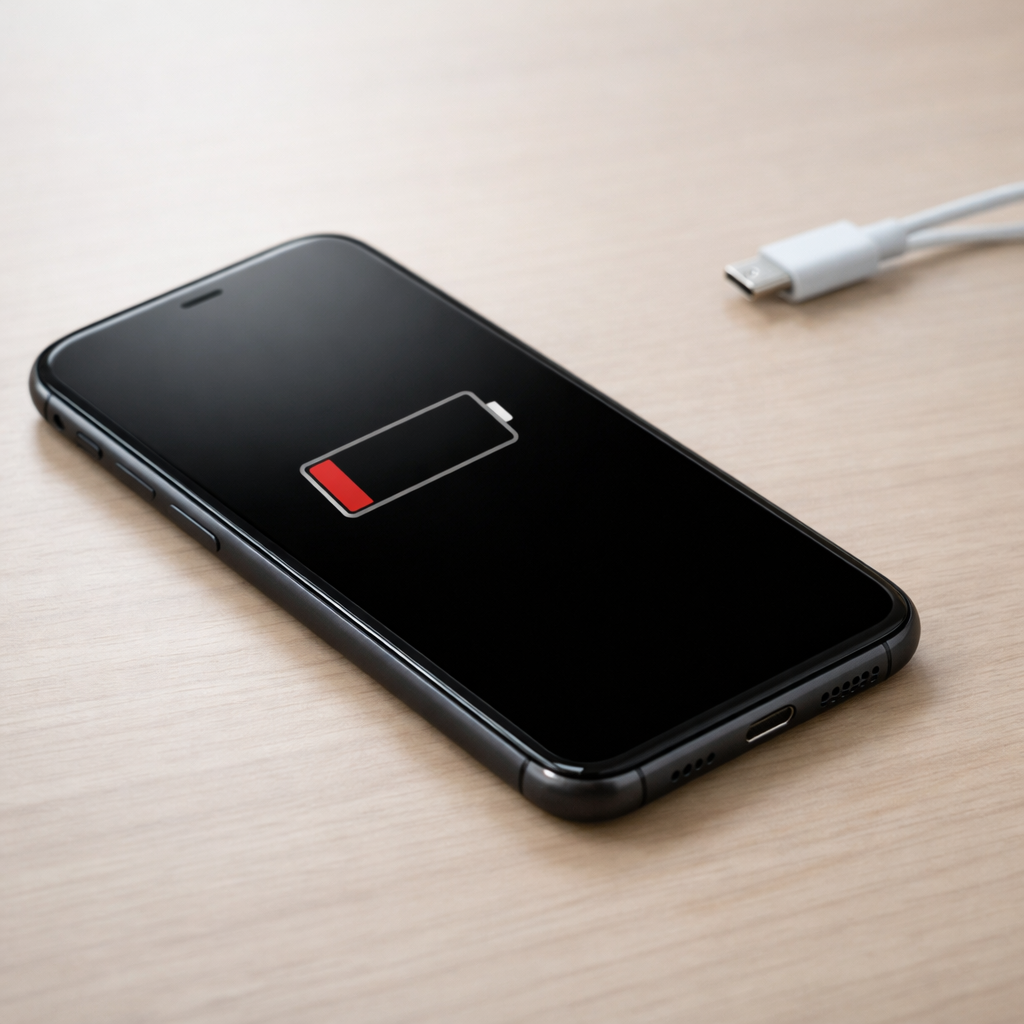
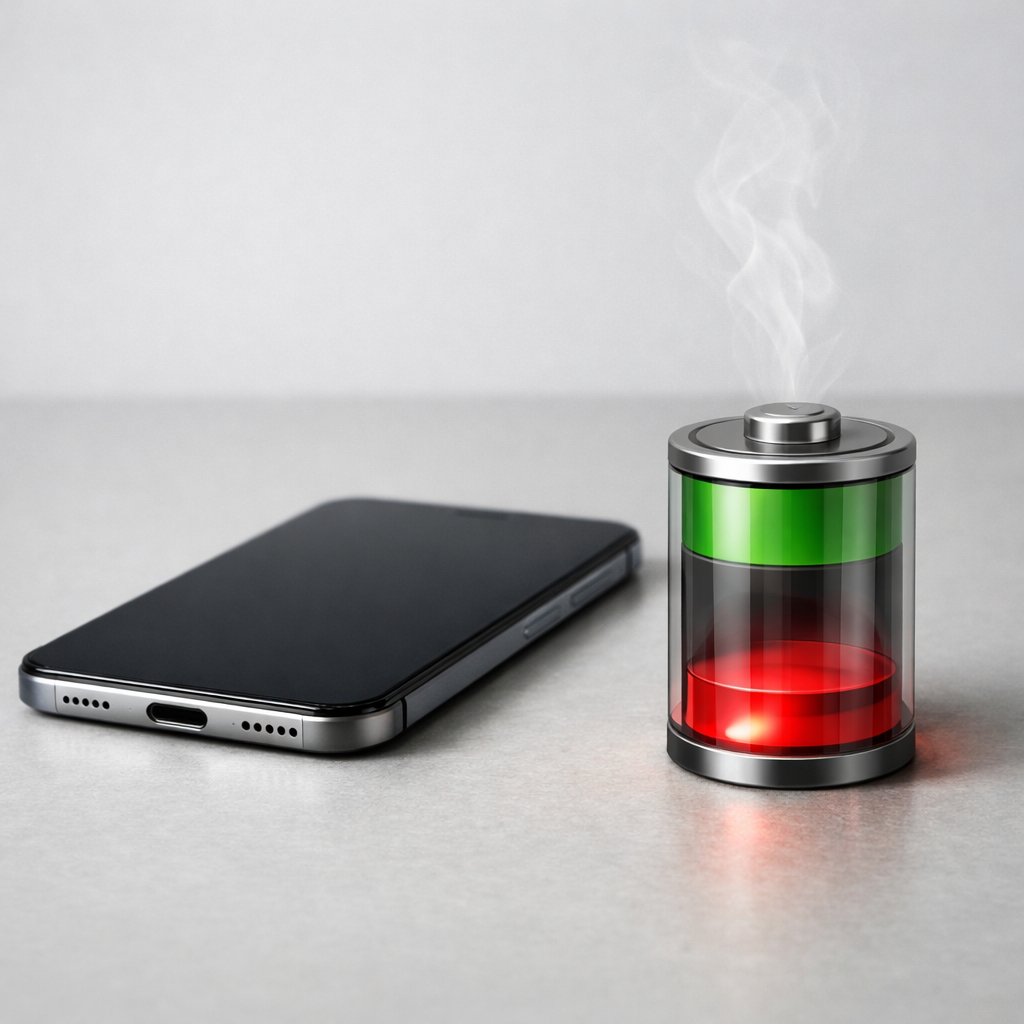
Device Battery Draining in Standby — Background Processes or Hardware Leak?
Quick Answer
If your device loses a lot of battery while it is “doing nothing,” the two big suspects are (1) background apps and radios staying active, or (2) an early sign that the internal lithium battery is becoming unstable and leaking energy faster than it should. The warning sign angle is important: sudden standby drain that appears without a settings change can be one of the first clues that the cell is aging unevenly.
For most phones and tablets, a healthy standby drain is often a few percent overnight. If you’re seeing 10–30% drop in 6–8 hours, especially with no heavy notifications, it’s worth treating it as a possible battery health issue and checking for heat, swelling, or erratic percentage jumps within the next few days.
If you need a fast fix
Turn on Airplane Mode for one test night, then compare battery loss in the morning.
Restart the device and install pending system and app updates, then recheck standby drain over the next 24 hours.
Set a temporary “Battery Saver/Low Power Mode” schedule and reduce background refresh for the biggest apps.
Quick Diagnosis Table
Symptom
Most likely cause
Battery drops 15–30% overnight with the screen off
Background activity, poor signal causing radio hunting, or early battery aging that increases self-discharge
Device is warm in a pocket or on a nightstand while idle
Stuck background process, syncing loop, or a battery beginning to fail and generating heat during charge/discharge
Percentage “jumps” (e.g., 40% to 25% suddenly)
Battery gauge miscalibration, but also common when an aging lithium cell can’t hold voltage under light load
Drain is much worse in one location (home, office)
Poor reception causing constant searching, Wi-Fi/Bluetooth scanning, or a network-related app waking the device
Drain continues even in Airplane Mode
Higher chance of battery self-discharge, internal short, or hardware component staying powered
Why This Happens
Standby should be a low-power state where the screen is off and most components “sleep.” The device still wakes briefly for notifications, alarms, and network checks, but those wake-ups should be short and infrequent.
When battery drain spikes, something is either waking the device too often (software) or the battery is losing energy even without meaningful work (hardware). An aging lithium cell can develop higher internal resistance and micro-defects, which makes it less efficient and sometimes causes faster self-discharge or heat.
In real life, this can look like a phone that used to lose 3% overnight but suddenly loses 20%, or a tablet that gets warm inside a bag even though no app is open. The cause leads directly to the symptom: more wake-ups or more internal loss equals less battery left by morning.
Most Common Causes (Ranked)
1) Battery cell aging with increased self-discharge: As lithium cells wear, they may hold less charge and lose it faster at rest, sometimes before you notice poor screen-on time. Standby drain that steadily worsens week to week can be an early indicator.
2) Poor signal and “radio hunting”: In weak coverage, the modem works harder to stay connected, waking the device repeatedly. This can look like mysterious drain that’s much worse at night or in certain rooms.
3) Background sync loops (mail, cloud photos, messaging backups): A stuck upload/download or repeated login failure can keep the device active with the screen off. This often starts after an app update or account password change.
4) Bluetooth/Wi-Fi scanning and location services overuse: Frequent scanning keeps sensors and radios active. It can increase standby drain even if you rarely use navigation.
5) Power-hungry notifications and “wake locks” from one app: Some apps repeatedly wake the device to check for updates, ads, or messages. If the drain began right after installing a new app, this is a top suspect.
6) Hardware leak from a failing component: Rare but real, a damaged charging IC, shorted accessory, or water corrosion can pull power constantly. This overlaps with battery instability symptoms like heat and odd percentage behavior.
If standby drain improves gradually after updates, settings tweaks, or removing one app, that usually points to a software or network cause rather than a rapidly failing battery.
How to Check the Problem Safely
Check 1: Note the battery percentage before sleep and after waking, plus whether the device felt warm. Repeat for two nights to confirm it’s consistent, not a one-off.
Check 2: Look at the built-in battery usage screen and identify the top apps during the time the screen was off. Pay attention to entries that show high “background” time.
Check 3: Test one night in Airplane Mode (or at least mobile data off). If drain is dramatically lower, the cause is likely signal/radios, not the battery itself.
Check 4: Check for percentage jumps by using the device lightly from 40% down to 20%. If it drops in chunks or suddenly powers off early, the battery may be unstable.
Check 5: Inspect the device physically on a flat surface: look for rocking, a lifting screen, or a case that no longer fits. These can hint at battery swelling.
Safety note: if you suspect swelling or the device gets hot while idle, stop charging it unattended and avoid pressing on the screen or back.
How to Fix It
Fix 1 (easiest): Restart and update the OS and apps, then monitor overnight. This clears stuck processes and installs fixes for battery-draining bugs.
Fix 2: Reduce background activity: disable background refresh for high-drain apps, limit push email frequency, and turn off unnecessary notifications. Fewer wake-ups means better standby.
Fix 3: Address radio drain: enable Wi-Fi calling at home (if available), set the phone to prefer Wi-Fi, or toggle Airplane Mode in poor-signal areas. This prevents constant cellular searching.
Fix 4: Isolate an app: uninstall or temporarily disable the most suspicious app for 24–48 hours. If standby drain returns to normal, you’ve found the trigger.
Fix 5 (advanced/last resort): Back up your data and perform a factory reset, then test the device before restoring all apps. If drain persists on a clean setup, the battery or hardware is the likely culprit.
Signs of Battery or Hardware Damage
Device becomes warm or hot while idle, especially when not charging.
Battery percentage drops in sudden steps or the device shuts down at 20–40%.
Noticeable swelling: screen lifting, back cover bulging, or the phone rocking on a table.
Charging behavior changes: very slow charging, stopping and starting, or getting unusually hot during charge.
Standby drain stays high even in Airplane Mode and after a clean restart.
New chemical smell, crackling sounds, or discoloration near the charging port.
Battery health reading (if available) shows “service,” “replace soon,” or very low maximum capacity.
When Repair Is No Longer Worth It
If the device shows swelling, recurring overheating, or unpredictable shutdowns, repair is usually the right call because safety and reliability are compromised. A battery replacement is often cost-effective on newer devices, but less so on very old models with weak performance or limited software support.
Use a simple rule: if a genuine battery replacement plus labor is more than about 30–40% of the cost of a comparable replacement device, consider upgrading. Also factor in risk: persistent heat or swelling should push you toward immediate service or replacement regardless of cost.
How to Prevent This Problem in the Future
Avoid keeping the device at 100% for long periods; aiming for roughly 20–80% most days reduces lithium cell stress.
Keep the device cool: remove thick cases while charging if it runs warm, and don’t leave it on a bed or in a hot car.
Use quality chargers and cables that meet the device’s requirements to reduce charging heat and instability.
Update the OS and apps regularly since battery drain bugs are commonly fixed in updates.
Address weak-signal environments with Wi-Fi calling or local Wi-Fi, so the modem doesn’t work overtime.
If standby drain trends worse month to month, treat it as an early warning and plan a battery health check before it becomes a safety issue.
FAQ
Is sudden standby drain always a bad battery?
No. A single night of heavy drain is often caused by updates, a stuck sync task, or poor signal. But if it repeats for several days, or happens even in Airplane Mode, it becomes more consistent with battery self-discharge or hardware leakage.
How much battery loss overnight is considered normal?
Many devices lose around 1–5% over 6–8 hours in healthy conditions, though it varies by model and signal strength. If you’re consistently losing 10% or more with the screen off, it’s worth investigating app background use and battery health.
Should I keep using my device if it’s warm in standby?
Mild warmth right after charging can be normal, but warmth while idle and not charging is not. If it’s repeatedly warm, shows percentage jumps, or has any swelling, stop charging it unattended and arrange a battery inspection or replacement as soon as possible.
Battery issues rarely come from a single cause. Mark Reynolds focuses on identifying patterns and simple fixes that apply in most situations. For more details, read the complete guide.