Device Charging Unstable Behavior — Power Input Fluctuation or Software Control?
Quick Answer
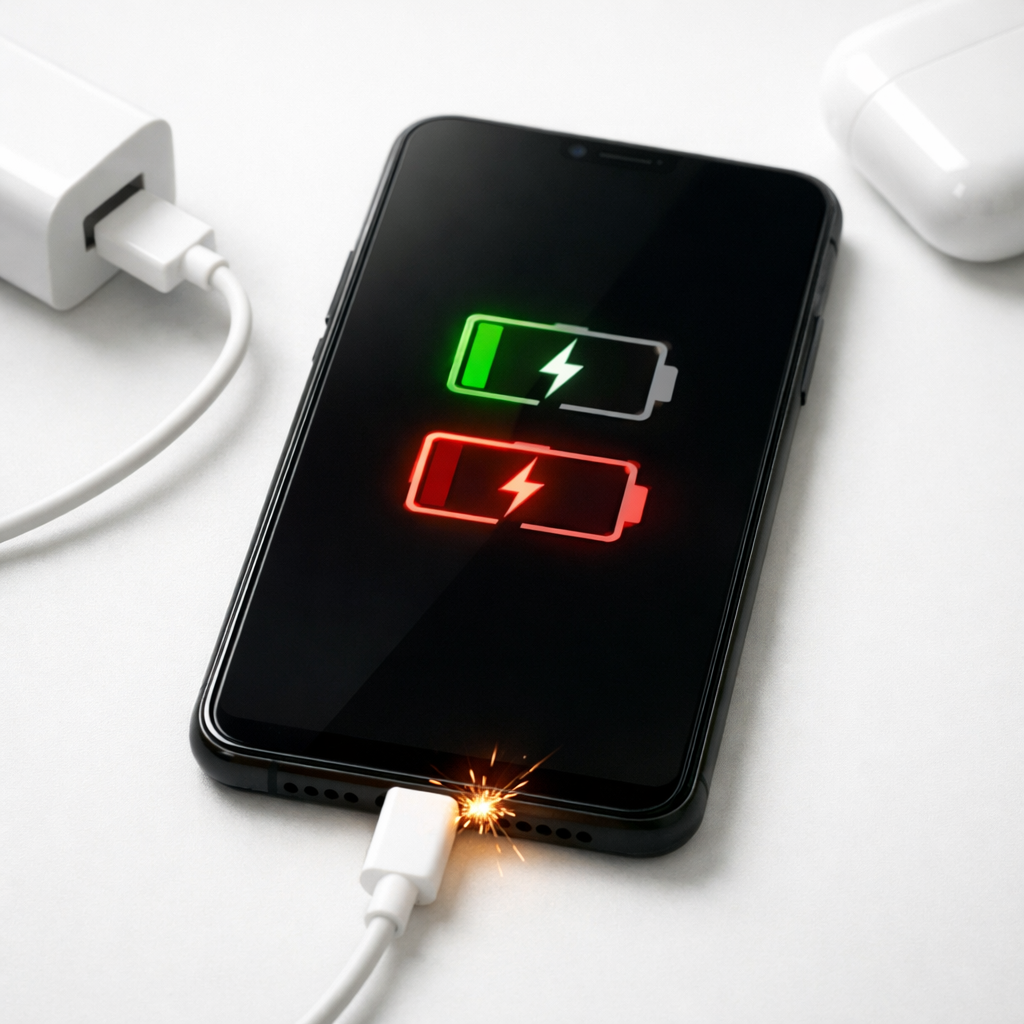
Unstable charging (starts/stops, percentage jumps, or “charging” flickers) is most often caused by intermittent power transfer: a loose or dirty port, a worn cable, a weak charger, or a degrading charging circuit that can’t keep a steady connection.
In many cases it shows up gradually over weeks as the cable fit loosens or debris builds up, but it can also start suddenly after a drop, moisture exposure, or using a low-quality charger.
If you need a fast fix
- Try a different known-good cable and charger (preferably the original or a certified replacement) and plug directly into a wall outlet.
- Power off the device and gently clean the charging port opening with a dry, soft brush; remove pocket lint you can see without forcing anything.
- Stop charging through hubs, docks, or loose power strips for now, and avoid using the device while charging to reduce strain and heat.
Quick Diagnosis Table
| Symptom | Most likely cause |
|---|---|
| Charging icon flickers or connects/disconnects when the cable moves | Worn cable/connector, dirty port, or a loose charging port solder joint |
| Charges very slowly or only at certain angles | High resistance from frayed cable, debris in port, or damaged port pins |
| Charging stops around a certain percentage then resumes later | Heat throttling, battery health decline, or charging controller limiting current |
| Device gets warm and the charger cycles on/off | Overheating, poor-quality charger, or internal charging circuitry stress |
Why This Happens
Charging works best when the device receives a steady voltage and current. If the connection briefly breaks or the voltage dips, the device may cut charging for safety, then try again seconds later.
Real-world triggers are common: a cable that “looks fine” but has broken strands near the plug, lint packed into the port from pockets, or a charger that can’t hold its output when the device asks for more power.
In short, unstable input or a struggling charging circuit causes the device to repeatedly renegotiate power, which you see as flickering charge status, slow charging, or random stop-and-start behavior.
Most Common Causes (Ranked)
- 1) Dirty or obstructed charging port: Lint, dust, or corrosion prevents the plug from seating fully, so the contact cuts in and out with small movements.
- 2) Worn or low-quality cable: Internal wire damage increases resistance and creates micro-disconnects, especially near the connector strain relief.
- 3) Weak or incompatible charger/power source: Cheap adapters, tired power bricks, computer USB ports, and multi-port chargers may sag under load and trigger charging resets.
- 4) Loose port or degraded charging circuitry: A port can loosen after repeated stress, or the internal charging components can degrade, making power delivery unstable even with good accessories.
- 5) Heat-related charging throttling: If the battery or device warms up, charging may pause or slow to protect the battery, then resume once it cools.
- 6) Software power management or a stuck charging state: Updates, battery optimization, or a temporary system glitch can misreport status or limit charging until restarted or recalibrated.
If the problem improves after cleaning the port or switching to a better cable/charger, that usually indicates the core battery is fine and the issue was mainly connection quality.
How to Check the Problem Safely
- Check 1: Inspect the cable ends for wobble, bent shells, scorch marks, or a “loose” feel; if the plug doesn’t click/seat firmly, suspect wear.
- Check 2: Try a known-good cable and a known-good wall charger with the correct wattage for your device, then test for 5–10 minutes without touching the cable.
- Check 3: Look into the port with bright light; if you see lint packed at the back or any discoloration, the plug may not be making full contact.
- Check 4: Test different outlets and avoid power strips temporarily; unstable mains connections and loose strip sockets can mimic a charging problem.
- Check 5: Check device temperature and remove thick cases; if charging stabilizes when cooler, heat throttling is likely involved.
Safety note: never scrape inside a port with metal tools or spray liquids into it; if you suspect moisture or a burning smell, stop charging and let it dry/cool completely.
How to Fix It
- Fix 1 (easiest): Swap to a certified, high-quality cable and the proper wall charger; this removes the most common source of voltage drops and intermittent contact.
- Fix 2: Clean the charging port gently while the device is powered off; a dry soft brush can dislodge lint so the connector seats fully and holds steady.
- Fix 3: Reduce movement and strain: charge on a flat surface, avoid using the device while plugged in, and don’t bend the cable sharply; this prevents momentary disconnects.
- Fix 4: Address heat and software: remove the case if it traps heat, charge in a cooler spot, restart the device, and install pending OS updates to clear stuck charging logic.
- Fix 5 (advanced/last resort): If multiple known-good chargers/cables still flicker, get the port and charging circuit inspected; a loose port or failing charging IC usually requires professional repair or board-level service.
Signs of Battery or Hardware Damage
- Charging works only when the plug is held at a specific angle, or the port feels loose or “crunchy.”
- Visible bent pins, green/white corrosion, or dark scorching inside the port or on the cable tip.
- Device gets unusually hot near the port or battery area while charging, even with a good charger.
- Battery percentage drops under light use, jumps erratically, or the device shuts down despite showing charge.
- Swollen battery signs: bulging back cover, screen lifting, or the device rocking on a flat surface.
- “Accessory not supported,” repeated USB connect/disconnect sounds, or charging never stabilizes across multiple chargers.
- Burning smell, crackling, or a charger that becomes extremely hot to the touch.
When Repair Is No Longer Worth It
If the issue is a loose port or failing charging circuitry, repairs can be straightforward on some devices and complex on others. It’s usually worth repairing when the device is otherwise in good condition, holds a decent charge, and the repair is a simple port replacement rather than deeper board work.
As a rule, if repair costs approach 30–50% of the device’s current replacement value, replacement often makes more sense. Also consider age, battery health, and whether you rely on the device daily, since recurring charging faults can worsen and risk data loss.
How to Prevent This Problem in the Future
- Use certified cables and chargers with the correct wattage; steady power reduces renegotiation and heat.
- Insert and remove the plug straight in and out; avoid twisting or yanking the cable, which loosens ports over time.
- Keep the port clean by avoiding pocket lint buildup; periodically inspect with a light and clean gently when needed.
- Don’t charge on soft surfaces that trap heat (beds, couches); heat can trigger stop-and-start charging and accelerates wear.
- Avoid charging through questionable hubs, hotel USB ports, or worn car adapters; unstable sources cause fluctuating input.
- Use a cable with good strain relief and replace it at the first sign of looseness or charging angle sensitivity.
- If your device supports it, enable optimized charging features; they can reduce heat and stress during long charging sessions.
FAQ
Why does my device charge normally with one cable but not another?
Cables can fail internally while still looking normal from the outside. A damaged wire or worn connector increases resistance, so the device sees voltage dips and repeatedly stops and restarts charging. Using a certified replacement cable is the quickest way to confirm this.
Could this be software, or is it definitely hardware?
It can be software, but intermittent charging that changes when you wiggle the cable usually points to a physical connection or power delivery problem. Software issues are more likely when charging behavior changes after an update, or when a restart temporarily fixes it. If multiple good chargers and cables still flicker, hardware is more likely.
Is it safe to keep charging if it keeps connecting and disconnecting?
Occasional flickers from a loose cable are usually not an emergency, but it can cause extra heat and wear on the port and battery over time. Stop charging immediately if you notice burning smells, excessive heat, corrosion, or visible damage. If the problem persists after trying known-good accessories, get it inspected to avoid further damage.
Mark Reynolds writes about battery behavior, charging issues, and practical troubleshooting for everyday device problems. For a step-by-step overview, see the full battery troubleshooting guide.
For a full overview of this issue and step-by-step solutions, read the complete troubleshooting guide.