Charging Cable Warm to the Touch — Safe Temperature or Internal Damage?
Quick Answer
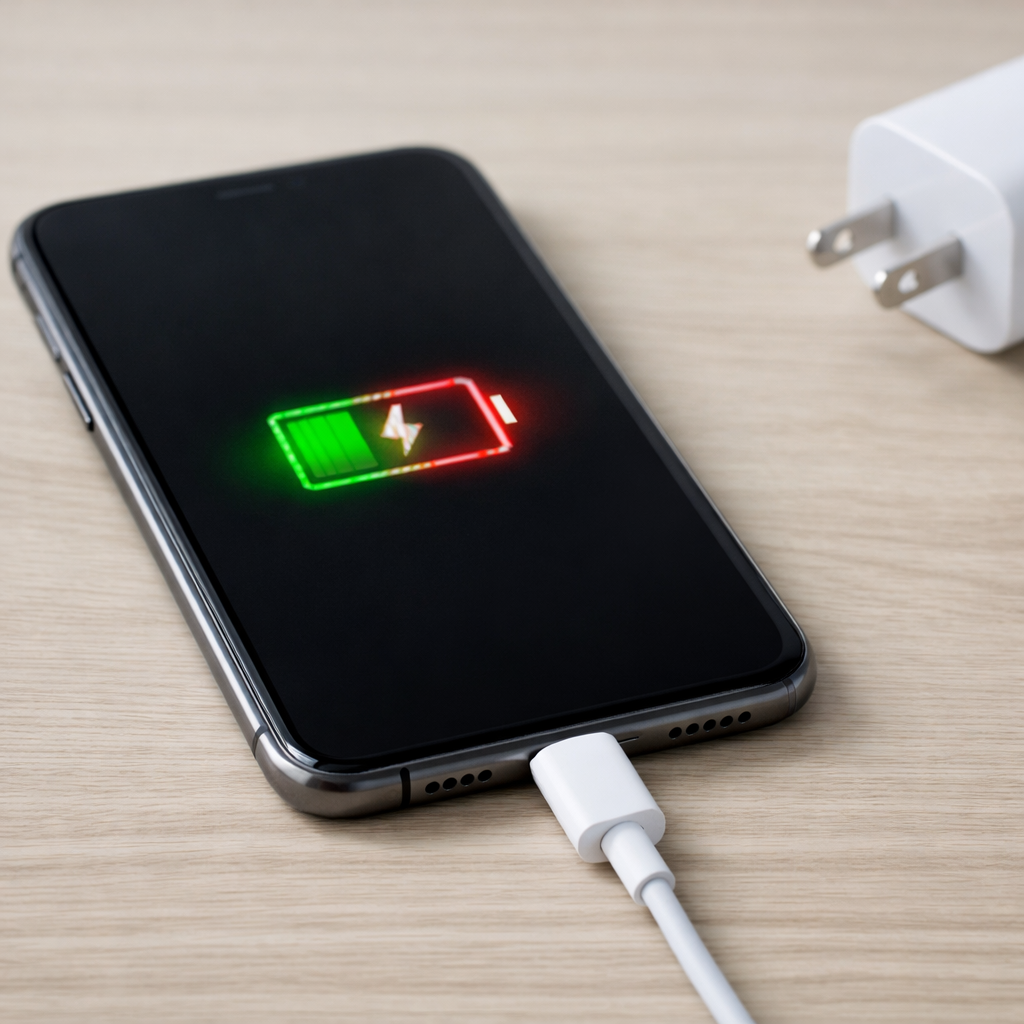
A charging cable that feels warm is often caused by the phone or laptop “hunting” for the right charging level around 40–80% because the battery’s calibration has drifted or the battery cells have aged. That mid-charge instability can make the charger and device repeatedly adjust power, which increases current through the cable and creates heat.
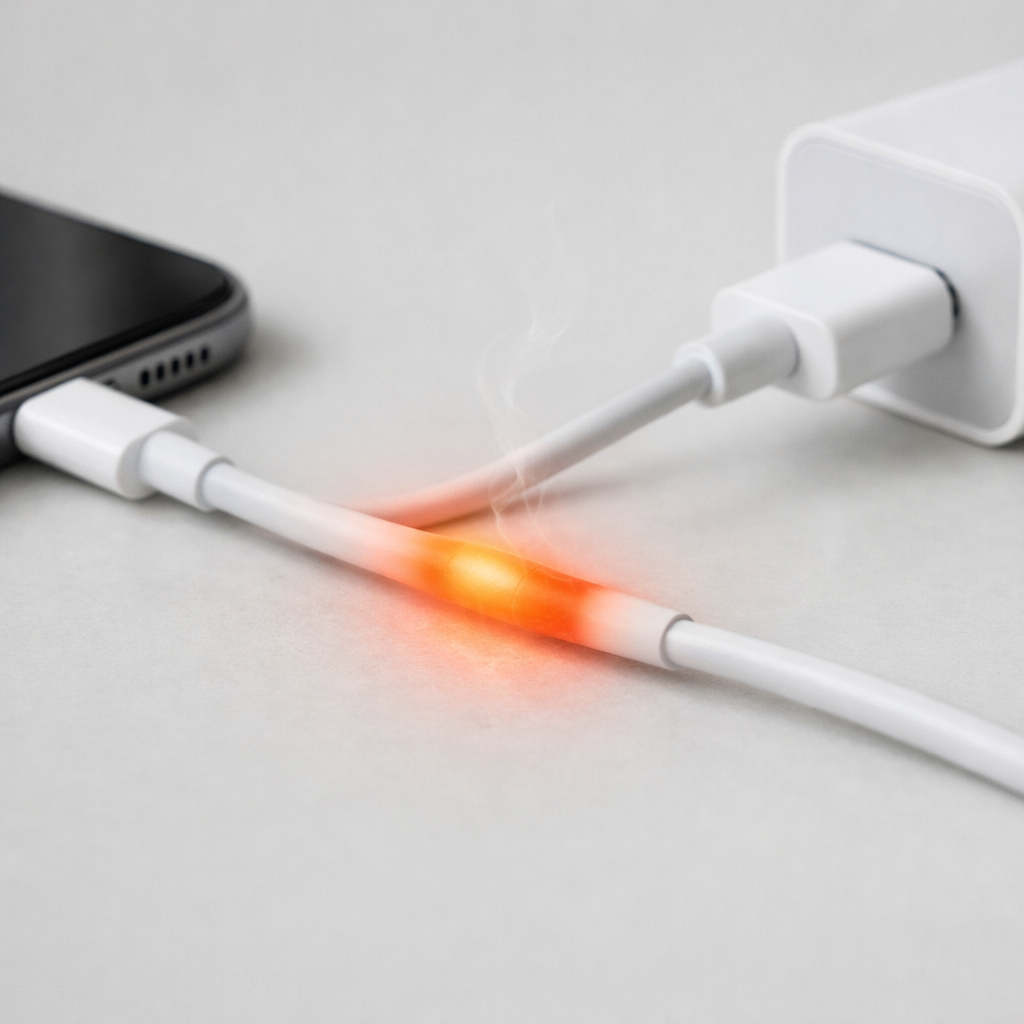
In most cases, mild warmth during the first 10–30 minutes of charging or during high-speed charging is normal. If the cable gets notably hot, smells odd, or the warmth shows up consistently at the same battery percentage range, treat it as a sign to test the cable, charger, and battery health.
If you need a fast fix
- Unplug, let everything cool for 5 minutes, then replug using a different wall outlet and remove the phone case while charging.
- Swap to a known-good cable and charger (preferably the original or a certified replacement) and avoid charging from a laptop USB port for now.
- Turn on Airplane mode or lower screen brightness during charging to reduce load and heat while you troubleshoot.
Quick Diagnosis Table
| Symptom | Most likely cause |
|---|---|
| Cable is warm mainly around 50–80% charge and charging speed keeps changing | Battery calibration drift or aging cells causing voltage instability at mid-charge |
| Cable is hottest near the connector (phone end) and the plug feels loose | High resistance from a worn connector, dirty port, or damaged cable end |
| Charging repeatedly starts/stops (sound/vibration) and the cable warms quickly | Poor contact, moisture/debris in the port, or a failing cable/charger |
| Cable stays warm even when the device is at 90–100% and should be tapering | Background load or battery not accepting charge normally due to cell degradation |
Why This Happens
Charging heat comes from electrical resistance and the amount of current flowing. Fast charging pushes more power, which can make a cable feel warm even when everything is healthy.
Mid-charge (often roughly 40–80%) is where many devices negotiate and adjust power most actively. If the battery’s reported percentage is slightly “off” (calibration drift) or the battery cells have aged, the device may keep changing how much power it asks for.
Those repeated adjustments can create small surges and extra losses at the connectors and inside the cable. The result is a cable that’s warm to the touch, especially near the ends, and charging that doesn’t feel steady.
Most Common Causes (Ranked)
- 1) Battery calibration drift at mid-charge: The percentage reading can become inaccurate over time, so the device keeps correcting its charge behavior around the middle of the battery range. That extra “back-and-forth” can raise cable temperature.
- 2) Battery cell degradation (aging battery): As cells wear, the battery’s internal resistance increases and voltage becomes less stable under load. The charger compensates, and you may notice warmth plus inconsistent charging speed.
- 3) High resistance at the connector (cable or port wear): A slightly loose plug, worn cable end, or oxidized contacts create resistance. Resistance turns into heat, often concentrated near the connector rather than along the whole cable.
- 4) Charger and device negotiating poorly (incompatible fast charging): Some chargers and cables support different fast-charge standards. Negotiation can fall back to slower modes and switch again, which can add heat and instability.
- 5) Background load during charging: Gaming, hotspot use, navigation, or heavy syncing keeps the device drawing power while charging. That can prevent normal tapering and keep current high, warming the cable.
- 6) Poor outlet or power strip issues: Loose wall outlets or overloaded power strips can cause slight voltage drops. The charger may work harder to maintain output, contributing to warmth and stop-start behavior.
If the warmth reduces over a few days after switching to a better cable/charger and doing a full charge cycle, that usually indicates the issue was contact resistance or calibration rather than a serious hardware fault.
How to Check the Problem Safely
- Check 1: Feel where the heat is strongest (wall plug, charging brick, cable body, or device-side connector). Heat at one end usually points to a connector/cable problem rather than the whole system.
- Check 2: Try a different cable first, then a different charger, ideally one known to be genuine and correct for your device. If the warmth disappears, you’ve isolated the weak part.
- Check 3: Watch charging behavior from 40% to 80% and note if it repeatedly switches between “charging rapidly” and normal, or if it pauses and resumes. Repeated changes in that range often match mid-charge instability.
- Check 4: Inspect and gently clean the port area: shine a light into the port and look for lint, dust, or bent pins. If you clean, use only a dry, non-metal tool and avoid force.
- Check 5: Check battery health (if your device provides it) and look for unusual drops, like losing 10–20% quickly after unplugging. That can indicate aging cells and unstable voltage behavior.
Safety note: if anything becomes hot enough to be uncomfortable to hold, unplug immediately and do not continue testing until the cable and charger are replaced.
How to Fix It
- Fix 1 (easiest): Replace the cable with a certified, correct-spec cable for your device. A good cable reduces resistance at the connectors and prevents unnecessary heat.
- Fix 2: Use a compatible charger (correct wattage and fast-charge standard) and plug directly into a solid wall outlet. Stable input power reduces renegotiation and mid-charge power “hunting.”
- Fix 3: Recalibrate the battery reading by doing a controlled cycle: charge to 100%, leave it on the charger for about 30–60 minutes, then use it down to around 10–15% and charge back to 100% in one session. This can improve the accuracy of the percentage reading and smooth out mid-charge behavior.
- Fix 4: Reduce heat and load while charging: remove thick cases, avoid gaming/video calls, and keep the device out of direct sun. Lower load helps the charger taper properly and keeps cable current lower.
- Fix 5 (advanced/last resort): If battery health is poor or the device behaves erratically at mid-charge even with known-good accessories, plan a battery replacement through the manufacturer or a reputable repair shop. A worn battery can keep causing unstable voltage and excess heat until replaced.
Signs of Battery or Hardware Damage
- Cable or connector becomes hot quickly (within 1–5 minutes) even with a good charger.
- Burning smell, discoloration, melting, or a “soft” deformed cable jacket.
- Charging cuts in and out with light cable movement, or the plug won’t seat firmly.
- Battery percentage jumps up or down suddenly, especially between 40–80%.
- Device gets unusually hot near the battery area during normal charging (not heavy use).
- Swollen battery symptoms: bulging screen/back cover, rocking on a flat surface, or creaking when pressed.
- Charger brick buzzes, crackles, or shows scorch marks at the prongs or USB port.
When Repair Is No Longer Worth It
If the cable and charger have been replaced and the device still warms the cable significantly at mid-charge, the battery is often the limiting part. For older devices with weak battery health, a battery replacement can help, but other components may also be near end-of-life.
As a rule, if replacement cost is a large fraction of the device’s current value or you also have other problems (random shutdowns, major performance issues, port damage), replacement is usually the better long-term choice. If the device is otherwise in great shape and the battery is the clear culprit, a battery swap is typically the most cost-effective repair.
How to Prevent This Problem in the Future
- Use certified cables and chargers that match your device’s fast-charging standard and power level.
- Avoid regularly charging from 0% to 100% under heavy use; keeping daily use roughly between 20–80% can reduce cell stress.
- Keep connectors clean and dry, and avoid charging when the port has visible lint or moisture.
- Don’t bend the cable sharply at the ends; use a longer cable or better routing to reduce connector wear and resistance.
- Manage heat: don’t charge under pillows, in hot cars, or in direct sun, since heat accelerates battery aging and instability.
- If you notice percentage jumps at mid-charge, do an occasional controlled charge cycle to help the device’s battery meter stay accurate.
- Replace cables at the first signs of looseness, fraying, or intermittent charging to prevent high-resistance heating.
FAQ
Is it normal for a charging cable to be warm?
Yes, mild warmth can be normal, especially with fast charging. It should not be uncomfortably hot, and it should not smell, discolor, or soften. If warmth is concentrated near one connector, that often points to a high-resistance cable end or port contact issue.
Why does the cable get warmer around 50–80% battery?
That range often involves active power adjustments, and an aging battery or a drifting battery meter can make the device change charging behavior more often. Those changes can increase current spikes and losses in the cable and connector. If it happens consistently in the same range, check battery health and try a calibration cycle with a known-good charger and cable.
Can a warm cable damage my phone or laptop?
Mild warmth usually won’t cause harm, but excessive heat can damage the cable, the port, or the charger over time. If the cable is hot to the point you don’t want to touch it, unplug and replace the cable/charger before continuing. Persistent overheating can also be a sign the battery is degrading and should be evaluated.
For a full overview of this issue and step-by-step solutions, read the complete troubleshooting guide.
Most battery issues are easier to understand once you break them down step by step. That’s the approach Mark Reynolds takes across all troubleshooting guides. For more details, visit the complete guide.