Laptop Charger Overheating While Idle — Hidden Power Draw or Faulty Adapter?
Quick Answer
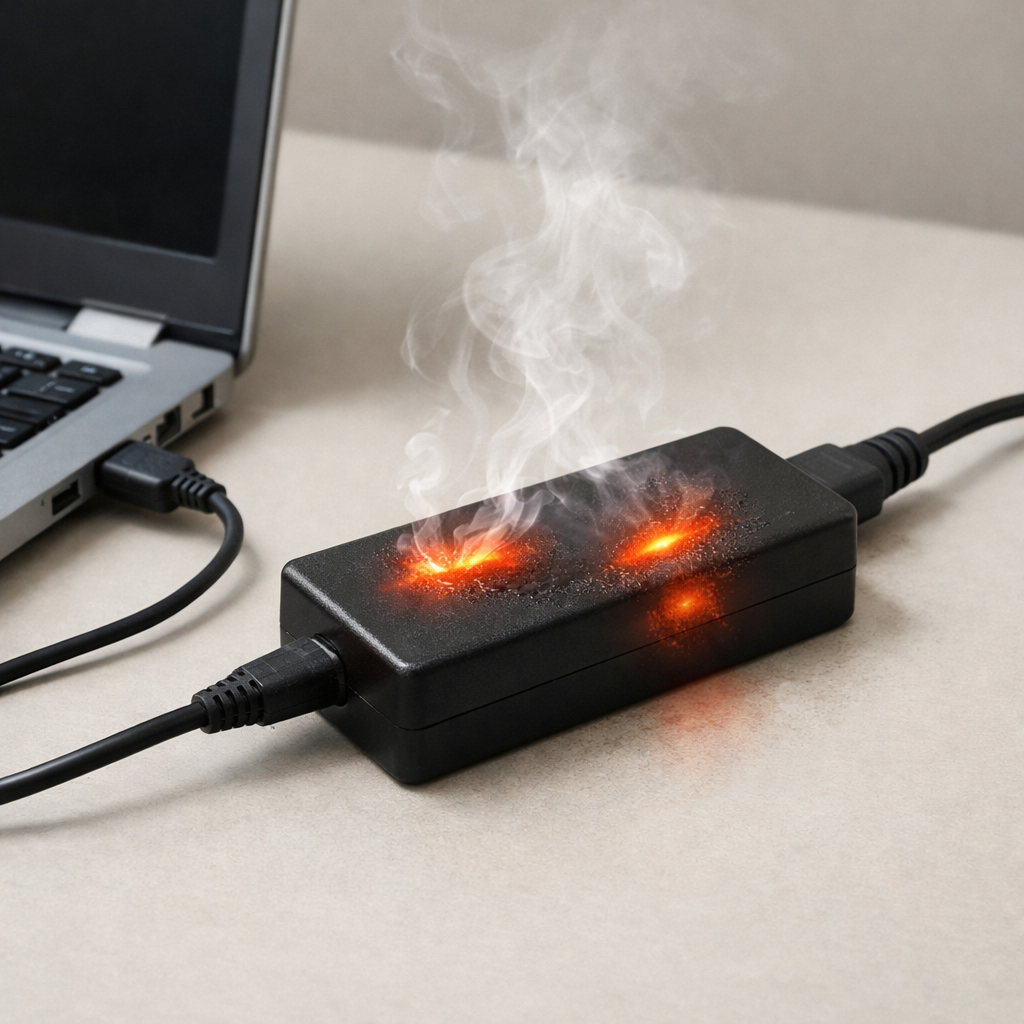
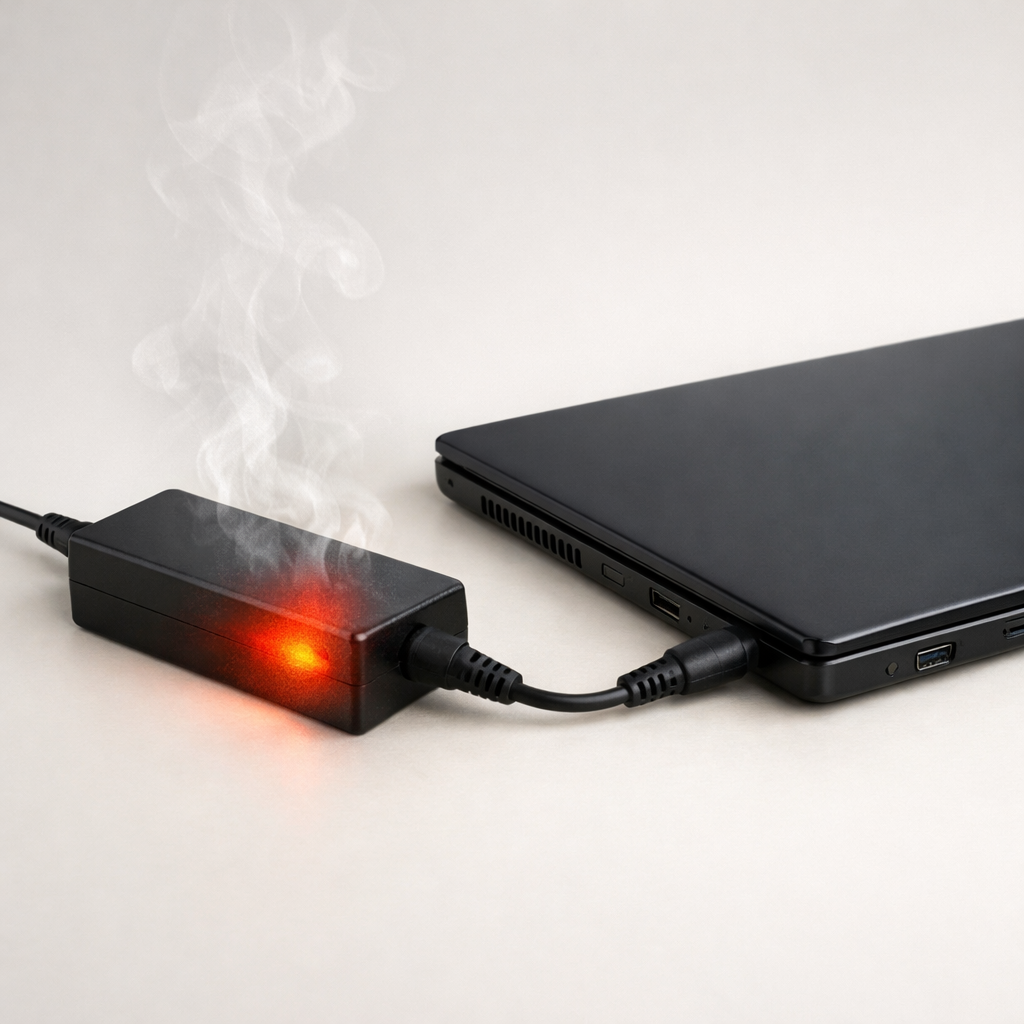
If your laptop charger feels hot even when the laptop is unplugged or fully charged, the most likely cause is a defective power adapter that still draws a small amount of power internally. Worn capacitors, a failing switching circuit, or damaged insulation can make the adapter “work” when it should be nearly resting.
A healthy charger can get slightly warm when plugged into the wall, but it should not become hot to the touch. If it heats up within 10–30 minutes of being idle, or the warmth keeps increasing the longer it sits, that points to continuous low-level power draw and a likely fault.
If you need a fast fix
- Unplug the charger from the wall when you are not actively charging, and let it cool on a hard, open surface.
- Stop using any charger that smells like hot plastic, makes buzzing sounds, or becomes too hot to comfortably hold for a few seconds.
- Try a known-good compatible charger (same voltage, equal or higher wattage, correct connector) to confirm whether the problem follows the adapter.
Quick Diagnosis Table
| Symptom | Most likely cause |
|---|---|
| Charger gets hot while plugged into the wall with no laptop connected | Internal component failure causing constant power draw (often capacitors or switching parts) |
| Charger is warm normally, but becomes very hot after a few weeks/months | Gradually failing components increasing electrical losses over time |
| Heat is concentrated in the adapter brick, not the cable | Power conversion circuitry inside the brick is inefficient or failing |
| Heat is concentrated near the connector tip or cable strain relief | Damaged cable strands or shorting near the plug creating resistance and heat |
| Charger runs hotter in one wall outlet or power strip than another | Poor outlet contact, overloaded strip, or unstable mains power increasing stress and losses |
Why This Happens
A laptop charger is a small power supply. Even at “no load” (nothing plugged into it), it still runs a tiny control circuit that senses conditions and keeps the output stable.
When internal parts start failing, the adapter may waste far more energy as heat than it should. For example, a degraded capacitor can make the charger’s switching circuit run less efficiently, so it draws extra power continuously even though it is not charging anything.
This wasted energy turns into heat in the plastic brick, so the charger feels hot while idle. The longer it remains plugged in, the more time it has to heat-soak and feel unusually warm or hot.
Most Common Causes (Ranked)
- 1) Aging or defective internal capacitors: Capacitors dry out with heat and time, and a weakened capacitor can increase ripple and losses, making the adapter draw power and run hot even with no laptop connected.
- 2) Failing switching components inside the adapter: The internal transistor/IC that does the power conversion can become inefficient or partially shorted, causing constant low-level draw and higher temperatures.
- 3) Poor ventilation or heat trapped around the brick: If the adapter sits on carpet, under bedding, behind a couch, or inside a bag, normal warmth can turn into excessive heat because it cannot escape.
- 4) Cable damage causing resistance heating: A kinked, crushed, or repeatedly flexed cable can partially break conductors. That creates resistance and heat, sometimes even when lightly loaded.
- 5) Loose wall outlet or power strip contact: A worn outlet or cheap power strip can create a poor connection that warms up and also stresses the charger, which may make the brick run hotter.
- 6) Wrong or low-quality replacement charger: Off-brand or incorrect wattage/voltage adapters can run near their limits, and some have poorer efficiency, making them warm even at idle.
If the charger runs cooler after moving it to open air or after replacing a worn cable/adapter, that gradual improvement usually indicates the issue was heat buildup or a component operating at its limit.
How to Check the Problem Safely
- Check 1: Test “idle heat” on a hard surface: plug the charger into the wall only (no laptop), place it on a desk, and check temperature after 10 and 30 minutes. Slight warmth is normal; hot-to-touch is not.
- Check 2: Compare with another compatible charger: borrow a known-good OEM or certified replacement and repeat the same idle test. If the other charger stays cool, your original adapter is likely faulty.
- Check 3: Inspect the brick and cable: look for discoloration, warping, cracks, a shiny melted spot, or a “soft” area in the cable jacket near the brick or connector.
- Check 4: Sniff and listen: a burnt-plastic smell, buzzing, clicking, or faint crackling while idle often points to internal electrical stress or arcing.
- Check 5: Check the wall outlet fit: the plug should feel firm, not loose or wiggly. Try a different outlet on a different circuit if possible, especially if the outlet feels warm.
Safety note: if the charger becomes very hot, smells burnt, or shows any melting, unplug it immediately and do not keep testing it.
How to Fix It
- Fix 1 (easiest): Unplug when not charging and keep it ventilated. This prevents heat buildup and reduces time spent in a faulty “always drawing power” state.
- Fix 2: Replace the charger with the correct OEM or certified equivalent. A new, efficient adapter eliminates internal leakage and failing components that cause idle overheating.
- Fix 3: Replace a damaged cable or use an adapter with a replaceable DC lead (if your model supports it). Removing a high-resistance section prevents localized heating near the plug and brick.
- Fix 4: Improve the power source: use a solid wall outlet, avoid overloaded power strips, and remove loose extension cords. Better contact reduces stress and avoids additional heating at the plug.
- Fix 5 (advanced/last resort): Have a technician evaluate the laptop’s DC-in port if multiple known-good chargers run unusually hot only when connected to your laptop. A failing port, debris, or internal power circuitry can overload chargers and make them heat excessively.
Signs of Battery or Hardware Damage
- Battery percentage jumps, drops quickly, or the laptop shuts down suddenly off the charger.
- The laptop reports “plugged in, not charging” frequently or charging starts and stops repeatedly.
- The charging connector feels very hot, wobbly, or you must “hold it at an angle” to charge.
- Visible battery swelling, a lifted trackpad, or the bottom cover no longer sits flat.
- Random reboots or performance throttling when plugged in (heat or unstable power).
- Burning smell from the DC-in area, adapter, or near the battery compartment.
- Sparks, crackling, or discoloration around the charger tip or laptop charging port.
When Repair Is No Longer Worth It
If the adapter overheats while idle, replacing the charger is usually the correct “repair,” and it is often cheaper than troubleshooting deeper. But if the laptop’s charging port is loose, the board is damaged, or the battery is swollen, the repair can quickly exceed the value of an older laptop.
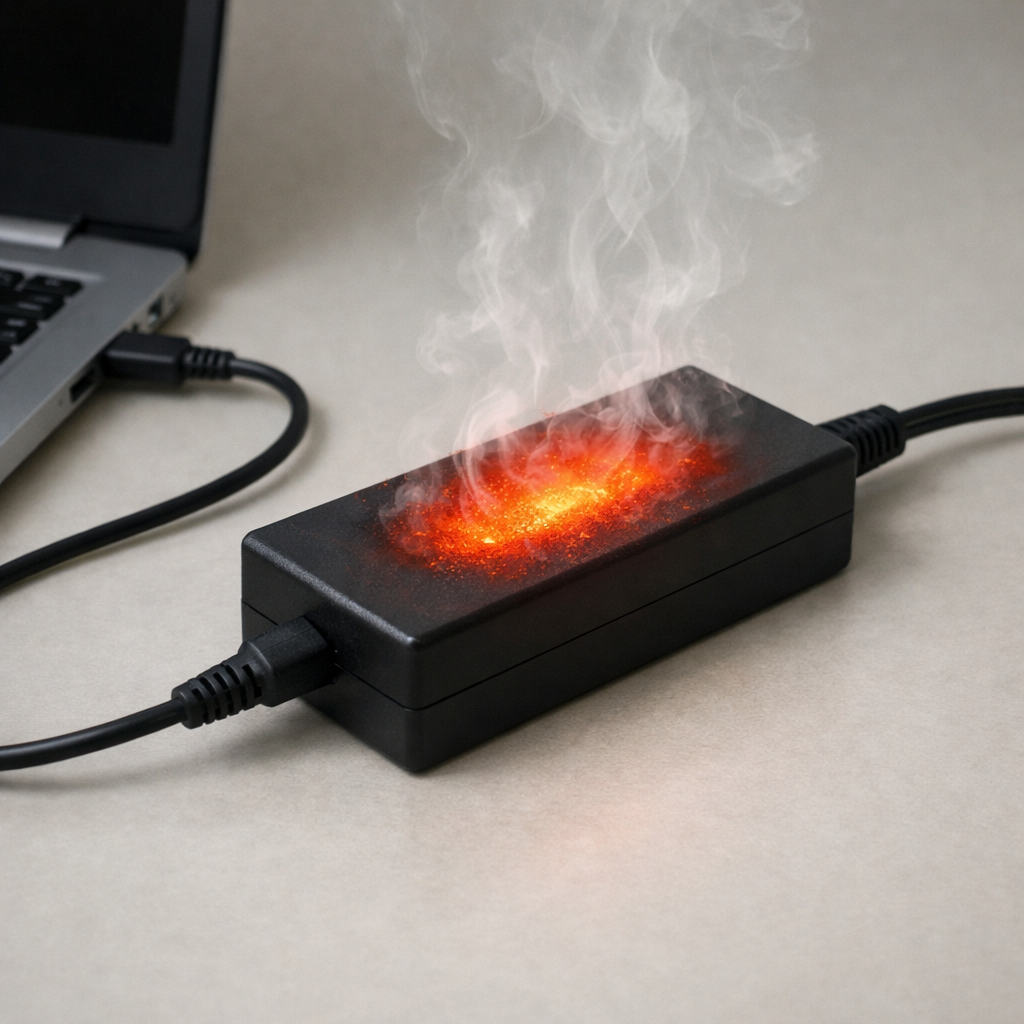
As a rule, if repair costs approach 30–50% of the price of a comparable replacement laptop, it is often smarter to replace the device. Put safety first: any sign of melting, smoke, swelling, or repeated overheating justifies immediate replacement of the charger and a professional inspection of the laptop.
How to Prevent This Problem in the Future
- Use an OEM or reputable certified charger with the correct voltage and equal or higher wattage than required.
- Unplug the charger from the wall when you are done charging instead of leaving it energized 24/7.
- Keep the brick in open air on a hard surface; avoid carpets, bedding, couches, and enclosed spaces.
- Do not tightly coil the cable around the brick while in use, since tight coils can trap heat and stress the conductors.
- Protect the cable from bending at the connector by using gentle routing and avoiding sharp pulls.
- Use a quality surge protector to reduce stress from power spikes and unstable mains power.
- Replace the charger at the first sign of abnormal heat, buzzing, or smell; early replacement is cheaper than damage to the laptop.
FAQ
Is it normal for a laptop charger to be warm when nothing is connected?
A little warmth can be normal because the adapter still runs a small internal circuit when plugged in. It should not become hot or keep getting hotter over time while idle. If it heats up noticeably within 10–30 minutes, the adapter is likely wasting power due to an internal fault.
Can an overheating charger damage my laptop or battery?
Yes. Unstable or noisy power from a failing adapter can stress the laptop’s charging circuitry and may lead to poor charging behavior or extra heat near the battery. In worst cases, a defective charger or damaged cable can cause arcing at the connector and harm the DC-in port.
What specifications must match when buying a replacement charger?
Voltage must match exactly, and the connector must be the correct size and type. Wattage (or amps) should be equal to or higher than your original charger so it is not overloaded. If your laptop uses USB-C Power Delivery, choose a reputable USB-C PD charger and cable rated for the required wattage.
For a full overview of this issue and step-by-step solutions, read the complete troubleshooting guide.
If the issue keeps coming back, it’s usually worth looking at broader battery behavior rather than a single fix. That’s the approach Mark Reynolds follows in the complete battery guide.