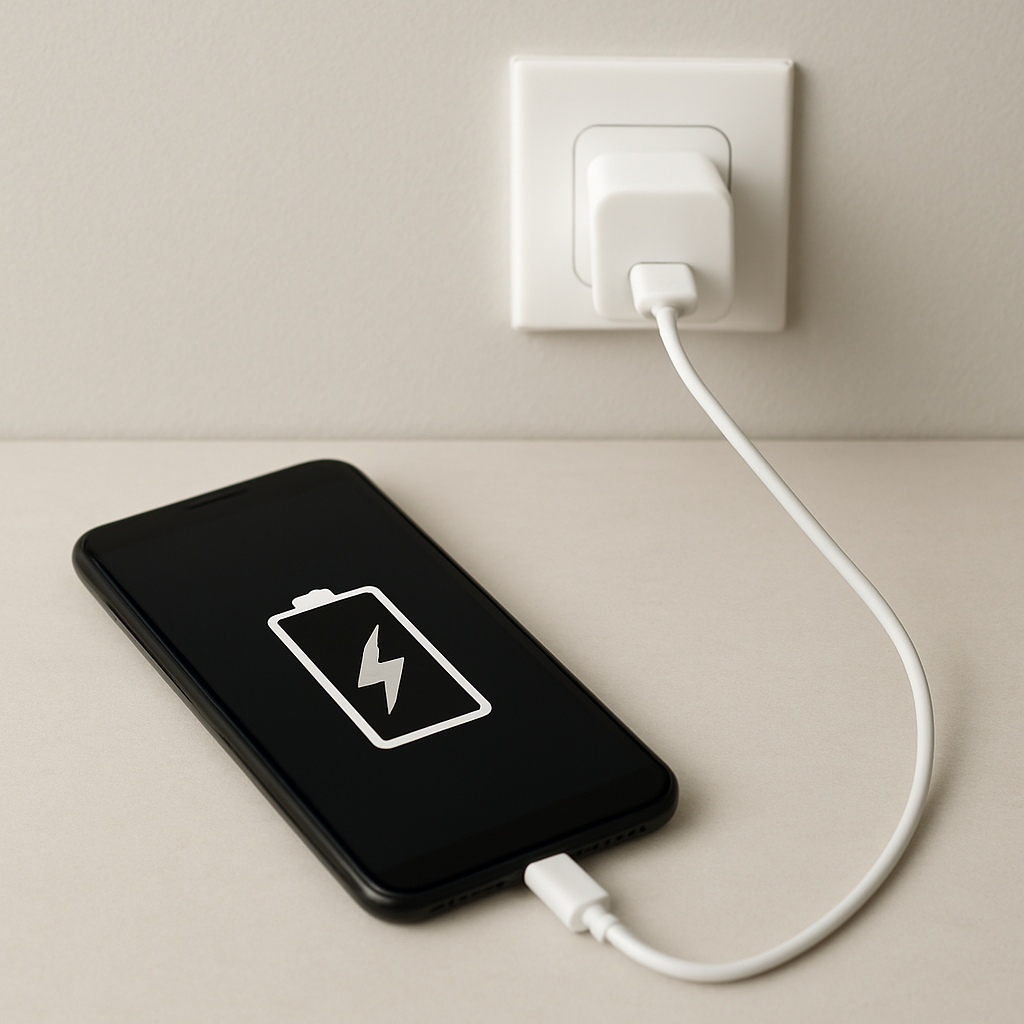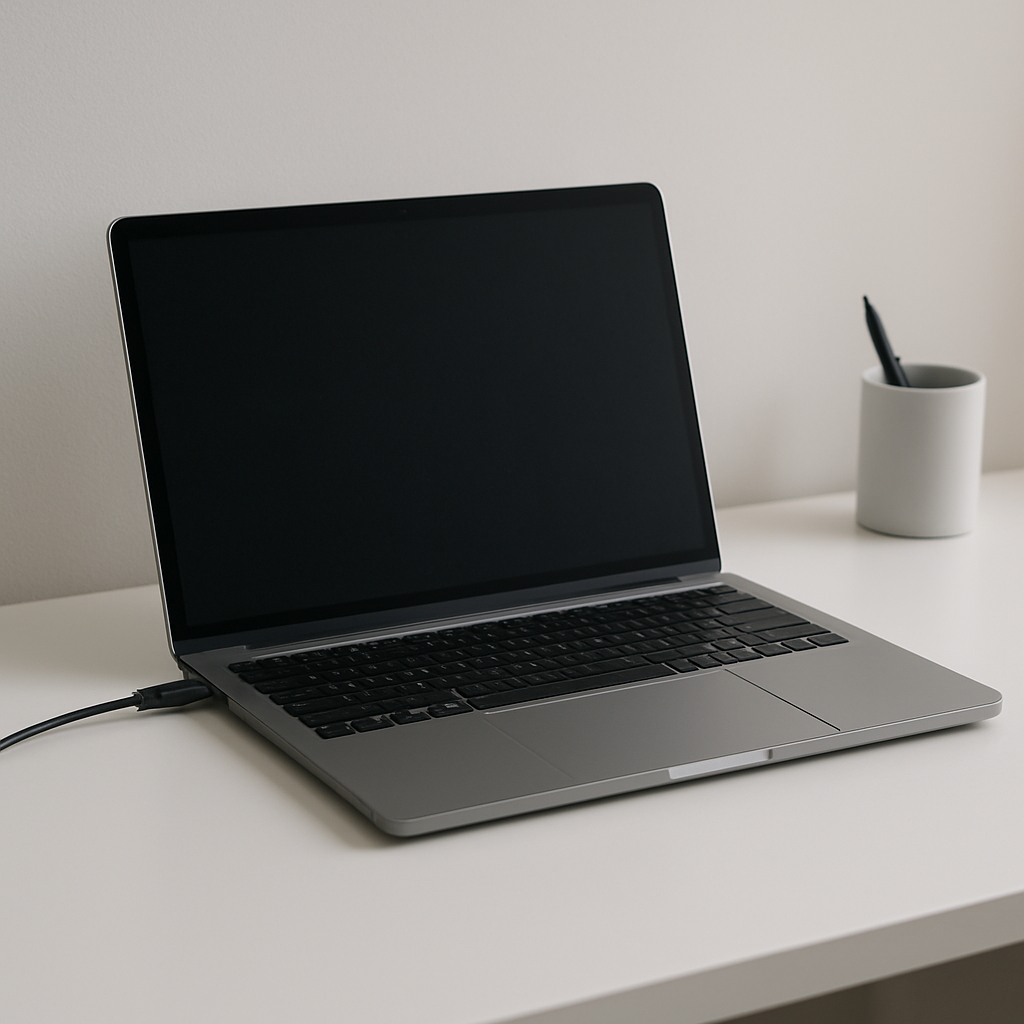
Laptop Charging Slow While Powered On — Performance Load Limiting Charge Speed
Quick Answer
Most of the time, a laptop charges slowly while it’s powered on because the system is using a large share of the adapter’s power to run the CPU/GPU, screen, and other parts, leaving less power available to charge the battery.
This usually means the charger is not “failing,” but the laptop is under enough load that charging is reduced or paused until demand drops. A common pattern is very slow charging (or no charging) during gaming, video editing, or heavy multitasking, then faster charging once the laptop is idle or asleep.
If you need a fast fix
- Lower the load: Close heavy apps, pause downloads, and reduce screen brightness to free adapter power for charging.
- Change the power mode: Set the laptop to a “Balanced” or “Best power efficiency” mode, and disable performance/turbo modes temporarily.
- Use sleep or shut down for 20–30 minutes: Charging is often much faster when the laptop isn’t using power at the same time.
Quick Diagnosis Table
| Symptom | Most likely cause |
|---|---|
| Charges very slowly only during gaming or rendering | System load is consuming most of the adapter’s wattage, leaving little charging current |
| Battery percentage stays the same (or drops) while plugged in under load | Adapter is undersized for peak performance demand, so the laptop supplements power from the battery |
| Charges normally when asleep/off, but slowly when awake | Background apps, high brightness, and CPU/GPU boosting are limiting available charging power |
| “Plugged in” but wattage/charge rate seems capped | USB-C/PD negotiation or charger/cable is limiting the maximum power the laptop can draw |
| Charging speed slows near 80–100% | Normal battery protection behavior, sometimes combined with performance load |
Why This Happens
Your charger has a maximum power limit (watts). When the laptop is powered on, that power must be shared between running the laptop and charging the battery.
Under light use (web browsing), the laptop might use 10–25W, leaving plenty of headroom for charging. Under heavy use (gaming with a bright screen and high fan speed), the laptop might need 60–150W or more, depending on the model, which can leave little or no extra power to push into the battery.
Cause → symptom is simple: the more power your laptop spends on performance, the less power is left to charge, so the battery charges slowly or may even drain while plugged in.
Most Common Causes (Ranked)
- 1) High CPU/GPU load while plugged in: Gaming, video editing, 3D work, or running many browser tabs can use most of the adapter’s capacity, reducing charging speed.
- 2) Charger wattage is too low for the laptop’s performance mode: A smaller adapter (or a third-party USB-C charger) may run the laptop, but not leave enough leftover power to charge quickly during peaks.
- 3) USB-C cable or port limits power delivery: Some USB-C cables only support lower power, and some ports negotiate lower wattage, which directly caps charging current.
- 4) “Boost” or high-performance power settings: Turbo/Boost modes raise CPU/GPU power draw, which can make charging crawl even with the correct adapter.
- 5) Battery health or temperature management: Warm batteries charge more slowly, and worn batteries may show erratic percentage changes that look like slow charging.
- 6) Charging optimization features: Many laptops intentionally slow or pause charging near a set limit (often 80%) to reduce long-term wear.
If charging gets gradually faster after you close heavy apps or let the laptop cool down, that usually indicates normal power-sharing behavior rather than a failing charger.
How to Check the Problem Safely
- Check 1: Note what you’re doing when charging is slow. If it’s slow only during heavy tasks and improves when idle, performance load is the likely cause.
- Check 2: Verify the adapter rating. Look at the label for watts (W) or volts/amps (V and A), and compare it to what your laptop model expects.
- Check 3: Check the charging method and cable. If using USB-C, try a known high-wattage USB-C PD charger and a 100W (or higher-rated) cable if supported.
- Check 4: Test charging in sleep/off state. Plug in, put the laptop to sleep for 20 minutes, then check if the battery percentage rises noticeably.
- Check 5: Feel for heat at the bottom and near the charger. If the laptop or adapter is very warm, charging may be intentionally slowed to protect the battery.
Safety note: avoid using damaged cables or adapters, and don’t cover the laptop or charger while testing since trapped heat can slow charging and cause shutdowns.
How to Fix It
- Fix 1 (easiest): Reduce power use while charging. Lower brightness, close games/editors, and unplug unused USB devices so more adapter power can go to the battery.
- Fix 2: Switch to a balanced/efficiency power mode. This reduces CPU/GPU boosting and can turn a “not charging” situation into a slow-but-steady charge.
- Fix 3: Use the correct wattage charger (and the right cable). If your laptop needs a 90W/135W/180W adapter (or higher), a 45W–65W charger may never charge well under load.
- Fix 4: Improve cooling. Place the laptop on a hard surface, clean vents if they’re dusty, and avoid charging in hot environments so the battery isn’t thermally throttled.
- Fix 5 (advanced/last resort): Update BIOS/firmware and charger drivers, then check OEM battery/charging settings. Some updates fix USB-C power negotiation, charging limits, and performance profiles that unintentionally reduce charge rates.
Signs of Battery or Hardware Damage
- Battery percentage jumps up or down suddenly, or the laptop shuts off at 20–40%.
- Battery is swollen, the touchpad/keyboard area bulges, or the bottom case no longer sits flat.
- Charger plug or USB-C port feels loose, sparkly, or disconnects with slight movement.
- Adapter gets extremely hot, makes buzzing noises, or has a burned smell.
- Charging only works at certain angles, indicating cable or port damage.
- The laptop reports “plugged in, not charging” even at low load and with the correct adapter.
- Charge rate is consistently poor across different outlets and known-good chargers.
When Repair Is No Longer Worth It
If the battery is swollen, the charging port is physically damaged, or the motherboard charging circuit is failing, repair can be more expensive than it looks because it may involve parts plus labor and diagnostics.
As a general guide, if estimated repair cost is more than about 30–50% of the laptop’s current replacement value (especially for older models), putting that money toward a newer laptop with a healthy battery and efficient charging is often the better choice.
How to Prevent This Problem in the Future
- Use the OEM charger or a reputable charger that matches the laptop’s required wattage, especially for gaming or workstation models.
- If using USB-C charging, buy a correctly rated PD charger and cable (many “USB-C” cables are not high-power).
- Avoid running sustained heavy workloads while you urgently need to charge; use sleep/off to refill quickly.
- Keep vents clear and avoid soft surfaces to prevent heat buildup that can slow charging.
- Use balanced/efficiency mode for everyday tasks and save turbo/performance modes for when you’re already well charged.
- Consider an 80% charge limit feature if you stay plugged in often; it reduces heat and long-term battery wear.
- Periodically check for BIOS/firmware updates that improve power management and charging behavior.
FAQ
Why does my laptop charge faster when it’s asleep or turned off?
When the laptop is asleep or off, it uses far less power, so most of the charger’s capacity can go into the battery. While you’re using it, the CPU, GPU, and screen can consume a large portion of that same power. The result is slower charging or even a slow drain during heavy tasks.
Is it normal for the battery to drain while plugged in during gaming?
It can be normal if the laptop’s peak power demand is higher than what the charger can continuously provide, or if the charger/cable is limiting wattage. In that case, the laptop “tops up” the missing power from the battery. If it drains quickly or happens during light use, suspect the wrong wattage adapter, a USB-C power limit, or a hardware issue.
Will a higher-wattage charger fix slow charging while powered on?
If your laptop supports that higher wattage on the port you’re using, it often helps because there is more power available to share between performance and charging. However, some laptops will only accept certain maximum wattages, and some USB-C ports cap input power. Always check your laptop’s supported charger specs and use a properly rated cable.
For a full overview of this issue and step-by-step solutions, read the complete troubleshooting guide.
Most battery issues are easier to understand once you break them down step by step. That’s the approach Mark Reynolds takes across all troubleshooting guides. For more details, visit the complete guide.