Laptop Charger Stops Charging — Adapter Failure or Safety Shutdown?
Quick Answer
Most “charger stops charging” issues are caused by a safety shutdown: the laptop or the power adapter detects abnormal voltage, overheating, or a brief short and stops charging to protect the battery and motherboard.
This often looks like charging that works for a few minutes, then cuts out until you unplug and reconnect. It can happen suddenly after a bump to the cable, using a different outlet, or after the adapter warms up.
If you need a fast fix
- Unplug the charger from the wall and the laptop, wait 60 seconds, then plug it directly into a known-good wall outlet (no power strip) and reconnect.
- Let the adapter “brick” cool for 10–15 minutes on a hard surface, then try charging again.
- Inspect the cable and plug for kinks, burn marks, looseness, or heat; if anything looks damaged or smells burnt, stop using it and switch to a known-good compatible charger.
Quick Diagnosis Table
| Symptom | Most likely cause |
|---|---|
| Charges for a short time, then stops until replugged | Adapter overheating or voltage instability triggering protective shutdown |
| Charging light flickers when the cable is moved | Loose DC plug, worn cable, or failing connector causing momentary shorts |
| “Plugged in, not charging” after an update or sleep | Power management glitch or USB-C/PD negotiation error leading to charging stop |
| Adapter is hot to touch and charging cuts out more often over time | Internal adapter component failure or blocked airflow causing thermal shutdown |
| Only charges in certain outlets, or stops when other devices run | Unstable wall power, power strip overload, or loose outlet causing voltage drop |
Why This Happens
Your laptop and charger don’t just “send power.” They constantly monitor voltage, current, and temperature, and they will shut charging off if something looks unsafe.
For example, a slightly broken wire near the charging tip can briefly connect and disconnect as you type or move the laptop. That split-second “spark” is enough for the adapter or laptop to cut power to prevent overheating or damage.
Cause leads to symptom in a predictable way: a fault or unstable voltage appears, protection kicks in, charging stops, and it may only resume after a reset (unplugging) or after the adapter cools down.
Most Common Causes (Ranked)
- 1) Overheating adapter triggers a shutdown: As the power brick warms up, it can hit a temperature limit and cut output to protect itself, especially if it’s on carpet, in sunlight, or covered by bedding.
- 2) Failing cable or connector causing brief shorts: A bent plug, frayed cable, or loose port can create rapid on/off contact that looks like an unsafe condition, so charging stops.
- 3) Abnormal voltage from the outlet or power strip: Loose wall outlets, overloaded strips, or shared circuits can dip voltage and make the adapter “drop out,” which the laptop reads as unsafe charging.
- 4) USB-C Power Delivery (PD) negotiation problem: On USB-C laptops, the charger and laptop must agree on a safe power profile; a bad cable, hub, or charger can cause renegotiation loops that stop charging.
- 5) Dirt, oxidation, or physical damage in the charging port: Lint or worn pins can cause intermittent contact and heat, which can trigger laptop-side protection.
- 6) Battery or charging circuit protection due to abnormal readings: A weak battery, high internal resistance, or a sensor reading out of range can make the laptop pause charging for safety.
If charging becomes more stable after cooling, using a different outlet, or keeping the cable still, that gradual improvement usually points to heat, connection, or power-quality issues rather than an instant battery failure.
How to Check the Problem Safely
- Check 1: Feel the adapter brick after charging for 5–10 minutes; warm is normal, but “too hot to hold” suggests thermal shutdown or overload.
- Check 2: Try a different wall outlet in a different room, plugged directly into the wall, to rule out a weak outlet or overloaded power strip.
- Check 3: With the laptop on a desk, gently wiggle the charging plug at the laptop end; if the charge light flickers or charging toggles, the cable/port is likely intermittent.
- Check 4: If it’s USB-C charging, remove hubs/docks, use the shortest known-good USB-C cable you have, and try another USB-C port on the laptop if available.
- Check 5: Look inside the port with a light; remove visible lint with a wooden toothpick or soft brush, without forcing anything or scratching contacts.
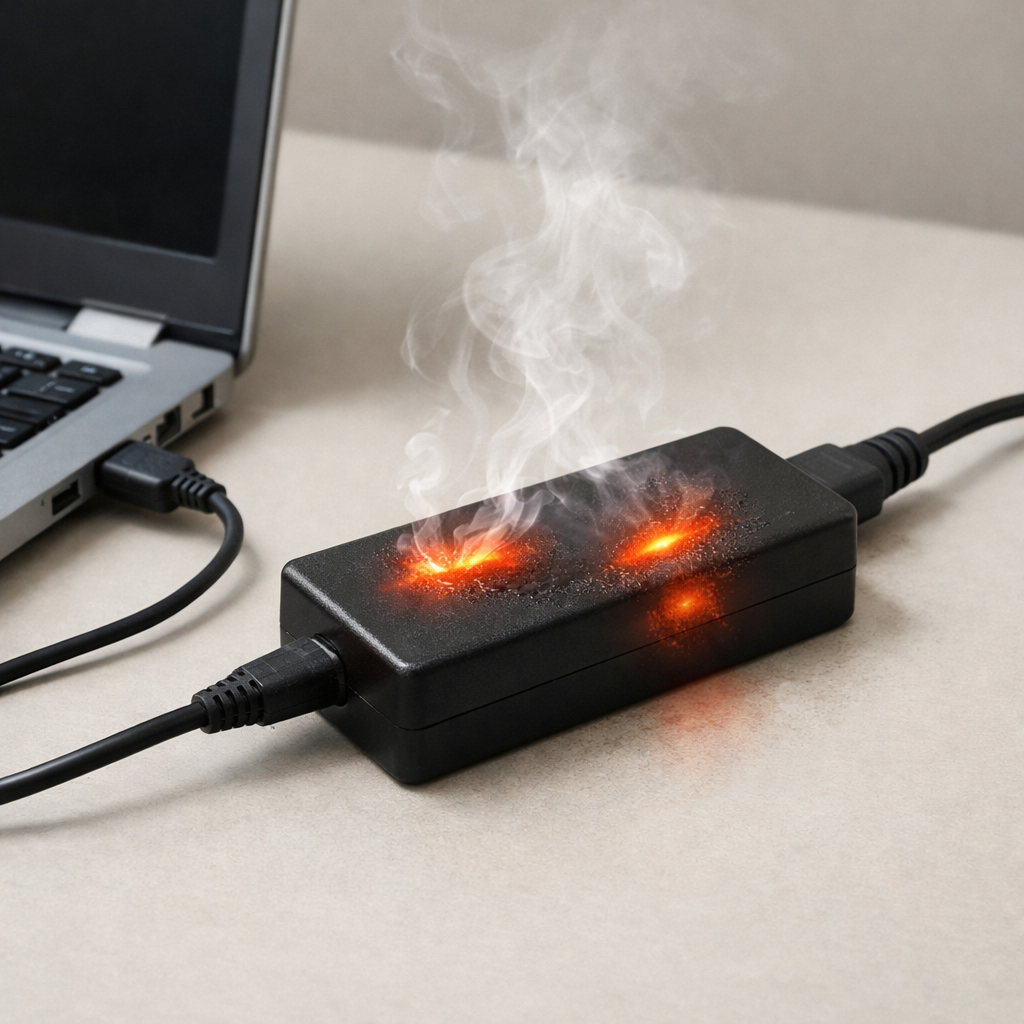
Safety note: if you see melting, discoloration, sparking, or smell burnt plastic, unplug immediately and do not “test” further.
How to Fix It
- Fix 1 (easiest): Power-reset the charging chain by unplugging both ends, holding the laptop power button for 15 seconds (laptop off), then reconnecting; this clears many protection and negotiation states.
- Fix 2: Improve cooling and load by placing the adapter on a hard surface, avoiding coiling the cable tightly, and ensuring the laptop has airflow; reducing heat helps prevent shutdown reoccurrence.
- Fix 3: Replace the cable or charger with a properly rated, compatible unit; a stable adapter output prevents the laptop from triggering safety cutoffs.
- Fix 4: Eliminate power-strip issues by using a different outlet, a high-quality surge protector, or a UPS; stable input voltage reduces adapter dropouts.
- Fix 5 (advanced/last resort): Update BIOS/UEFI and chipset/power drivers from the laptop maker, then check battery health in the OS; firmware fixes can resolve charging control bugs and USB-C PD issues.
Signs of Battery or Hardware Damage
- Battery swelling, a bulging trackpad area, or the laptop no longer sits flat
- Electrical smell, visible scorching, or melted plastic near the port, plug, or adapter
- Charging port feels loose, shifts inward, or only works at a certain angle
- Battery percentage drops quickly under light use or jumps unpredictably
- Laptop shuts off instantly when the charger disconnects (even at higher battery levels)
- Repeated “plugged in, not charging” across multiple known-good chargers
- Adapter makes buzzing/clicking noises and gets excessively hot
When Repair Is No Longer Worth It
If the charging port is physically broken, the motherboard charging circuit has failed, or the battery is swollen, replacement parts and labor can quickly exceed the practical value of an older laptop. In those cases, prioritize safety and data backup, then price out repair only if the device is otherwise in excellent condition.
As a rough guide, if repair costs approach 40–60% of the price of a comparable replacement (especially for older models), replacement is usually the better decision. Spending money on a new, genuine charger is still worthwhile, but avoid repeated adapter purchases if the laptop port or board is the real issue.
How to Prevent This Problem in the Future
- Use the correct wattage and a reputable charger; underpowered or low-quality adapters are more likely to overheat or produce unstable voltage
- Keep the power brick on a hard, ventilated surface and avoid covering it with blankets, clothes, or papers
- Do not tightly coil the cable while charging; tight coils trap heat and stress wire strands near the ends
- Plug into a solid wall outlet or a quality surge protector, and avoid overloaded strips shared with heaters or high-draw devices
- For USB-C charging, use certified USB-C cables that support the needed wattage, and avoid unknown cables for high-power laptops
- Reduce strain on the port by routing the cable so it doesn’t pull sideways on the connector
- Periodically clean lint from the charging area and avoid charging in dusty, fabric-heavy environments
FAQ
Is it normal for a laptop charger to stop charging and start again?
Occasional pauses can be normal if the laptop is managing battery health or if it temporarily reduces charging to control heat. But frequent cutouts, flickering, or needing to replug repeatedly usually indicates an adapter, cable, port, or power-quality problem triggering protection.
Why does it charge only when the laptop is off or asleep?
When the laptop is on, it may draw more power, which can push a weak adapter over its limit and cause a shutdown. It can also run hotter while in use, and higher temperatures can trigger charging pauses. Trying a correctly rated charger and improving ventilation often resolves this pattern.
Can a bad charger damage my laptop battery or port?
Yes, a failing adapter or poor-quality charger can run hot, deliver unstable voltage, or cause arcing at the connector, which may damage the port over time. If the charger is unusually hot, smells burnt, or causes flickering, stop using it and switch to a known-good compatible replacement.
For a full overview of this issue and step-by-step solutions, read the complete troubleshooting guide.
Battery issues rarely come from a single cause. Mark Reynolds focuses on identifying patterns and simple fixes that apply in most situations. For more details, read the complete guide.