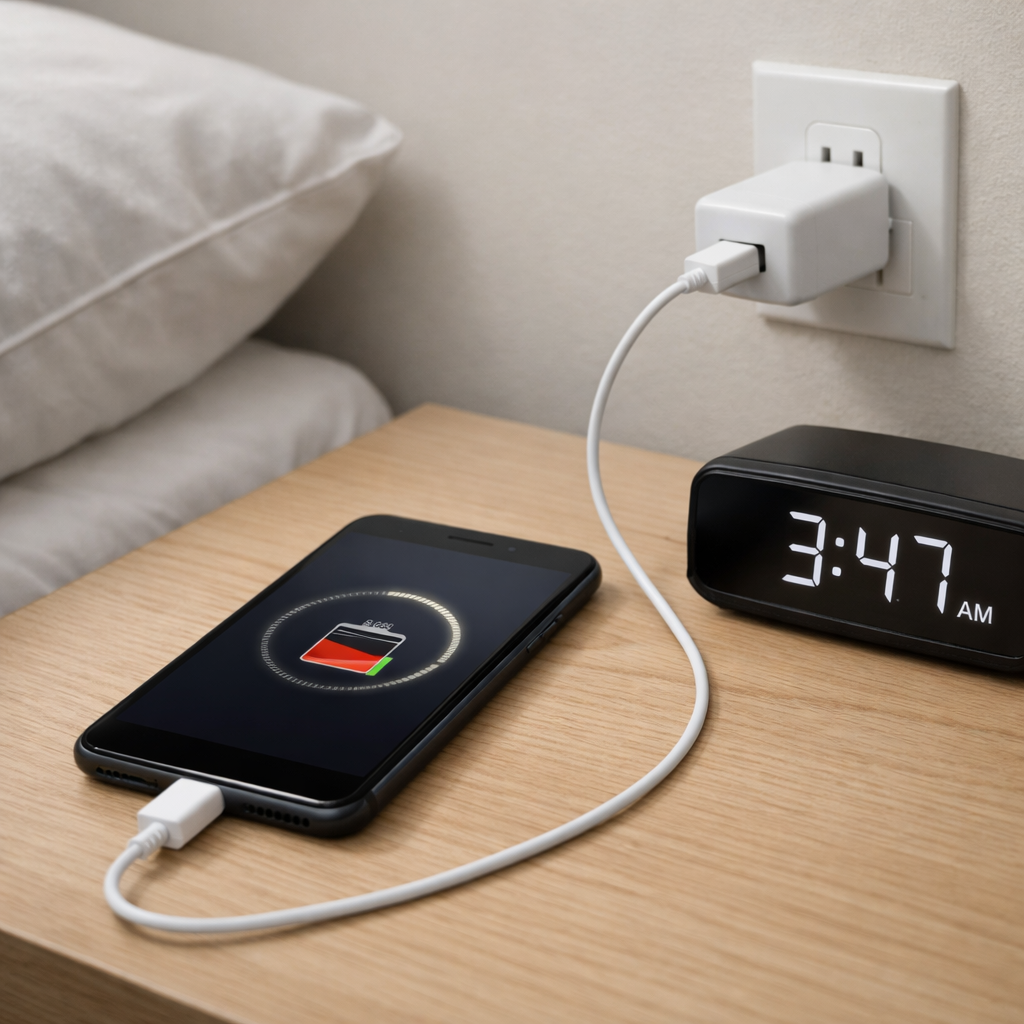
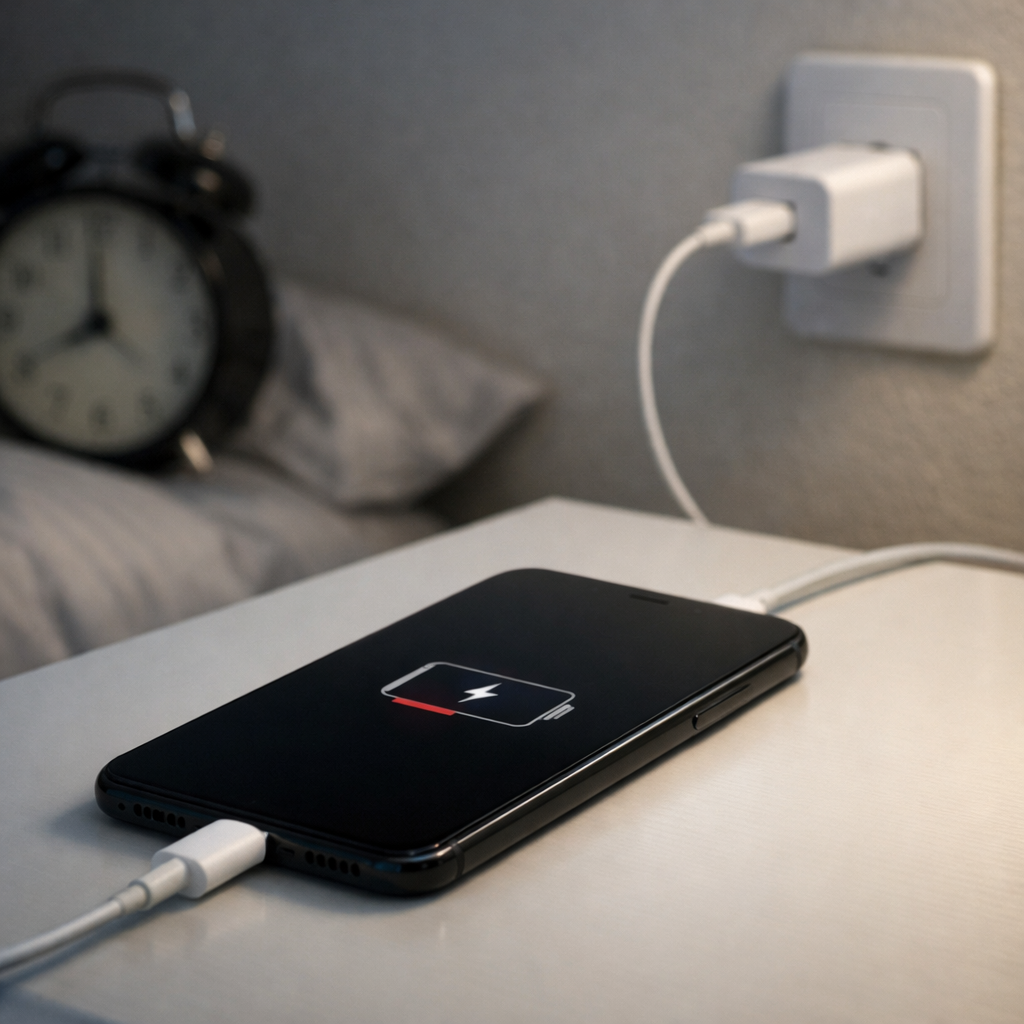
Device Charging Slow Overnight — Adaptive Charging or Power Delivery Limitation?
Quick Answer
Most “slow overnight charging” problems happen because the device never truly goes idle. A background hardware leak (like a power-hungry modem or sensor) or a persistent wake event (an app, notification loop, or syncing bug) keeps the system awake and draining power while it’s trying to charge.
In practice, this means your charger may be working fine, but the device is “charging and discharging at the same time.” Overnight you should normally gain a full charge in 2–5 hours on most modern phones, or by morning at the latest; if you wake up to only 50–80%, something likely prevented deep sleep for long stretches.
If you need a fast fix
Restart the device and turn on Airplane mode for the night (Wi-Fi off too, if possible) to stop network wake-ups and background syncing.
Use a known-good wall charger and cable (not a laptop port or hub) and plug directly into the wall to avoid low power delivery.
Close heavy apps and disable “always-on” features (hotspot, GPS, VPN, streaming, Bluetooth scanning) before bed.
Cellular modem working hard (weak signal, 5G searching) or Wi-Fi reconnect loops
Charging stops and starts, or percentage jumps around
Power delivery limitation from a poor cable/port, dirty connector, or unstable charger
Stalls around 80% to 90% and finishes late morning
Adaptive/optimized charging delaying the last 10–20% to reduce battery wear
Why This Happens
Charging is not just “power in.” Your device is also using power at the same time, and you only gain battery when the charger provides more power than the device consumes.
If something keeps the device awake overnight, the screen may be off but the processor, Wi-Fi, or cellular modem can still work hard. Common real-world triggers include poor signal in the bedroom (the phone boosts radio power), a stuck app syncing data all night, a VPN constantly reconnecting, or a smartwatch connection repeatedly dropping and re-pairing.
When usage stays high, the charger’s available power can be effectively “canceled out,” so the battery creeps up slowly or even flattens, which looks like a charging problem but is often a wake problem.
Most Common Causes (Ranked)
1) Persistent network activity (weak signal or 5G searching): In low-signal areas, the modem draws a lot of power and wakes the system frequently, reducing charging progress.
2) A runaway app or sync loop: Backup tools, cloud photo uploads, email clients, and social apps can get stuck retrying in the background, preventing deep sleep.
3) Always-on connections and accessories: Bluetooth wearables, VPNs, location sharing, and hotspot features can create constant wake events when the connection is unstable.
4) Charger/cable/port delivering less power than expected: A worn cable, dirty port, or low-output adapter may still “charge,” but not fast enough to overcome overnight drain.
5) Adaptive/optimized charging behavior: Some devices intentionally pause at around 80% and resume close to your usual wake time, which can look like slow charging.
6) Battery aging increasing heat and inefficiency: Older batteries waste more energy as heat, so net charging overnight can be noticeably slower.
If the overnight percentage improves after a restart or after disabling one feature, that gradual improvement usually indicates a software wake source rather than a failing battery.
How to Check the Problem Safely
Check 1: Look at the battery usage screen and identify what used power overnight, focusing on “background activity” time and top apps.
Check 2: Do one overnight test in Airplane mode with the same charger; if it charges normally, the issue is likely network/modem wake-ups.
Check 3: Feel the device in the morning; noticeable warmth with the screen off suggests background work or poor charging efficiency.
Check 4: Swap in a known-good wall adapter and cable, and try a different outlet; intermittent charging often points to power delivery or a loose connection.
Check 5: Inspect and gently clean the charging port for lint buildup; pocket lint can prevent a solid connection and reduce charging speed.
Safety note: if the device is hot to the touch, smells odd, or the battery is swollen, stop charging and do not leave it plugged in unattended.
How to Fix It
Fix 1 (easiest): Restart the device before bed and enable Airplane mode overnight; this clears stuck processes and reduces modem wake-ups.
Fix 2: Turn off battery-draining background features at night (hotspot, VPN, always-on location, “scan for devices,” constant Bluetooth searching); fewer wake events means more net charging.
Fix 3: Change the environment: if signal is weak where you sleep, use Wi-Fi calling or move the device closer to the router, or keep Airplane mode on; the modem often burns the most power in poor coverage.
Fix 4: Fix power delivery basics: use a quality cable, clean the port, and use a charger with adequate wattage for your device; stable power prevents repeated re-negotiation and slow trickle behavior.
Fix 5 (advanced/last resort): Identify and remove the culprit: update the OS and apps, then uninstall or restrict background activity for any app showing abnormal overnight use; if the issue began after a system update, reset network settings or perform a full backup and factory reset.
Signs of Battery or Hardware Damage
Battery percentage drops rapidly even when the device is idle and not charging.
Device becomes hot during simple tasks or while charging with a known-good charger.
Charging is unreliable unless the cable is held at a certain angle (possible port damage).
Battery is stuck at a certain percentage for long periods, then suddenly jumps.
Unexpected shutdowns at 20–40% or sudden reboots overnight.
Swelling, bulging screen/back cover, or the device won’t sit flat on a table.
Burning smell, crackling, or discoloration around the port or charger plug.
When Repair Is No Longer Worth It
If the problem is caused by one app, a setting, or a bad cable, the fix is cheap and worth doing. If you have a swollen battery, repeated overheating, or a damaged port and the device is several years old, the safest option may be replacement.
As a rule, compare the cost of a battery and/or port repair to the device’s current value and expected lifespan. If repair is more than about half the replacement cost, or if parts availability is poor, replacing often makes more sense.
How to Prevent This Problem in the Future
Keep the OS and apps updated to reduce wake bugs and background sync loops.
Set cloud backups and photo uploads to run only on Wi-Fi and while charging.
Use a reliable wall charger and a quality cable, and avoid charging from weak USB ports overnight.
Disable hotspot, VPN, and constant location sharing when you don’t need them, especially overnight.
If your bedroom has poor signal, use Airplane mode with Wi-Fi, or enable Wi-Fi calling to reduce modem drain.
Clean the charging port occasionally to prevent lint buildup and unstable contact.
Keep the device cool while charging by removing thick cases and avoiding charging under pillows or blankets.
FAQ
Is adaptive (optimized) charging supposed to be this slow?
Adaptive charging usually slows only the last part of charging, commonly holding around 80% and finishing near your usual wake time. It should not keep you at low percentages all night. If you wake up at 40–70% repeatedly, look for background drain or power delivery issues.
How can I tell if my charger is the limitation or my phone is draining power?
Try the same charger with the device in Airplane mode overnight. If it reaches 90–100% normally, the charger is likely fine and the issue is wake events or network drain. If it still barely charges, suspect the cable, adapter wattage, port lint, or a failing charging port.
Why does it charge fine in one room but not another?
A weak cellular or Wi-Fi signal can make the radio work much harder, which increases background power use and heat. That extra drain reduces net charging, especially with lower-power chargers. Using Wi-Fi calling, moving closer to the router, or using Airplane mode overnight often fixes this.
If you’re dealing with repeated battery issues, Mark Reynolds recommends focusing on simple checks before assuming hardware failure. You can find a broader breakdown in the battery troubleshooting guide.