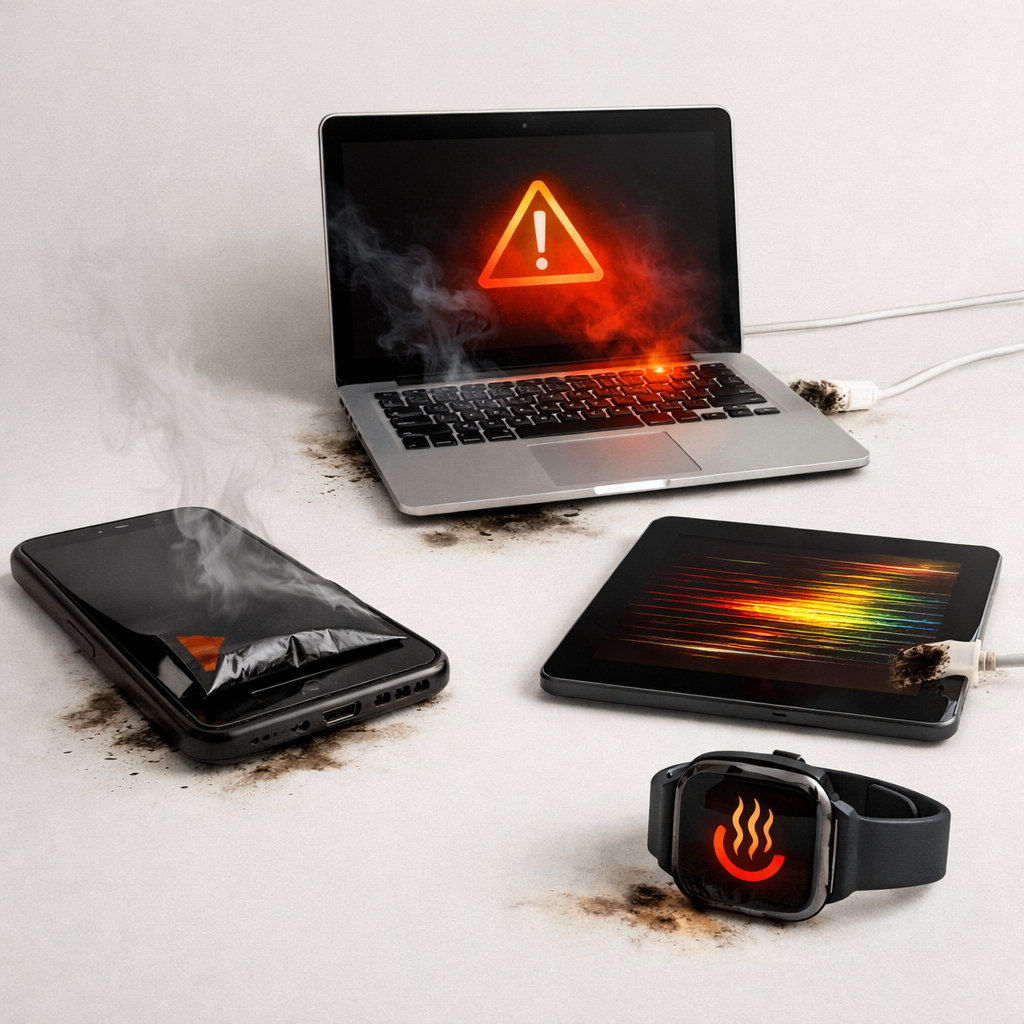
Device Battery Overheating Symptoms — Warning Signs of Battery Failure
Quick Answer
If your device battery is overheating soon after you started using a replacement charger, the most likely reason is a power negotiation mismatch. That means the charger and device aren’t agreeing on the correct voltage/current, so the device pulls power in a less efficient way and the battery and charging parts turn extra energy into heat.
This commonly shows up within minutes of plugging in, or within the first few charging cycles after switching chargers or cables. If the heat improves when you switch back to the original charger, it’s a strong sign the battery may be fine and the charger setup is the real problem.
If you need a fast fix
- Unplug and let it cool: Stop charging, remove any case, and place the device on a hard surface for 10–20 minutes.
- Switch to a known-good charger and cable: Use the original charger (or a certified equivalent) and a quality cable to reduce mismatch risk.
- Avoid heavy use while charging: Don’t game, record video, or run navigation while charging until temperatures stay normal.
Quick Diagnosis Table
| Symptom | Most likely cause |
|---|---|
| Battery gets hot within 5–15 minutes of charging | Replacement charger negotiates the wrong profile or falls back to inefficient charging mode |
| Charging is fast at first, then slows dramatically and heat increases | Handshake instability causes repeated renegotiation and extra heat at the charging IC |
| Device is cooler on the original charger but hot on the replacement | Charger/cable quality issue (wrong specs, poor regulation, or non-compliant fast charge) |
| Battery percentage jumps or behaves erratically while plugged in | Voltage ripple or inconsistent output from the charger confusing the device’s power management |
| Charger brick or cable ends are unusually warm | High resistance cable/connector, damaged port, or charger running outside its safe range |
Why This Happens
Modern phones, tablets, and laptops don’t just “take power” from any charger. They communicate with the charger to select a safe charging mode, such as standard 5V charging or a faster mode that uses higher voltage.
With some replacement chargers and cables, that communication can be incomplete or misleading. For example, a charger may claim it supports a fast standard, but it may not follow the rules closely enough, or the cable may not support the required signaling.
When the device can’t negotiate cleanly, it may fall back to a less efficient path or keep switching profiles. That extra loss turns into heat, which you feel as a hot back panel, a warm battery area, or a hot charging port.
Most Common Causes (Ranked)
- 1) Charger/device fast-charge mismatch: The replacement charger advertises a fast-charging mode your device doesn’t fully support, causing inefficient conversion and excess heat.
- 2) Non-compliant or low-quality charger electronics: Cheap chargers can have noisy output or poor regulation, forcing the device to work harder to stabilize power.
- 3) Wrong or worn cable: A cable with high resistance or missing proper identification (common with some USB-C cables) increases heat at the connectors and in the device.
- 4) Dirty or loose charging port connection: A slightly loose plug or debris in the port raises resistance, which increases heat and can disrupt negotiation.
- 5) “Fast charge” + heavy use stacking heat: Even with a good charger, demanding apps during charging add CPU heat on top of charging heat, pushing you into overheating.
- 6) Aging battery made more sensitive by higher charge rates: An older battery can run warmer under fast charging, and a mismatch can amplify the problem.
If temperatures gradually improve after switching to the correct charger and cable, it usually indicates the battery isn’t failing and the heat was coming from inefficient charging rather than internal battery damage.
How to Check the Problem Safely
- Check 1: Compare chargers. Charge for 10 minutes with the original charger (or a trusted certified one), then with the replacement charger under the same conditions, and note which setup heats more.
- Check 2: Try a different cable. Use a short, high-quality cable from a reputable brand; if the heat drops, the old cable was likely adding resistance or breaking negotiation.
- Check 3: Feel where the heat is strongest (carefully). Heat near the port often points to cable/port resistance; heat centered on the back can point to battery/charging circuitry load.
- Check 4: Inspect and clean the port. Power off the device and look for lint; remove debris gently with a wooden toothpick or soft brush without scraping pins.
- Check 5: Reduce load and retest. Enable airplane mode or low power mode while charging; if it stays cool only when idle, you may be stacking usage heat with charging heat.
Safety note: if the device is too hot to hold comfortably, unplug immediately and do not continue testing until it cools.
How to Fix It
- Fix 1 (easiest): Use the original charger and cable (or a certified equivalent). This restores proper power negotiation and usually removes the excess heat quickly.
- Fix 2: Match the charger to your device’s standard. For USB-C devices, use a reputable USB-PD charger with appropriate wattage; avoid “mystery fast charge” bricks that don’t clearly list supported profiles.
- Fix 3: Replace the cable with a compliant one. For USB-C, choose a cable rated for your charging speed (and e-marked if needed) to prevent fallback modes and hot connectors.
- Fix 4: Improve charging conditions. Remove thick cases, charge on a hard surface, and avoid direct sun or car dashboards; better heat dissipation reduces temperature spikes.
- Fix 5 (advanced/last resort): If heat persists on known-good chargers, schedule service or battery replacement. Persistent overheating can indicate a failing battery or charging IC that needs professional diagnosis.
Signs of Battery or Hardware Damage
- Battery swelling (screen lifting, back cover bulging, or a rocking device on a flat table).
- Sharp chemical smell, hissing, or popping noises.
- Device shuts down at moderate battery levels (for example, 30–50%) or reboots when plugged in.
- Rapid battery drain even when not in use, especially after overheating events.
- Charging stops repeatedly with temperature warnings, even on a trusted charger and in a cool room.
- Port discoloration, melted plastic around the connector, or scorching on the cable tip.
- Battery health warnings in system settings or service messages that appear suddenly.
When Repair Is No Longer Worth It
If the device overheats even with a correct, certified charger and a known-good cable, or if you see swelling or repeated thermal shutdowns, repair becomes less optional and more about safety. In those cases, stop using the device unattended and consider professional service immediately.
As a general rule, if battery replacement plus labor is a large fraction of the device’s current value, replacement may be the better choice. If the device is still supported, in good condition, and the issue is limited to the battery or port, repair is usually worthwhile and restores safe charging.
How to Prevent This Problem in the Future
- Buy chargers from reputable brands that clearly list supported standards (for example, USB-PD) and power profiles.
- Match wattage to your device needs; avoid “overpromise” bricks that claim extreme speeds without proper certification.
- Use quality cables appropriate for the charging rate, and replace cables that feel loose, get hot, or show cracked insulation.
- Avoid charging while the device is under heavy load; if you must, use a slower charger to reduce heat.
- Keep the charging port clean and dry, and don’t force connectors that don’t fit smoothly.
- Charge on a hard, ventilated surface; avoid pillows, blankets, and enclosed spaces that trap heat.
- If you switch chargers, monitor the first few charge sessions; any new heat pattern is a sign to stop and reassess.
FAQ
Can a “higher watt” replacement charger damage my battery?
Wattage alone doesn’t force power into your device; the device requests what it can safely take. The real risk is a charger that negotiates incorrectly or has unstable output, which can create extra heat and stress components. Use a certified charger that supports your device’s charging standard.
Why does my device get hotter with a new cable even though the charger is the same?
The cable affects both resistance and how the charger and device identify charging modes, especially with USB-C. A poor cable can cause voltage drop, forcing the device to draw more current and generate heat at the port and power circuitry. Switching to a compliant, reputable cable often fixes the issue immediately.
Is it normal for the phone/tablet to feel warm while fast charging?
Mild warmth is normal, especially during fast charging from a low battery percentage. It’s not normal if it becomes uncomfortable to hold, triggers temperature warnings, or happens only with one specific replacement charger. If changing chargers/cables makes it cool again, you’re likely dealing with a negotiation or quality mismatch rather than a failing battery.
Mark Reynolds writes about real-world charging and battery behavior, with a focus on clear, practical troubleshooting. For more help, read the full step-by-step guide.
For a full overview of this issue and step-by-step solutions, read the complete troubleshooting guide.