Device Battery Overheating Fix — Safe Steps to Reduce Heat and Damage
Quick Answer
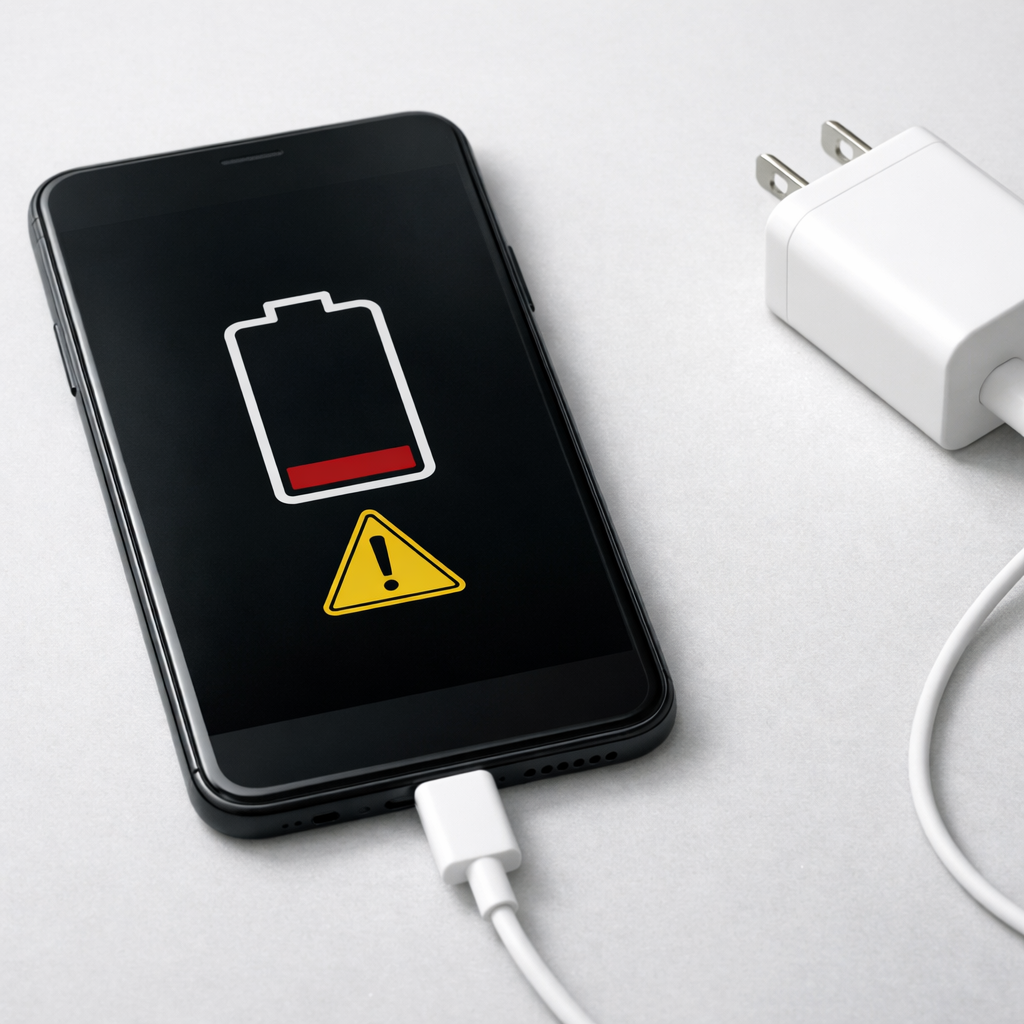
Battery overheating during charging is most often caused by charging inefficiency: the charger, cable, or device can’t convert incoming power into stored battery energy cleanly, so the “extra” turns into heat. This is common with low-quality fast chargers, damaged cables, dirty ports, or when the phone is working hard while charging.
A little warmth is normal, especially from 0–60% or during fast charging, but it should settle down within a few minutes after unplugging. If it becomes hot to the touch, heats up every session, or heats up even when idle, treat it as a problem to fix now.
If you need a fast fix
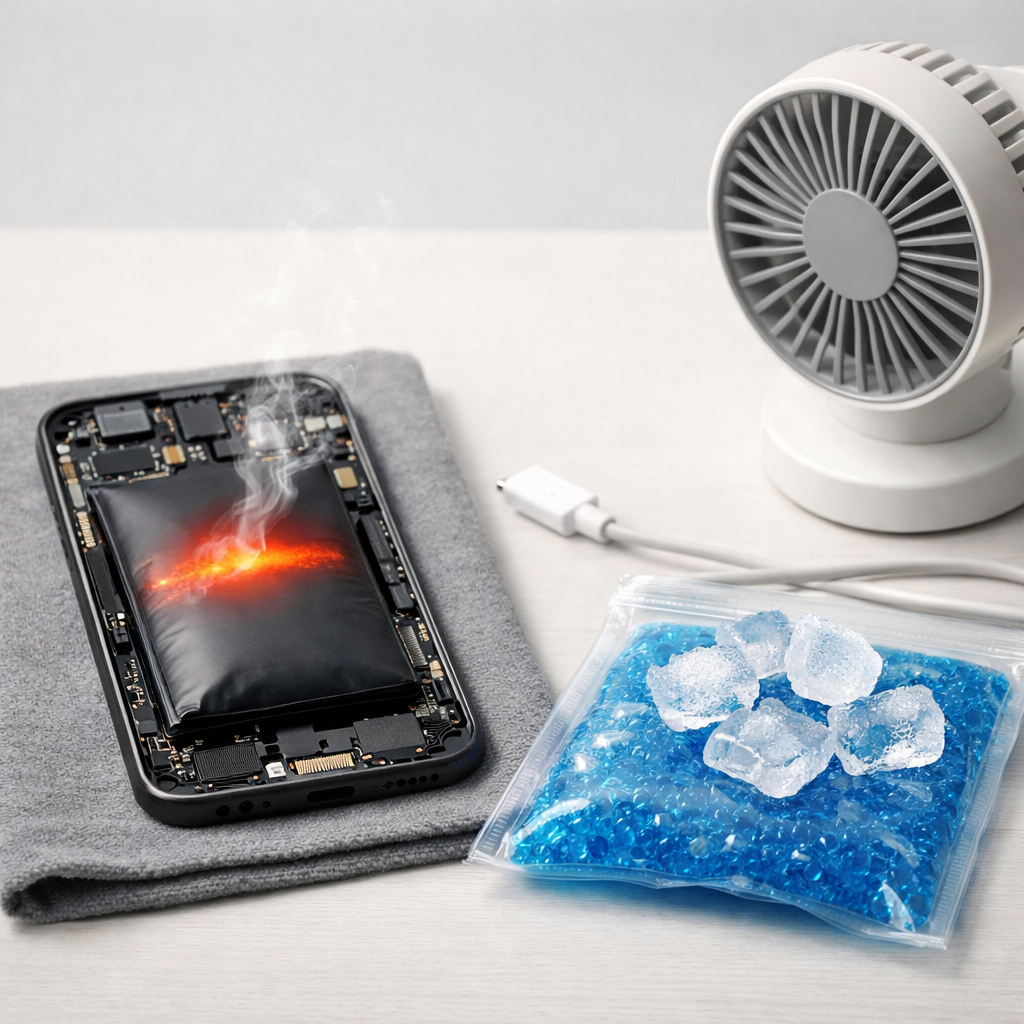
- Unplug it, remove the case, and place the device on a hard surface in a cool room for 10–15 minutes.
- Switch to a slower, known-good charger and cable (or a different wall outlet), and avoid fast charging for today.
- Stop heavy use while charging (gaming, hotspot, video calls), and close background apps so the device can charge with less waste heat.
Quick Diagnosis Table
| Symptom | Most likely cause |
|---|---|
| Gets hot only when charging with a specific charger | Charger power output is noisy/unstable or mismatched, creating inefficient power conversion and heat |
| Gets hot when charging and using the device (games/video/hotspot) | Battery is charging and discharging at the same time, so more power is wasted as heat |
| Gets hot near the port and charging is slow | Dirty/loose port or damaged cable causing resistance, which converts power into heat |
| Heats up mainly above 80–100% and takes a long time to finish | Normal top-off charging plus age-related battery inefficiency making the last 20% run hotter |
| Heats even on a slow charger and the battery drains fast | Aging battery or internal fault; the battery can’t accept power efficiently, so charging creates excess heat |
Why This Happens
When you plug in a charger, the device has to turn wall power into the exact voltage and current the battery can safely store. If that conversion is inefficient, some power doesn’t become “stored charge” and instead becomes heat inside the phone, the cable, or the charger.
Real-world examples include a cheap high-watt charger pushing power your device can’t use, a frayed cable that forces the device to “work harder” to pull power, or a phone that’s charging while also running a demanding app. In each case, more electricity is wasted instead of neatly filling the battery.
That wasted energy shows up as heat, which you feel on the back of the device, near the charging port, or around the camera/CPU area. The hotter it gets, the harder it is for the battery to charge efficiently, which can create a cycle of slower charging and even more heat.
Most Common Causes (Ranked)
- 1) Charger/cable mismatch or poor-quality fast charger: If the charging gear can’t deliver clean, stable power, the device’s charging system wastes more energy as heat while regulating it.
- 2) High device workload while charging: Streaming, gaming, hotspot, navigation, and video calls add heat and increase power use, so part of the incoming power is immediately spent instead of stored.
- 3) High ambient temperature or trapped heat: Charging in a hot car, on a bed, or inside a thick case prevents heat from escaping, so normal warmth turns into overheating.
- 4) Dirty, wet, or loose charging port: Extra electrical resistance at the connector acts like a tiny heater, making the port area hot and often slowing charging.
- 5) Battery aging (higher internal resistance): As batteries wear, they turn more charging energy into heat and often get noticeably warmer near the top of the charge.
- 6) Software issues causing background drain: A stuck backup, update, or rogue app can keep the CPU busy, making charging inefficient and warm even when the screen is off.
If heat reduces over a few days after changing chargers, cleaning the port, or reducing workload, that gradual improvement usually means you fixed an efficiency issue rather than a serious hardware fault.
How to Check the Problem Safely
- Check 1: Feel where the heat is strongest (near the port, the back center, or the charger brick). Port heat points to cable/connector resistance; back-center heat often points to heavy workload.
- Check 2: Try a known-brand charger and cable that match your device’s supported charging standard, then compare heat after 10 minutes of charging.
- Check 3: Test charging with the screen off and airplane mode on for 10–15 minutes. If it runs much cooler, background activity or poor signal reception is contributing to waste heat.
- Check 4: Inspect the cable ends and port for lint, discoloration, looseness, or a “wiggle to charge” behavior. If charging cuts in and out, the connection is likely wasting power as heat.
- Check 5: Look at battery settings for “battery health” or unusual app battery use. A suddenly high drain app can create heat that makes charging feel worse.
If you smell burning, see smoke, or the device becomes too hot to hold, unplug it immediately and do not continue testing.
How to Fix It
- Fix 1 (easiest): Remove the case and charge on a hard, open surface in a cool room. Better airflow helps the device shed heat and charge more efficiently.
- Fix 2: Replace the charger and cable with reputable, correctly rated accessories. Stable power reduces the device’s need to “fight” the input, lowering wasted heat.
- Fix 3: Disable fast charging (if your device supports the toggle) or use a lower-watt adapter. Slower charging often creates less heat because the system isn’t pushing the battery as hard.
- Fix 4: Clean the charging port carefully: power off, use a dry wooden/plastic toothpick or soft anti-static brush, and remove lint without metal tools. A clean, snug connection reduces resistance and port heating.
- Fix 5 (advanced/last resort): Back up data, update the OS, then reset settings or perform a factory reset if software is causing constant background load. If heat persists across chargers after a reset, plan for battery replacement or professional inspection.
Signs of Battery or Hardware Damage
- Battery swelling (screen lifting, back cover bulging, case no longer fits).
- Device shuts down or restarts during charging, especially at higher percentages.
- Rapid battery percentage jumps or drops (for example, 40% to 20% quickly).
- Charging becomes very slow on multiple known-good chargers and cables.
- Unusual smells (sweet/chemical/burning) or visible discoloration near the port.
- Device is hot even when not charging and sitting idle.
- Crackling sounds, popping, or the charger/cable end gets dangerously hot.
When Repair Is No Longer Worth It
If the battery is swollen, the device overheats on any charger, or it shuts down unpredictably, replacement is usually the safer choice than repeated troubleshooting. For older devices, heat problems can also signal worn power-management parts, which can be costly to diagnose and fix.
As a rule, if a battery replacement plus any port repair costs more than about 30–50% of the price of an equivalent refurbished device, replacement often gives better reliability. If the device is still supported with updates and is otherwise in good condition, a battery swap is typically worth it.
How to Prevent This Problem in the Future
- Use reputable chargers and cables that match your device’s charging standard, not just the highest wattage you can find.
- Avoid charging under pillows, on couches, or in direct sun; heat buildup makes charging less efficient and accelerates wear.
- Limit heavy use while plugged in, especially gaming, hotspot, and video calls, to reduce “charge and drain at the same time” heating.
- If your device offers it, enable optimized charging or an 80% limit to reduce heat during top-off charging.
- Keep the charging port clean and dry; a good connection reduces resistance and heat at the connector.
- Replace damaged cables early; fraying and loose connectors commonly create heat and slow charging.
- In hot weather, prefer slower charging or charging in shorter sessions to keep temperatures moderate.
FAQ
Is it normal for my device to get warm while charging?
Yes, mild warmth is normal because some energy is always lost as heat during charging. It’s most noticeable during fast charging and from low battery levels. It should not become painful to touch, smell odd, or stay hot long after unplugging.
Why does my phone overheat only with one charger or cable?
That usually points to inefficient power delivery: the charger may be poorly regulated, or the cable/connector may be adding resistance. The device then has to “smooth out” the input power, which increases heat. Swapping to a known-good charger and cable is the fastest way to confirm.
Should I put my overheating device in the fridge or freezer?
No, rapid cooling can cause condensation inside the device, which can damage ports and electronics. Instead, unplug it, remove the case, and let it cool in a shaded, room-temperature area with good airflow. If overheating repeats, address the charger, cable, workload, or battery health.
If you’re dealing with repeated battery issues, Mark Reynolds recommends focusing on simple checks before assuming hardware failure. You can find a broader breakdown in the battery troubleshooting guide.
For a full overview of this issue and step-by-step solutions, read the complete troubleshooting guide.