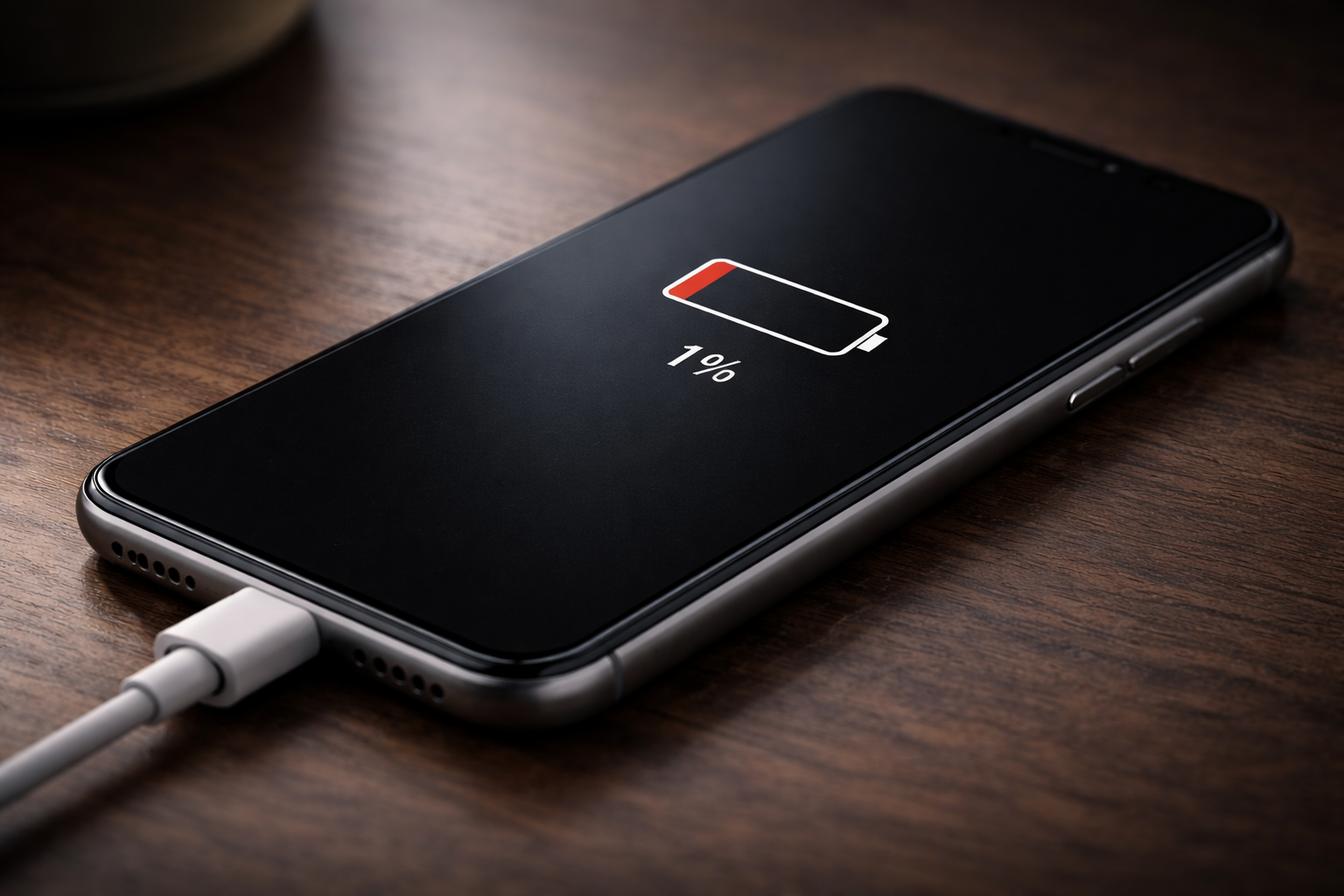
Quick Answer
If your phone battery is stuck at 1 percent, the device is usually having trouble
measuring or accepting charge correctly. The battery may still be charging slowly,
but the percentage indicator is not updating. This is commonly caused by calibration errors,
deep battery discharge, charging issues, or battery aging.
Key Takeaways
- A battery stuck at 1% is often a measurement or calibration issue.
- Deeply drained batteries can take time before the percentage increases.
- Charging cables, adapters, or power sources can limit charging.
- Old batteries may struggle to hold or accept charge.
- Persistent issues may indicate battery replacement is needed.
Introduction
Seeing your phone stuck at 1 percent battery can be confusing and frustrating, especially
when it has been charging for a long time. In many cases, the phone appears to be charging,
but the battery percentage does not increase.
This situation is common and usually related to battery measurement, charging conditions,
or software behavior rather than permanent hardware failure.
What this problem usually means
When a phone battery stays at 1 percent, the device is typically having difficulty
measuring or accepting charge correctly. The battery may still be receiving power,
but the system does not update the percentage display.
Modern smartphones estimate battery level using software models. If these models become
inaccurate, the displayed percentage can freeze even while charging continues.
In other cases, the phone may not be receiving enough power to move beyond the lowest charge level.
Common causes
Battery calibration errors
Over time, software can lose track of the battery’s true charge level, causing the percentage to freeze.
Deep battery discharge
When a battery is fully drained, it may take longer than normal to rebuild enough charge to move past 1 percent.
Old or degraded battery
A worn battery may struggle to accept or hold energy, preventing the percentage from increasing.
Charging cable or power source issues
Weak adapters, damaged cables, or loose connections can limit charging power.
Background power usage
If the phone is on and active while charging, it may consume energy as fast as it receives it.
Software glitches
Temporary system errors can interfere with battery reporting.
How to fix or reduce the issue
Leave the phone charging longer
Deeply drained batteries may need 20–30 minutes before the percentage changes.
Turn the phone off while charging
This reduces power use and allows more efficient charging.
Check cable and power source
Try a different charger, cable, or outlet.
Restart the phone
Restarting can reset battery reporting.
Update system software
Updates often fix charging or battery reporting bugs.
Avoid using phone while charging
Reduce power usage so the battery can recover.
When this becomes a serious problem
- Phone shuts down immediately after unplugging
- Battery never increases after hours of charging
- Phone overheats while charging
- Problem happens repeatedly
These signs may indicate severe battery degradation or internal charging failure.
How to prevent it
- Avoid fully draining battery regularly
- Charge before reaching critical levels
- Use stable charging equipment
- Limit heavy use while charging
- Keep phone at moderate temperature
- Install system updates
FAQ
Why does my phone stay at 1 percent for so long?
A deeply drained battery may need time to rebuild charge before the system updates the display.
Is it safe to keep charging?
Yes, if the phone is not overheating and charging normally.
Can software updates fix it?
Sometimes. Updates can correct battery reporting issues.
Does it always mean the battery is bad?
No. Calibration or charging issues are often responsible.
Conclusion
A phone battery stuck at 1 percent is usually caused by deep discharge, charging conditions,
or software misreporting. In many cases, the problem can be resolved with simple charging
adjustments and system resets. If the issue becomes frequent or persistent, battery wear is
the most likely cause.
For a full overview of this issue and step-by-step solutions, read the complete troubleshooting guide.
If the issue keeps coming back, it’s usually worth looking at broader battery behavior rather than a single fix. That’s the approach Mark Reynolds follows in the complete battery guide.