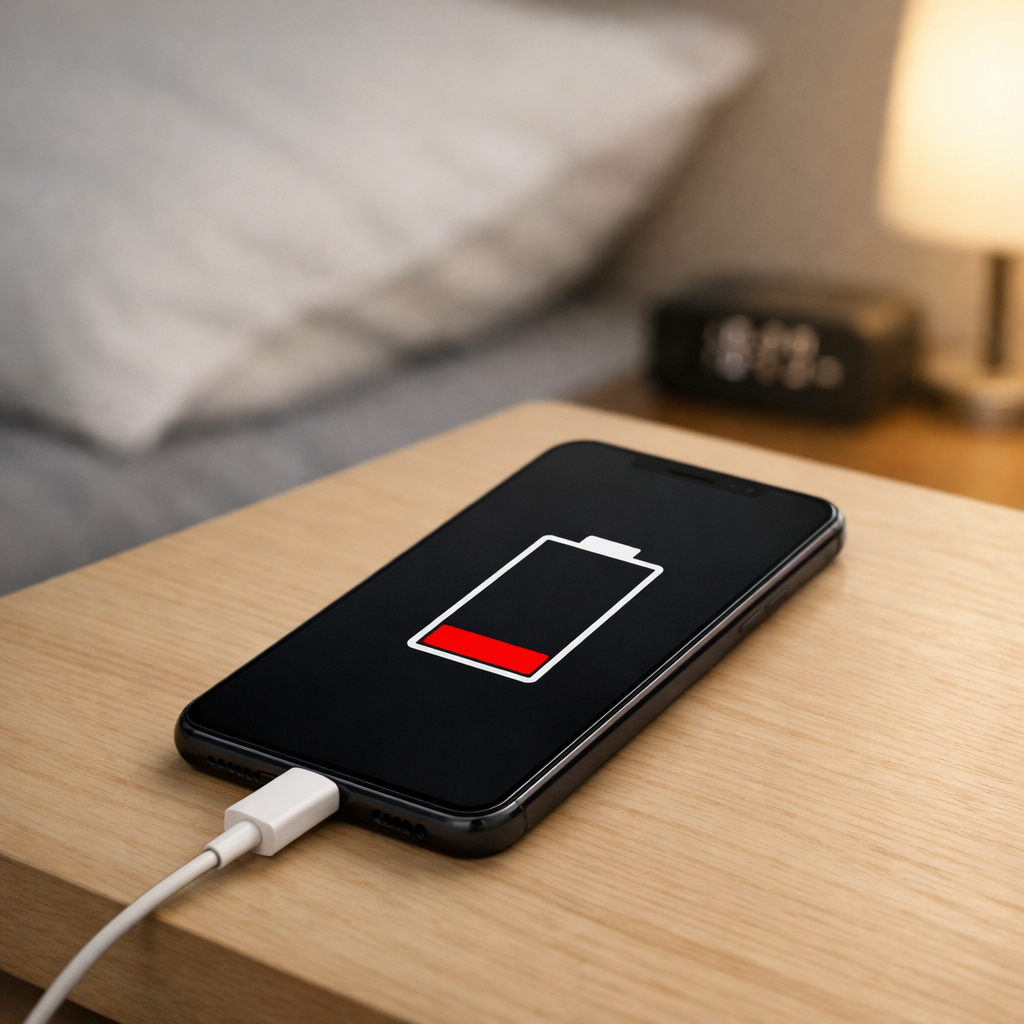
Device Battery Draining Overnight — Background Processes or Hardware Issue?
Quick Answer
The most likely cause is the battery’s protection and charging management system temporarily pausing the charge cycle overnight. This can happen when the device reaches full charge, warms up, detects an unstable power source, or decides to “hold” the battery around a safer level instead of staying at 100%.
In many phones, tablets, laptops, and power banks, it’s normal to see a drop of about 2–10% overnight and then a short “top-up” later. If the top-up never happens or the drop is large (for example 15–30% or more), it usually means the charger, cable, port, or battery health needs attention.
If you need a fast fix
- Restart the device, then charge it to 100% using a known-good charger and cable, and leave the screen off for 20–30 minutes to confirm it can “top up.”
- Switch outlets and remove adapters or power strips for one night to rule out unstable power that can make charging pause.
- Clean the charging port gently and re-seat the cable firmly, then test with a different cable to reduce brief disconnects that stop overnight charging.
Quick Diagnosis Table
| Symptom | Most likely cause |
|---|---|
| Battery drops 5–10% overnight, then returns to 100% shortly after you wake up | Normal charging management: protection circuit pauses at full and tops up later |
| Battery drops 15–30% overnight while plugged in, and never tops up | Charging cycle suspended due to unstable power, weak charger/cable, or dirty/loose port |
| Charging icon shows connected, but percentage slowly decreases overnight | Power delivered is too low for background load, causing net drain |
| Battery percentage “jumps” in the morning (e.g., 82% to 95% quickly) | Battery gauge calibration drift or charging paused and resumed after temperature changed |
| Device is warm in the morning and the charge level is lower than expected | Heat-triggered protection pause plus higher background activity (updates, backups) |
Why This Happens
Modern devices don’t charge in a simple nonstop way all night. Once the battery is near full, the charging system often pauses to reduce stress, heat, and long-term wear, then resumes later in small top-up bursts.
If the device gets warm (under a pillow, in a case, near a heater), the protection circuit may pause charging sooner and wait for temperatures to drop. If the wall power or cable connection is slightly unstable, the device may repeatedly stop and start, and in some cases decide to suspend charging until conditions look safe again.
The symptom you notice is usually a lower battery percentage in the morning even though it was plugged in, because charging paused while normal background tasks still used power.
Most Common Causes (Ranked)
- 1) Charge protection pausing at full: Many devices intentionally stop charging at or near 100% and only top up later, so a small overnight drop is expected.
- 2) Unstable power, charger, or cable: A weak adapter, worn cable, or loose connection can make charging “flake out,” and the device may suspend the cycle rather than constantly reconnect.
- 3) Heat-triggered charging suspension: If the device warms up overnight, charging can be paused for safety, and the battery slowly drops while plugged in.
- 4) Background activity outpacing the charger: Updates, cloud backups, location services, or hotspot use can consume more power than a low-watt charger can provide, creating net drain.
- 5) Charging port contamination or wear: Pocket lint, oxidation, or a slightly loose port can cause micro-disconnects that interrupt charging long enough to lose several percent.
- 6) Aging battery or battery gauge drift: Older batteries sag more under load and can show larger percentage drops; the percentage reading may also be less accurate near the top.
If the overnight drop gradually improves after switching the charger/cable or reducing heat, that usually indicates the device is healthy and the issue was environmental or accessory-related rather than a failing battery.
How to Check the Problem Safely
- Check 1: Use a different known-good charger and cable for one night, ideally the original or a reputable brand with the correct wattage for your device.
- Check 2: Plug directly into a wall outlet (no power strip, no laptop USB port), and confirm the plug and cable feel snug and don’t wiggle loose.
- Check 3: Feel the device temperature before bed and in the morning; if it’s warm, remove thick cases, avoid bedding contact, and charge on a hard surface.
- Check 4: Check battery usage statistics to see what ran overnight; look for big offenders like system updates, backup/sync, gaming, hotspot, or high screen-on time.
- Check 5: Inspect the charging port with a light; if you see lint, clean gently with a wooden or plastic toothpick and a soft brush (no metal tools).
Safety note: if you notice swelling, burning smell, or unusual heat, stop charging and power the device down before seeking service.
How to Fix It
- Fix 1 (easiest): Charge in a cooler spot with the screen off and unnecessary apps closed; lower heat reduces protection pauses and helps the device complete its top-up cycle.
- Fix 2: Replace the cable first, then the charger if needed; many “overnight drain while plugged in” problems are simply low-quality or worn accessories delivering inconsistent power.
- Fix 3: Clean and stabilize the connection: clear lint from the port, try a different cable orientation, and ensure the connector clicks in firmly; fewer micro-disconnects means fewer suspended charge cycles.
- Fix 4: Reduce overnight background load: disable hotspot, pause large downloads, switch to airplane mode or enable a battery saver mode; the charger can then keep up even if charging briefly pauses.
- Fix 5 (advanced/last resort): Update the device OS and consider a controlled battery recalibration (use normally, then charge to full without interruption); this can fix percentage “jumps” caused by gauge drift, but won’t repair a worn battery.
Signs of Battery or Hardware Damage
- Battery percentage drops very fast even when not in use (for example 20%+ in a few hours of standby).
- Device gets hot while charging or when idle, especially in the same spot every time.
- Charging repeatedly starts/stops, or the charge icon flickers when the cable is still.
- Battery level is stuck (e.g., won’t go above 80–90%) or shuts down at a high percentage.
- Physical swelling, screen lifting, or a case that no longer fits properly.
- Burning/chemical smell, crackling sounds, or any sign of leakage.
- Charging port feels loose, moves internally, or only charges when the cable is held at an angle.
When Repair Is No Longer Worth It
If the battery is swelling, overheating, or the device shuts down unexpectedly, prioritize safety and replacement over troubleshooting. For older devices, a failing battery combined with a worn charging port can turn into repeated downtime and unreliable performance.
As a practical rule, if battery or port repair costs approach 30–50% of the device’s current replacement value, replacement usually makes more sense. If the device still meets your needs and the repair is inexpensive (especially a battery swap), repairing can be the best value.
How to Prevent This Problem in the Future
- Use a reputable charger and cable with the correct wattage so the device can handle background tasks without net drain.
- Charge on a hard, cool surface and avoid covering the device; less heat means fewer protection-related pauses.
- Enable optimized charging (or similar features) if available, and don’t worry about a small overnight drop followed by a top-up.
- Keep the charging port clean and dry; occasional gentle cleaning prevents loose connections that interrupt charging.
- Avoid extreme states for long periods: if you store the device, leave it around 40–60% charge rather than 100% for days.
- Reduce overnight background activity by scheduling updates/backups for daytime or when you can monitor charging.
- Replace frayed cables early; intermittent power is a common trigger for suspended charging cycles.
FAQ
Why does my device stop charging at 100% and then drop a few percent?
This is usually normal behavior. The charging system may pause at full to reduce heat and battery wear, then top up later. A small overnight drop (often 2–10%) is common, especially if the device runs background tasks.
How can I tell if it’s background apps or the charger suspending charging?
Check battery usage for overnight activity and compare one night on a known-good charger and cable. If the drain mostly disappears with different charging accessories, the issue was likely unstable power or a weak cable/adapter. If an app or system service dominates usage, lowering that activity should reduce the drop.
Is it bad to leave my device plugged in overnight?
For most modern devices, it’s generally fine because charging is actively managed and includes protection features. The main risks come from heat, poor-quality chargers/cables, and physical damage to the port from tension or bending. If you see excessive heat or large overnight drops that never recover, troubleshoot accessories and consider service.
Most battery issues are easier to understand once you break them down step by step. That’s the approach Mark Reynolds takes across all troubleshooting guides. For more details, visit the complete guide.
For a full overview of this issue and step-by-step solutions, read the complete troubleshooting guide.