
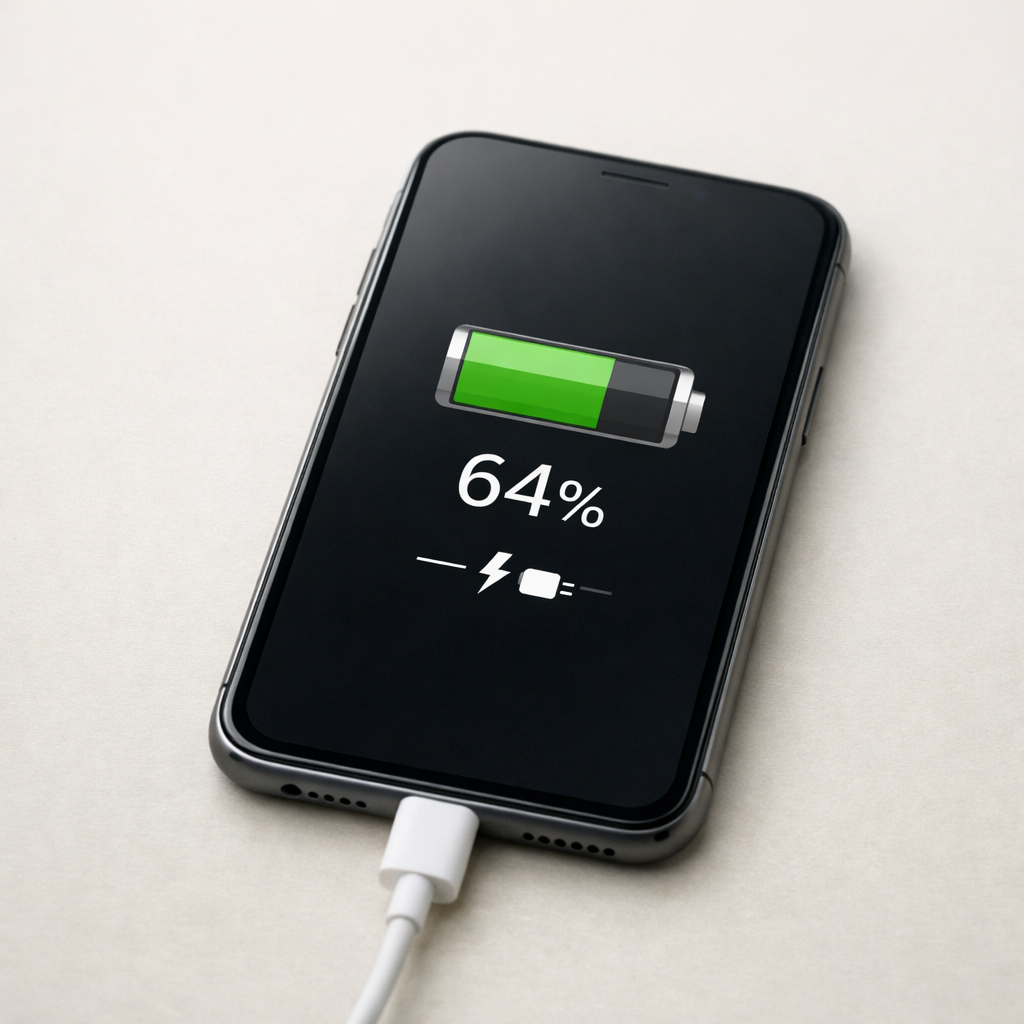
Device Charging Stops at Random Percentage — Battery Sensor or Safety Limit?
Quick Answer
When charging stops at a “random” percentage (like 63%, 78%, or 92%), the most likely cause is the battery gauge getting out of sync with the real battery capacity, or a battery cell that has aged and can’t safely keep charging. The phone, laptop, or tablet may pause or end charging early because the sensor data looks risky or because the battery voltage reaches a limit sooner than expected.
This usually shows up after months of use, after a major update, after long periods of partial charging, or after the device has overheated. If it’s only happening occasionally, you may see improvement within a few charge cycles after recalibration; if it happens nearly every time, a degraded cell or temperature-related safety limit is more likely.
If you need a fast fix
- Unplug the charger, let the device cool for 10–20 minutes, then try charging again in a cooler spot (heat is a common charging stop trigger).
- Try a different cable and wall charger (not a PC port), then check if the stopping percentage changes or disappears.
- Restart the device and charge while it is idle (screen off, no gaming), which reduces heat and stabilizes battery readings.
Quick Diagnosis Table
| Symptom | Most likely cause |
|---|---|
| Stops at different percentages but later drops quickly (for example, “80%” then 65% within minutes) | Battery gauge needs recalibration or a worn cell is sagging under load |
| Stops around the same range (often 70–90%) and the device feels warm | Temperature or safety limit ending the charge early |
| Charging resumes after cooling or after a restart | Thermal protection or software power-management glitch |
| Only happens with one cable/charger or one outlet | Power delivery issue (bad cable, weak adapter, unstable outlet) |
| Battery gets “stuck” (for example, 1% increase in an hour) but charges normally when powered off | High background usage, battery wear, or port/charging circuit sensitivity |
Why This Happens
Your device doesn’t measure battery “percent” directly. It estimates it from voltage, current, temperature, and a learned model of how the battery behaves. As the battery ages, that model can drift, and the percentage shown can be wrong even if the battery is still charging normally for part of the cycle.
A common real-world example is a phone that shows 85%, then after you unplug it and open a few apps, it suddenly drops to 72%. That drop is often the device correcting an optimistic estimate once the battery is under load.
Another example is charging that stops at 78% whenever the device is in a warm case or under a pillow. In that situation, the system may cut or slow charging to protect the battery and the internal components.
In short, a mismatched gauge or a weaker battery cell can make the device think it has reached a safe limit early, so charging pauses or stops and the displayed percentage behaves unpredictably.
Most Common Causes (Ranked)
- 1) Battery gauge out of calibration: After many partial charges, updates, or long time plugged in, the percentage can drift from the battery’s true state, causing “random” stopping and sudden drops.
- 2) Battery degradation (reduced capacity or high internal resistance): An aged cell hits voltage/temperature limits sooner, so the system ends charging early and the percentage falls faster after unplugging.
- 3) Heat-triggered charging protection: Warm rooms, thick cases, fast charging, gaming while charging, or direct sun can trigger safety limits that pause charging at whatever percentage you’re currently at.
- 4) Adaptive/optimized charging features: Many devices intentionally stop around 80%–90% to reduce wear, then finish later based on your routine, which can look like a problem if you expect 100% quickly.
- 5) Weak charger, damaged cable, or dirty port: If power delivery dips, the device may repeatedly start/stop charge and “settle” at different percentages.
- 6) Software or power-management bug: A recent update, battery stats corruption, or a stuck background process can confuse charging behavior until restarted or updated again.
If the stopping point becomes more consistent and the battery percentage becomes steadier over the next few days, that often means the gauge is relearning and the situation is improving.
How to Check the Problem Safely
- Check 1: Note the stop percentage and temperature. If it often stops when warm or while using the device, heat protection is likely.
- Check 2: Try a known-good wall adapter and cable for one full session. If the issue disappears, your original charger/cable is the cause.
- Check 3: Inspect and gently clean the charging port. Power off the device, then use a dry soft brush or wooden toothpick to remove lint (do not use metal tools).
- Check 4: Watch what happens after unplugging. If it drops 10%–20% quickly or shuts down early, battery wear or gauge drift is strongly suggested.
- Check 5: Check battery health if your device provides it. A significantly reduced health percentage or “Service/Replace” message points to a worn battery rather than a simple calibration issue.
If you notice swelling, burning smell, or excessive heat, stop charging and do not continue troubleshooting while plugged in.
How to Fix It
- Fix 1 (easiest): Cool the device and reduce load while charging. Remove the case, avoid gaming/video calls, and charge in a ventilated area to prevent safety cutoffs.
- Fix 2: Replace the cable/charger with a reputable one that matches your device’s requirements. Stable power prevents repeated charge interruptions that confuse battery readings.
- Fix 3: Do a gentle recalibration cycle once. Use the device down to around 10%–15%, then charge uninterrupted to 100% and keep it plugged in for another 30–60 minutes so the gauge can relearn the top end.
- Fix 4: Check settings for optimized/adaptive charging and test behavior. If it consistently stops around 80%–90% by design, either leave it on for battery longevity or temporarily disable it when you need a full charge quickly.
- Fix 5 (advanced/last resort): Backup your data and update the OS, then consider a reset if the issue began after software changes. This can clear corrupted power-management settings, but it will not fix a physically worn battery.
Signs of Battery or Hardware Damage
- Battery percentage drops in big jumps (for example, 60% to 35%) with light use.
- Unexpected shutdowns even when the battery shows 20%–50% remaining.
- Device gets unusually hot during normal charging or warms rapidly near the battery area.
- Charging stops and starts repeatedly, or the charging icon flickers with a stable cable.
- Battery swelling, screen lifting, or the back cover separating.
- Noticeable slowdown, heavy throttling, or “battery service” warnings in system settings.
- Charging port feels loose, the cable doesn’t seat firmly, or you must hold it at an angle.
When Repair Is No Longer Worth It
If the device is older and the battery health is clearly reduced, a battery replacement is usually the most cost-effective repair, but only if the rest of the device is in good condition. If you also have charging port damage, overheating, or multiple failures (battery plus motherboard/charging IC issues), the repair cost can quickly approach replacement value.
As a rule, if the repair estimate is more than about 30%–50% of the price of a comparable replacement device, replacement often makes more sense. For laptops and premium phones, a new battery can still be a great value if it restores stable charging and several hours of runtime.
How to Prevent This Problem in the Future
- Keep the device cool while charging by removing thick cases and avoiding direct sunlight.
- Use a quality charger and cable that meet the device’s fast-charge standard to avoid unstable power.
- Avoid constant heavy use while charging (gaming, hotspot, high brightness) to reduce heat and sensor confusion.
- Don’t leave the battery at 0% for long periods; recharge soon to avoid deep-discharge stress.
- If you store the device, leave it around 40%–60% and power it on monthly to top up slightly.
- Let optimized/adaptive charging do its job when convenient; staying near 100% all day can accelerate wear.
- Once every couple of months, do a single uninterrupted charge to 100% after reaching about 10%–15% to help the gauge stay accurate.
FAQ
Why does my device stop charging at 80% or 85% specifically?
Many devices intentionally pause around 80%–90% to reduce battery wear, especially overnight. This is often called optimized or adaptive charging, and it may finish to 100% closer to when it expects you will unplug. If it never finishes even after hours, then heat, a weak charger, or battery wear is more likely.
Is it safe to keep using it if the battery drops right after unplugging?
A small drop (1%–3%) can be normal, but a large fast drop can indicate a miscalibrated gauge or a worn battery cell. It is usually safe for short-term use if the device is not overheating or swelling, but expect unreliable runtime. If you see sudden shutdowns or excessive heat, stop charging and get the battery checked.
Will replacing the charger fix a “random percentage” stop?
It can, especially if the issue only happens with one cable, one adapter, or one outlet. Unstable power delivery can make charging pause and confuse battery estimation. If the device behaves the same with multiple known-good chargers, the battery itself or thermal limits are more likely.
Understanding how batteries behave over time can make troubleshooting much easier. Mark Reynolds breaks these patterns down in simple terms. You can explore more in the full guide.
For a full overview of this issue and step-by-step solutions, read the complete troubleshooting guide.





