
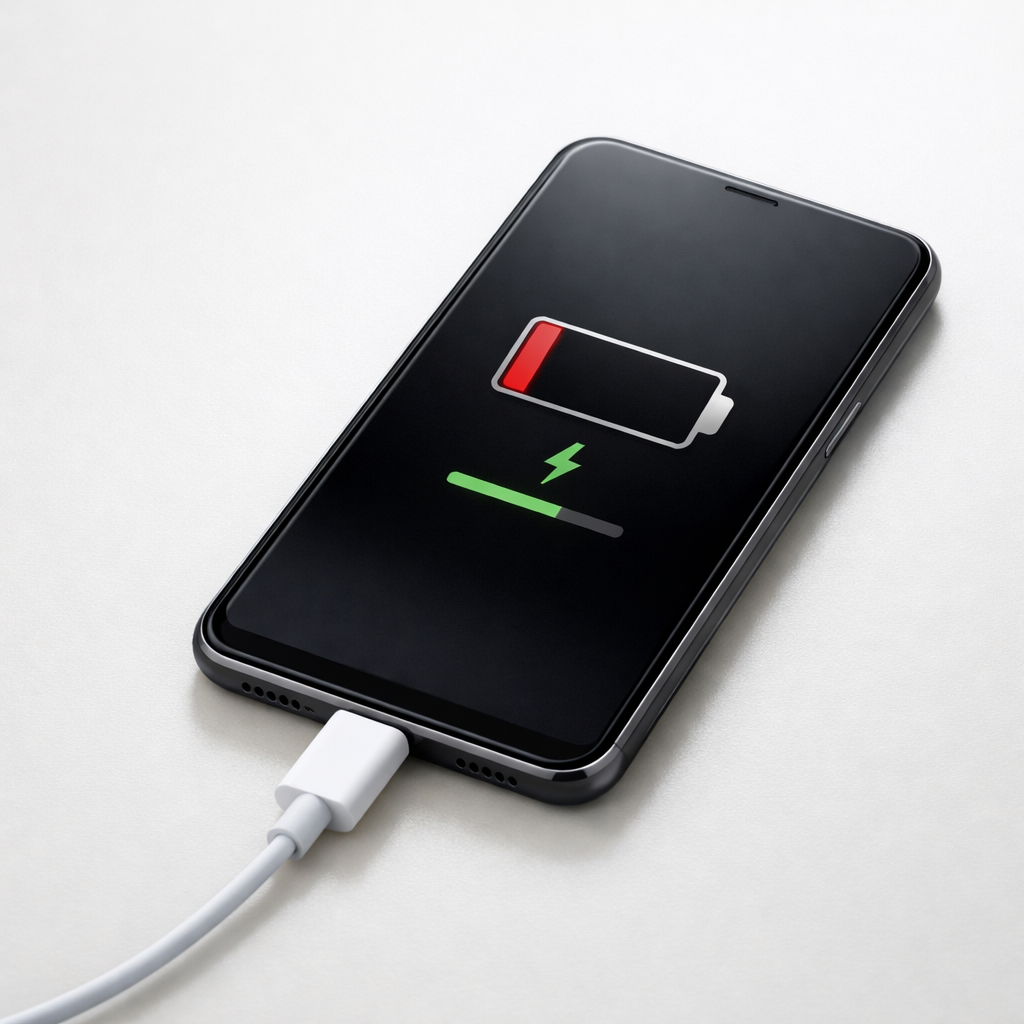
Device Battery Draining While Charging — Power Consumption Exceeding Input
Quick Answer
The most common reason a device loses battery even while plugged in is heavy background network activity. Sync, cloud uploads, app updates, backups, messaging, and location services can keep the device “awake,” using more power than the charger can provide.
This usually means your device is drawing power faster than it’s receiving it, so the battery makes up the difference. It’s common to see slow charging or small drops for 10–30 minutes after plugging in, but steady draining is a sign something is actively using power in the background.
If you need a fast fix
- Turn on Airplane Mode (or disable Wi‑Fi and mobile data) for 10–15 minutes while charging to stop background network traffic.
- Use the original (or higher-wattage) charger and a known-good cable, and plug into a wall outlet rather than a laptop or car USB port.
- Close high-usage apps and let the screen stay off while charging; screen-on time can easily overpower slow chargers.
Quick Diagnosis Table
| Symptom | Most likely cause |
|---|---|
| Battery percentage drops when plugged in, especially on Wi‑Fi/5G | Background syncing, cloud photos, backups, or app updates keeping radios and CPU active |
| Charges normally in Airplane Mode but drains with data on | Persistent network activity (uploads, streaming, hotspot use, unstable signal retrying) |
| Battery drains while charging and device feels warm | High background workload plus charging heat; the phone may limit charging and still consume power |
| Charging icon shows, but percentage barely moves for hours | Low-power charger/cable or dirty port combined with background network use |
| Drains faster in certain places (office, subway, rural) | Poor signal causing the modem to work harder and repeatedly reconnect |
Why This Happens
Charging is not just “battery in, battery up.” Your device is always consuming power to run the screen, processor, and wireless radios. When network-heavy tasks run in the background, consumption can surge even if you are not actively using the device.
For example, a phone might start uploading a large photo library to the cloud, syncing email attachments, updating apps, restoring a backup, or re-indexing after an OS update. If the signal is weak, the device can use even more power because it boosts transmit power and keeps retrying connections.
When the total power your device uses is higher than what the charger delivers, the charger can’t “catch up,” and the battery level falls while plugged in. That’s why the same charger might be fine overnight, but fail to keep up during a busy sync session on 5G.
Most Common Causes (Ranked)
- 1) Background sync and cloud uploads: Photos, drive apps, backups, email, and messaging can push constant traffic that keeps the CPU and Wi‑Fi/cellular radios active.
- 2) Weak or unstable signal: In low-coverage areas the modem works harder, searches for towers, and reconnects repeatedly, which can outweigh slow charging.
- 3) OS and app updates running in the background: Updates download, install, and optimize in the background, often causing heat and sustained usage for an hour or more.
- 4) Hotspot/tethering or background streaming: Sharing internet or streaming audio/video keeps the network stack busy and prevents deep sleep states.
- 5) Low-power charging source or cable losses: A low-watt adapter, cheap cable, or USB port may provide too little power, so any network activity tips it into “net drain.”
- 6) Battery aging or heat-related charging limits: Older batteries and warm devices may charge more slowly, making background network usage more noticeable.
If the drain slows down or turns into a steady increase after you stop syncing or improve signal, that gradual improvement is a good sign the issue is workload-related rather than a hard hardware failure.
How to Check the Problem Safely
- Check 1: Charge for 10 minutes with the screen off, then for 10 minutes with Airplane Mode on. If Airplane Mode dramatically improves charging, background network activity is the main driver.
- Check 2: Look at battery usage stats for the last few hours and identify apps showing high “background” time or high data usage. Pay attention to cloud storage, social apps, email, and backup tools.
- Check 3: Check signal strength where you charge. If the device shows low bars or frequently switches between LTE/5G/Wi‑Fi, expect higher power draw and slower charging.
- Check 4: Compare charging on a wall outlet using a known-good, higher-watt charger and quality cable. If it only drains on certain chargers or ports, the input is too low.
- Check 5: Feel for heat near the back of the device. Warm is normal, but consistent hot-to-the-touch heat during “idle” charging suggests heavy background work.
Safety note: if the device is very hot, unplug it and let it cool before continuing tests, and avoid charging under pillows, blankets, or in direct sunlight.
How to Fix It
- Fix 1 (easiest): Pause the network: enable Airplane Mode or turn off mobile data/Wi‑Fi for 15–30 minutes while charging. This stops sync loops and lets the battery recover quickly.
- Fix 2: Restrict background data and sync for the worst offenders. Disable auto-sync for rarely used accounts, pause cloud photo backup while charging, and limit background refresh so apps can’t constantly wake the device.
- Fix 3: Improve the connection where possible. Use stable Wi‑Fi instead of weak cellular, disable 5G if coverage is poor, or move to an area with better signal so the modem doesn’t work overtime.
- Fix 4: Increase charging input and reduce losses. Use a reputable fast charger appropriate for your device, replace frayed/low-quality cables, and clean lint from the port carefully so the connection is solid.
- Fix 5 (advanced/last resort): Reset network settings or reinstall/disable a misbehaving app. If battery stats show one app constantly active, uninstall it or clear its cache/data, and consider a full backup and factory reset only if the problem persists across days.
Signs of Battery or Hardware Damage
- Battery percentage jumps up or down unpredictably (for example, 40% to 20% in minutes without heavy use).
- The device gets unusually hot during light tasks or while idle and charging.
- Charging only works at a certain cable angle, or the port feels loose (possible port damage).
- The battery drains extremely fast even in Airplane Mode with the screen off.
- Random shutdowns, boot loops, or the device only runs when plugged in.
- Swelling, bulging screen/back panel, or a popping/creaking case (stop using and seek service immediately).
- “Accessory not supported” or repeated connect/disconnect sounds while charging.
When Repair Is No Longer Worth It
If the battery is swollen, the charge port is physically damaged, or the device overheats even after limiting network activity, repair becomes a safety and reliability issue, not just convenience. For older devices, the combination of a worn battery and a tired charging port often makes problems return even after partial fixes.
As a rule, if the repair cost is close to 30–50% of the device’s current replacement cost, replacement is usually the better value. If your device still receives security updates and the only issue is battery health, a battery replacement can be cost-effective and restore normal charging performance.
How to Prevent This Problem in the Future
- Schedule cloud photo/video backups to run only on Wi‑Fi and preferably when connected to a strong charger.
- Turn off unnecessary background refresh and limit background data for apps that don’t need instant updates.
- Avoid charging in low-signal areas when possible, or use Wi‑Fi calling and stable Wi‑Fi to reduce modem power draw.
- Keep the device cool while charging; heat reduces charging speed and can trigger power throttling.
- Use quality chargers and cables that match your device’s fast-charging standard, and avoid weak USB ports for regular charging.
- After major OS updates, expect indexing and syncing for a few hours; plan a longer charge window with minimal usage.
- Review battery and data usage monthly to catch apps that start excessive background syncing after an update.
FAQ
Why does my phone charge normally at night but drain while plugged in during the day?
At night your screen is off and background network activity is usually quieter, so the charger can outpace power use. During the day, active syncing, app updates, poor signal, and frequent notifications can keep the device awake and consuming more power. The same charger can be “enough” overnight but not enough when the phone is busy.
Will using Airplane Mode harm my battery or phone while charging?
No, Airplane Mode is a safe troubleshooting step and often improves charging because it reduces network radio power and stops background transfers. You can still use offline features while it’s on. If charging improves significantly in Airplane Mode, focus on sync settings, signal quality, and app background behavior.
Does “fast charging” fix battery draining while charging?
A faster charger can help by increasing the power coming in, but it won’t fix an app or service that is constantly burning power in the background. If the device is hot or stuck in a sync loop, it may still charge slowly or drain. The best results come from combining a proper charger with reduced background network activity and a cool charging environment.
Mark Reynolds focuses on everyday battery and charging problems, helping users understand what’s normal and what isn’t. For a full overview, check the battery troubleshooting guide.
For a full overview of this issue and step-by-step solutions, read the complete troubleshooting guide.





