
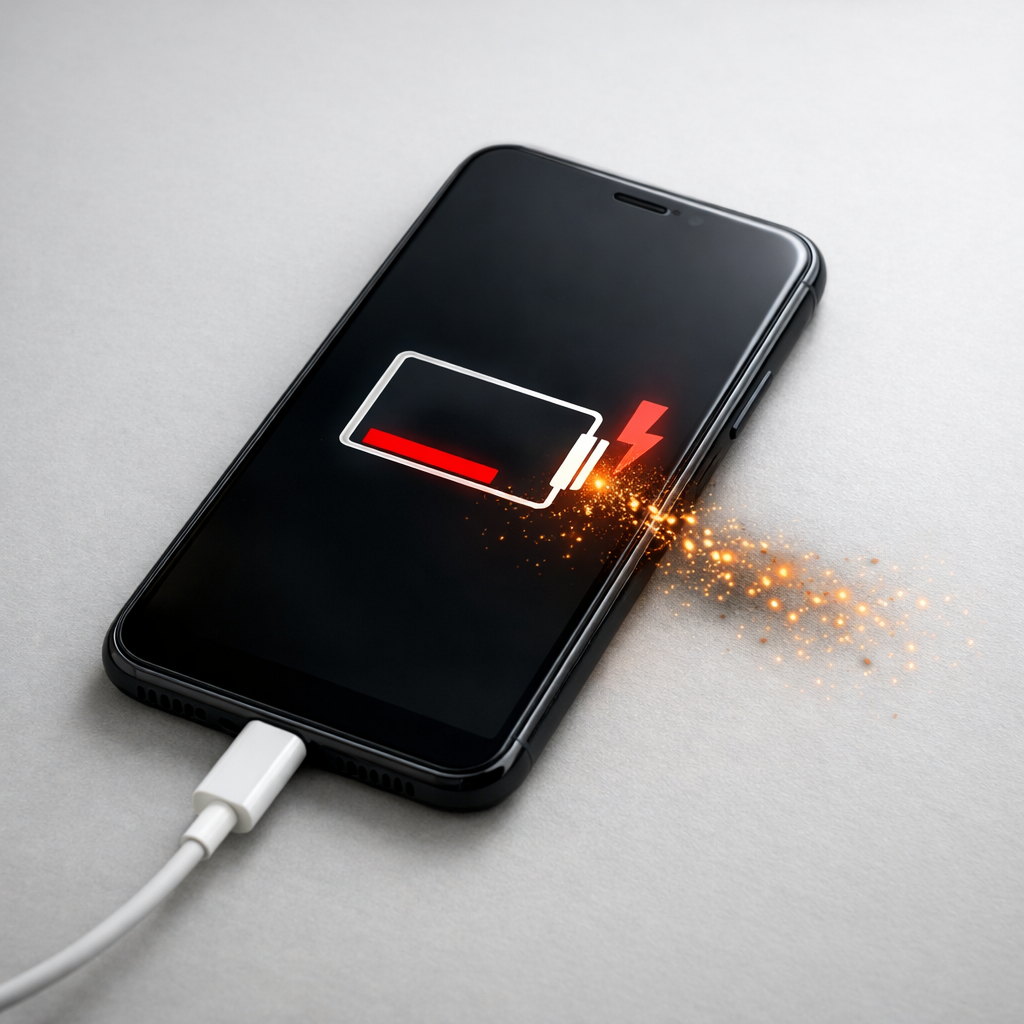
Device Battery Draining Unexpectedly — Hidden Power Drain or System Fault?
Quick Answer
Most “battery draining while plugged in” problems happen because your device is using power faster than it’s receiving it. In other words, the charger, cable, or charging port can’t deliver enough watts, so the battery quietly makes up the difference and drops.
This usually shows up during heavy use (gaming, video calls, navigation, hotspot) and can happen within minutes. A small drop (like 1–5% over an hour) can be normal under load, but steady decline or rapid loss points to a charging input problem or an unusually high background drain.
If you need a fast fix
- Unplug, close heavy apps, enable Airplane mode for 10 minutes, then plug in again with the screen off.
- Switch to a known-good original or certified cable and a higher-watt charger (and plug directly into a wall outlet, not a laptop/USB hub).
- Check the charging port for lint and gently clean the opening with a dry wooden toothpick or soft brush, then try charging again.
Quick Diagnosis Table
| Symptom | Most likely cause |
|---|---|
| Battery percentage drops while charging during gaming/video calls | Charger wattage too low for real-time power draw |
| “Charging” icon shows, but charge rate is extremely slow | Bad/low-quality cable, loose connection, or dirty port limiting current |
| Gets warm and drains faster, even when not actively used | Background activity (sync, updates, runaway app) raising power consumption |
| Charges fine from one charger but drains on another | Incompatible charging standard or failing adapter/outlet |
| Battery drops quickly from 100% to ~90%, then stabilizes | Normal behavior (top-off management) or calibration mismatch, not true drain |
Why This Happens
Your device needs a certain amount of power to run everything you’re doing right now: screen brightness, CPU/GPU load, cellular/Wi-Fi radios, and charging overhead. If the charger can’t supply enough power, the device pulls the extra from the battery even though it’s plugged in.
A common real-world example is using a small 5W–10W charger while streaming video at max brightness on 5G, or running navigation with the screen on and the phone in a hot car. Another example is charging a laptop with an underpowered USB-C adapter: it may “charge” at idle, but drain during meetings or editing.
When charging input stays below real-time consumption, the symptom is simple: battery percentage slowly (or quickly) goes down while showing a charging status.
Most Common Causes (Ranked)
- 1) Charger wattage too low: The adapter can’t deliver enough power for your current workload, so the device runs partly on the battery even while plugged in.
- 2) Cable or connection limiting power: A worn, thin, or non-certified cable (or a loose plug) can reduce charging current, making a “fast charger” behave like a slow one.
- 3) Dirty or damaged charging port: Lint or oxidation prevents full contact, which lowers the effective power input and may cause intermittent charging.
- 4) Heat throttling reduces charge rate: When the device is hot, many systems slow charging to protect the battery, so input drops while the device still consumes normal (or higher) power.
- 5) High background drain: A stuck backup, cloud sync loop, OS update, or buggy app can keep the processor and radios active, raising consumption so normal chargers can’t keep up.
- 6) Charging standard mismatch or failing adapter/outlet: Some devices need USB-C PD or a specific protocol; a weak power strip, worn outlet, or failing adapter can also cause low input.
If things improve gradually after changing the charger/cable or reducing heat and workload, that usually indicates the battery is fine and the issue was power delivery or excessive consumption.
How to Check the Problem Safely
- Check 1: Compare charging while idle vs while in use. Plug in, turn the screen off for 15 minutes, then check if the percentage rises. If it rises only when idle, your workload is outpacing the charger.
- Check 2: Try a higher-power wall charger and a different cable. Use an original or certified cable and a known-good adapter that matches your device’s recommended wattage.
- Check 3: Test a different outlet and bypass accessories. Plug directly into a wall outlet (not a PC USB port, monitor port, hub, or power bank) to rule out low-power sources.
- Check 4: Look at battery usage in Settings. Find apps using unusually high power in the background and note whether “screen,” “cellular,” or “system” use is unexpectedly high.
- Check 5: Feel for heat. If it’s noticeably hot to the touch while charging, let it cool and retest; charging rates often recover once temperatures drop.
Safety note: if you notice swelling, burning smell, or extreme heat, stop charging immediately and keep the device away from flammable materials.
How to Fix It
- Fix 1 (easiest): Reduce real-time power draw while charging. Lower brightness, turn off hotspot, pause gaming, and close navigation; this helps the charger “get ahead” of usage so the battery can rise.
- Fix 2: Use the correct charger wattage and standard for your device. For many phones this means a reputable fast charger; for laptops/tablets it often means a USB-C PD charger with enough watts, which prevents drain during normal work.
- Fix 3: Replace the cable with a high-quality certified one. Cables fail more often than chargers, and a good cable restores full current and stable connections.
- Fix 4: Clean and stabilize the charging connection. Remove lint from the port, ensure the plug seats firmly, and avoid wiggling the cable; a solid connection improves power delivery and stops “charging but draining” behavior.
- Fix 5 (advanced/last resort): Address software drain and battery health. Update the OS, uninstall or reset problematic apps, and consider a battery health check; if health is very low, the device may heat up and throttle charging more aggressively.
Signs of Battery or Hardware Damage
- Battery swelling, bulging case, lifting screen, or gaps in the frame
- Device becomes very hot during light tasks or simple charging
- Random shutdowns at 20–50% or sudden drops in percentage
- Charging only works at certain cable angles or disconnects with minor movement
- Burning smell, crackling sounds, or visible discoloration near the port
- Battery health shows “service” recommended or unusually low maximum capacity
- Rapid drain even in Airplane mode with the screen off
When Repair Is No Longer Worth It
Repair is usually not worth it when there are multiple failures at once (very low battery health plus a loose port, overheating, or repeat shutdowns). If the device can’t maintain charge under light use even with a correct charger and cable, you’re likely looking at battery replacement or charging-board repair.
As a simple value check, compare repair cost to the device’s current resale value and your daily reliability needs. If repair is over half the value of a comparable replacement, or if downtime would be costly, replacement often makes more sense.
How to Prevent This Problem in the Future
- Use a charger with enough wattage for your device and typical usage (especially for laptops, tablets, and fast-charging phones).
- Buy certified cables and replace them when they feel loose, kinked, or charge inconsistently.
- Avoid charging from low-power sources (PC ports, cheap hubs, older car adapters) when using power-hungry apps.
- Keep the device cool while charging: remove thick cases during fast charging and avoid direct sunlight or hot cars.
- Don’t run heavy tasks at max brightness while expecting fast charging; top up during breaks or with the screen off.
- Check battery usage monthly and remove apps that show persistent background activity.
- Keep ports clean and protect them from pocket lint and moisture to maintain a solid electrical connection.
FAQ
Why is my device losing battery while it says it’s charging?
“Charging” only means power is flowing in, not that it’s enough to increase the battery percentage. If your screen, processor, and network use more power than the charger provides, the battery supplies the extra and the percentage drops. This is most common with low-watt chargers, bad cables, or heavy use like gaming and video calls.
Is it normal for the battery to drop a little while plugged in?
A small drop can be normal during heavy use or when the device is hot and slows charging for protection. Some devices also manage the top end of the battery (near 100%) to reduce wear, which can look like minor movement in percentage. Continuous decline during light use, however, is not normal and points to low input or an issue with the cable/port/adapter.
How do I know if I need a new charger, a new cable, or a battery?
If swapping to a known-good cable and a higher-watt wall charger fixes the issue, it was power delivery, not the battery. If charging only works at certain angles or disconnects easily, the port or cable is likely the problem. If it still drains quickly even while idle on a correct charger, and battery health is poor or shutdowns happen, the battery (or charging hardware) is the next suspect.
For a clearer understanding of battery drain and charging limits, Mark Reynolds focuses on simple, practical fixes that work across most devices. You can also read the complete troubleshooting guide.
For a full overview of this issue and step-by-step solutions, read the complete troubleshooting guide.





