
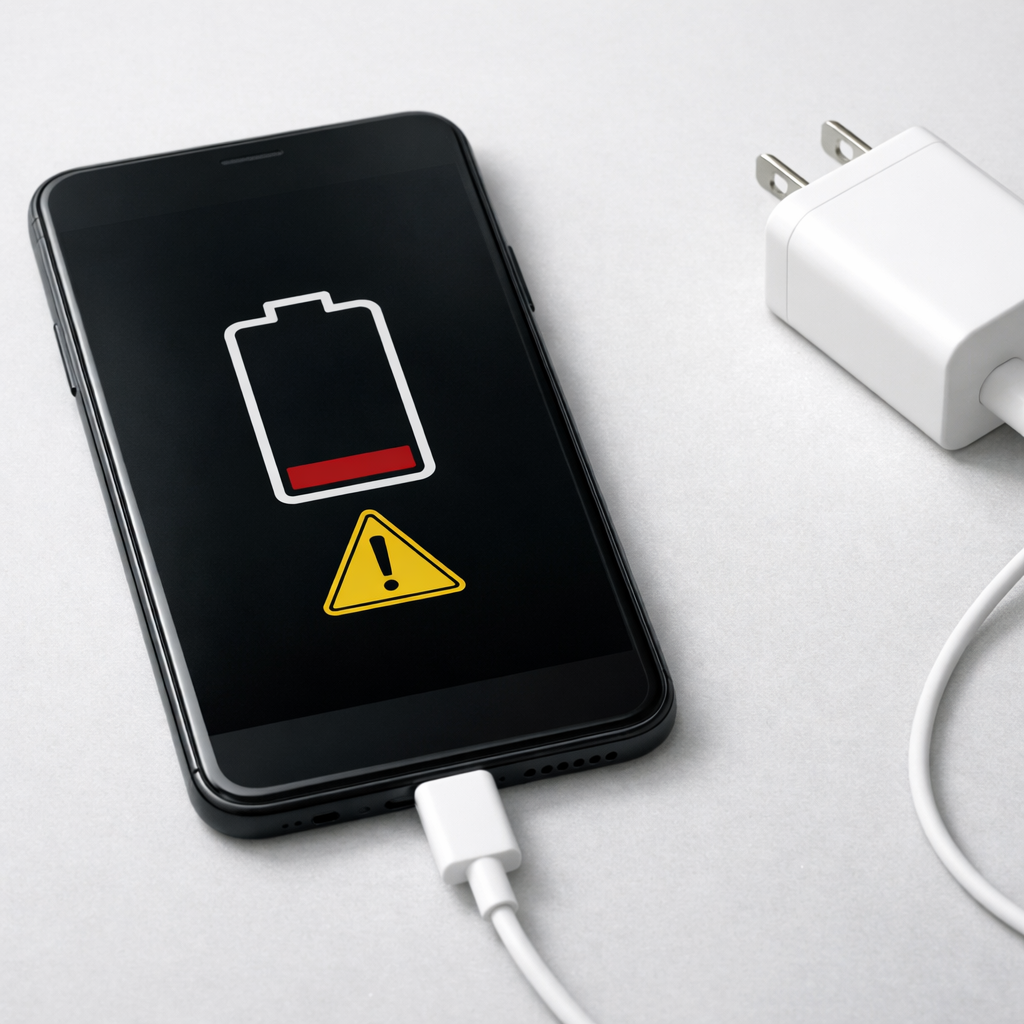
Device Battery Not Charging Properly — Charging Circuit or Battery Wear?
Quick Answer
In many devices, the battery is actually charging normally, but the battery management system (BMS) is limiting how full it will charge. This can look like “stuck at 80%,” “won’t reach 100%,” or “charges fast then slows to a crawl,” even when nothing is broken.
This behavior is often intentional to reduce battery wear, especially after months of daily charging or after a software update. It can also appear during hot/cold conditions, and it may come and go over days to a few weeks as the device relearns battery health and your charging habits.
If you need a fast fix
- Use the original charger (or a trusted equivalent) and a different cable, then charge from a wall outlet for 30–60 minutes.
- Let the device cool to room temperature and remove thick cases before charging.
- Restart the device and temporarily disable any “optimized charging” or “battery protection” setting, then test again.
Quick Diagnosis Table
| Symptom | Most likely cause |
|---|---|
| Stops around 80–85% and says “Charging paused” or similar | BMS battery protection or optimized charging limiting maximum charge |
| Charges to 100% sometimes, but often stops early overnight | Adaptive/optimized charging learned routine or scheduled charging feature |
| Charging is very slow after 70–80% even with a fast charger | Normal BMS tapering plus heat control; not usually a faulty circuit |
| Battery percentage jumps or drops quickly (e.g., 40% to 25%) | Battery gauge calibration drift or battery aging affecting voltage readings |
| Only charges to a lower maximum recently (after an update or after heat exposure) | BMS recalculating health, temperature protection activating, or battery wear triggering lower limits |
Why This Happens
Your device doesn’t just “send power to the battery.” A controller watches temperature, voltage, and battery condition, then decides how much to charge and how fast. When the controller decides the battery is stressed (heat, age, or high voltage), it may cap the charge level to protect the battery.
Real-world example: if you charge every night to 100% and leave it plugged in until morning, the battery spends many hours at a high voltage. Many devices reduce that high-voltage time by stopping around 80% and finishing later, or by never finishing if conditions aren’t ideal.
Cause leads to symptom like this: the BMS sees risk (heat, aging, or optimized charging rules) and limits charging, so you see a lower max percentage or a “slow charge” near the top even though the charger and port are fine.
Most Common Causes (Ranked)
- 1) Battery protection/optimized charging is enabled: Many phones, tablets, laptops, and earbuds intentionally stop at ~80% to extend battery life. This is the most common reason a “not charging to 100%” complaint isn’t a fault.
- 2) Heat triggers a temporary charging limit: If the battery or device gets warm (gaming, direct sun, thick case, fast charging), the BMS reduces current and may pause or cap charging until temperatures drop.
- 3) Normal charging “taper” near the top: From about 70–80% upward, charging naturally slows to protect the cells. Users often interpret this as a failing charging circuit, but it’s standard behavior.
- 4) Battery wear reduces usable capacity: As batteries age, the BMS may limit the maximum charge voltage or adjust the displayed percentage to keep the battery stable. The device may show 100% but run down quickly, or it may stop below 100%.
- 5) Software update or settings change affected charging behavior: After updates, battery features may reset or become more aggressive. Some devices also “relearn” battery health for a few days.
- 6) Cable/charger negotiation issue (especially fast charge standards): A worn cable or incompatible charger can cause reduced power delivery, increasing heat and triggering BMS limits even though charging still “works.”
If you see gradual improvement after changing one thing (cooler charging, better cable, disabling optimization), it usually indicates the BMS was protecting the battery rather than a hard hardware failure.
How to Check the Problem Safely
- Check 1: Look for battery settings like Optimized Charging, Battery Protection, Charge limit 80%, or Adaptive charging. If enabled, note the selected limit and any schedule.
- Check 2: Test a known-good charging setup: wall outlet + original (or certified) charger + a different cable. Watch whether the device stays at the same cap or behaves differently.
- Check 3: Check temperature effects: charge at room temperature with the case off and screen off. If charging resumes or goes beyond the previous limit, heat management was likely the trigger.
- Check 4: Compare drain behavior: if it “stops at 80%” but the device runs a normal amount of time, that points to an intentional cap. If it drops fast or shuts down early, battery wear is more likely.
- Check 5: Inspect the port and cable ends for lint, wobble, or discoloration. A loose connection can cause stop-start charging that the BMS reacts to by lowering power.
Safety note: if you notice swelling, burning smell, or the device gets unusually hot while charging, stop using it and seek service immediately.
How to Fix It
- Fix 1 (easiest): Turn off optimized charging or raise the charge limit (if you need 100% for a trip). This directly removes the BMS cap, though it may increase long-term wear if left on full-time.
- Fix 2: Reduce heat while charging: remove the case, avoid gaming/video, keep it out of sunlight, and charge on a hard surface. Lower temperature lets the BMS allow higher current and a higher final percentage.
- Fix 3: Use a high-quality cable and the correct charger type for your device. Better power negotiation reduces dropouts and heat, and helps the BMS maintain stable charging.
- Fix 4: Reset the charging routine: for a few days, charge at consistent times and avoid leaving it at 100% for hours. Many systems adapt, and the “stuck at 80%” behavior may start making more sense or disappear.
- Fix 5 (advanced/last resort): If the battery gauge seems inaccurate, do one controlled recalibration cycle: use it down to around 10–15%, then charge uninterrupted to 100% once. This can improve the percentage display, but don’t repeat often, since deep cycles add wear.
Signs of Battery or Hardware Damage
- Battery swelling, screen lifting, or the device rocking on a flat table.
- Burning smell, hissing, or visible leakage.
- Device becomes extremely hot during charging (hot to the touch) or shuts down from temperature warnings often.
- Charging only works at certain angles, or the port feels loose and disconnects easily.
- Battery drops from high percentages to low percentages suddenly, or shuts off above 10–20%.
- Charging icon flickers on and off repeatedly even with multiple cables/chargers.
- Noticeably reduced run time compared with when the device was new, even after settings and app usage are similar.
When Repair Is No Longer Worth It
If the device is older and the battery life is poor even after disabling limits, reducing heat, and using a good charger, a battery replacement is usually the most cost-effective repair. Charging port or board-level charging circuit repairs can cost more and may not be worthwhile on low-value devices.
As a rule, replace the battery if the device otherwise works well and the replacement is affordable compared to the device’s current value. If you also have port looseness, frequent overheating, or multiple charging accessories fail to help, consider replacement of the device or a professional assessment before spending on major repair.
How to Prevent This Problem in the Future
- Leave battery protection or optimized charging enabled for everyday use, and only disable it when you truly need 100% capacity.
- Avoid heat while charging: don’t charge under pillows, in a hot car, or in direct sun, and remove insulating cases during fast charging.
- Use quality cables and chargers that match your device’s fast-charge standard to reduce heat and stop-start charging.
- Try not to keep the battery at 100% for long periods; a routine capped at 80–90% is often easier on the battery.
- Don’t let the battery hit 0% frequently; shallow to moderate cycles are typically healthier.
- Keep software updated, since battery management improvements and charging bug fixes are often delivered via updates.
- If you store a device unused, leave it around 40–60% and power it up occasionally to prevent deep discharge.
FAQ
Why does my device stop charging at 80% even though it’s plugged in?
Many devices intentionally stop at about 80% to reduce battery stress and slow aging. This is usually a setting like optimized charging or battery protection, or it can trigger automatically when the device is warm. If you need full charge, look for a charge limit setting and temporarily turn it off.
Is slow charging after 80% a sign the charging circuit is failing?
Not usually. Charging naturally slows near the top because the device reduces power to protect the battery and prevent overheating. If charging is also slow at low percentages (like 10–40%) or keeps disconnecting, then a cable, port, or hardware issue becomes more likely.
How can I tell battery wear from a charging limit?
A charging limit usually gives you stable, predictable behavior (often stopping at the same percentage) and normal run time for that percentage. Battery wear often shows up as fast drops, unexpected shutdowns, or much shorter run time even when it does reach 100%. If your device supports battery health information, checking that value can also help confirm aging.
Most battery issues are easier to understand once you break them down step by step. That’s the approach Mark Reynolds takes across all troubleshooting guides. For more details, visit the complete guide.
For a full overview of this issue and step-by-step solutions, read the complete troubleshooting guide.





