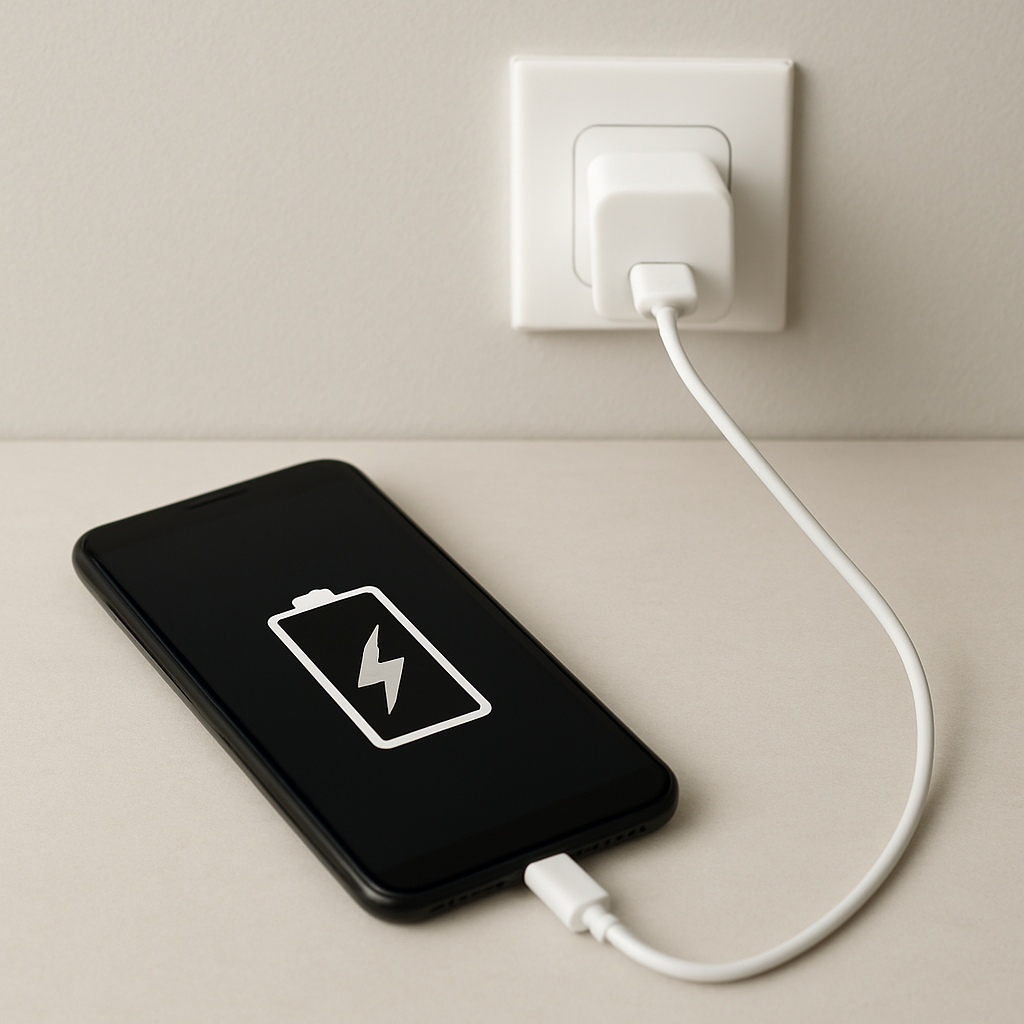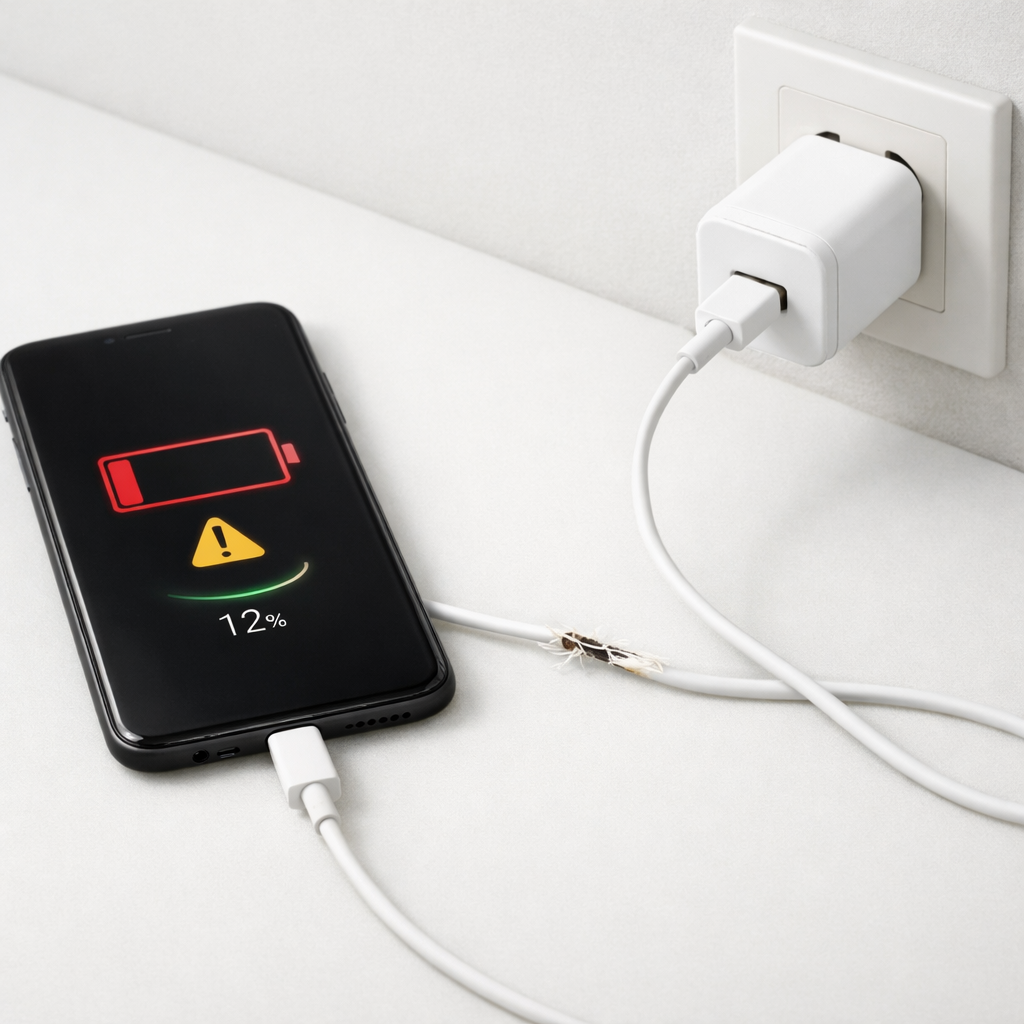
Device Charging Slow Problem — Power Delivery Limitation or Battery Health Issue?
Quick Answer
Most “charging slow” problems come from either a temporary software process spike (the phone/tablet is working hard while plugged in) or internal battery degradation that forces the device to reduce charging speed to protect itself. In both cases, the charger may be fine, but the device limits how much power it accepts.
If it started suddenly after an update, a new app, or heavy background activity, it’s often software and can improve within minutes to a day. If it has been getting worse over weeks or months, especially with extra heat or faster battery drain, battery aging or internal hardware wear is more likely.
If you need a fast fix
- Turn on Airplane mode (or at least disable 5G/Wi-Fi/Bluetooth) and let it charge with the screen off for 15–20 minutes.
- Force close heavy apps (camera, GPS/navigation, games, social video) and restart the device to clear stuck background tasks.
- Cool it down by removing the case and moving it to a cooler room; heat is the #1 reason devices throttle charging.
Quick Diagnosis Table
| Symptom | Most likely cause |
|---|---|
| Charging is slow only when the screen is on or you’re using apps | Software process spike and high power draw competing with charging |
| Charging is slow after an OS update or a new app install | Background indexing, syncing, or an app stuck in a loop |
| Charging slows dramatically past 70–80% | Normal charge taper, plus added throttling if battery is warm or aged |
| Charging is slow and the device gets unusually warm | Thermal throttling from workload, poor ventilation, or battery wear |
| Charging is slow on every charger and battery drains faster than before | Battery health degradation or internal charging hardware resistance |
Why This Happens
Your device doesn’t just “take” power from a charger at full speed all the time. It constantly decides how much power is safe based on temperature, battery condition, and what the processor is doing.
A common scenario is plugging in while streaming video, gaming, using navigation, or restoring from backup. The phone may be pulling a lot of power for the screen, radios, and CPU, leaving less net power to fill the battery, so it looks like slow charging.
As batteries age, their internal resistance increases. That creates more heat during charging, so the device limits charging speed earlier and more often, which connects internal wear directly to the “charging slow” warning or long charge times.
Most Common Causes (Ranked)
- 1) Software process spike: A background task (sync, photo upload, indexing, cloud backup, security scan) can keep the CPU busy, making charging appear slow even with a good charger.
- 2) Thermal throttling: If the battery or charging circuits get warm, the device reduces charging speed to protect the battery and internal components.
- 3) Battery health degradation: An older battery may accept charge more slowly, especially at higher percentages, and may trigger protective limits more frequently.
- 4) Charging optimization features: “Optimized charging” or “battery protection” can hold the battery at a certain level or slow the last 20–30% to reduce wear.
- 5) Dirty or worn charging port/cable: Even if it still charges, poor contact can reduce the current the device can safely draw.
- 6) Power negotiation mismatch: Some chargers/cables don’t negotiate fast charging correctly, so the device falls back to slower modes.
If you see gradual improvement after restarting, cooling the device, or waiting for background tasks to finish, that usually points to a temporary software or heat-related limit rather than permanent damage.
How to Check the Problem Safely
- Check 1: Feel for heat after 5–10 minutes of charging. If it’s noticeably warm, stop using it while charging and move it to a cooler place.
- Check 2: Look at battery usage for the last few hours and identify any app with unusually high background activity.
- Check 3: Try charging for 15 minutes with the screen off and Airplane mode on, then compare the percentage gained versus normal use.
- Check 4: Test one known-good cable and one known-good charger (ideally the original or a certified fast charger) and note whether charging behavior changes.
- Check 5: Inspect the charging port for lint and debris with a flashlight; if you see buildup, don’t force anything into the port.
Safety note: avoid charging under pillows, on sofas, or in direct sunlight, and stop charging immediately if you smell anything unusual or see swelling.
How to Fix It
- Fix 1 (easiest): Restart the device and charge with the screen off for 20–30 minutes. This clears stuck processes and reduces power draw so more energy goes into the battery.
- Fix 2: Disable or pause heavy background work (cloud photo backup, app updates, hotspot, navigation) while charging. Less workload means less heat and less throttling.
- Fix 3: Reduce heat: remove the case, avoid wireless charging if it runs hot, and charge in a cooler room. Cooler batteries accept faster charge safely.
- Fix 4: Check battery settings for “Optimized Charging,” “Battery Protection,” or “Charge Limit” modes. If you need speed for a trip, temporarily turn them off, then re-enable later to protect long-term health.
- Fix 5 (advanced/last resort): If slow charging began after a major update, install the latest patch and consider uninstalling recently added apps. If the issue persists across safe conditions and known-good accessories, schedule a battery health test or service visit.
Signs of Battery or Hardware Damage
- Battery percentage jumps up or down unexpectedly, or shuts off at 10–30%.
- Device gets hot during light tasks or while charging with the screen off.
- Charging is slow on multiple chargers and cables, including certified fast chargers.
- Battery drains much faster than it used to, even after reducing screen brightness and background apps.
- Charging only works when the cable is held at an angle or the port feels loose.
- Back cover or screen appears lifted, or the device rocks on a flat surface (possible swelling).
- Frequent “temperature too high” or “charging paused” messages.
When Repair Is No Longer Worth It
If the device is several years old, has poor battery life, and also shows port issues or overheating, repairs can become a cycle. A battery replacement is usually worth it when the device is otherwise reliable and will be used for another year or more.
Use a simple value check: compare the cost of a battery/port repair to the resale value and to the price of a newer model with better efficiency. If repair costs approach 40–60% of what you’d pay to upgrade, replacement often gives better long-term reliability.
How to Prevent This Problem in the Future
- Charge in a cool, ventilated spot and avoid using heavy apps while charging.
- Keep “optimized charging” on for daily routines, and only disable it when you truly need a rapid top-up.
- Update the OS and apps regularly to fix runaway background processes and charging management bugs.
- Review battery usage monthly and remove apps that constantly run in the background.
- Use quality cables and chargers that support your device’s fast-charging standard.
- Keep the charging port clean by preventing pocket lint buildup; use a protective plug if you work in dusty environments.
- Avoid routinely charging to 100% and leaving it hot on a charger for hours; heat plus high charge levels accelerates battery aging.
FAQ
Why does my device say “charging slowly” even with a fast charger?
The device may be limiting power because it’s warm, running heavy background tasks, or protecting an aging battery. Even if the charger can supply more, the device decides how much it will accept. Try charging with the screen off in a cool room to see if speed returns.
Is it normal for charging to slow down near 80–100%?
Yes. Most devices intentionally slow the charge as the battery fills to reduce heat and wear, and some add extra limits if the battery is older. If the slowdown is extreme and happens at low percentages too, it’s more likely a workload, heat, cable/port, or battery health issue.
How can I tell if it’s software activity or a bad battery?
If charging improves after a restart, Airplane mode, or closing apps, software load is the likely cause. If charging stays slow across different chargers and cables and you also notice faster drain, heat, or shutdowns, battery degradation is more likely. A battery health report or service test can confirm it.
Battery issues rarely come from a single cause. Mark Reynolds focuses on identifying patterns and simple fixes that apply in most situations. For more details, read the complete guide.
For a full overview of this issue and step-by-step solutions, read the complete troubleshooting guide.