Device Battery Drains While Idle — Hidden Background Activity or Hardware Fault?
Quick Answer
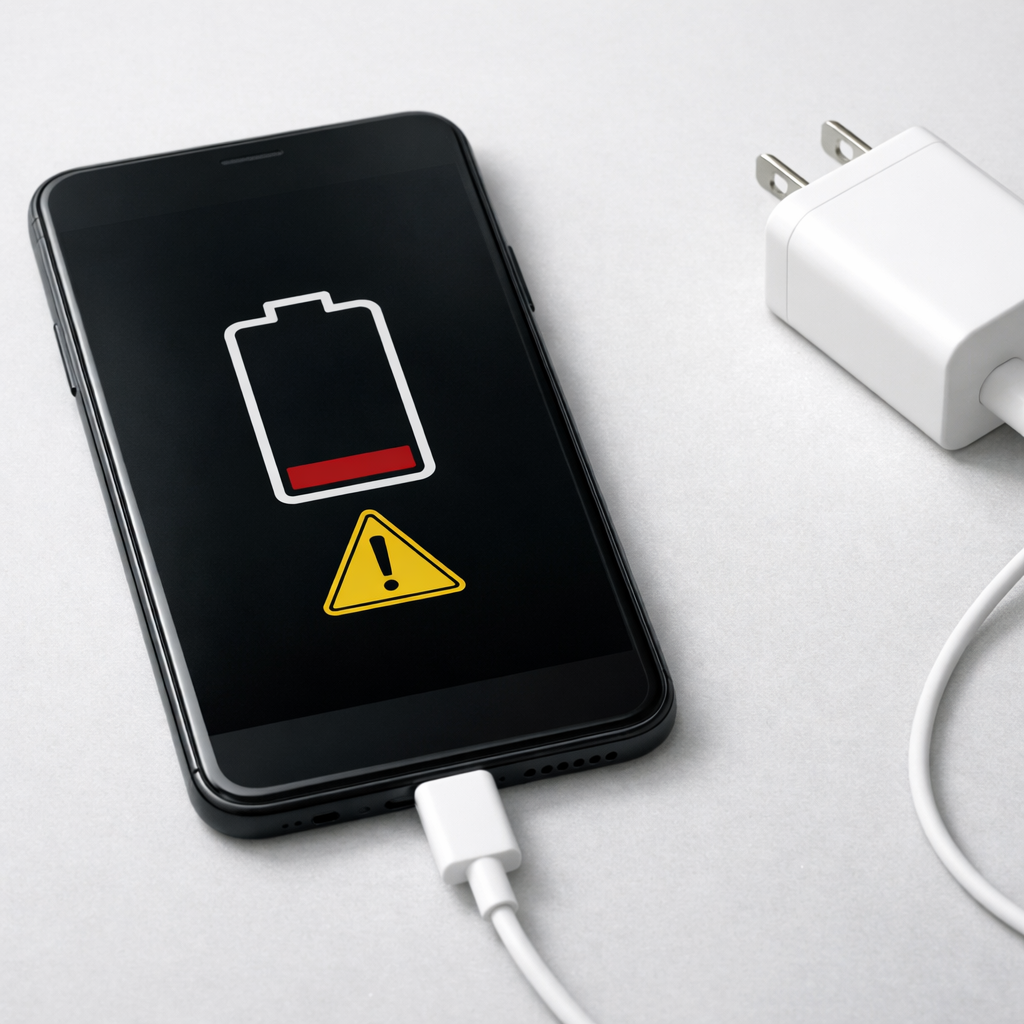
If your device loses a lot of battery while it “does nothing,” the most common reason is overnight charging behavior called cycle management (often labeled Optimized Charging, Adaptive Charging, or Battery Health Management). Your device may pause or slow charging near 80–90% and then top up close to your wake time, which can look like charging “interrupted” and can leave you starting the day at a lower percentage if your schedule changes.
In normal conditions, many phones and laptops lose about 1–5% overnight while idle, depending on signal strength and background syncing. If you’re losing 10–25% (or more) while the screen is off, that usually means background activity, weak network conditions, or a battery aging issue is adding extra drain.
If you need a fast fix
- Toggle Airplane Mode (or turn off Wi-Fi and Bluetooth) for one night to see if signal/background syncing is driving the drain.
- Temporarily disable Optimized/Adaptive Charging for a single night and plug in with a known-good charger/cable to confirm whether cycle management is affecting your morning battery level.
- Enable Battery Saver/Low Power Mode before bed and close heavy apps (navigation, social video, games) to reduce background wake-ups.
Quick Diagnosis Table
| Symptom | Most likely cause |
|---|---|
| Charges to ~80–90% overnight, then “finishes” close to morning (or not at all) | Optimized/Adaptive charging cycle management delaying the final top-up |
| Battery drops 10–25% overnight even when you didn’t use it | Background app activity, poor signal causing the modem to work harder, or push email/sync loops |
| Battery drops fast only on Wi-Fi or only on cellular | Network scanning, weak reception, VPN, or Wi-Fi calling/roaming churn |
| Battery drain started after an update or new app install | Indexing, backup, restore, or a misbehaving app running in the background |
| Gets warm while idle or on the charger | Stuck background process, failing battery, or charging accessory/power management issue |
Why This Happens
Many modern devices manage charging to reduce battery wear. Instead of sitting at 100% for hours, the device learns your routine and holds the charge around 80–90%, then finishes charging right before you usually unplug.
This is good for long-term battery health, but it can surprise you if your wake-up time changes, you unplug earlier than usual, or the device didn’t accurately predict your schedule. You may see “Charging paused,” “Optimized charging,” or a graph showing the battery held at a plateau for hours.
When cycle management delays the final top-up and your device also has normal idle drain (notifications, syncing, weak signal), you can wake up to a noticeably lower percentage and think the battery “drained while idle,” even though it mostly never fully finished charging.
Most Common Causes (Ranked)
- 1) Optimized/Adaptive charging (cycle management): The device intentionally delays the last 10–20% overnight to reduce time spent at 100%. If you unplug before the final top-up window, you start the day lower than expected.
- 2) Weak cellular reception or constant network switching: In poor signal areas, the modem works harder and can drain the battery even with the screen off. This is common at night if the phone bounces between LTE/5G or Wi-Fi calling states.
- 3) Background app refresh, sync, or stuck push notifications: Messaging, email, cloud photo backup, and social apps can repeatedly wake the device. One misbehaving app can create a “never fully idle” situation.
- 4) Post-update or post-restore indexing: After an OS update, new device setup, or big photo import, the system may rebuild databases and optimize files. This can increase overnight drain for 1–3 nights.
- 5) Charger, cable, or port issues: A flaky cable or dirty port can cause slow charging, micro-disconnects, or low power input. It can look like “charging stopped” and leave you short of a full charge.
- 6) Aging battery or power-management hardware wear: As batteries age, they deliver less usable capacity and may droop in percentage faster at rest. In some cases, the battery gauge becomes less accurate and needs recalibration.
If the drain improves gradually over a few days after a change (like an update, new charger, or settings tweak), that usually indicates a software or usage pattern cause rather than sudden hardware failure.
How to Check the Problem Safely
- Check 1: Look at your battery usage screen and find what used power overnight (apps, screen-off time, “system,” or “cellular”). Focus on anything showing activity while you were asleep.
- Check 2: Confirm whether optimized charging is on, and check the charging graph for a long plateau around 80–90%. If the graph shows a deliberate pause, that supports cycle management as the main explanation.
- Check 3: Do a controlled overnight test: set Airplane Mode (or disable cellular), leave Wi-Fi on or off consistently, and don’t open apps before bed. Compare the percentage drop and temperature in the morning.
- Check 4: Inspect the power path: try a different wall adapter and cable, and gently clean the port with dry air or a soft non-metal tool. If the device supports it, try another outlet and avoid power strips overnight.
- Check 5: Check device temperature and case thickness: remove heavy cases while charging and ensure the device can cool. Excess heat can slow or pause charging and increase idle drain.
Safety note: If you smell chemicals, see swelling, or the device becomes hot to the touch while idle or charging, stop charging and seek professional service.
How to Fix It
- Fix 1 (easiest): Leave optimized/adaptive charging enabled but adjust your routine: plug in closer to bedtime or set a consistent alarm/wake schedule so the device can predict the top-up window more accurately.
- Fix 2: If you need 100% every morning, temporarily disable optimized/adaptive charging for a few nights. This confirms whether cycle management is the reason you’re waking up undercharged.
- Fix 3: Reduce overnight background activity: turn off Background App Refresh (or restrict background/battery for heavy apps), pause cloud photo backup overnight, and disable always-on VPN unless required.
- Fix 4: Improve network conditions: enable Wi-Fi calling (if stable), force LTE instead of 5G in weak 5G areas, or sleep in a spot with better reception. Fewer network retries usually means less idle drain.
- Fix 5 (advanced/last resort): Reset settings related to power and network (not necessarily a full erase) and reinstall or remove any app that shows high background use. If battery health is low, plan a battery replacement rather than chasing software tweaks.
Signs of Battery or Hardware Damage
- Battery percentage drops in large jumps (for example, 60% to 35% within minutes) with little or no use.
- Device gets noticeably warm while idle, especially overnight, even after closing apps.
- Random shutdowns at 20–40% battery, or sudden reboots when opening the camera or a game.
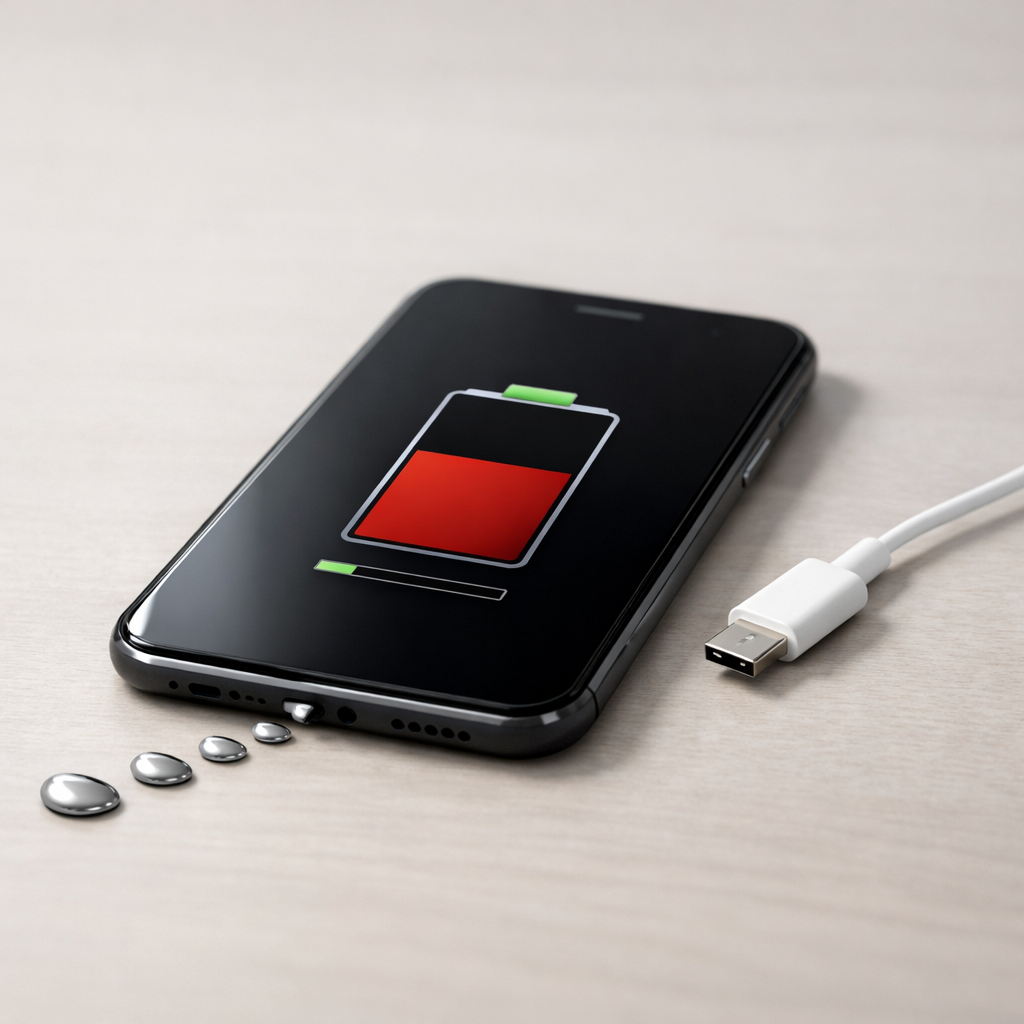
- Charging frequently pauses with “accessory not supported,” “liquid detected,” or repeated connect/disconnect chimes.
- Battery will not charge past a certain point (for example, stuck at 1%, 50%, or 80%) across multiple chargers.
- Physical signs such as a bulging back cover, lifted screen, or wobbly chassis.
- Battery health/capacity reports show significantly reduced maximum capacity or “service recommended.”
When Repair Is No Longer Worth It
If the device is older and shows low battery health plus unstable performance (heat, shutdowns, or charging errors), a battery replacement may help, but other components can also be near end-of-life. If you rely on the device daily and the problem repeats after basic fixes, replacement can be the more reliable option.
As a rule, if repair costs approach 30–50% of the price of a similar replacement device, consider upgrading instead. If a battery replacement is inexpensive and the device otherwise works well, it’s usually worth doing before buying new hardware.
How to Prevent This Problem in the Future
- Keep Optimized/Adaptive charging enabled for battery longevity, but maintain a consistent overnight schedule so the device can time the final top-up correctly.
- Use a quality charger and cable, and replace accessories that feel loose or intermittently disconnect.
- Avoid charging under pillows or heavy cases that trap heat; heat can reduce charging speed and increase drain.
- Review battery usage monthly and restrict background activity for apps that don’t need to run overnight.
- In weak reception areas, prefer stable Wi‑Fi (or enable Wi‑Fi calling) and consider limiting 5G when it performs poorly.
- After major updates, expect 1–3 days of higher background activity and keep the device on the charger for a few extra hours if needed.
- Try not to leave the device at 100% for long periods every day; cycle management exists to reduce that stress over time.
FAQ
Is it normal that my device stops at 80% overnight?
Yes, on many phones and laptops this is a feature, not a fault. Optimized/Adaptive charging may hold around 80% to reduce battery wear, then finish charging closer to when it expects you to unplug. If your schedule changes, you may need to plug in earlier or temporarily disable the feature.
How much battery drain overnight is considered “too much”?
About 1–5% overnight can be normal, depending on signal strength and notifications. Consistent drops of 10–25% with no use usually mean background activity, poor reception, or a battery that’s aging. Use the battery usage screen to identify what stayed active while you slept.
Will turning off optimized charging damage my battery?
Turning it off occasionally is unlikely to cause immediate harm, especially if you need a full charge for travel or a long day. The main downside is long-term: staying at 100% for hours every night can speed up battery aging over months. Many users keep it on day-to-day and turn it off only when they truly need 100% by a specific time.
Mark Reynolds covers battery health, charging limits, and common device issues with a focus on clarity and practical fixes. For a deeper look, visit the full troubleshooting guide.
For a full overview of this issue and step-by-step solutions, read the complete troubleshooting guide.