Device Charging Inconsistent — Unstable Power Input or Software Control?
Quick Answer
Most inconsistent charging is caused by thermal stress in the battery or charging module, which makes the device constantly slow down, pause, or restart charging to protect itself from heat damage.
This usually means the phone, tablet, or laptop is hitting a temperature limit during charging, often within the first 5–20 minutes (or whenever you start using it while plugged in), and the system keeps “throttling” charging to cool down.
If you need a fast fix
Unplug the charger, let the device cool for 10–15 minutes, then charge again with the screen off and no heavy apps running.
Move to a cooler spot and remove heat-trapping items (case, wallet cover, blanket, direct sunlight, car dashboard).
Switch to a known-good cable and charger (preferably the original or a certified equivalent) and plug directly into a wall outlet.
Quick Diagnosis Table
Symptom
Most likely cause
Charging starts and stops every few minutes
Heat limit protection triggering due to warm battery or charging IC
Fast charging works briefly, then drops to slow charging
Thermal throttling from high power input raising device temperature
Charging is stable when the device is off, but unstable when in use
Internal heat from apps + charging heat pushing temperature over the threshold
Charges normally in a cool room, but not in the car or in sunlight
Hot environment causing the battery sensor to reduce or pause charging
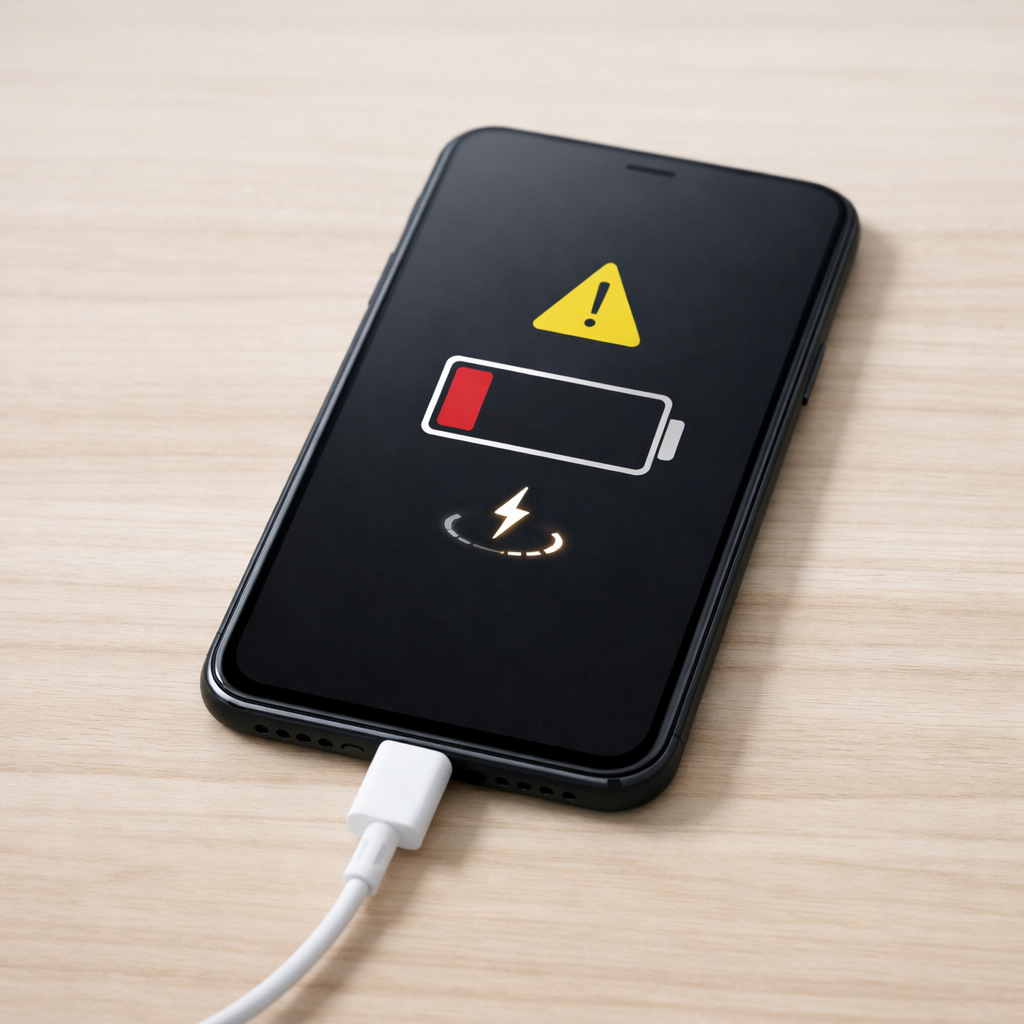
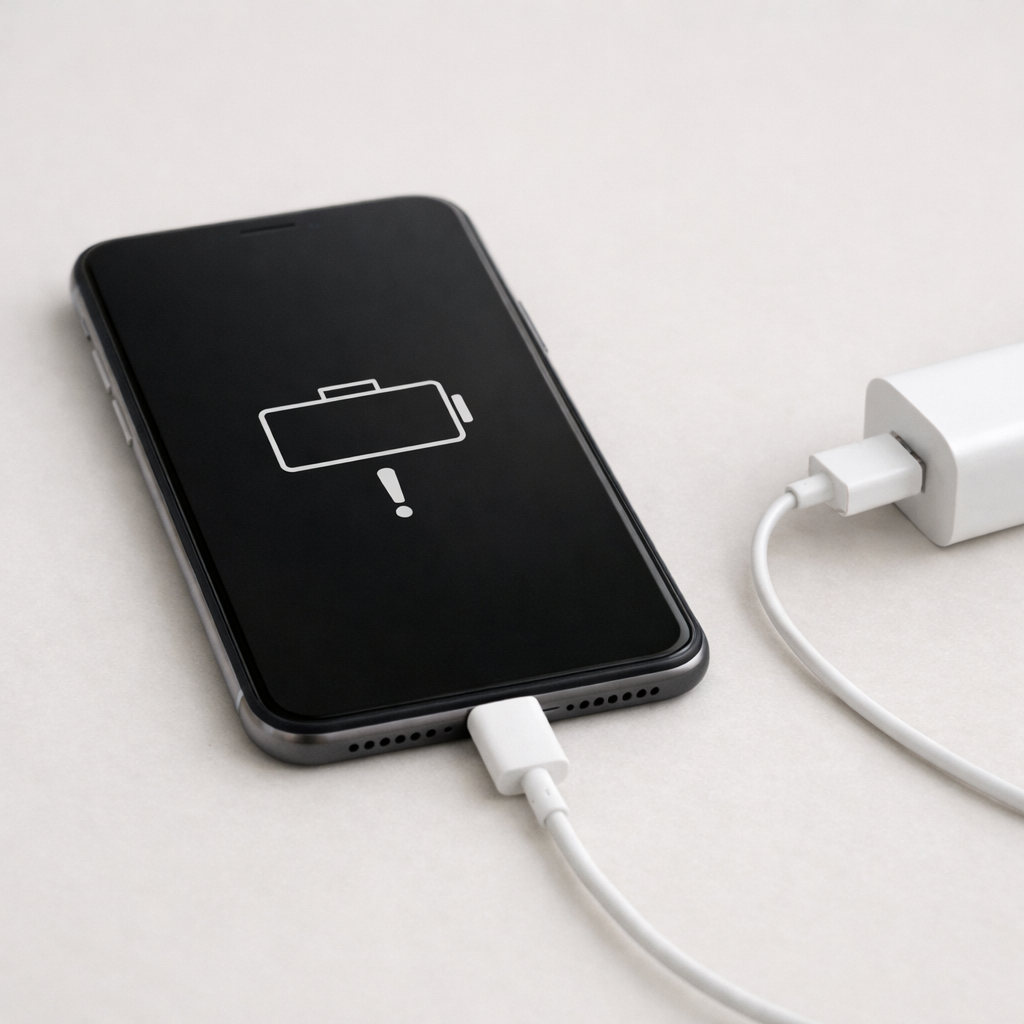
“Accessory not supported” or “Charging paused due to temperature” appears
Charger negotiation or port/cable issues worsening heat and power stability
Why This Happens
Charging creates heat. When a device pulls more power (especially with fast charging), the battery and the charging module warm up, and the device uses temperature sensors to decide how much power is safe.
In real life, this shows up when you charge under a pillow, in a thick case, in a hot car, or while gaming/video calling. The device may look like it is “confused,” but it is often protecting the battery from damage.
When temperature rises, the device reduces charging speed or pauses; that reduction looks like inconsistent charging, even if the charger and cable are fine.
Most Common Causes (Ranked)
1) Heat buildup during fast charging: Fast charging pushes more power, which increases heat in the battery and charging circuitry, triggering automatic slowdowns or pauses.
2) Poor cooling from cases, blankets, or direct sun: Insulation traps heat, so normal charging becomes “too hot,” especially above 80% or while using the device.
3) Aging battery with higher internal resistance: Older batteries heat up faster under load, making the device hit thermal limits sooner and more often.
4) Unstable cable/charger causing repeated renegotiation: A worn cable or low-quality adapter can make power fluctuate, creating extra heat and causing the device to repeatedly restart charging.
5) Dirty or loose charging port: Debris increases electrical resistance, which creates localized heating and intermittent contact that looks like stop-and-start charging.
6) Software control (battery health, optimized charging, OS bugs): Some systems intentionally pause near 80–100% or reduce power when warm, and occasional firmware issues can make it seem unpredictable.
If charging becomes more stable after cooling the device, that gradual improvement is a strong sign heat (not a “dead” battery) is the main trigger.
How to Check the Problem Safely
Check 1: Feel for heat. If the back or area near the charging port becomes hot quickly, unplug and let it cool, then try charging again in a cooler place.
Check 2: Compare charging behavior with and without the case. Remove the case for one full charging session and see if the charge stays steady.
Check 3: Try a different power setup: a different cable, different charger, and a wall outlet. If the problem disappears, the original accessory is likely unstable or causing extra heat.
Check 4: Check for background load. Turn on airplane mode (if possible), close heavy apps, and lower screen brightness while charging to reduce internal heat.
Check 5: Inspect and gently clean the port. Use a flashlight to look for lint; if you see debris, power off the device and carefully remove it with a wooden toothpick.
If you notice burning smell, visible sparks, or severe swelling, stop charging immediately and do not attempt further checks.
How to Fix It
Fix 1 (easiest): Cool-first charging. Charge in a cool room, screen off, and remove the case; this lowers battery temperature and prevents thermal throttling.
Fix 2: Use a certified charger and cable matched to your device. Stable voltage/current reduces renegotiation and lowers waste heat at the port and charging module.
Fix 3: Avoid heavy use while plugged in. Gaming, video calls, hotspot use, or navigation adds heat; reducing load keeps charging steady and faster overall.
Fix 4: Clean and stabilize the connection. Remove lint from the port, ensure the cable seats firmly, and replace any cable that feels loose; poor contact creates heat and interruptions.
Fix 5 (advanced/last resort): Update OS/firmware and reset charging behavior settings. Install system updates, disable any buggy battery/charging optimization temporarily, and reboot; if problems persist, a technician may need to test the battery and charging IC.
Signs of Battery or Hardware Damage
Battery swelling, screen lifting, or a case that no longer fits correctly.
Device gets hot very quickly during light charging, even in a cool room.
Charging only works at certain cable angles or stops with small bumps.
Battery percentage jumps up or down, or the device shuts off at 20–40%.
Persistent “liquid detected,” “temperature too high,” or “charging disabled” messages when the device is not actually wet or hot.
Burning smell, discoloration around the port, or melted cable/connector plastic.
Noticeably shorter battery life after a recent overheating event.
When Repair Is No Longer Worth It
If the device has repeated overheating shutdowns, a damaged charging port, or battery swelling, repair is often the safer choice than “living with it,” but it may not be cost-effective on older models.
As a rule, if battery plus port repair approaches 40–60% of the device’s current replacement cost, consider replacing instead, especially if you also need a new charger, cable, or the device has other issues like poor performance or a cracked screen.
How to Prevent This Problem in the Future
Charge on a hard, open surface, not on a bed, couch, or under pillows where heat gets trapped.
Use fast charging only when you need it; slower charging often runs cooler and can be more consistent.
Remove thick cases during long charging sessions, especially in warm rooms.
Avoid charging in hot cars or direct sun; if you must, cool the cabin first.
Keep the port clean and dry, and replace cables that feel loose or run hot at the connector.
Don’t run heavy apps while charging; let the device idle to reduce internal heat.
Enable battery health features that limit heat and high-voltage time, and keep your OS updated.
FAQ
Why does my device charge fine sometimes but not others?
Temperature and workload change from moment to moment. If the device is warmer (hot room, thick case, heavy app use), it may reduce or pause charging to protect the battery and charging module. When it cools, charging looks normal again.
Is inconsistent charging always a bad battery?
No. A bad battery can cause heat and instability, but cables, chargers, and a dirty or worn port are very common causes. If the behavior improves with a cooler environment and a known-good charger/cable, the battery may still be okay.
Should I keep charging if the device feels hot?
It is safer to unplug and let it cool. Heat is a major driver of battery wear, and repeated overheating can damage the charging module or the battery over time. If overheating happens often during normal charging, get the battery and port checked by a qualified repair shop.
If the issue keeps coming back, it’s usually worth looking at broader battery behavior rather than a single fix. That’s the approach Mark Reynolds follows in the complete battery guide.