Phone Not Charging Fast Anymore — Battery Aging or Charger Compatibility Issue?
Quick Answer
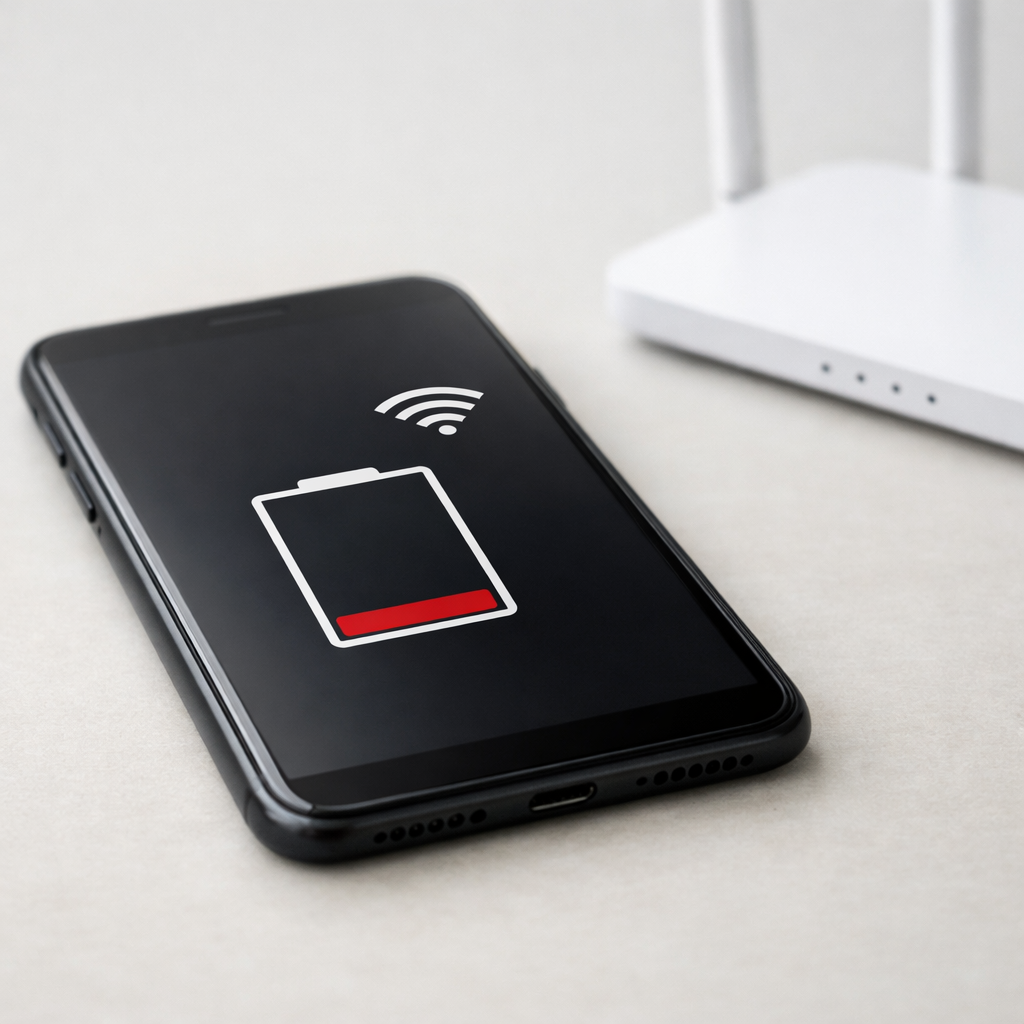
Often, your phone is charging normally, but it’s using a lot of power at the same time because it’s searching for a weak cellular signal or doing heavy WiFi activity in the background. That extra power use makes the charging speed look slower, especially if the screen is on or you’re in a low-signal area.
This commonly shows up after a change in routine (new workplace, basement room, travel, new router, or a carrier change) and can start suddenly. Battery aging and charger compatibility can still matter, but network “hunting” can make fast charging feel like it disappeared even on a healthy charger.
If you need a fast fix
Turn on Airplane Mode for 10–20 minutes while charging (or at least disable cellular data) to stop constant signal searching.
Enable Battery Saver/Low Power Mode and keep the screen off while it charges to reduce power draw.
Move to a spot with stronger signal or temporarily switch to WiFi only (or turn off WiFi if it’s constantly reconnecting).
Quick Diagnosis Table
Symptom
Most likely cause
Charges fast in Airplane Mode, but slow in normal use
Phone is burning power searching for cellular signal or maintaining data connections
Charging speed drops in basements, elevators, rural areas, or while traveling
Battery percentage barely increases while streaming or hotspotting on WiFi
High WiFi activity (streaming, uploads, hotspot) consuming power faster than the charger can add it
Rapid charging icon appears, but phone feels warm and rate slows after a few minutes
Heat from radio use (cell/WiFi) triggers charging slowdown to protect the battery
Fast charging works on one outlet/room but not another
Different signal strength and background network activity, not necessarily the charger
Why This Happens
Your phone doesn’t just “sit” on a network. If cellular signal is weak, it repeatedly boosts its radio power and tries different towers and bands to stay connected, which can use a surprising amount of battery.
WiFi can do something similar when a connection is unstable. A weak router signal, busy channel, captive portal, or mesh handoff can cause the phone to reconnect often, retry downloads, and keep the WiFi chip active even when the screen is off.
When power use is high, the charger has less “left over” to fill the battery, so the battery percentage rises slowly. In extreme cases, the phone only breaks even, which feels like fast charging stopped working.
Most Common Causes (Ranked)
1) Weak cellular signal (signal hunting): In low coverage areas, the modem works harder and more often, which can eat up most of the charger’s extra power.
2) Unstable WiFi connection or constant reconnection: If WiFi drops and reconnects repeatedly, background retries and syncing can keep the phone “awake” and draining.
3) Heavy network activity while charging: Streaming video, cloud backups, uploading photos, hotspot use, or large app updates can outpace what a normal charger can add.
4) Heat caused by radios plus charging: Cellular/WiFi activity generates heat; once warm, phones reduce charging speed to protect the battery and charging circuits.
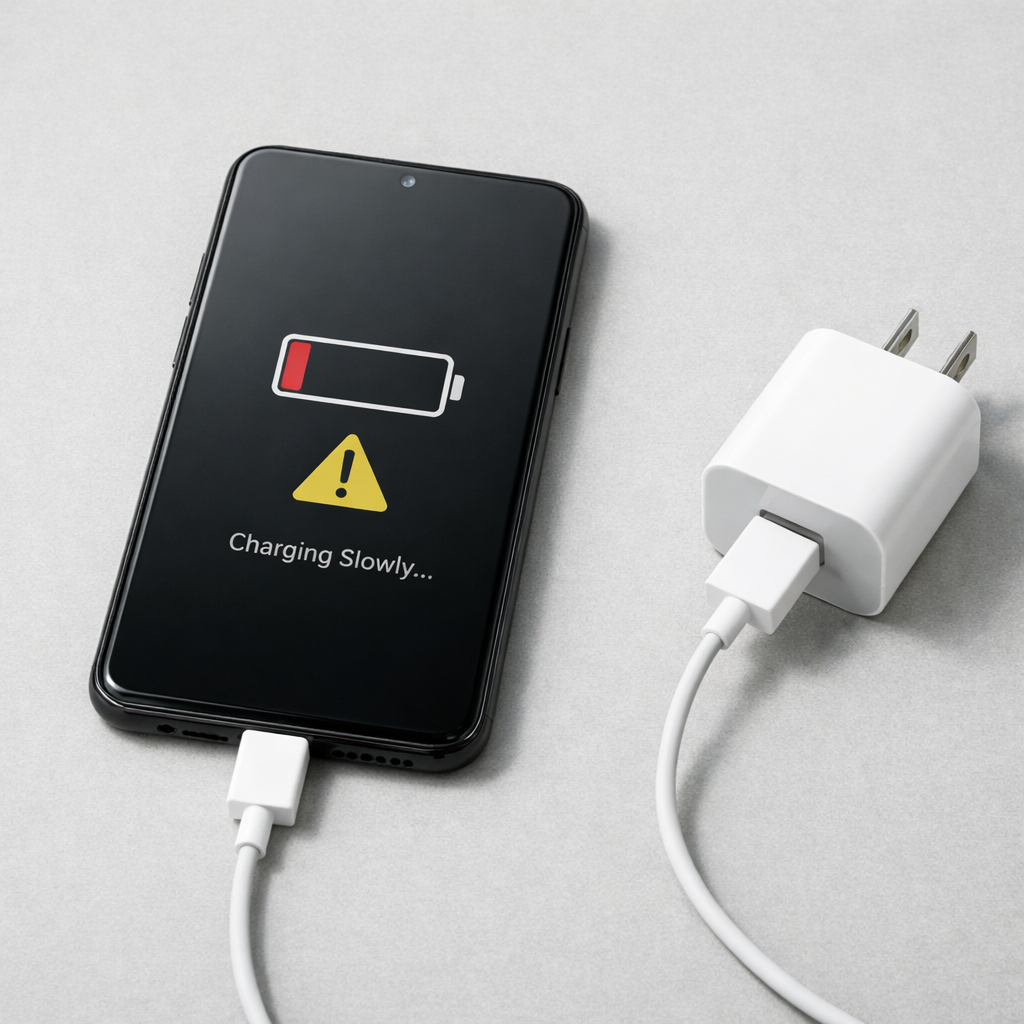
5) Charger/cable not negotiating fast charge: A worn cable, dirty port, or incompatible fast-charge standard can limit wattage, making network drain more noticeable.
6) Battery aging increasing internal resistance: Older batteries heat up sooner and accept less power at higher levels, so any extra network drain shows up as “slow charging.”
If charging gets noticeably better after reducing signal/WiFi activity, that gradual improvement usually indicates a usage and connection issue rather than a sudden battery failure.
How to Check the Problem Safely
Check 1: Charge for 10 minutes in Airplane Mode with the screen off. If the percentage climbs faster, network signal searching was a major factor.
Check 2: Compare two locations: one with strong signal (near a window or outside) and one with weak signal (basement). If charging speed changes a lot, coverage is likely the culprit.
Check 3: Look at battery usage and note anything with high background activity tied to network use (streaming apps, backup tools, social apps, VPN). High background usage while charging reduces net charging speed.
Check 4: Test WiFi stability: disconnect and reconnect to WiFi, or try a different network. If charging improves on a stable network, your usual WiFi is likely causing constant retries.
Check 5: Inspect and gently clean the charging port (no metal tools), then test a known-good cable and charger. Poor contact can reduce wattage and make the issue appear worse.
Safety note: if the phone becomes very hot, smells unusual, or the battery appears swollen, stop charging and get it inspected.
How to Fix It
Fix 1 (easiest): Use Airplane Mode or disable cellular data while charging. This reduces modem power draw and usually restores “fast-feeling” charging.
Fix 2: Stabilize WiFi: restart the router, forget and rejoin the network, and move closer to the access point. A steady WiFi link prevents repeated reconnects and background retries.
Fix 3: Pause high-data tasks while charging: stop hotspot, streaming, cloud backups, and large downloads until you’re above 50–70%. Less network traffic means more of the charger’s power goes into the battery.
Fix 4: Reduce heat while charging: remove thick cases, keep the screen off, and avoid sunlight. Cooler phones can accept higher charge rates for longer.
Fix 5 (advanced/last resort): Adjust network behavior: disable 5G temporarily in poor coverage areas, turn off “WiFi Assist”/“Switch to mobile data,” and consider resetting network settings. This can stop the phone from constantly bouncing between WiFi and cellular.
Signs of Battery or Hardware Damage
Battery swelling, screen lifting, or the back cover separating
Phone gets unusually hot during light use or within minutes of charging
Charging only works at certain cable angles, or it disconnects easily
Battery percentage jumps up or down suddenly (for example, 40% to 25%)
Phone shuts down even when it shows 10–30% remaining
Visible corrosion, debris packed in the port, or burnt smell near the port
Charging is slow in every location even in Airplane Mode with the screen off
When Repair Is No Longer Worth It
If the phone is older and has multiple issues (poor battery life, overheating, flaky charging port), repairs can become a cycle. A battery replacement is usually worth it when the device is otherwise reliable and still receives security updates.
As a rule of thumb, if the combined cost of a battery and charging-port repair is close to a significant portion of the phone’s current value, replacement is often the better choice. If slow charging is mainly caused by weak signal where you live or work, upgrading the phone may not help unless coverage or WiFi also improves.
How to Prevent This Problem in the Future
Charge in a strong-signal area when possible, or use Airplane Mode for short top-ups when coverage is poor
Keep WiFi stable: place the router well, update firmware, and use less congested bands when available
Avoid hotspotting or heavy streaming while you need fast charging; do those tasks after you’re charged
Limit background syncing on cellular in weak coverage areas (cloud photos, auto updates, always-on VPN)
Keep the phone cool while charging by removing thick cases and avoiding warm surfaces
Use a quality charger and cable that support your phone’s fast-charging standard
Periodically clean the charging port gently and replace worn cables before they cause slow charging
FAQ
Why does my phone charge faster in Airplane Mode?
Airplane Mode turns off the cellular radio (and often WiFi/Bluetooth unless you re-enable them), so the phone stops spending power searching for signal and maintaining data links. With less power being used, more of the charger’s wattage goes into the battery. This is a strong sign your “slow charging” is mostly high power use, not a bad charger.
Can weak signal really drain that much battery while charging?
Yes. In poor coverage, the phone increases transmit power and tries harder to stay connected, and it may repeatedly switch bands or reconnect. If you’re also using data (messages syncing, uploads, streaming), the radio stays active longer, which can noticeably reduce the net charging rate.
How do I tell if it’s the charger/cable instead of network activity?
Test charging for 10–15 minutes in Airplane Mode with the screen off using the same charger and cable. If it becomes normal, the charger is likely fine and network activity was masking the charge speed. If it stays slow in that “quiet” test, try a known-good cable and charger and inspect the port for lint or looseness.
Mark Reynolds writes about real-world charging and battery behavior, with a focus on clear, practical troubleshooting. For more help, read the full step-by-step guide.