Laptop Charger Overheating — Normal Operating Heat or Dangerous Condition?
Quick Answer
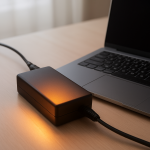
A laptop charger usually overheats when the heat produced inside its components (transformer, switching transistors, and rectifiers) is higher than what the plastic brick and internal heat sinks can safely shed. That “thermal load” rises when the charger is working near its limits or when airflow is blocked, so the heat has nowhere to go.
Some warmth is normal during charging, especially during heavy use, gaming, or fast charging. If the brick becomes uncomfortably hot within 10–30 minutes, smells “hot,” or gets hotter over time instead of leveling off, treat it as a potential safety issue.
If you need a fast fix
- Unplug the charger from the wall and laptop for 10 minutes, then plug it back in with the brick on a hard, open surface (not a bed, couch, or carpet).
- Stop high-power tasks (gaming, video rendering), and see if the charger temperature drops within 15 minutes.
- Inspect the cable ends for bending, fraying, or looseness, and avoid using it if anything looks damaged.
Quick Diagnosis Table
| Symptom | Most likely cause |
|---|---|
| Charger is too hot to hold after 15–30 minutes | Charger running near/over its rated wattage, causing internal parts to dissipate more heat than the case can release |
| Heat is worst when gaming or charging from low battery | High power draw increases switching losses and rectifier heat inside the brick |
| Charger is warm but stable, no smell, no shutdowns | Normal operating heat with adequate dissipation, especially on higher-watt chargers |
| Charger gets hot even when laptop is idle or fully charged | Faulty charger regulation, wrong charger rating, or a laptop power/battery issue forcing constant load |
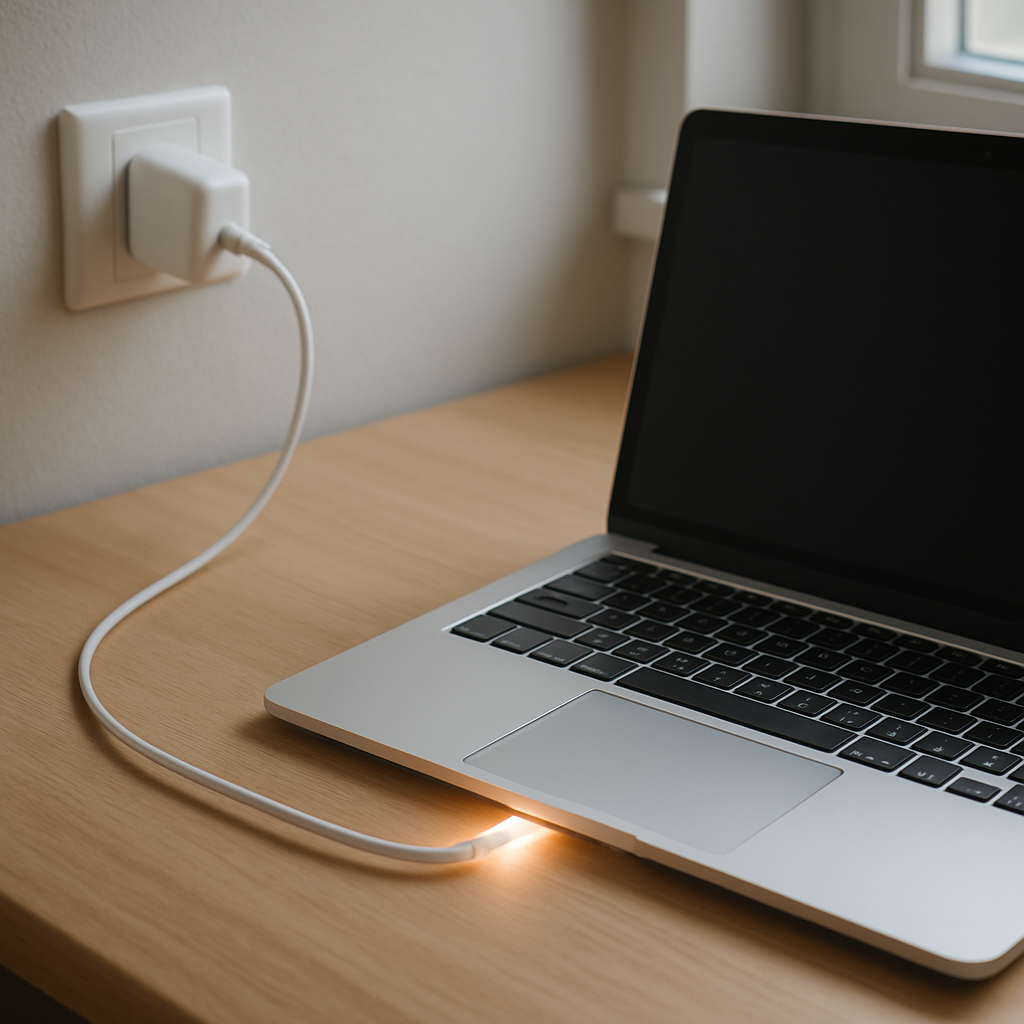
| Hot spot near the cable end or connector | High resistance from a worn connector or damaged cable creating localized heating |
Why This Happens
Inside a modern charger, electricity is converted from wall power to a lower, laptop-safe voltage using high-frequency switching. That process is efficient, but not perfect, so a portion of energy becomes heat inside the brick.
When the laptop asks for more power (charging quickly, running a demanding app, powering monitors), the charger’s internal parts handle higher current. Higher current means more heat in the components, and if the case can’t dump that heat into the air fast enough, temperature climbs.
In everyday terms: more power demand plus poor ventilation equals extra internal heat, and you feel it as a charger that becomes unusually hot, sometimes with a “hot electronics” smell or intermittent charging.
Most Common Causes (Ranked)
- 1) Too much load for the charger’s wattage: Using a lower-watt adapter than your laptop expects forces the charger to run at max output for long periods, pushing heat generation beyond what the housing can dissipate.
- 2) Blocked airflow and heat trapping: Chargers buried under blankets, wedged behind furniture, or sitting on carpet can’t shed heat, so normal internal losses turn into overheating.
- 3) Degraded or low-quality charger components: As capacitors and internal thermal pads age, efficiency drops and more power becomes heat, even at the same laptop load.
- 4) Cable or connector resistance: A loose tip, oxidized plug, or kinked cable acts like a tiny heater, creating a hot spot that can spread heat back into the brick.
- 5) Mismatch or non-genuine USB-C PD behavior: Poorly designed USB-C chargers may negotiate the wrong profile or run inefficiently at certain voltages, increasing internal dissipation.
- 6) Laptop-side power draw is abnormal: A failing battery, shorting DC-in board, or heavy background load can keep power demand high and prevent the charger from ever “relaxing.”
If the charger runs cooler after improving ventilation or reducing load, that gradual improvement usually means the issue was heat dissipation and demand, not an immediate internal failure.
How to Check the Problem Safely
- Check 1: Feel for where the heat is strongest: the middle of the brick suggests internal load, while heat at the connector or cable end suggests resistance or damage.
- Check 2: Test on a hard surface with open air for 20 minutes while doing light tasks, then again during a heavy task; a big temperature jump during load points to wattage limits.
- Check 3: Confirm the charger rating matches your laptop needs by reading the label (watts, volts, amps) and comparing to what your laptop model specifies.
- Check 4: Inspect both ends of the cable for scorch marks, discoloration, melting, wobble, or a “crackly” feel when bending; any of these indicate unsafe resistance or internal breaks.
- Check 5: If you have another known-good compatible charger, try it for one session; if the replacement runs significantly cooler, your original charger is likely inefficient or failing.
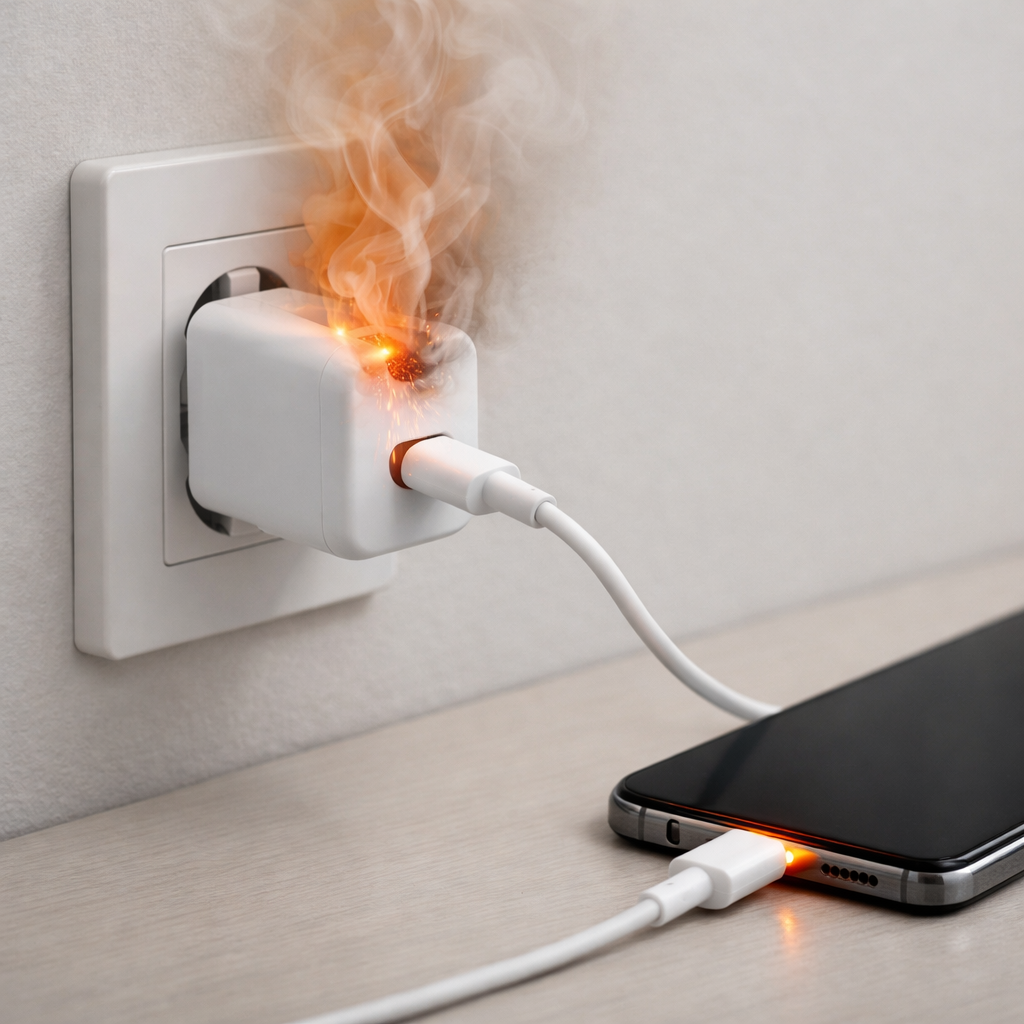
Safety note: if you smell burning, see smoke, or notice melting plastic, unplug immediately and do not test further.
How to Fix It
- Fix 1 (easiest): Move the brick to open air on a hard surface and keep it uncovered; this improves heat shedding so internal components stay below their thermal limit.
- Fix 2: Reduce power demand while charging by closing heavy apps, lowering screen brightness, and disconnecting unused USB devices; less load means less heat created inside the charger.
- Fix 3: Use the correct wattage charger (or higher, if supported) from a reputable brand; adequate capacity keeps components from running at maximum dissipation for long periods.
- Fix 4: Replace any damaged cable or adapter immediately; lowering resistance at the connector and cable prevents localized heating that can cascade into larger failure.
- Fix 5 (advanced/last resort): If the laptop still forces high draw and every compatible charger runs hot, have the laptop’s battery and DC-in/USB-C power circuitry tested; the charger may be responding to a laptop-side fault that keeps demand abnormally high.
Signs of Battery or Hardware Damage
- Charging disconnects and reconnects repeatedly, especially when the charger is hot.
- Battery percentage jumps, drains unusually fast, or the laptop shuts down at higher-than-expected percentages.
- Charger or connector smells like burning plastic or “hot electronics,” even after cooling.
- Visible melting, warping, or dark discoloration on the adapter, plug, or laptop charging port.
- Sparks, crackling sounds, or a buzzing/whining that is new and gets louder with load.
- The laptop only charges at certain angles, or the connector feels loose or wobbly.
- Battery swelling (trackpad bulging, bottom case not sitting flat, or keybed lifting).
When Repair Is No Longer Worth It
If the charger shows physical damage, produces a burning smell, or becomes dangerously hot quickly, replacement is the practical choice. Charger repair is rarely cost-effective or safe for everyday users because the internal capacitors and high-voltage sections can remain hazardous.
As a rule, replace the charger if the cost of a reputable, correctly rated adapter is low compared to the risk of damaging the laptop’s charging circuitry or battery. If multiple chargers overheat on the same laptop, shift spending toward diagnosing the laptop’s port, DC-in board, or battery rather than buying adapter after adapter.
How to Prevent This Problem in the Future
- Match wattage and specifications to your laptop model, and avoid under-rated adapters that run at full output for hours.
- Keep the charger brick in open air and off soft surfaces; treat it like a small heater that needs ventilation.
- Avoid tight coils and sharp bends in the cable, especially near the brick and connector, to prevent resistance and hot spots.
- Unplug by gripping the plug, not yanking the cable, to reduce connector wear that increases heating.
- During heavy use, consider using a higher-capacity OEM or certified USB-C PD charger that can supply power with less thermal stress.
- Keep the laptop battery healthy by avoiding constant high-heat charging environments; heat from the charger plus heat from the laptop compounds the problem.
- Periodically check for dust and lint around the laptop’s intake/exhaust so the laptop runs cooler and demands less power from the charger.
FAQ
Is it normal for a laptop charger to get hot?
Yes, mild-to-moderate warmth is normal because some energy conversion turns into heat. It should generally level off after a short time and remain stable on a hard, ventilated surface. If it becomes too hot to touch, keeps getting hotter, or smells burnt, it’s not normal.
Can an overheating charger damage my laptop or battery?
It can. Excess heat may cause charging instability, stress the charging port, and in worst cases contribute to battery wear or electrical damage. A failing charger can also output “noisy” or unstable power that the laptop has to work harder to regulate.
Should I buy a higher-wattage charger to stop overheating?
Often, yes, as long as it’s compatible and reputable. A properly supported higher-watt charger usually runs cooler because it doesn’t have to operate at maximum output continuously. Avoid unknown brands, and for USB-C, look for certified PD chargers and quality cables rated for the required wattage.
For a full overview of this issue and step-by-step solutions, read the complete troubleshooting guide.
Mark Reynolds covers common battery and charging problems with straightforward explanations and real-world context. For more detailed steps, visit the full guide here.