Phone Not Charging Past 1 Percent — Battery Sensor or Charging Failure?
Quick Answer
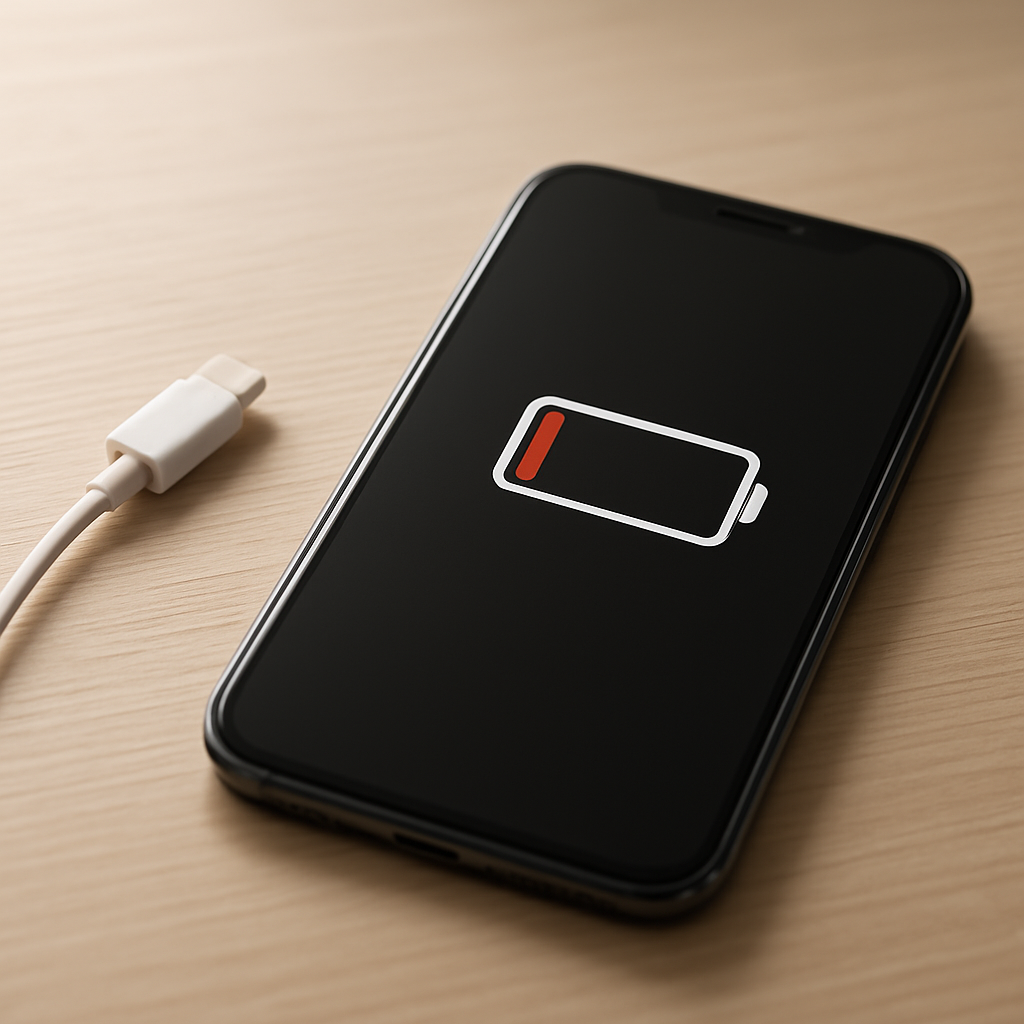
If your phone stays stuck at 1% even after being plugged in for a while, the most common reason is a battery “fuel gauge” sensor (or its calibration) misreporting the charge level. The phone may actually be charging, but the percentage can’t update correctly, so it looks like it’s not progressing.
In many cases the number will jump up later (for example from 1% to 10–30%) after 20–90 minutes, especially if the phone was drained hard or shut down at very low power. If it never increases after 1–2 hours on a known-good charger, you may be dealing with a charging port, cable, or battery failure instead.
If you need a fast fix
- Use a different wall charger and cable (preferably the original or a reputable brand), then leave it plugged in for at least 30 minutes without using the phone.
- Force restart the phone while it’s connected to power (this can refresh the battery reading after the sensor gets “stuck”).
- Clean the charging port gently (dry, non-metal tool) and try charging again; pocket lint can block proper contact and confuse charging behavior.
Quick Diagnosis Table
| Symptom | Most likely cause |
|---|---|
| Stays on 1% but phone feels warm and charging icon appears | Battery percentage sensor/cibration issue; charging may be happening but not reporting correctly |
| Random jump from 1% to a higher number after a while | Fuel gauge recalibrating after deep drain or a forced restart |
| Won’t charge past 1% on any charger; shuts off immediately when unplugged | Battery has high wear or failed cell; may also be power management fault |
| Only charges at a specific angle or disconnects when touched | Loose/dirty port, damaged cable, or worn connector causing unstable charging |
| Charges on a computer USB but not on a wall adapter (or vice versa) | Charger incompatibility, weak adapter, or cable not supporting required current |
Why This Happens
Your phone doesn’t guess the battery percentage from “time plugged in.” It calculates it using a battery sensor system that measures voltage, current, and battery behavior over time. When that system gets confused, the phone may keep showing 1% even though energy is slowly going into the battery.
This often happens after a deep drain (the phone dies, then sits dead for hours or days), exposure to cold, or repeated quick plug/unplug cycles. In those situations, the battery voltage can sag and recover in ways that make the percentage reading unreliable until the phone re-learns what “empty” and “full” look like.
Cause leads to symptom like this: the phone is charging but the sensor reports “still empty,” so the displayed number stays at 1% until the battery crosses a threshold where the system can confidently update the estimate.
Most Common Causes (Ranked)
- 1) Battery fuel gauge miscalibration: After a hard drain, the phone can misread the battery level and stay stuck at 1% until it re-syncs.
- 2) Low-power charging due to weak adapter or bad cable: The phone may be charging too slowly to move the percentage, especially if it’s on and background activity is using power.
- 3) Lint or oxidation in the charging port: Poor contact can allow enough power for the icon but not stable current for normal charging and accurate reporting.
- 4) Battery aging or internal resistance increase: A worn battery can “look empty” under load, causing the phone to stay at 1% and shut off when unplugged.
- 5) Moisture detection or temperature protection: If the phone thinks the port is wet or the battery is too hot/cold, it may limit charging and stall the percentage.
- 6) Charging/power management hardware fault: A failing charging IC or board connection can cause erratic charging and incorrect battery readings.
If you see gradual improvement (like 1% to 2–5% over time, or a later jump upward), that usually indicates the phone is receiving power and the issue is more likely reporting or slow charging than a total hardware failure.
How to Check the Problem Safely
- Check 1: Try a known-good wall adapter and cable, and plug directly into a wall outlet (avoid a laptop port or power strip at first).
- Check 2: Look for charging stability: does the charging icon flicker, disconnect, or only work when the plug is held at an angle?
- Check 3: Feel for heat after 10–15 minutes (mild warmth is normal; significant heat is not). If it stays stone-cold and the icon is unreliable, power may not be flowing.
- Check 4: Power the phone off and charge for 30 minutes, then turn it on and re-check the percentage. Charging while off reduces load and can help the reading catch up.
- Check 5: If your phone supports it, try a different charging method (wireless charging, or USB-C PD vs standard USB) to see if one is stable.
Safety note: if the phone swells, smells sweet/chemical, gets very hot, or the screen lifts, unplug immediately and stop using it.
How to Fix It
- Fix 1 (easiest): Switch to a high-quality charger and cable and let it charge uninterrupted for 60–90 minutes. This gives the battery sensor time to re-stabilize and can overcome slow charging.
- Fix 2: Force restart while connected to power. A restart can refresh battery reporting and clear a stuck percentage display.
- Fix 3: Clean the charging port carefully. Power off the phone, then use a dry wooden/plastic toothpick or soft brush to remove lint; better contact improves charging and prevents percentage glitches.
- Fix 4: Do a gentle recalibration cycle: charge to 100%, keep it plugged in for 30–60 minutes after it reaches 100%, then use normally down to around 10–15% (avoid frequent deep drains). This helps the phone re-learn the battery curve without stressing the cell.
- Fix 5 (advanced/last resort): Back up your data and perform a system update or reset if the issue started after an update and persists across chargers. If it still sticks at 1%, arrange a battery/port diagnostic, as hardware is likely.
Signs of Battery or Hardware Damage
- Battery percentage jumps wildly (1% to 40% to 5%) across multiple days and chargers.
- Phone turns off as soon as you unplug it, even after “charging” for a long time.
- Charging only works if the cable is positioned a certain way, or the port feels loose.
- Phone gets unusually hot while charging or while sitting idle on the charger.
- Charging is extremely slow on every cable and adapter, including known-good ones.
- Battery swelling, screen lifting, or the back panel separating.
- Persistent “liquid detected,” “accessory not supported,” or similar warnings with a dry port and multiple cables.
When Repair Is No Longer Worth It
If the phone is older, has a worn battery, and also has port issues or random shutdowns, repairs can stack up quickly. In that case, replacing the battery alone may not fix the underlying charging instability.
As a rule, if the repair cost is around half the value of a comparable used replacement phone (or more), replacement is usually the better choice. If the phone is otherwise in great shape and you plan to keep it, a battery replacement is often the most cost-effective first repair.
How to Prevent This Problem in the Future
- Avoid letting the phone die completely on a regular basis; deep drains increase the chance of sensor misreporting and battery wear.
- Use a reputable charger and cable that matches your phone’s charging standards to prevent slow charging and unstable power.
- Keep the charging port clean by occasionally checking for lint buildup, especially if you carry the phone in a pocket.
- Don’t use the phone heavily while it’s trying to recover from 0–1%; let it sit and charge for 20–30 minutes first.
- Keep the phone within comfortable temperatures; extreme cold or heat can confuse battery readings and limit charging.
- Update the operating system when available; some updates improve battery reporting and charging behavior.
- If you must store the phone, leave it around 40–60% charge and power it on to top up every month or two.
FAQ
Why does my phone show 1% but won’t increase even though it’s plugged in?
The most common reason is the battery sensor system is out of sync after a deep drain, so the phone can’t accurately update the percentage. It may still be charging, just not reporting correctly. Try charging uninterrupted with a known-good wall charger for 60–90 minutes and then restarting.
Will a battery calibration fix “stuck at 1%”?
It can help when the problem is miscalibration rather than a failed battery. The safest approach is a gentle cycle (full charge, short top-off, then normal use down to about 10–15%). If the phone still dies when unplugged or never rises after 1–2 hours, the battery or charging hardware is more likely at fault.
How do I know if it’s the charging port or the battery?
If charging is intermittent, angle-dependent, or disconnects when touched, the port or cable is the top suspect. If charging seems stable but the phone shuts off immediately when unplugged and the percentage behaves erratically, the battery is more likely worn out. Testing with multiple known-good chargers and cables helps separate the two quickly.
For a full overview of this issue and step-by-step solutions, read the complete troubleshooting guide.
If you’re dealing with repeated battery issues, Mark Reynolds recommends focusing on simple checks before assuming hardware failure. You can find a broader breakdown in the battery troubleshooting guide.