Phone Charging Suddenly Slow — Power Source or Software Change?
Quick Answer
The most common reason a phone suddenly starts charging slowly is that it isn’t truly “idle” during charging. Residual circuit activity (from an incomplete shutdown, background processes, or a stuck accessory/port state) can keep parts of the phone awake and quietly using power, so less power is left to charge the battery.
This often shows up right after a software update, a crash/restart, or a week or two of heavy use when the system has accumulated background tasks. In many cases, charging speed returns to normal within 1–3 charge cycles once the phone’s power state resets and indexing/background work finishes.
If you need a fast fix
- Force a full restart, then charge with the phone left untouched for 20–30 minutes (screen off, no apps).
- Swap to a known-good wall charger and cable, and plug directly into a wall outlet (not a laptop, hub, or power strip).
- Turn on Airplane Mode (or power off if your phone supports true power-off) while charging to reduce “leakage” from radios and background activity.
Quick Diagnosis Table
| Symptom | Most likely cause |
|---|---|
| Charges fast at first, then slows dramatically after a few minutes | Phone stays semi-awake (background sync, indexing, or a stuck process) while charging, so incoming power is partially consumed. |
| Charging is slow only when the screen is on or when using apps | Normal power draw is masking a charging issue; residual activity is high so “net charging” is low. |
| Charging is slow after an update or after restoring from backup | Post-update tasks (photo indexing, app optimization, cloud sync) keep CPU and storage active for hours to days. |
| Phone charges slowly unless in Airplane Mode | Radios (cellular, Wi-Fi, Bluetooth) and weak signal conditions are increasing power use during charging. |
| Charging speed varies a lot across outlets/chargers | Power source can’t sustain output or cable/connector resistance is high, triggering the phone to reduce input. |
Why This Happens
Charging speed isn’t only about the charger. It’s also about how much power the phone is using while it’s plugged in.
If your phone doesn’t fully “settle” into a low-power state, small bits of hardware can stay active: radios searching for signal, background app refresh, system cleanup, or even a charging/USB controller that didn’t reset properly after a glitch. That ongoing activity is like a leak in a bucket you’re trying to fill.
Cause leads to symptom like this: the charger provides power, but the phone spends a chunk of it staying awake, so the battery fills slower even though it looks like it’s charging normally.
Most Common Causes (Ranked)
- 1) Incomplete shutdown or “stuck” power state: After a crash, update, or accessory disconnect, the phone may keep a subsystem awake, causing constant small drain while charging.
- 2) Post-update background work: System updates can trigger indexing, app optimization, or cloud re-sync that runs for hours and makes charging feel suddenly slower.
- 3) High radio activity (weak signal, Wi-Fi scanning, Bluetooth): When signal is poor, the phone increases transmit power and scanning, which can eat a surprising amount of incoming charge.
- 4) Cable/port resistance increasing heat: Dust in the port, a worn cable, or a loose fit can cause voltage drop and heat, prompting the phone to reduce charging to protect the battery.
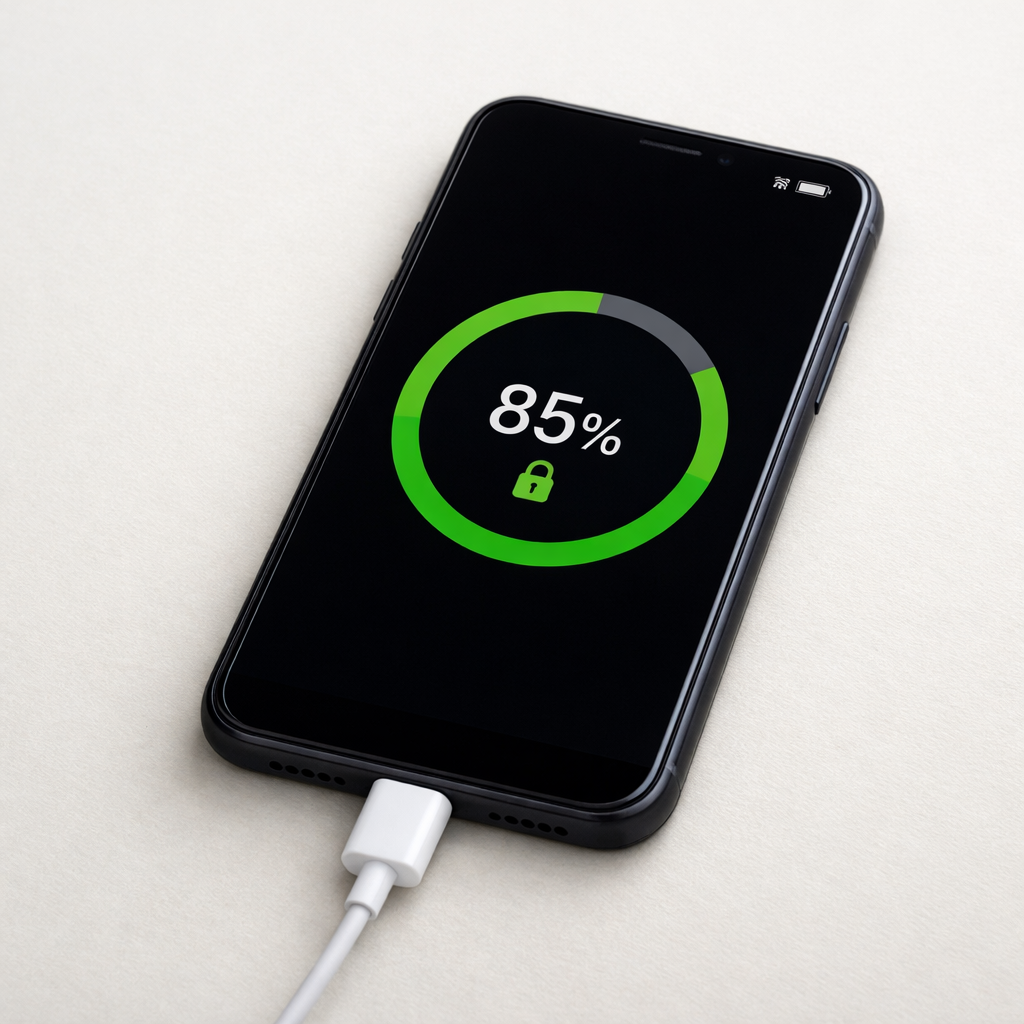
- 5) Optimized charging or charge protection features: Many phones intentionally slow or pause charging near certain percentages, especially if they predict you won’t need a full charge yet.
- 6) Battery temperature control (warm phone): If the phone is warm from use, thick case insulation, or a warm room, charging management will slow down to reduce battery stress.
If charging gradually improves over the next few cycles, that usually indicates background work finishing or a temporary stuck state resolving after restarts and normal use.
How to Check the Problem Safely
- Check 1: Try a clean test charge: plug into a wall charger, turn the screen off, and don’t use the phone for 15 minutes. If speed improves, background activity is likely the main issue.
- Check 2: Toggle Airplane Mode on for 10 minutes while charging. If charging speed noticeably improves, radio activity or poor signal conditions are contributing.
- Check 3: Feel for heat near the charging port and the back of the phone after 5–10 minutes. Significant warmth can mean resistance in the cable/port or the phone is throttling for temperature.
- Check 4: Inspect and gently clean the port: use a bright light to look for lint, then remove debris carefully with a non-metal toothpick. A better connection can restore normal charging.
- Check 5: Compare chargers: test with a known-good cable and a reputable fast charger. If behavior changes dramatically, the original power setup is limiting input or causing instability.
Safety note: avoid metal tools in charging ports and stop charging immediately if you smell burning, see discoloration, or the phone becomes uncomfortably hot.
How to Fix It
- Fix 1 (easiest): Do a proper reboot and then charge uninterrupted. This clears stuck processes and can reset power/USB states that keep circuits active.
- Fix 2: Reduce residual activity while charging: enable Airplane Mode, disable hotspot, and close navigation/gaming apps. Lower background demand means more charger power reaches the battery.
- Fix 3: Reset the connection quality: replace the cable, try a different wall adapter, and plug directly into a wall outlet. This removes voltage drop and prevents the phone from stepping down charging power.
- Fix 4: Cool the setup: remove thick cases, keep the phone out of sunlight, and avoid charging on a bed or couch. Cooler batteries accept charge faster and more consistently.
- Fix 5 (advanced/last resort): Check battery/system health settings and consider backing up and doing a clean reinstall or factory reset if slow charging started after a major update and persists for a week. This can eliminate misbehaving background services that keep the device semi-awake.
Signs of Battery or Hardware Damage
- Phone gets very hot during charging even when not in use.
- Charging repeatedly starts and stops or the connector feels loose and unreliable.
- Battery percentage jumps, drops suddenly, or stalls for long periods.
- Noticeable swelling, screen lifting, or the phone rocking on a flat surface.
- Fast drain after unplugging, even with light use and low brightness.
- “Accessory not supported,” moisture warnings without moisture, or frequent charging error messages.
- Port shows discoloration, a burnt smell, or visible corrosion.
When Repair Is No Longer Worth It
If the phone only charges slowly due to software behavior or background activity, repair usually isn’t needed. But if the port is loose, the device overheats, or charging is unstable across multiple known-good chargers and cables, a port or battery repair may be the practical next step.
As a rule, consider replacement when repair cost is a large fraction of the phone’s current value, or when you’d still be left with an aging battery and limited software support. If the phone is several years old and already has poor battery life, putting money into a port and battery together may not be cost-effective.
How to Prevent This Problem in the Future
- Restart the phone occasionally, especially after updates, to clear stuck background processes and reset charging states.
- Charge with the screen off when you need speed, and avoid heavy apps (video calls, games, navigation) while plugged in.
- Keep the charging port clean and avoid pocket lint buildup by using a snug pocket and not charging in dusty environments.
- Use quality cables and reputable chargers that can sustain steady output without overheating.
- Reduce heat during charging by removing thick cases and charging on a hard surface with airflow.
- Don’t let the phone sit for long periods at high temperature while plugged in, since heat increases throttling and long-term battery wear.
- After major updates or restores, expect 24–72 hours of background syncing and indexing and plan charging accordingly.
FAQ
Is slow charging after a software update normal?
It can be normal for a short period. Updates often trigger background tasks like photo indexing, app optimization, and cloud re-sync that keep the phone active even when the screen is off. If it improves within a few days or a few charge cycles, it’s usually temporary.
Why does my phone charge faster in Airplane Mode?
Airplane Mode reduces power use by turning off cellular and other radios that can constantly scan or transmit, especially in weak signal areas. With less “leakage” from background connectivity, more of the charger’s power goes into the battery. It’s a strong clue the charging slowdown is mostly net power draw, not the charger itself.
How can I tell if it’s the charger/cable or the phone?
Test with a known-good wall charger and cable, ideally one that reliably fast-charges another device. If charging speed becomes stable and faster, your original cable/adapter or outlet is likely the bottleneck. If it’s still slow across multiple good chargers and the phone stays warm or unstable, the issue is more likely in the phone (port, battery, or stuck system behavior).
For a full overview of this issue and step-by-step solutions, read the complete troubleshooting guide.
Mark Reynolds focuses on everyday battery and charging problems, helping users understand what’s normal and what isn’t. For a full overview, check the battery troubleshooting guide.