Phone Charging Stops Overnight — Charging Cycle Control or Power Source Failure?
Quick Answer
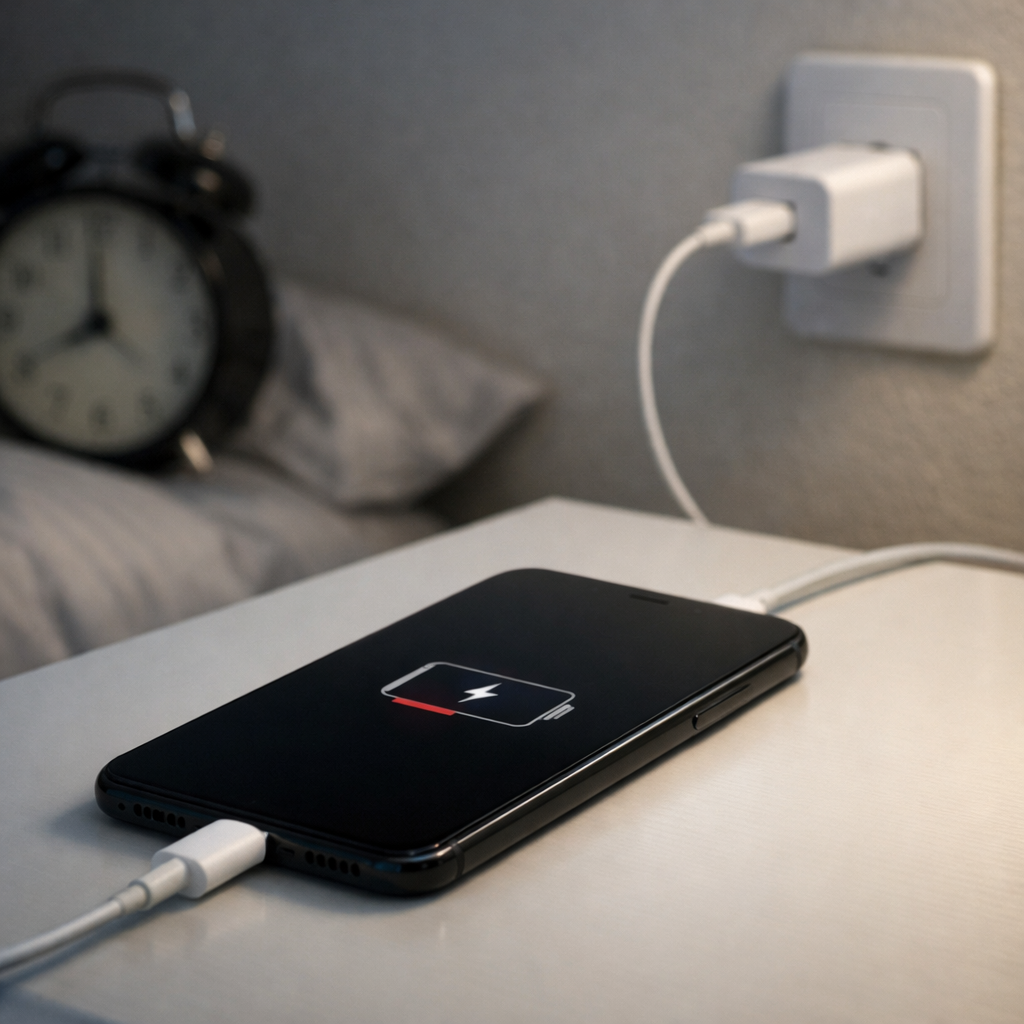
Most of the time, overnight charging “stopping” is normal charging cycle control: your phone reaches its target (often 80–100%), then pauses or trickles to protect the battery. The other common reason is a power source interruption, like a loose cable, a smart outlet turning off, or a wall plug that briefly drops power.
This usually happens after the phone has been plugged in for a while (often 1–3 hours to hit full, then longer periods where it holds or slowly tops up). If you wake up to a lower percentage than expected, that points more toward an interruption or the phone using power overnight rather than a true charging failure.
If you need a fast fix
- Try a different wall outlet and plug the charger directly into the wall (skip power strips, timers, smart plugs, and USB ports on lamps).
- Reseat both ends of the cable and clean the phone’s charging port gently (dry wooden toothpick or soft brush only) to remove lint.
- Use a known-good cable and charger, then check after 15 minutes to confirm the battery percentage is rising steadily.
Quick Diagnosis Table
| Symptom | Most likely cause |
|---|---|
| Phone is at 80% in the morning even though it was plugged in all night | Charging optimization (charge cycle management) is limiting overnight charging to reduce battery wear |
| Phone shows “Not charging” or keeps switching between charging and not charging | Loose/dirty port, worn cable, or unstable power from the outlet/power strip |
| Battery is lower in the morning than when you went to sleep | Power source cut off overnight, or the phone used power due to apps, hotspot, poor signal, or screen waking |
| Charging stops at a specific percentage (like 70%, 80%, or 85%) every night | Battery protection mode, optimized charging schedule, or a device temperature limit |
| It charges normally during the day but stops overnight | Smart plug/timer routine, power strip energy saver behavior, or overnight temperature changes triggering protection |
Why This Happens
Modern phones don’t simply charge to 100% and keep forcing power into the battery. They manage the charging cycle to reduce stress: they may pause at 80%, slow down near full, or wait to finish charging closer to when you usually wake up.
At the same time, overnight charging is a long window where little issues show up. A cable that “mostly works” can lose contact when the phone shifts on a nightstand, and a power strip can momentarily drop power if another device turns on.
In practical terms, the symptom you see depends on which is happening: charge control looks like a stable cap (often 80–100%), while power interruption looks like fluctuating charging status or a battery percentage that doesn’t match the time spent plugged in.
Most Common Causes (Ranked)
- 1) Optimized charging / battery protection mode: Many phones pause at around 80% or delay the final top-up until morning. This is designed to reduce time spent at high voltage, which helps long-term battery health.
- 2) Power source interruption (smart plug, timer, power strip, loose wall outlet): Overnight routines or unstable outlets can cut power for minutes or hours. The phone then runs on battery until you notice in the morning.
- 3) Cable or connector wear causing intermittent contact: A frayed cable or loose USB-C/Lightning connector may charge fine at first, then stop when the angle changes. This often shows up as on-and-off charging notifications.
- 4) Dirty charging port (lint, dust) preventing a solid connection: Pocket lint can block the plug from fully seating. The phone may show charging but stop when the connection loosens.
- 5) Temperature limits during extended charging: If the phone warms under a pillow, thick case, or warm room, it may slow or stop charging to protect the battery. This can look like “stuck” charging overnight.
- 6) Overnight battery drain masking charging progress: Poor signal, hotspot, VPN, background backups, or a misbehaving app can use enough power that the battery doesn’t rise much even while plugged in.
If the phone starts holding a higher percentage after small changes (new outlet, new cable, cleaner port, cooler placement), that gradual improvement usually indicates the battery is fine and the issue was connection or power stability.
How to Check the Problem Safely
- Check 1: Look for battery features like Optimized Charging, Battery Protection, or a charging limit (often 80–85%). Temporarily disable the limit for one night to test, then re-enable if it was the cause.
- Check 2: Plug into a different outlet with no adapters, no extension cord, and no smart plug. If it behaves normally, the original power source is the issue.
- Check 3: Swap to a known-good cable and charger (preferably the original or a reputable brand). If the problem disappears, the old cable/brick is failing intermittently.
- Check 4: Inspect and clean the charging port gently with the phone powered off. Remove visible lint carefully, then plug in and confirm the connector seats firmly without wobble.
- Check 5: Check battery usage overnight in your battery settings. If an app or system service is draining heavily during the same hours, it may be offsetting charging.
Safety note: avoid metal tools in the charging port and stop charging immediately if you smell burning, see smoke, or the phone becomes unusually hot.
How to Fix It
- Fix 1 (easiest): Use a different outlet and remove smart plugs/timers/power strips for overnight charging. This eliminates the most common power interruption causes in one step.
- Fix 2: Replace the cable first, then test with a different charger brick if needed. Cables fail more often than bricks, and a stable connection prevents stop-start charging overnight.
- Fix 3: Turn off charging limits for one night (or adjust the cap) and confirm whether it reaches your expected percentage. If it does, turn the feature back on and decide whether you prefer battery longevity (lower cap) or a full charge.
- Fix 4: Reduce overnight heat: remove thick cases, don’t charge under pillows, and keep the phone on a hard surface. Cooler charging makes the phone less likely to pause charging for protection.
- Fix 5 (advanced/last resort): Reset system settings related to power (or update the OS), then re-test. If the phone recently updated or a setting changed, a reset/update can fix misapplied charging schedules or buggy battery reporting.
Signs of Battery or Hardware Damage
- Charging port feels loose, the cable falls out easily, or charging only works at a certain angle.
- Phone gets hot to the touch while charging, especially near the port or battery area.
- Battery percentage jumps up or down suddenly (for example, 45% to 20%) without heavy use.
- Phone shuts down even when the battery shows 10–30% remaining.
- Visible bulging screen/back panel, or the phone rocks on a flat surface.
- Charger or cable becomes unusually hot, smells odd, or shows discoloration near the connector.
- Charging is consistently very slow with multiple known-good chargers and cables.
When Repair Is No Longer Worth It
If the phone is older and needs both a battery replacement and a charging port repair, the total cost can approach the value of the device. In that case, putting money into a new battery may not solve the real issue if the port or mainboard is also failing.
As a rule, repair is worth it when the phone is otherwise reliable and the fix is clearly identified (battery-only or port-only). If you need multiple parts replaced, the battery health is very low, and performance is already poor, upgrading is often the more cost-effective path.
How to Prevent This Problem in the Future
- Charge directly from a stable wall outlet at night, not from a lamp USB port, TV, or power strip with a switch that can be bumped.
- Use reputable chargers and cables that match your phone’s requirements (right wattage/standard) to avoid unstable charging behavior.
- Enable optimized charging or an 80–85% limit if you don’t need a full charge every morning; it reduces battery wear over time.
- Keep the charging port clean by avoiding pocket lint buildup and checking the port monthly if you frequently carry the phone in jeans or bags.
- Avoid charging under bedding or in direct sun, and remove heat-trapping cases during long charges.
- Replace cables at the first sign of looseness or fraying, since intermittent contact often starts before total failure.
- Review overnight battery usage occasionally to catch apps or settings that keep the phone awake and drain power while plugged in.
FAQ
Is it bad if my phone stops charging at 80% overnight?
No, that’s often a battery protection feature. Holding a lithium battery at 100% for many hours can increase wear, so phones may pause at 80% and finish later. If you need 100% every morning, you can usually adjust or disable the limit.
Why is my battery lower in the morning even though it was plugged in?
This usually means the power was interrupted (loose cable, smart plug turned off, power strip issue) or the phone used power faster than it was charging due to heavy background activity. Try a different outlet and a known-good cable/charger, then check your battery usage screen for overnight drain.
How can I tell if it’s the charger or the phone?
The fastest test is to swap one item at a time using known-good accessories. If a different cable and charger fix it, your original accessories were the problem. If multiple good chargers still stop charging and the port feels loose or charging only works at an angle, the phone’s port or internal hardware is more likely at fault.
For a full overview of this issue and step-by-step solutions, read the complete troubleshooting guide.
Mark Reynolds focuses on everyday battery and charging problems, helping users understand what’s normal and what isn’t. For a full overview, check the battery troubleshooting guide.