Laptop Not Charging to 100% (Stops at 80/85/90/95%): Causes, Tests, and Fixes
Quick Answer
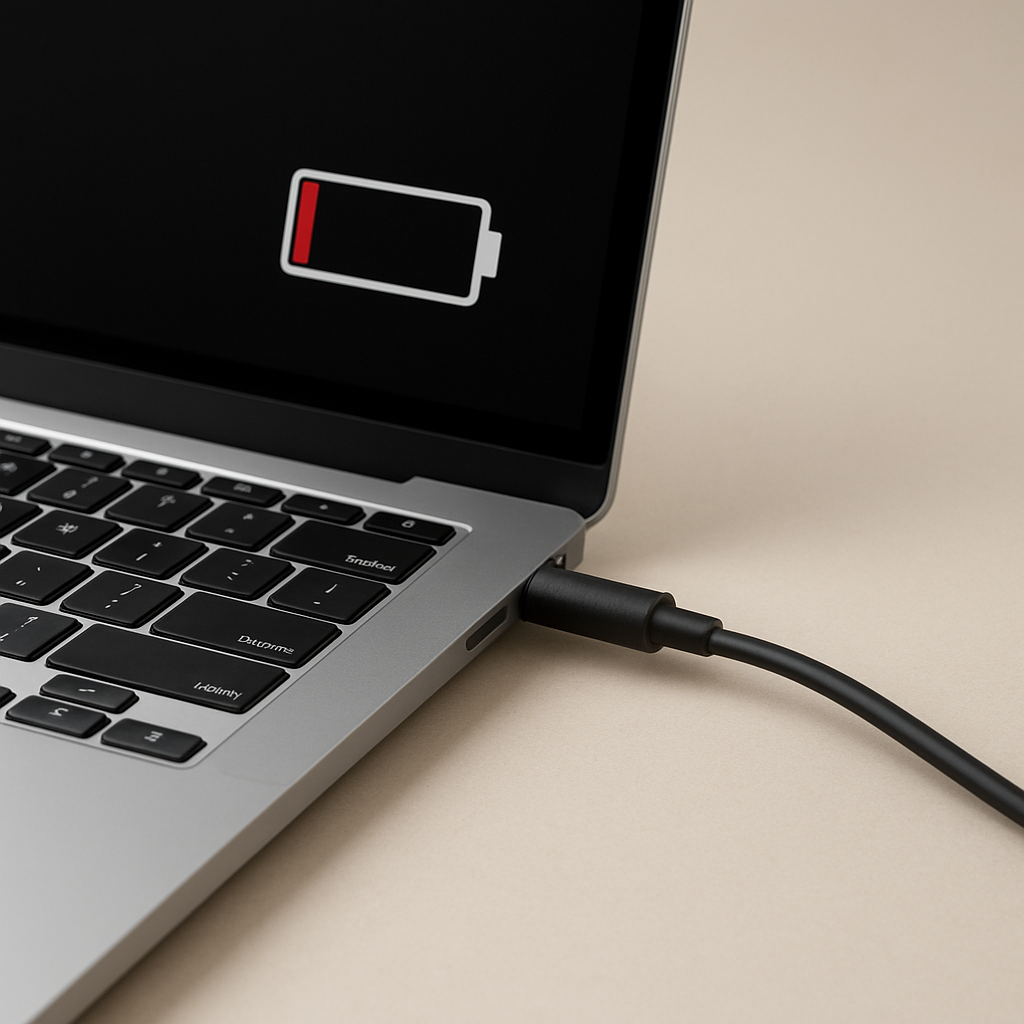
If your laptop won’t charge to 100% and stops around 80–95%, it’s often intentional (battery health / charge limit features) or normal behavior (charging taper near the top). It can also be caused by heat, an underpowered adapter, heavy usage while charging, or battery wear/calibration. The fastest path is: check for charge limit settings (OEM utility or BIOS), charge while the laptop is cool and idle, confirm the correct wattage adapter, and review battery health. If it suddenly started and the laptop now behaves unpredictably, investigate battery wear or charging circuitry.
1) Why laptops sometimes do NOT aim for 100%
Modern laptops often manage charging to reduce battery aging. Holding a lithium battery at 100% for long periods increases stress and heat. Many brands therefore use:
- Charge limits (e.g., stop at 80% or 85%)
- Adaptive/optimized charging (varies charge behavior based on habits)
- Charging taper (slower charging above ~80% by design)
So “not reaching 100%” is frequently normal and even beneficial.
2) Normal vs abnormal: quick benchmarks
- Usually normal: stops at 80–85% consistently (often a charge limit feature)
- Often normal: takes a long time from 90% → 100% (charging taper)
- Potential problem: stops at a random percent (e.g., 62%, 74%, 91%) and changes day to day
- Likely problem: won’t charge past 50–60%, drains fast, or % jumps unpredictably
3) Fast diagnostic table (symptom → likely cause → best first test)
| What you see | Most likely cause | Best first test |
|---|---|---|
| Stops exactly at 80% or 85% every time | Charge limit / battery health mode | Check OEM utility or BIOS and disable temporarily |
| Stops at 90–95% and creeps slowly | Normal charging taper | Leave it plugged in while idle for 30–60 minutes |
| Stops lower when laptop is hot | Thermal protection | Cool laptop, improve airflow, charge idle |
| Won’t reach 100% only while gaming/heavy use | Adapter wattage limit / high power draw | Charge while idle; verify correct wattage adapter |
| Battery % jumps / “full” feels wrong | Calibration/reporting issue or battery wear | Battery report + one calibration cycle test |
4) Step-by-step fixes (do these in order)
Step 1 — Check for a charge limit / battery health feature
This is the most common cause. Many laptops have battery health modes that cap charging.
- OEM apps: Lenovo Vantage, Dell Power Manager, ASUS MyASUS, HP Support Assistant, Acer Care Center, etc.
- BIOS/UEFI: Some systems have a “Battery Charge Limit” option.
Test: disable the limit temporarily and see if the laptop can charge to 100%.
Step 2 — Confirm you’re using the correct power adapter (wattage matters)
If the adapter is underpowered, the laptop may prioritize running the system over charging the battery—especially under load.
- Use the manufacturer-recommended adapter wattage.
- If using USB-C, ensure it’s a USB-C PD charger with sufficient wattage (and a cable rated for that wattage).
Quick check: if the battery charges closer to 100% only when the laptop is idle, you may be near the adapter’s power ceiling.
Step 3 — Reduce heat and charge while idle
Heat can slow or pause charging near the top. Try:
- Place the laptop on a hard surface (clear vents)
- Close heavy apps (games, rendering, VMs)
- Let it charge for 30–60 minutes while cool and idle
Step 4 — Restart and install updates (OS + drivers + firmware)
Charging behavior can be affected by firmware and power management drivers.
- Install OS updates
- Update chipset/power drivers (Windows)
- Update BIOS/UEFI if recommended by the manufacturer
5) Battery health & calibration (when “100%” isn’t real)
Over time, batteries lose capacity. Your laptop may report “full” at a lower effective capacity, or the percentage reading may become less accurate.
Windows: generate a battery report
Open Command Prompt and run:
powercfg /batteryreport
Compare Design Capacity vs Full Charge Capacity. A large gap indicates battery wear.
Calibration test (optional)
Calibration helps percentage accuracy (it does not restore capacity):
- Charge as high as it will go (even if 80–95%).
- Use the laptop down to ~10% (avoid 0% if possible).
- Charge back up in one uninterrupted session.
6) When it can be a real problem
Not reaching 100% is often normal, but watch for these warning signs:
- Battery drains very fast after unplugging (even with light use)
- Sudden shutdowns at moderate percentages
- Charging stops at very low levels (50% or less) repeatedly
- Percentage jumps up/down unpredictably
These can point to significant battery wear, a failing battery sensor, or charging circuitry issues.
7) Best practices (long-term battery longevity)
- Use charge limit features if you stay plugged in most of the time (80–85% is common)
- Avoid sustained heat while charging (blocked vents, hot rooms)
- Prefer manufacturer-recommended adapters and quality USB-C PD equipment
- If storing the laptop long-term, keep battery around 40–60%
FAQ
Is it bad if my laptop never charges to 100%?
No. Many laptops intentionally stop at 80–95% to reduce battery wear. :contentReference[oaicite:1]{index=1}
Why does my laptop stop charging at 80%?
A charge limit or battery health feature is usually enabled (OEM utility or BIOS). :contentReference[oaicite:2]{index=2}
Can heat stop my laptop from charging fully?
Yes. High temperature can slow or pause charging, especially near higher percentages. :contentReference[oaicite:3]{index=3}
Should I replace the battery if it won’t hit 100%?
Not necessarily. Replacement makes sense if real-world runtime has become too short for your needs or the battery behaves unpredictably. :contentReference[oaicite:4]{index=4}
Conclusion
A laptop not charging to 100% is commonly normal and often intentional due to battery health management. :contentReference[oaicite:5]{index=5} Start by checking charge limit settings and confirming the correct charger wattage, then reduce heat and test charging while idle. If behavior becomes erratic or the laptop shows classic signs of battery wear, use a battery report to evaluate capacity and consider service if needed.
Related Posts
- Battery Not Charging Past 50 Percent
- Device Charging Stops Then Resumes
- Laptop Battery Drains When Closed
- Laptop Charger Overheating
For a full overview of this issue and step-by-step solutions, read the complete troubleshooting guide.