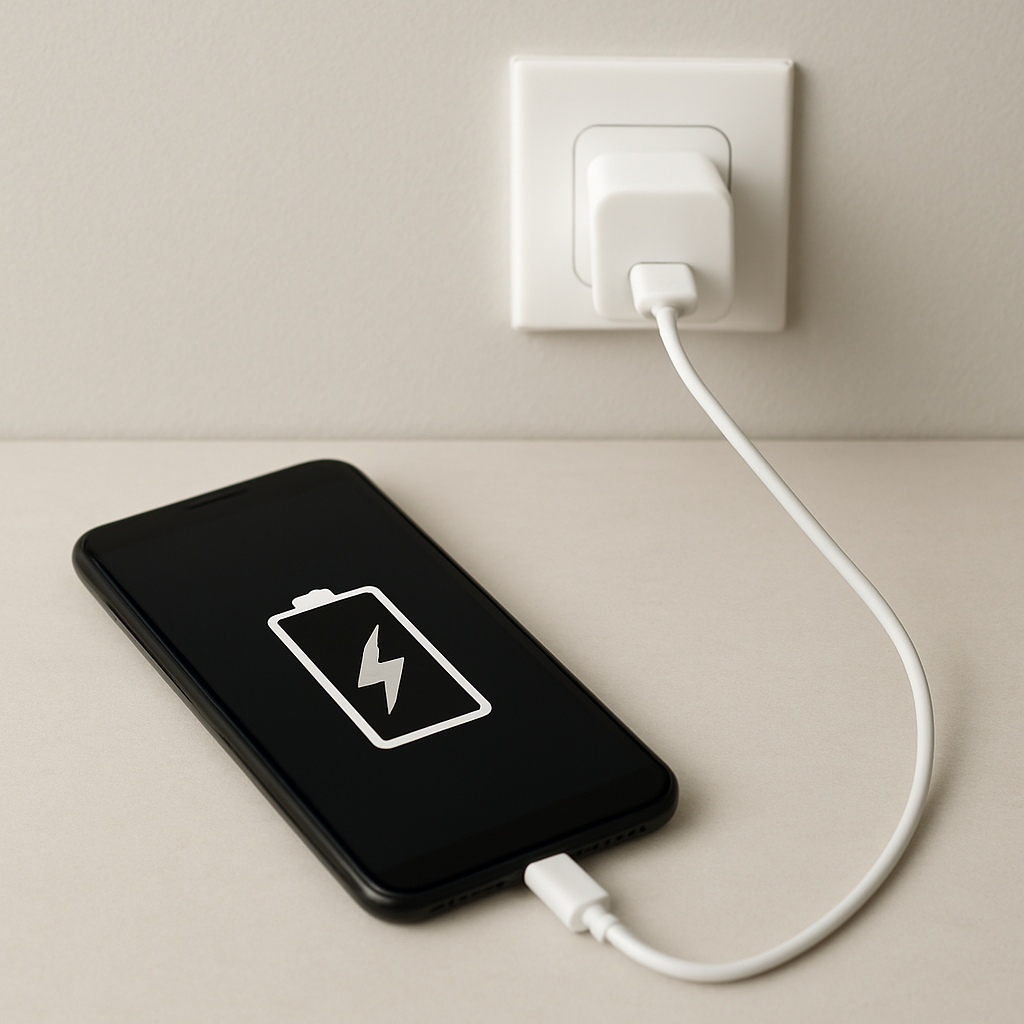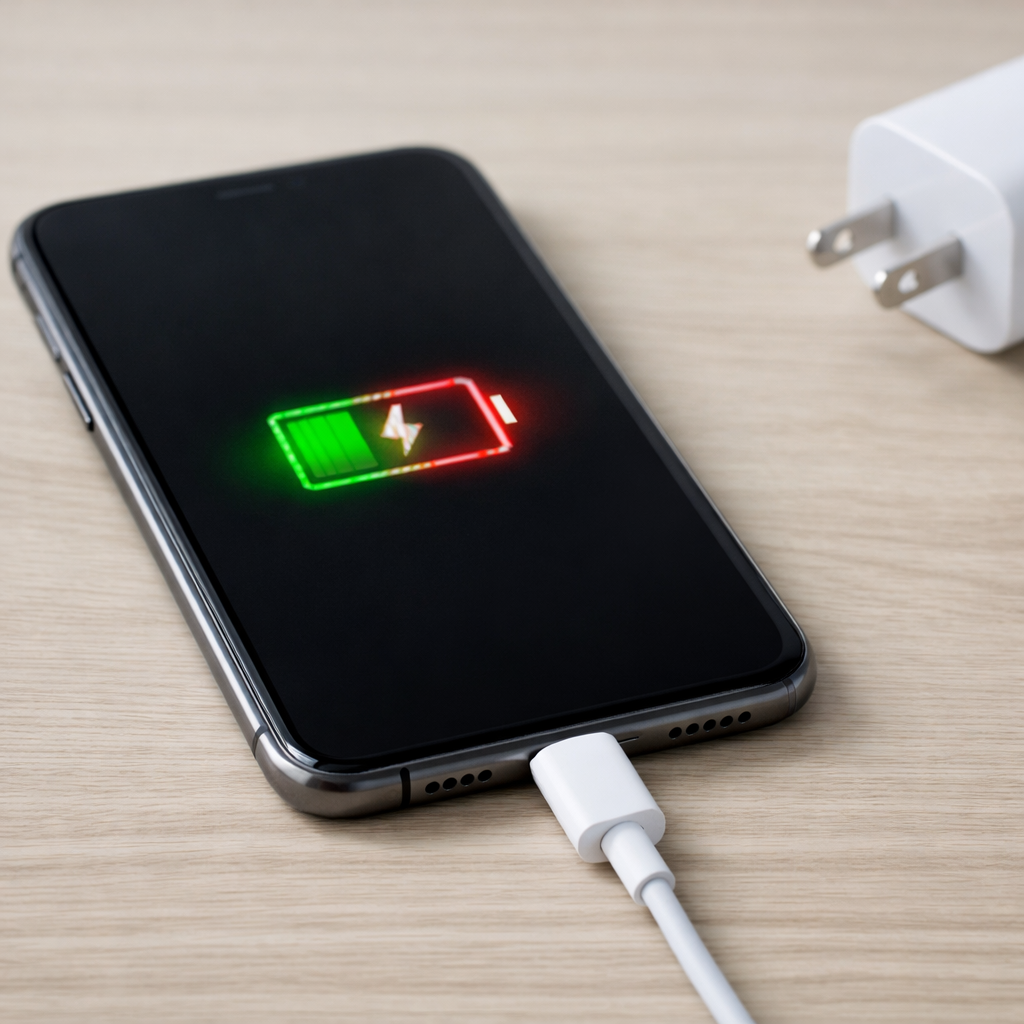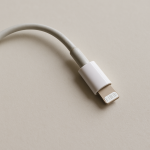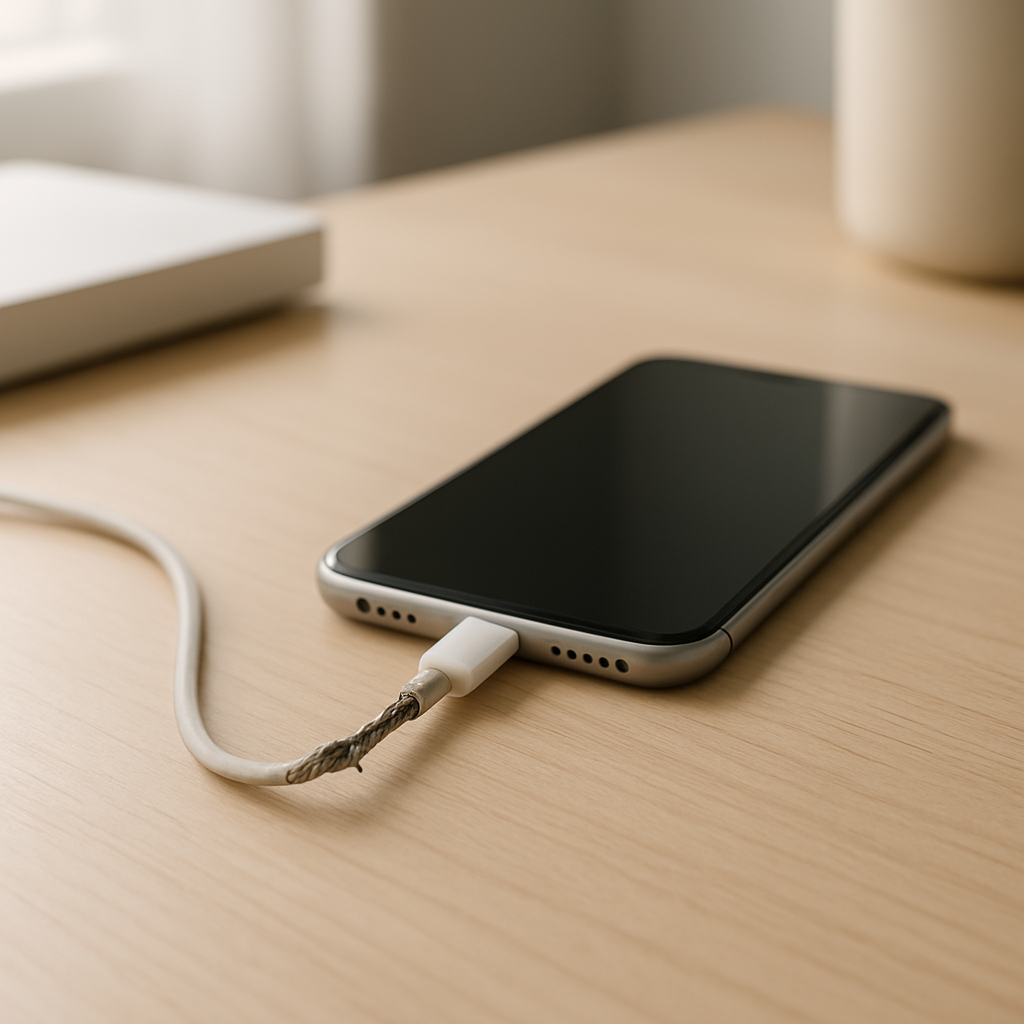
Charging Cable Damaged Causing Slow Charging — How to Identify and Fix It
Quick Answer
The most common reason a phone starts charging slowly is a damaged charging cable where the internal copper conductors are partly broken or loosened. Even if the outside looks “fine,” the inside wires can’t carry as much current, so your device charges at a much lower speed.
This usually happens gradually after weeks or months of daily bending near the plug, being pinched in a car door, or being pulled from an angle. The slowdown may come and go at first, then become consistent as the damage worsens.
If you need a fast fix
- Try a different known-good cable (ideally the original or a certified replacement) and plug directly into the wall charger, not a laptop port.
- Unplug, inspect the cable ends, and clean lint from the phone’s charging port carefully with a wooden toothpick (no metal).
- Stop wiggling the cable to “make it work” and avoid charging through severe bends; this can overheat weak spots.
Quick Diagnosis Table
| Symptom | Most likely cause |
|---|---|
| Charges fast only when the cable is held at a certain angle | Internal conductor break near the connector causing intermittent current flow |
| Charging speed drops after a few minutes, then recovers | Damaged cable creating resistance and heat, triggering the charger/phone to reduce power |
| Cable feels warm near the plug while charging | Frayed strands inside the cable increasing electrical resistance |
| “Charging” icon shows, but battery percentage barely moves | Cable can pass data/handshake but can’t deliver enough current for normal charging |
Why This Happens
A charging cable isn’t just plastic and a plug. Inside are copper conductors that carry power, and those conductors need to stay intact to deliver the current your phone expects for normal or fast charging.
When a cable is bent sharply near the connector, rolled over by a chair wheel, or tugged out by the cord, the copper strands can stretch and snap little by little. The cable may still work, but fewer strands are carrying the load, like turning a wide pipe into a narrow one.
Less current reaching the phone means slower charging, more heat in the cable, and sometimes power “pulsing” as the connection cuts in and out.
Most Common Causes (Ranked)
- 1) Repeated bending at the connector: The most common failure point is the first inch behind the plug, where daily flexing breaks internal strands and reduces current transfer.
- 2) Cable strain from pulling the cord: Unplugging by yanking the cable loosens internal crimps and fractures conductors, which boosts resistance and reduces charging speed.
- 3) Pinched or crushed cable section: A cable trapped under a desk leg, car seat rail, or door can have partially severed conductors even if the outer jacket isn’t split.
- 4) Low-quality or counterfeit cable: Some cheap cables use thinner wires that can’t carry higher charging current well, and they degrade faster under normal use.
- 5) Heat exposure: Leaving a cable in a hot car or near a heater can make insulation and strain relief brittle, increasing the chance of internal breaks.
- 6) Corrosion or contamination at the connector: Moisture, pocket lint, and grime can increase resistance at the metal contacts, acting like a bottleneck for current.
If charging improves a little after swapping to a better cable or cleaning the port, that gradual improvement is a good sign the battery is likely fine and the problem was mainly power delivery.
How to Check the Problem Safely
- Check 1: Try a different cable you trust with the same wall charger. If charging speed returns to normal immediately, your original cable is the likely culprit.
- Check 2: Feel for heat along the cable during charging, especially near both ends. Warmth concentrated at one spot often points to internal damage and high resistance.
- Check 3: Do a gentle bend test near the connector (do not force it). If charging switches between fast/slow or connects/disconnects when the cable is slightly moved, the conductors are probably cracked.
- Check 4: Inspect both connectors under bright light. Look for bent pins, discoloration, or looseness that lets the plug wobble in the port.
- Check 5: Check the phone’s charging port for lint. If the plug doesn’t insert fully or clicks loosely, carefully remove debris with a wooden toothpick and re-test.
Safety note: If you see exposed wire, smell burning, or notice melting plastic, stop using the cable immediately and unplug it from power.
How to Fix It
- Fix 1 (easiest): Replace the cable with a certified or manufacturer-recommended one. A new cable restores full current flow and reduces overheating risk.
- Fix 2: Use a shorter cable or one rated for higher power (for example, USB-C cables marked for higher wattage). Lower resistance means less voltage drop and better charging speed.
- Fix 3: Clean the connectors and port. Remove lint from the phone port and wipe the cable’s metal plug with a dry, lint-free cloth so the contacts can pass current efficiently.
- Fix 4: Reduce strain while charging. Route the cable so it hangs straight, avoid tight bends at the plug, and stop using the phone in a way that twists the connector while charging.
- Fix 5 (advanced/last resort): If the problem happens with multiple known-good cables, test with another charger and outlet, then consider professional inspection of the device’s charging port. A worn port can mimic cable damage symptoms.
Signs of Battery or Hardware Damage
- Battery percentage jumps up or down noticeably while plugged in.
- The phone shuts down even when the battery shows 10–30% remaining.
- The device becomes very hot during charging even with a new, good cable and charger.
- Charging stops at a certain percentage repeatedly (for example, stuck at 50–80%) across different cables.
- The charging port feels loose, or the plug falls out easily even when fully inserted.
- You see a “liquid detected,” “accessory not supported,” or repeated connect/disconnect alerts with multiple cables.
- Swelling, screen lift, or a bulging back panel (stop using the device and seek service).
When Repair Is No Longer Worth It
If the cable shows kinks, exposed wire, a melted area, or it only works when held in a certain position, replacement is the right move. Charging cables are consumables, and continuing to use a failing one can damage the phone’s port or create a heat hazard.
As a rule, replace the cable first because it’s the cheapest and most likely fix. If two or more high-quality cables still charge slowly, then the value shifts toward checking the charger, the port, or the phone’s battery health before spending more on accessories.
How to Prevent This Problem in the Future
- Unplug by gripping the plug head, not by pulling the cable.
- Avoid sharp bends near the connector; give the cable a gentle curve instead of a tight angle.
- Use a cable length that fits your setup so it isn’t constantly stretched or snagged.
- Keep the phone on a stable surface while charging to prevent twisting the connector.
- Don’t run cables under chair wheels, door gaps, or heavy objects that can crush the conductors.
- Choose cables rated for your charging speed (and certified for your device type) to reduce resistance and heat.
- Store cables loosely coiled; avoid wrapping them tightly around a charger brick.
FAQ
Can a cable look fine outside but still cause slow charging?
Yes. The outer jacket can stay intact while the internal copper strands break from repeated bending near the plug. This raises resistance and limits how much current reaches your phone, which reduces charging speed.
Why does my phone charge faster with one cable but not another?
Different cables have different wire thickness and quality, which affects resistance and power delivery. A damaged cable can also “negotiate” charging but fail under load, so it appears to work yet charges slowly.
Is it safe to keep using a cable that only charges at an angle?
It’s not recommended. An intermittent connection can create heat at the weak point and may stress the phone’s charging port. Replacing the cable is usually inexpensive and is the safest fix.
For a full overview of this issue and step-by-step solutions, read the complete troubleshooting guide.
For a clearer understanding of battery drain and charging limits, Mark Reynolds focuses on simple, practical fixes that work across most devices. You can also read the complete troubleshooting guide.