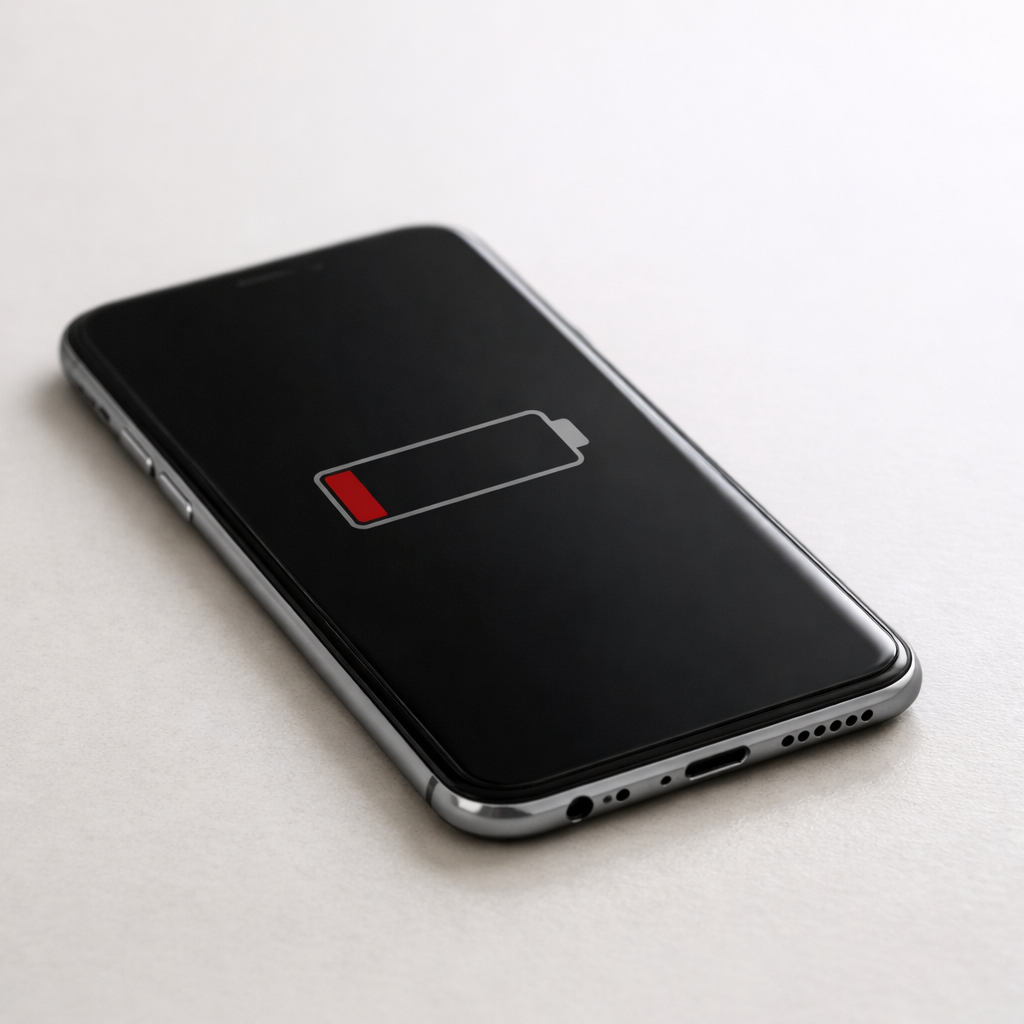
Phone Battery Draining on Standby — Background Activity or Network Drain?
Quick Answer
If your phone loses a noticeable chunk of battery while it “does nothing,” the most common root issue is battery degradation. As a battery ages, its usable capacity shrinks and its voltage sags more under normal background load, so the same standby tasks (network checks, notifications, system maintenance) consume a larger percentage of the battery.
On a healthy phone, standby drain is often around 1–3% per hour (less on some models), depending on signal strength and settings. If you’re seeing 10–30% overnight with the screen off, it usually means the battery is worn, the phone is struggling to maintain signal, or both.
If you need a fast fix
Turn on Airplane Mode for 30–60 minutes to see if drain drops sharply (this separates network drain from battery wear).
Restart the phone and disable Background App Refresh (iPhone) or restrict background activity for the top-draining apps (Android).
Lower screen wake triggers: disable “Raise to wake,” reduce notifications from chat/social apps, and turn off Always-On Display if you use it.
Quick Diagnosis Table
Symptom
Most likely cause
Loses 15–30% overnight with screen off, even with few apps installed
Battery degradation reducing usable capacity
Drain is much worse in places with poor signal (basement, rural areas)
Network drain from searching for service and frequent radio handshakes
Battery drops in chunks (e.g., 60% to 45% quickly) then stabilizes
Aged battery with voltage sag and less accurate battery gauge
Gets warm on standby or “Phone idle”/“System” is high in battery stats
Background activity plus a battery that can’t handle normal idle load efficiently
Standby drain improves noticeably after a full charge and reboot, but returns
Combination of worn battery and background sync/services resuming
Why This Happens
Your phone never truly “does nothing” on standby. It maintains a network connection, checks for messages, refreshes mail, updates location services, and runs small maintenance jobs in the background.
When the battery is new, those little tasks barely move the percentage. As the battery degrades, the same tasks represent a bigger slice of a smaller battery, and voltage can dip more easily, making the phone work harder to stay stable.
For example, a two-year-old battery that has lost 20–30% capacity might show the same overnight usage as “huge drain,” even if the watt-hours consumed are similar. Poor signal makes it worse because the phone boosts radio power to hold a connection.
In short: an aging battery turns normal idle behavior into noticeable percentage loss, and weak network coverage can stack on top to create “mystery” drain.
Most Common Causes (Ranked)
1) Battery degradation: Capacity loss makes every background task consume a larger % of the remaining battery, especially overnight when you expect near-zero change.
2) Weak cellular signal (network drain): If the phone is constantly searching for service or switching towers, the modem uses more power even with the screen off.
3) Background syncing and push-heavy apps: Chat, social, mail, and fitness apps can wake the phone frequently; with an older battery, those wake-ups hit harder.
4) Always-on features: Always-On Display, high-frequency notifications, “Hey Siri/Google,” and location scanning add continuous low-level load that becomes obvious as the battery ages.
5) Battery calibration drift: After many charge cycles, the percentage meter can become less accurate, making drops look sudden or inconsistent.
6) OS update and indexing periods: After a major update, the phone may re-index photos/files or re-optimize apps for a day or two, increasing background use.
If your standby drain improves gradually after you reduce background activity and stabilize your charging routine, it often indicates you’re dealing with manageable settings plus mild battery wear rather than a serious fault.
How to Check the Problem Safely
Check 1: Compare Airplane Mode vs normal. Charge to a known level (like 80%), leave the phone untouched for one hour on Airplane Mode, then repeat for one hour with normal connectivity.
Check 2: Look at Battery usage by app. On iPhone, check Settings > Battery; on Android, check Settings > Battery > Battery usage, and note any app using power “in background” during the drain period.
Check 3: Check battery health. On iPhone, Settings > Battery > Battery Health; on many Android phones, use the manufacturer’s diagnostics app or a trusted battery health screen if provided.
Check 4: Note temperature and signal. If the phone is warm in your pocket or on the nightstand, or your signal bars are consistently low, expect higher standby drain.
Check 5: Verify charger and cable quality. A poor cable or low-power adapter can make daytime charging slow, leading to more time spent at low battery where voltage sag and percent drops appear worse.
Safety note: if you notice swelling, a chemical smell, or the phone is too hot to hold, stop charging and stop using it until it’s inspected.
How to Fix It
Fix 1 (easiest): Reduce background wake-ups. Disable Always-On Display, limit notifications for high-traffic apps, and turn off Background App Refresh (iPhone) or set apps to “Restricted” background (Android) to cut idle activity.
Fix 2: Address network drain. If standby drain is worse at home or work, enable Wi-Fi Calling, keep Wi-Fi on, or in poor coverage areas use Airplane Mode with Wi-Fi at night to prevent constant signal hunting.
Fix 3: Reboot and update apps. Restart clears stuck processes, and updating apps fixes background loops that keep waking the phone.
Fix 4: Improve charging consistency. Use a reputable charger/cable and aim for partial charges (roughly 20–80%) so the phone isn’t frequently hitting very low levels where a worn battery drops faster.
Fix 5 (advanced/last resort): Back up and factory reset. If “System” or “Phone idle” stays abnormally high and no app is clearly responsible, a clean reset can remove corrupted settings after updates; restore selectively instead of reinstalling everything at once.
Signs of Battery or Hardware Damage
Battery percentage drops rapidly at the same point each day (for example, falls from 35% to 20% within minutes).
Unexpected shutdowns even when the phone shows 10–30% remaining.
The phone feels warm on standby with no obvious reason, especially near the battery area.
Battery health shows “Service” (iPhone) or clearly reduced capacity, or the device reports a failing battery warning.
Charging takes much longer than it used to with the same charger and cable, or charging pauses frequently.
The phone’s back cover lifts, screen separates slightly, or the device rocks on a table (possible swelling).
Noticeable performance throttling or lag that gets worse as the battery drops.
When Repair Is No Longer Worth It
If the phone is more than 3–4 years old and shows strong signs of battery wear plus other issues (cracked screen, weak charging port, poor performance), replacing the battery may not restore a “like new” experience. In that case, you’re often paying to extend a device that will still feel limited.
As a rule of thumb, a battery replacement is worth it when the phone otherwise meets your needs and the cost is a small fraction of a replacement phone. If the repair cost approaches 30–40% of the price of a comparable newer model (or you also need screen/port repairs), replacement usually offers better value.
How to Prevent This Problem in the Future
Keep batteries out of heat: avoid leaving the phone on a car dashboard or charging under a pillow, since heat accelerates battery aging.
Use quality charging gear and stable power: reputable chargers and cables reduce repeated charge interruptions that can worsen gauge accuracy and charging time.
Avoid living at 0–100% daily: partial charging (roughly 20–80%) tends to reduce long-term wear compared to frequent full cycles.
Limit always-on features you don’t use: Always-On Display, constant location access, and excessive notifications add continuous load.
Fix weak-signal habits: in low-coverage areas, use Wi-Fi Calling or Airplane Mode with Wi-Fi to reduce modem strain overnight.
Review background permissions monthly: restrict background data for apps that don’t need it, and remove apps you no longer use.
After major OS updates, give it time: expect a day or two of heavier background activity, then reassess standby drain once indexing finishes.
FAQ
Is it normal for a phone to lose battery overnight?
Some loss is normal because the phone keeps its network connection and runs background tasks. On a healthy battery with decent signal, many users see a small drop over several hours. If you consistently lose a large percentage overnight, battery wear or weak signal is usually involved.
How can I tell if it’s network drain or a bad battery?
Try a simple test: compare one hour on Airplane Mode versus one hour with normal cellular service. If Airplane Mode drain is low but normal drain is high, the network is a major factor. If both are high, battery degradation or background activity is more likely.
Will a new charger stop standby drain?
A charger doesn’t directly affect standby drain, but it can affect how quickly and reliably you recharge. If your current setup is low-power, damaged, or unstable, you may spend more time at low battery where an aged battery drops faster and feels worse. A good charger and cable help restore predictable charging, but a worn battery may still need replacement.
Battery issues rarely come from a single cause. Mark Reynolds focuses on identifying patterns and simple fixes that apply in most situations. For more details, read the complete guide.