Battery Drains Faster on WiFi — Network Activity or Signal Strength Issue?
Quick Answer
If your battery drops faster on WiFi, the WiFi radio is often just the trigger, not the root problem. A very common hidden cause is thermal or electrical stress in the phone’s power path (charging port, cable, adapter, or internal charging/power-management components) that has started to degrade, making the device run hotter and waste more energy during normal use.
This usually shows up gradually over weeks or months, especially after heavy charging heat (fast charging, gaming while charging, hot car use, or frequent low-quality chargers). Once the power components are stressed, WiFi activity can push the device into higher power draw and heat, which then accelerates battery drain.
If you need a fast fix
- Turn off WiFi for 10 minutes, let the device cool, then turn WiFi back on and test again in a cool room.
- Stop using the phone while charging and switch to the original charger/cable (or a certified replacement) for the next 2–3 charges.
- Restart the phone and disable WiFi scanning (and Bluetooth scanning) in system location settings if available.
Quick Diagnosis Table
| Symptom | Most likely cause |
|---|---|
| Battery drops quickly on WiFi and the phone feels warm, even with light browsing | Power/charging components running inefficiently after heat stress, causing extra heat and energy loss |
| Battery drain is worse when connected to certain chargers or while charging on WiFi | Noisy/unstable charger or cable stressing the power system; device compensates by drawing more current |
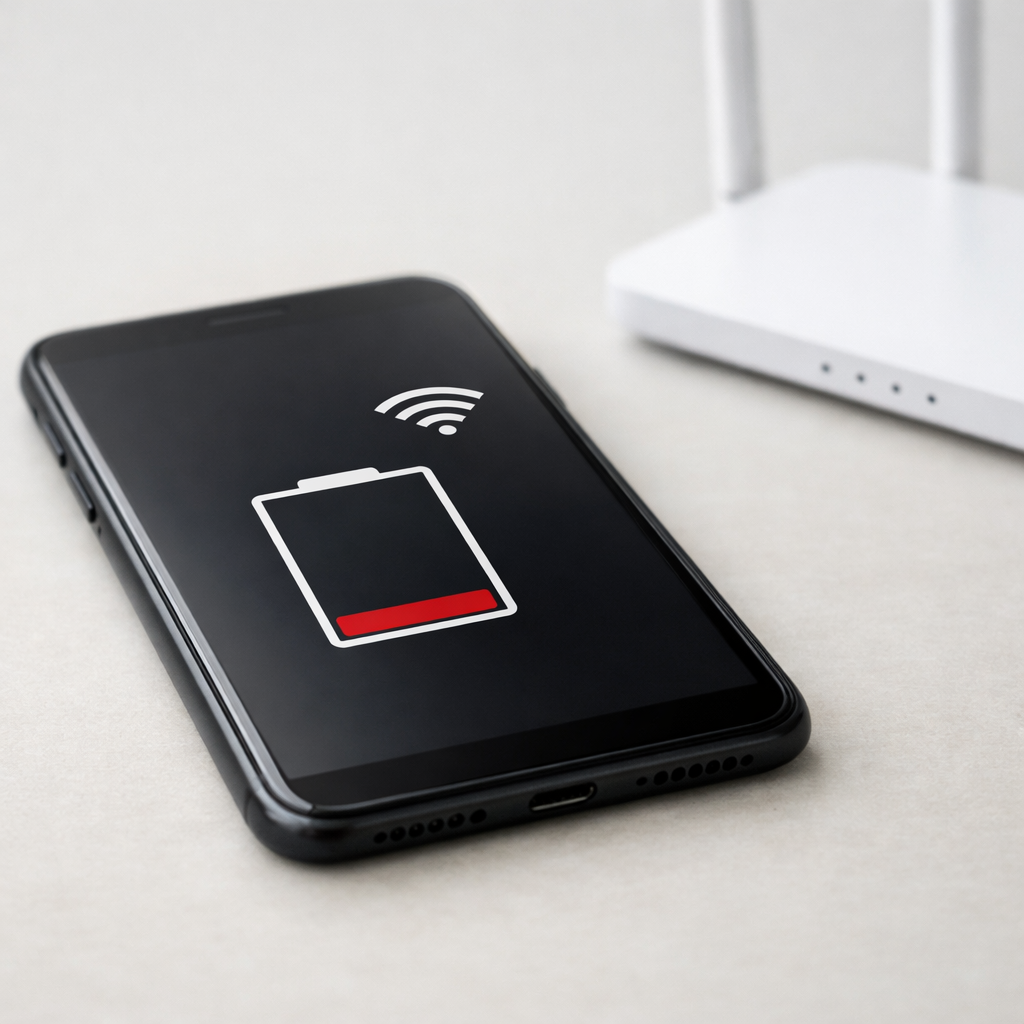
| WiFi drain is worst in specific places (bedroom, office corner) and improves near the router | Weak signal causing higher transmit power plus heat, revealing underlying power inefficiency |
| Battery graph shows big drops during “WiFi” time, but usage is mostly background | Background sync plus repeated reconnects; can be amplified by a degraded battery or charging circuitry |
Why This Happens
WiFi itself uses power, but it should not cause extreme drain during normal browsing. When charging circuitry or power-management parts are aging or heat-stressed, the phone becomes less efficient at converting and delivering power, so the same WiFi workload costs more battery.
In real life, this often follows habits like fast charging on a soft surface, using the phone while charging, charging in a hot car, or using a cheap adapter that runs unusually warm. These situations can heat the charging port and internal power circuitry, and repeated heat cycles can weaken solder joints or degrade components that regulate voltage.
Once inefficiency starts, WiFi becomes a “stress test”: the radio ramps up for downloads, background sync, and reconnect attempts, and the phone warms up. Heat makes batteries less efficient and increases internal resistance, so you see a faster battery drop, which can look like a WiFi problem even when the device’s power path is the real issue.
Most Common Causes (Ranked)
- 1) Charging/power-path inefficiency from heat stress: A stressed charging port area or internal power-management components can waste power as heat, so WiFi activity drains the battery faster than it used to.
- 2) Unstable or overheating charger/cable: Poor-quality chargers can introduce electrical noise and extra heat; even when you are not charging, prior stress can leave the device more sensitive to WiFi load.
- 3) Weak WiFi signal causing high transmit power: When signal is low, the phone boosts WiFi power and retries packets, which increases heat and exposes marginal power regulation.
- 4) Background re-connections and scanning: WiFi scanning, location services, and flaky networks can keep the radio awake and busy, increasing heat and drain.
- 5) Battery aging after repeated hot charging: A worn battery has higher resistance and drops voltage faster under load, so normal WiFi use looks like heavy drain.
- 6) Router or network issues (busy channels, captive portals): Constant handshakes, retries, or sign-in prompts can create a steady background load that becomes obvious on an already stressed device.
If the drain slowly improves after you reduce heat and use a reliable charger for a week, that usually indicates the device was being pushed into inefficient, hot operating conditions rather than having a sudden hard failure.
How to Check the Problem Safely
- Check 1: Feel for heat patterns: use WiFi for 5 minutes, then touch the area near the charging port and the back of the phone. Unusual warmth near the port during simple WiFi use can hint at power-path inefficiency.
- Check 2: Compare WiFi vs airplane mode: charge the phone to the same level, then use it for 15 minutes on WiFi and 15 minutes in airplane mode (screen brightness same). A big difference plus heat points to radio load amplifying an efficiency problem.
- Check 3: Test strong signal: stand close to the router and repeat your normal task (browsing/streaming). If the drain drops noticeably near the router, weak-signal transmit power is a major factor.
- Check 4: Change the charger setup for 48 hours: use a known good cable and reputable charger, and avoid charging while using WiFi-heavy apps. If the phone runs cooler and holds charge better, your previous charging setup likely caused stress.
- Check 5: Check battery and system stats: look at battery health (if your device shows it) and the battery usage list for WiFi, hotspot, system services, and “mobile services” spikes during WiFi time.
Safety note: if you notice a burning smell, visible swelling, or the device becomes too hot to hold, stop using it and do not charge it until it’s inspected.
How to Fix It
- Fix 1 (easiest): Reduce heat immediately by removing the case during charging and avoiding charging while streaming or gaming. Lower heat reduces power loss and slows further component wear.
- Fix 2: Replace the charger and cable with an original or certified set. A stable charger reduces electrical stress and can prevent the phone from running hotter under normal WiFi loads.
- Fix 3: Improve WiFi signal quality: move closer to the router, switch to 5 GHz/6 GHz when available at short range, or use 2.4 GHz for better range through walls. A cleaner signal reduces retries and transmit power.
- Fix 4: Turn off unnecessary scanning and background activity: disable WiFi scanning in location settings, limit background refresh for the worst apps, and forget/reconnect to problematic networks. This reduces “always-on” radio work that creates heat.
- Fix 5 (advanced/last resort): Have a technician inspect the charging port and power circuitry, and consider a battery replacement if health is low. If power components are degraded, software tweaks won’t fully restore normal efficiency.
Signs of Battery or Hardware Damage
- Phone gets hot near the charging port or lower edge during light WiFi use.
- Battery percentage drops in chunks (for example, 5–10% at once) during normal browsing.
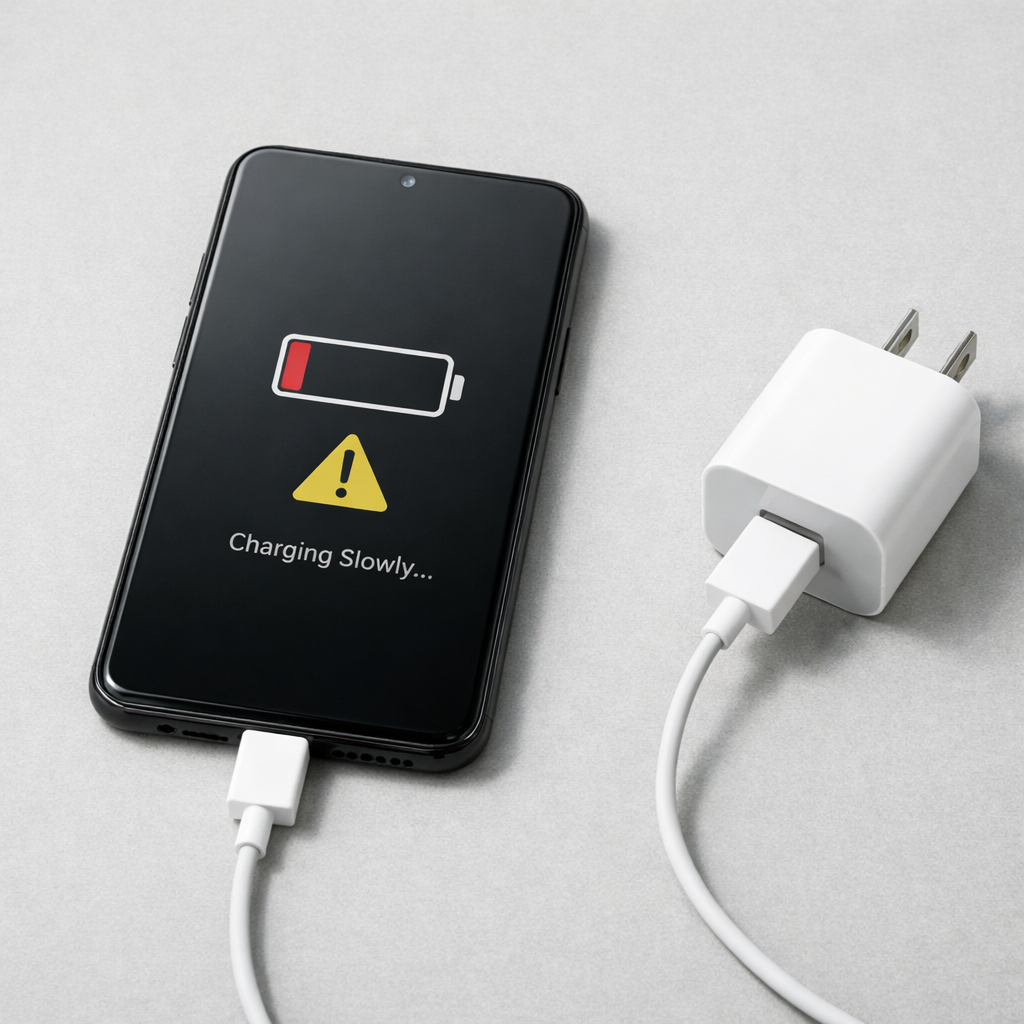
- Charging is inconsistent: slow one day, normal the next, or it stops and starts.
- Battery drain is much worse while charging or right after unplugging.
- Random reboots, sudden shutdowns above 20–30%, or performance throttling when warm.
- Charger, cable, or port smells hot, or the adapter is unusually warm to the touch.
- Visible battery swelling, screen lifting, or a rocking phone on a flat table.
When Repair Is No Longer Worth It
If the device overheats during basic tasks, shuts down unexpectedly, or shows swelling, replacement is often safer and more cost-effective than chasing intermittent power issues. Replacing a battery can help, but if charging circuitry or the main board is stressed, symptoms may return.
As a rule, if the repair estimate approaches a large fraction of the phone’s resale value or you rely on the phone for work and cannot risk instability, put the money toward a newer device. If the phone is otherwise in great shape, start with a reputable charger/cable and a battery swap before considering board-level repair.
How to Prevent This Problem in the Future
- Use a reputable charger and cable, and replace cables that feel loose, kinked, or get hot.
- Avoid heavy use while charging, especially video calls, hotspot, gaming, or streaming.
- Keep the phone cool: don’t charge under pillows, on blankets, or in direct sun.
- Prefer slower charging when you can (or disable fast charging) to reduce heat stress over time.
- Maintain strong WiFi coverage at home with better router placement or a mesh system to avoid constant high-power transmit.
- Unplug once charged rather than leaving it on a hot charger for long periods.
- If the phone starts warming more than usual, address it early by changing charging habits before components degrade further.
FAQ
Is it normal for WiFi to drain more battery than mobile data?
Not always. In many cases, WiFi is actually more efficient than mobile data, especially with a strong signal. If WiFi drain is suddenly worse, look for heat, weak WiFi signal, or an underlying power/charging inefficiency that makes the device waste energy.
Why does my battery drain faster on WiFi even when I’m not using the phone?
Background sync, WiFi scanning, and repeated reconnect attempts can keep the WiFi radio active. If your phone’s power components or battery are heat-stressed, that “small” background work can become a noticeable drain. Try disabling WiFi scanning and forgetting problematic networks to see if standby improves.
Can a bad charger really affect battery drain when I’m not charging?
Yes, indirectly. Repeated charging heat and unstable power can accelerate wear in the battery and the charging/power circuitry, making the phone less efficient overall. After that, normal activities like WiFi can generate more heat and consume more battery than they used to.
Understanding how batteries behave over time can make troubleshooting much easier. Mark Reynolds breaks these patterns down in simple terms. You can explore more in the full guide.
For a full overview of this issue and step-by-step solutions, read the complete troubleshooting guide.