Device Charging Slow Even When Plugged In — Power Delivery Limitation Causes
Quick Answer
Most “slow charging while plugged in” problems happen because the charger, cable, or port is only delivering a low wattage, or because power negotiation (USB-C Power Delivery or a fast-charge standard) fails and the device falls back to basic charging.
In plain terms, your device is getting power, but not enough to charge quickly—especially if you’re using it at the same time. Depending on the device and battery size, a proper fast charge might reach 50% in 30–45 minutes, while low-watt charging can take 3–6+ hours or may barely rise during heavy use.
If you need a fast fix
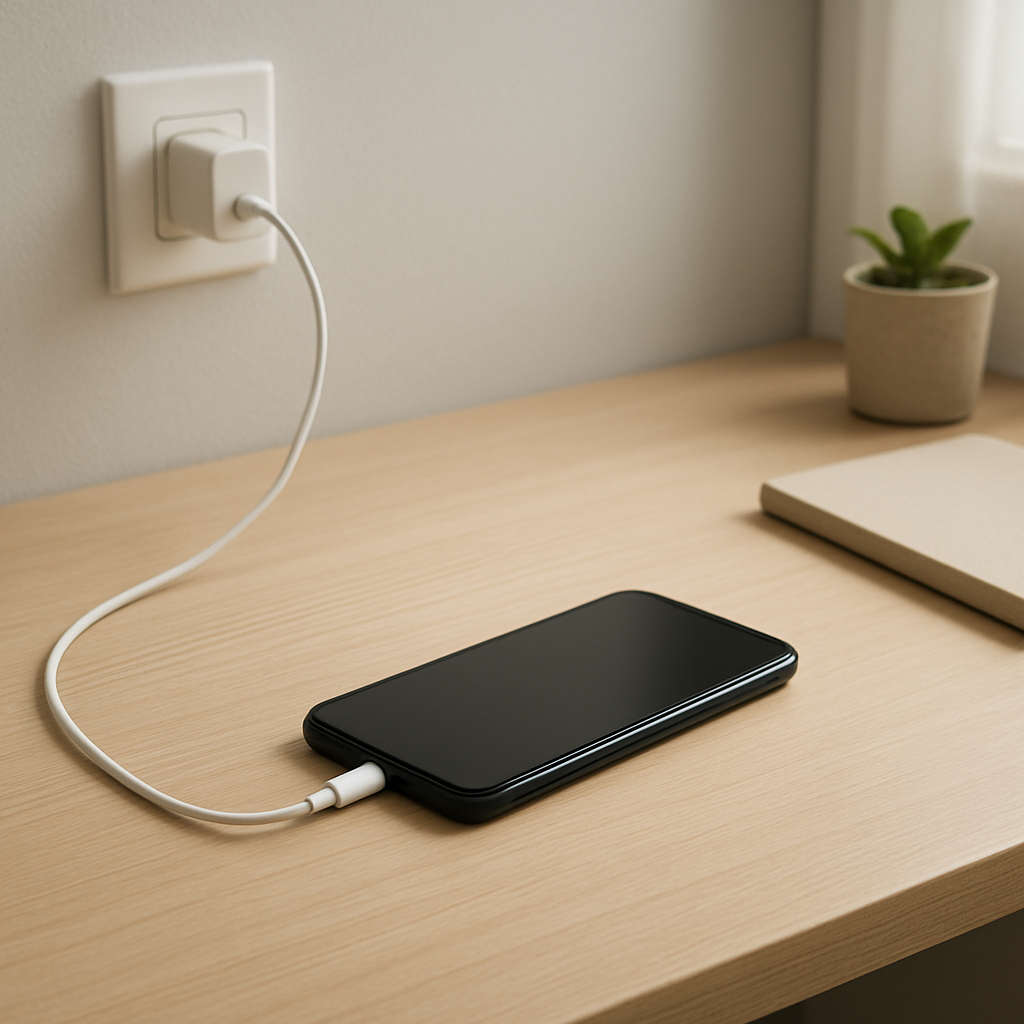
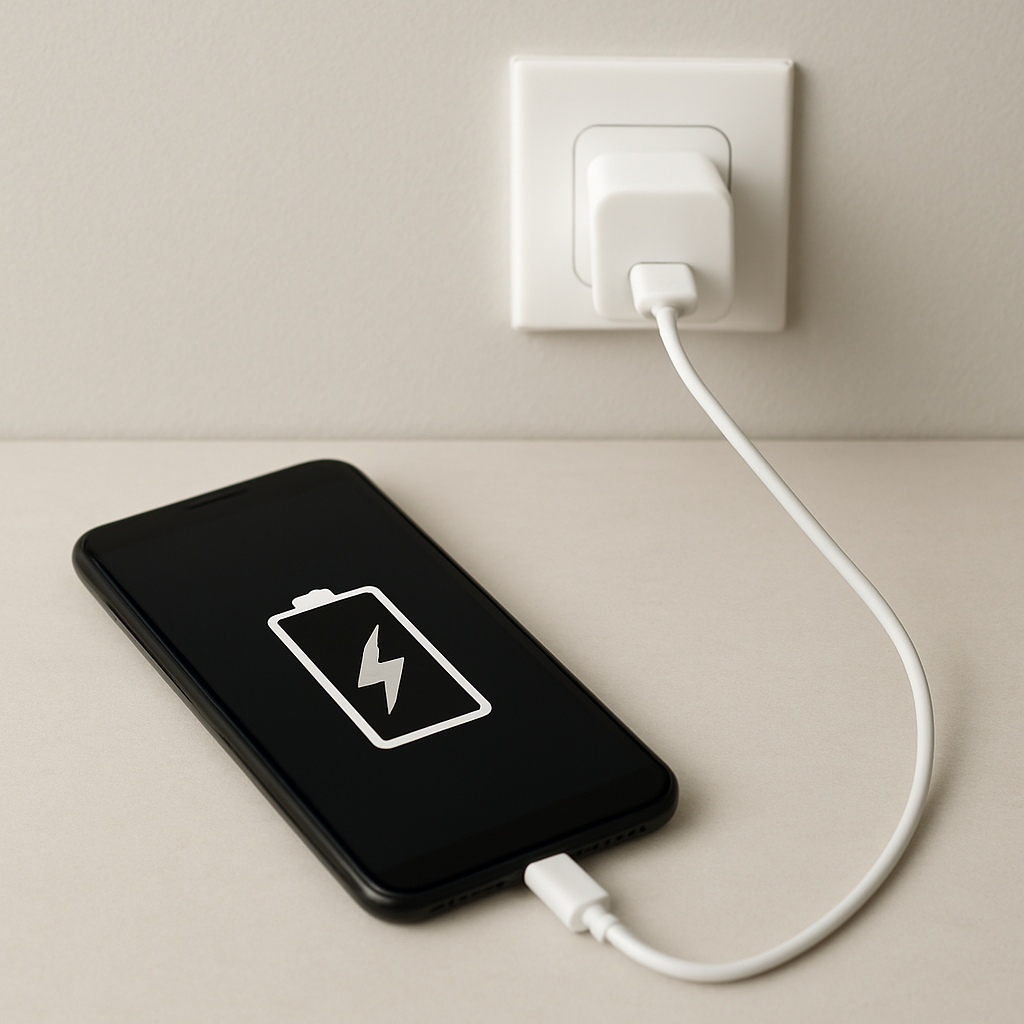
Switch to the original (or higher-watt) charger and a known-good cable, then plug directly into a wall outlet.
Use a different charging port (preferably USB-C on the charger, not USB-A) and avoid hubs, docks, or front-panel computer ports.
Turn on Airplane Mode or close heavy apps for 10–15 minutes to confirm whether the issue is low input power versus high power use.
Quick Diagnosis Table
Symptom
Most likely cause
Charges normally on one charger but slowly on another
That charger has insufficient wattage or lacks the fast-charge standard your device needs
“Charging” shows, but battery percentage barely increases
Low negotiated power (fallback mode) or device power use is higher than charge input
Fast charging works with one cable but not others
Cable can’t carry the required current or lacks e-marker support for higher power
Charges faster from a wall outlet than a laptop/USB port
USB port is limited (often 2.5–7.5W) or sharing power across devices
Charging speed changes when you move the connector
Loose/dirty port or damaged cable causing unstable negotiation and reduced power
Why This Happens
Modern devices don’t just “take power.” They negotiate how much power they are allowed to draw, based on the charger, cable, and the device’s own charging rules.
For example, a phone that can fast charge at 20–30W may only get 5–10W from an older USB-A brick, a weak car adapter, or a laptop port. A USB-C charger might also provide plenty of wattage, but if the cable is low quality or the connection is unstable, the device may drop into a safe low-power mode.
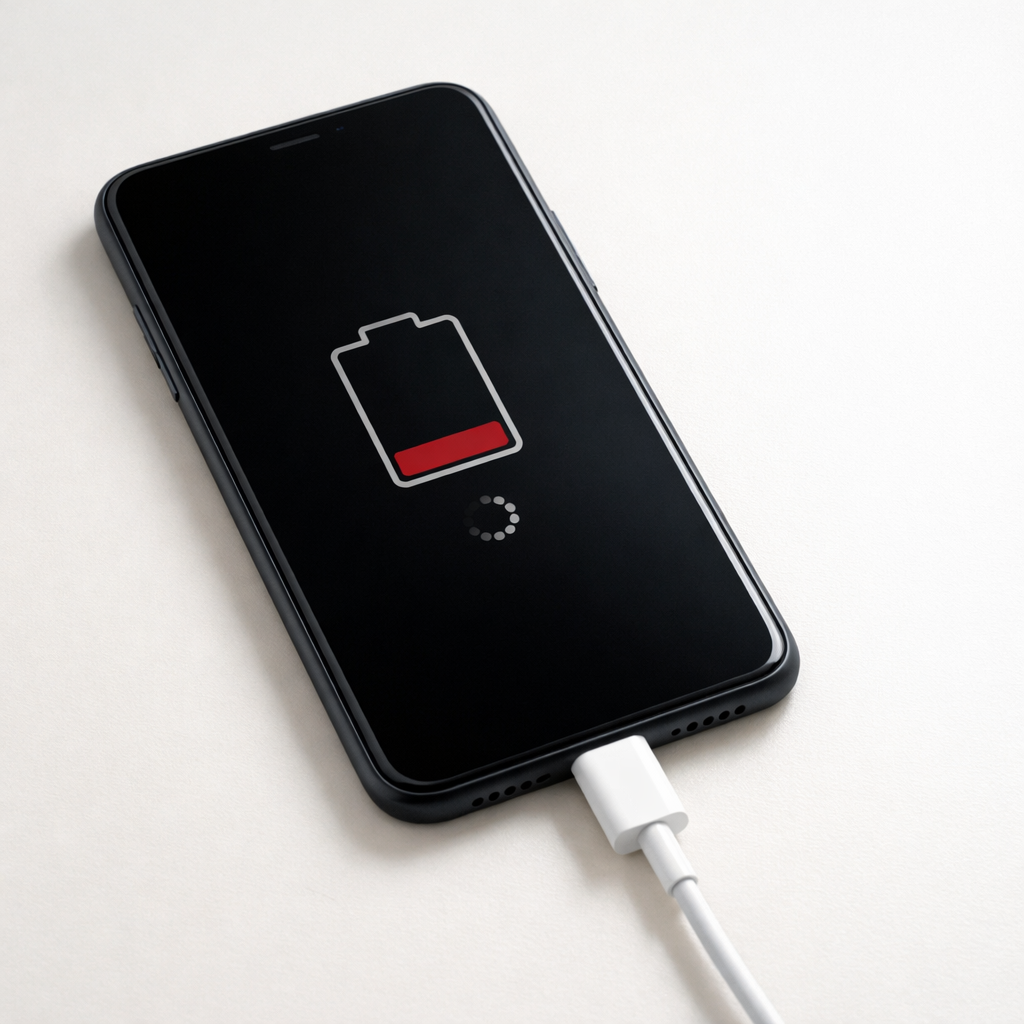
When the incoming wattage is too low, the device can still show the charging icon, but the battery rises slowly, stalls at certain percentages, or even drains while you’re gaming, using navigation, or keeping the screen bright.
Most Common Causes (Ranked)
1) Charger wattage is too low: Many “extra” chargers output 5–12W, which is fine for overnight charging but slow for large batteries or tablets. A device that expects 18–65W will crawl on low power.
2) Power negotiation fails and the device falls back: If USB-C Power Delivery (or another fast-charge standard) doesn’t negotiate correctly, the device often defaults to a basic, slower profile for safety.
3) Cable can’t support the required power: Some USB-C cables are charge-only but limited, worn, or too thin, which can reduce charging speed. Higher-watt charging may require a quality cable, and some setups need an e-marked cable.
4) Charging from a low-power source (PC, hub, monitor, car port): Many USB ports are designed for accessories, not fast charging. Shared hubs and monitor ports may split power or cap output.
5) Dirty or loose charging port: Pocket lint or a worn connector can cause intermittent contact, making the device repeatedly renegotiate power and settle at a lower rate.
6) Heat or battery protection throttling: Even with a good charger, the device may slow charging when it’s hot, near full, or under heavy use to protect the battery.
If charging becomes steadily faster after changing one item (charger, cable, or outlet), that gradual improvement usually means the battery is fine and the issue was power delivery, not the battery itself.
How to Check the Problem Safely
Check 1: Look at the charger label and find the output wattage or USB-C PD profiles (for example, 5V=3A, 9V=2A, 15V=3A, 20V=3.25A). Compare it to what your device recommends.
Check 2: Try a different wall outlet and plug the charger directly into the wall, not a power strip with many devices. This removes common power-sharing issues.
Check 3: Swap one item at a time: first cable, then charger, then power source. If one change fixes it, you’ve found the bottleneck.
Check 4: Check for fast-charge indicators in your device settings (examples: “Fast charging,” “Rapid charging,” “Charging rapidly,” or a different charging icon). If it never appears, negotiation is likely failing.
Check 5: Inspect the port and connector for lint or looseness. If the cable wiggles a lot or charging cuts in and out, the connection may be degrading.
Safety note: avoid metal tools to clean ports, and stop using any charger or cable that gets unusually hot, smells burnt, or causes the connector to discolor.
How to Fix It
Fix 1 (easiest): Use a higher-watt, reputable charger that matches your device’s fast-charge standard. This helps because the device can draw the power it was designed for instead of being capped.
Fix 2: Replace the cable with a quality cable rated for the wattage you need (often 60W or 100W for USB-C). This helps because the cable is part of the power “handshake” and must carry the current without major losses.
Fix 3: Avoid low-power sources: don’t charge from a laptop USB port, monitor, or passive hub when you need speed. A wall charger with USB-C PD is more likely to negotiate correctly and deliver stable power.
Fix 4: Reduce heat and background load while charging: remove thick cases, keep the device out of sunlight, and pause gaming or navigation. This helps because devices throttle charging when hot or when power demand is high.
Fix 5 (advanced/last resort): Clean the port carefully with a soft, non-metal pick and compressed air, then test again. If the port is loose or charging is intermittent, consider professional port repair or replacement.
Signs of Battery or Hardware Damage
Battery percentage jumps up or down suddenly, especially after rebooting.
The device only charges at certain angles, or disconnects with minor movement.
Charger or cable becomes extremely hot quickly, even at low usage.
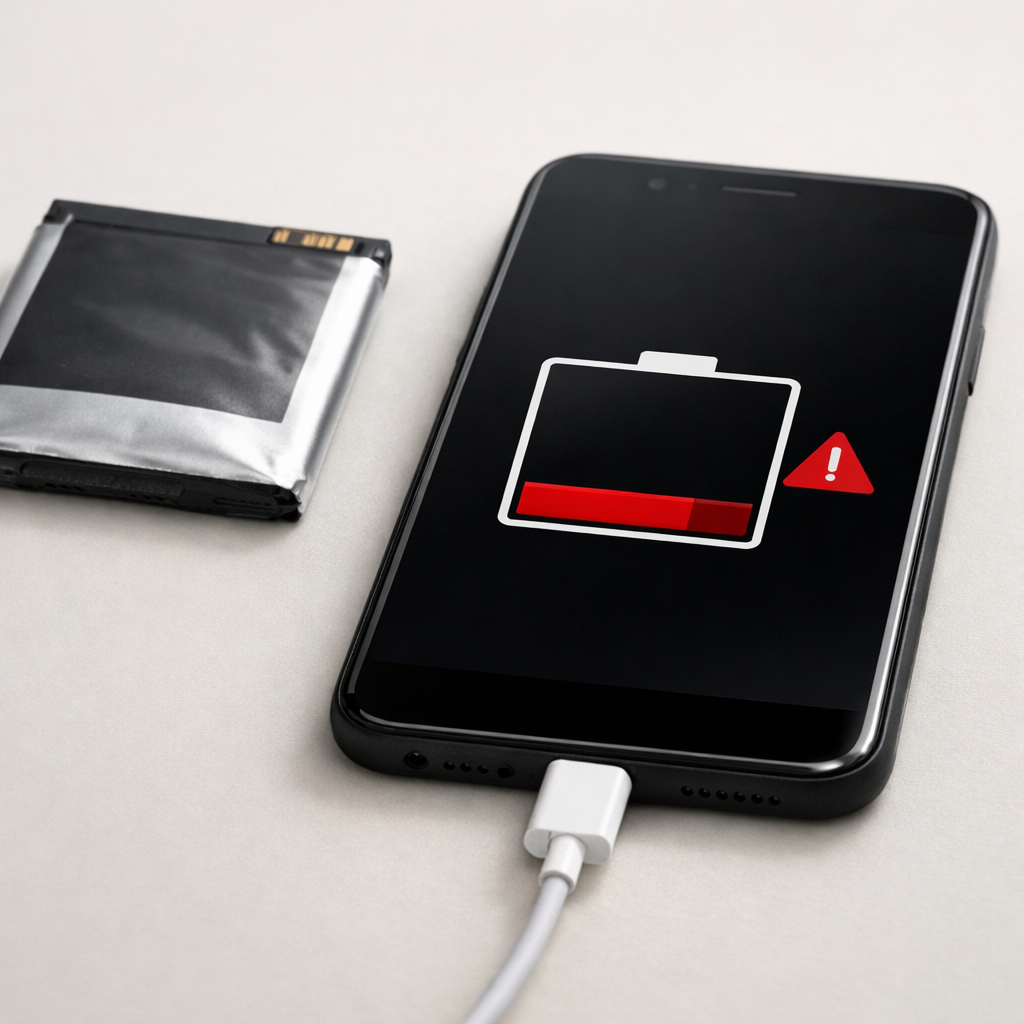
Visible swelling, lifting screen, or a case that no longer sits flat.
Frequent “moisture detected,” “accessory not supported,” or repeated connect/disconnect sounds.
Charging stops at a low percentage and won’t continue on multiple known-good chargers.
Burn marks, melted plastic, or a burnt smell near the charging port or charger.
When Repair Is No Longer Worth It
If the device charges slowly because the port is physically damaged, the repair can be worthwhile on newer phones, tablets, and laptops, but less so on older models with worn batteries and declining performance. If multiple parts are failing (port plus battery plus overheating), replacement is often the more reliable option.
As a guideline, consider repair if the cost is clearly below the device’s resale value and you expect at least another year of use. If repair cost approaches 40–60% of a comparable replacement, putting that money toward a new device (with a new battery and modern charging support) is usually the smarter move.
How to Prevent This Problem in the Future
Buy chargers from reputable brands and match the wattage to your device (phones often need 18–30W, tablets 20–45W, many laptops 45–100W).
Prefer USB-C Power Delivery chargers for modern devices, and avoid unknown “fast charger” claims with no clear output ratings.
Use quality cables rated for the power you need, and replace cables that feel loose or show kinks near the ends.
Plug directly into the wall when you need speed, and treat hubs/monitors/PC ports as convenience charging.
Keep the charging port clean and avoid charging in dusty pockets or while the cable is under tension.
Manage heat: don’t fast charge under pillows, in hot cars, or in direct sun.
Update your device OS and firmware when available, since charging behavior and compatibility fixes can be included.
FAQ
Why does my device say “charging” but the battery still goes down?
It usually means the device is using more power than it’s receiving. This happens a lot with low-watt chargers, weak USB ports, or when negotiation fails and charging falls back to a basic mode. Try a higher-watt wall charger and reduce screen brightness or heavy apps to confirm.
Do I need a special cable for fast charging?
Often, yes. Many cheap or older cables can charge, but can’t reliably carry higher current, which limits wattage and can break USB-C power negotiation. A good-quality USB-C cable rated for 60W or 100W is a safe upgrade for most fast-charging setups.
Why is charging slower after 80%?
This can be normal. Many devices intentionally slow charging near 80–100% to reduce heat and battery wear, and some have “optimized charging” features that pause near 80% until you’re likely to unplug. If it’s slow even at low percentages on a known-good charger, focus on wattage and negotiation issues first.
Understanding how batteries behave over time can make troubleshooting much easier. Mark Reynolds breaks these patterns down in simple terms. You can explore more in the full guide.