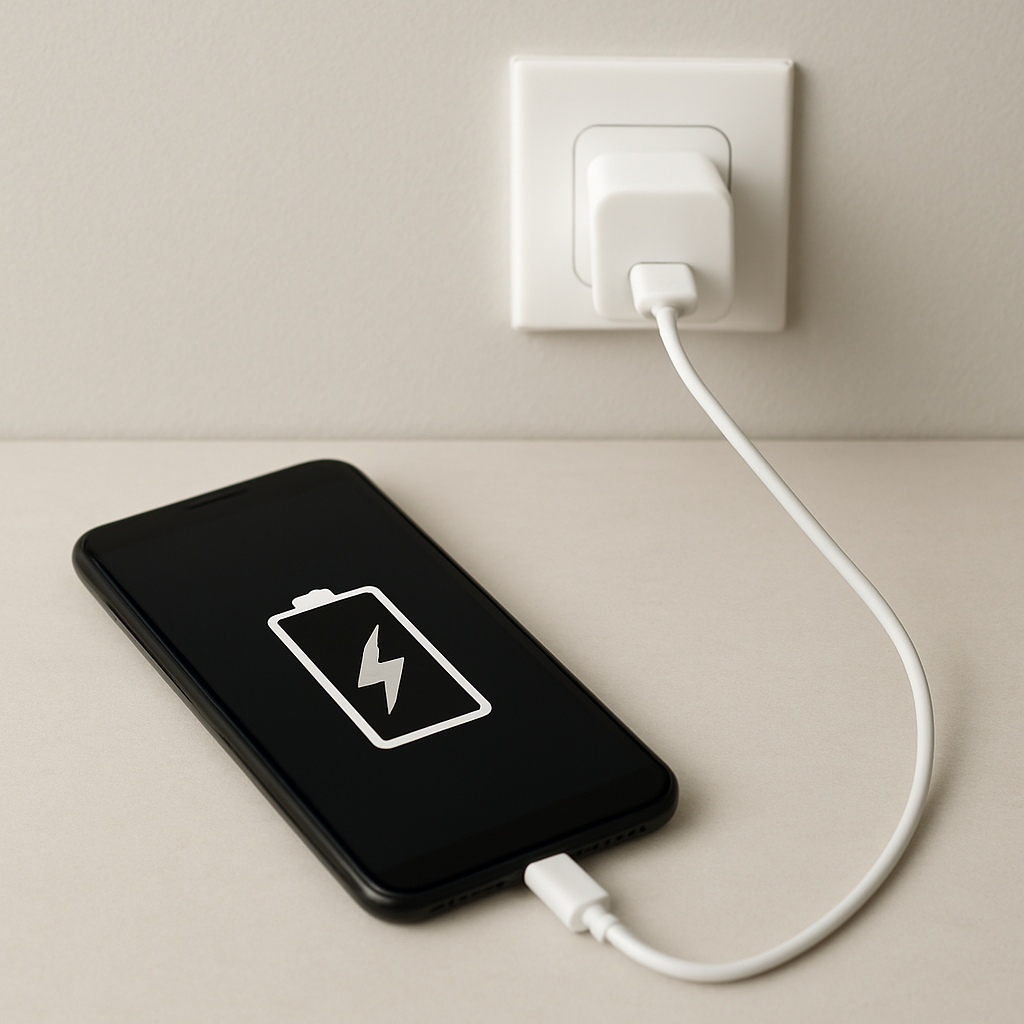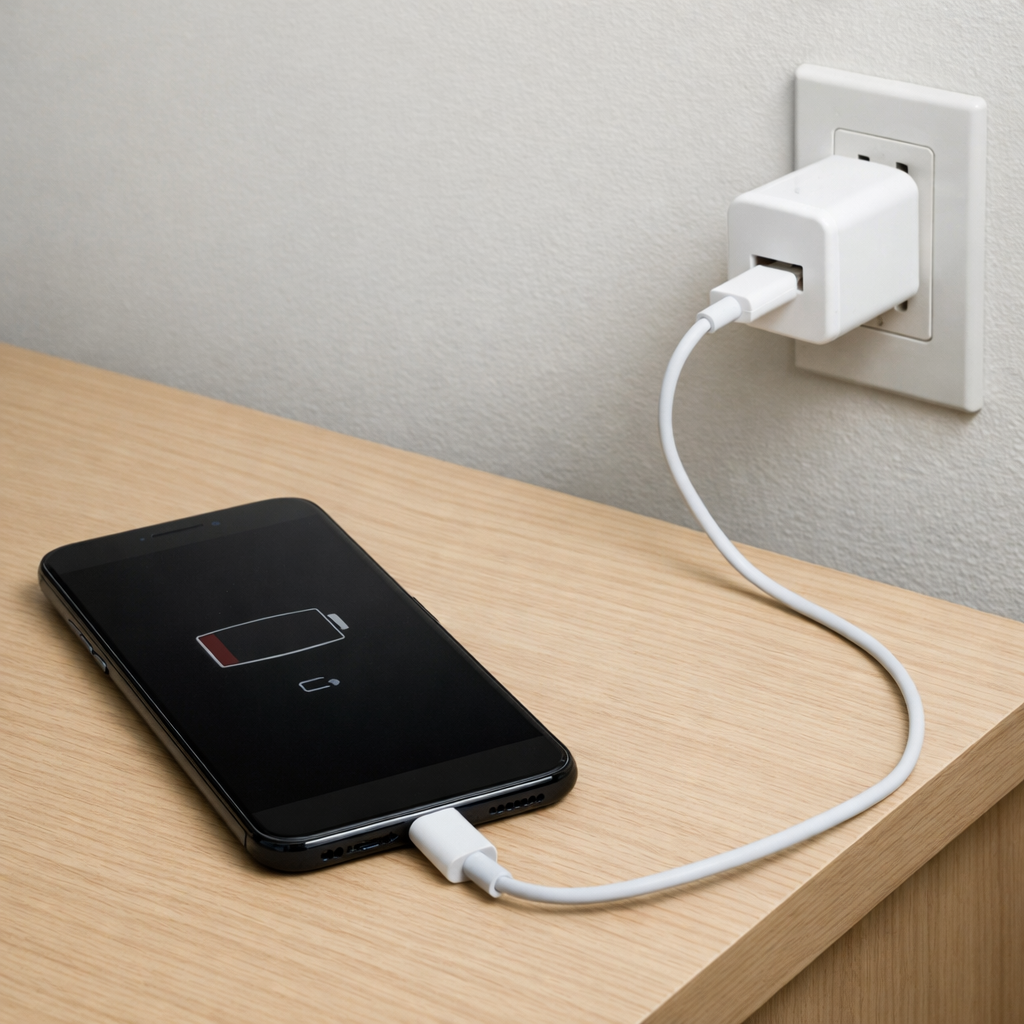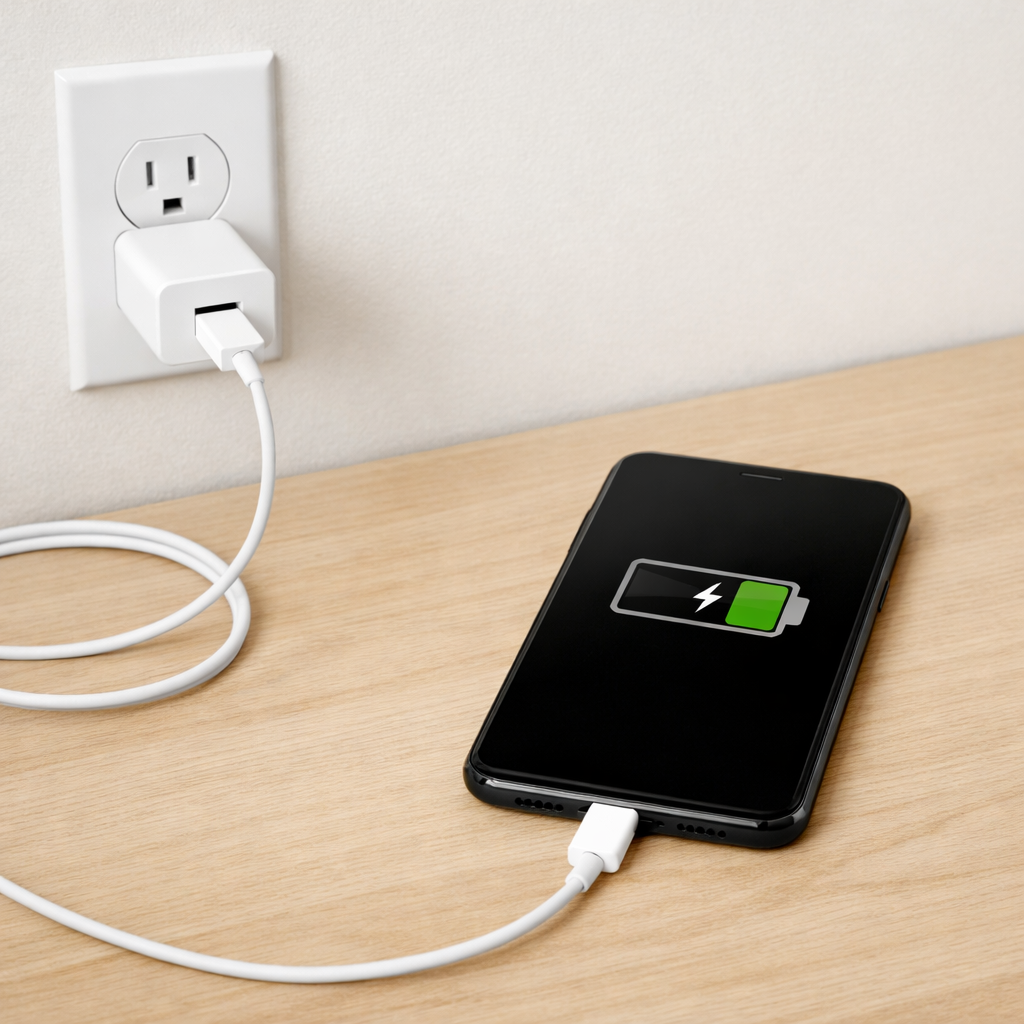
Device Charging Stops Intermittently — Loose Connection or Power Regulation Issue?
Quick Answer
Intermittent charging is most often caused by unstable power input (a loose, dirty, or worn connection, or a weak power source) or by charging control software that keeps pausing and resuming to protect the battery. Your device may briefly “handshake” with the charger, then cut power when voltage dips or when the system decides charging should slow or stop.
This usually means the device is not receiving steady, clean power long enough to maintain a constant charge session. It can happen immediately when you plug in, or after a few minutes as the cable warms up, the battery heats, or the device changes charging mode.
If you need a fast fix
- Switch to a different wall outlet and a known-good charger and cable, then plug in firmly until you feel a solid connection.
- Clean the charging port gently (power off first) and remove lint, then try charging without moving the cable.
- Restart the device and charge with the screen off for 15–30 minutes to reduce heat and background power draw.
Quick Diagnosis Table
| Symptom | Most likely cause |
|---|---|
| Charging icon flickers on/off when the cable is bumped | Loose port, worn cable plug, or debris preventing a stable connection |
| Charges for a few minutes, then stops until you unplug and replug | Power adapter voltage drop, cable resistance, or charging controller resetting |
| Stops charging when the device gets warm or while using it | Thermal protection or software-controlled charging limits |
| Charges normally on a different charger but not on your usual one | Underpowered or failing adapter, incompatible fast-charge profile, or damaged cable |
| Only charges from a computer USB port, not a wall charger (or the reverse) | Different power negotiation behavior, port power limits, or unstable mains adapter |
Why This Happens
Charging is not just “electricity going in.” Your charger, cable, and device constantly communicate and adjust power to keep the battery safe. If the device senses unstable voltage, unexpected resistance, or too much heat, it can pause charging to prevent damage.
In real life, this looks like a charging icon that comes and goes or a battery percentage that stalls. A slightly loose plug, a frayed cable, or a tired adapter can cause tiny power dips that reset charging. On the software side, many phones and laptops intentionally slow or stop charging near full charge, during heavy use, or when temperature rises.
In short, the symptom (charging stopping) appears when the device can’t maintain a steady charge session, either because the power path is physically unstable or because the charging system is throttling and restarting.
Most Common Causes (Ranked)
- 1) Loose or contaminated connection at the charging port: Lint, oxidation, or a worn port can prevent the plug from seating fully, causing split-second disconnects.
- 2) Failing or low-quality cable (high resistance): A cable can look fine but behave poorly under load, especially with fast charging, leading to voltage drop and charging resets.
- 3) Weak, overheating, or incompatible power adapter: Some adapters sag under load or overheat and reduce output, which makes the device stop and start charging.
- 4) Charging regulation or battery protection behavior: Features like optimized charging, battery health protection, and thermal throttling can pause charging when the device is warm or near a target level.
- 5) Power source instability: Loose wall outlets, worn power strips, or car chargers with fluctuating output can interrupt power briefly and repeatedly.
- 6) Physical damage to the port or internal power components: Bent pins, cracked solder joints, or liquid corrosion can create intermittent contact that worsens over time.
If the charging becomes more stable after cleaning the port or switching to a better charger and cable, that gradual improvement usually indicates an input-quality problem rather than a failing battery.
How to Check the Problem Safely
- Check 1: Try a known-good charger and cable that meet your device’s recommended wattage, then test again from a wall outlet (not a computer or power bank).
- Check 2: Inspect the cable ends for looseness, discoloration, or heat marks, and gently wiggle the plug while watching the charging indicator for flicker.
- Check 3: Look inside the charging port with a light and check for lint buildup or bent pins, then see if the plug clicks or seats firmly.
- Check 4: Test with the device powered on but idle, screen off, and no heavy apps running, then test again during use to see if load/heat triggers the stop.
- Check 5: Review battery and charging settings (optimized charging, battery protection limits, adaptive charging) and note whether charging stops at a consistent percentage or time.
Safety note: avoid metal tools in the charging port and stop immediately if you smell burning, see melting, or feel excessive heat at the connector.
How to Fix It
- Fix 1 (easiest): Use a different high-quality cable and the original (or certified) charger, because a stable, low-resistance path prevents voltage dips that cause charging to restart.
- Fix 2: Clean the charging port carefully with a wooden or plastic toothpick and a soft brush, because lint can keep the plug from fully seating and create intermittent contact.
- Fix 3: Change the power source (different wall outlet, skip loose power strips, avoid cheap car adapters), because an unstable supply can mimic a “bad battery” even when the device is fine.
- Fix 4: Reduce heat and software throttling: remove thick cases while charging, avoid gaming/video calls, and charge with the screen off, because temperature and load often trigger charging pauses.
- Fix 5 (advanced/last resort): Update the device OS/firmware and reset charging-related settings (like optimized charging), because bugs or corrupted power management settings can cause repeated stop-start behavior; if the port is physically loose, schedule a port replacement.
Signs of Battery or Hardware Damage
- Charging only works at a specific cable angle or requires pressure to maintain connection.
- The charging port feels wobbly, the plug no longer fits snugly, or the device frequently disconnects from data transfer too.
- The device or connector becomes unusually hot near the port during normal charging.
- Swollen battery symptoms such as a lifted screen, bulging case, or rocking on a flat table.
- Battery percentage jumps up and down, shuts down at higher percentages, or drops rapidly even after “charging.”
- Visible corrosion, moisture indicators triggered, or green/white residue in the port.
- Burning smell, crackling sounds, or any melting/discoloration on the cable or port.
When Repair Is No Longer Worth It
If the issue is a loose port, internal corrosion, or power regulation failure on the main board, repairs can be less predictable than a simple cable or adapter swap. For older devices, intermittent charging can be a sign that multiple parts are aging at once.
As a rule, consider replacement if repair costs approach 30–50% of the device’s current replacement price, or if you rely on it daily and downtime is expensive. If a new certified charger and cable fix the problem, that’s usually the best value and the safest first investment.
How to Prevent This Problem in the Future
- Use certified or manufacturer-recommended chargers and cables with the correct wattage for your device.
- Avoid charging while the cable is under tension; route the cable so it doesn’t pull sideways on the port.
- Keep the port clean by periodically removing lint and avoiding pocket debris and sandy environments.
- Control heat: don’t charge under pillows, in direct sunlight, or while running heavy apps for long periods.
- Plug into stable power sources; replace loose power strips and avoid very cheap car chargers.
- Don’t frequently “hot swap” between different fast-charge brands unless your device supports them well, since power negotiation changes can expose marginal cables.
- Enable battery protection features thoughtfully, but learn what they do so a planned pause doesn’t look like a fault.
FAQ
Why does charging stop at the same percentage every time?
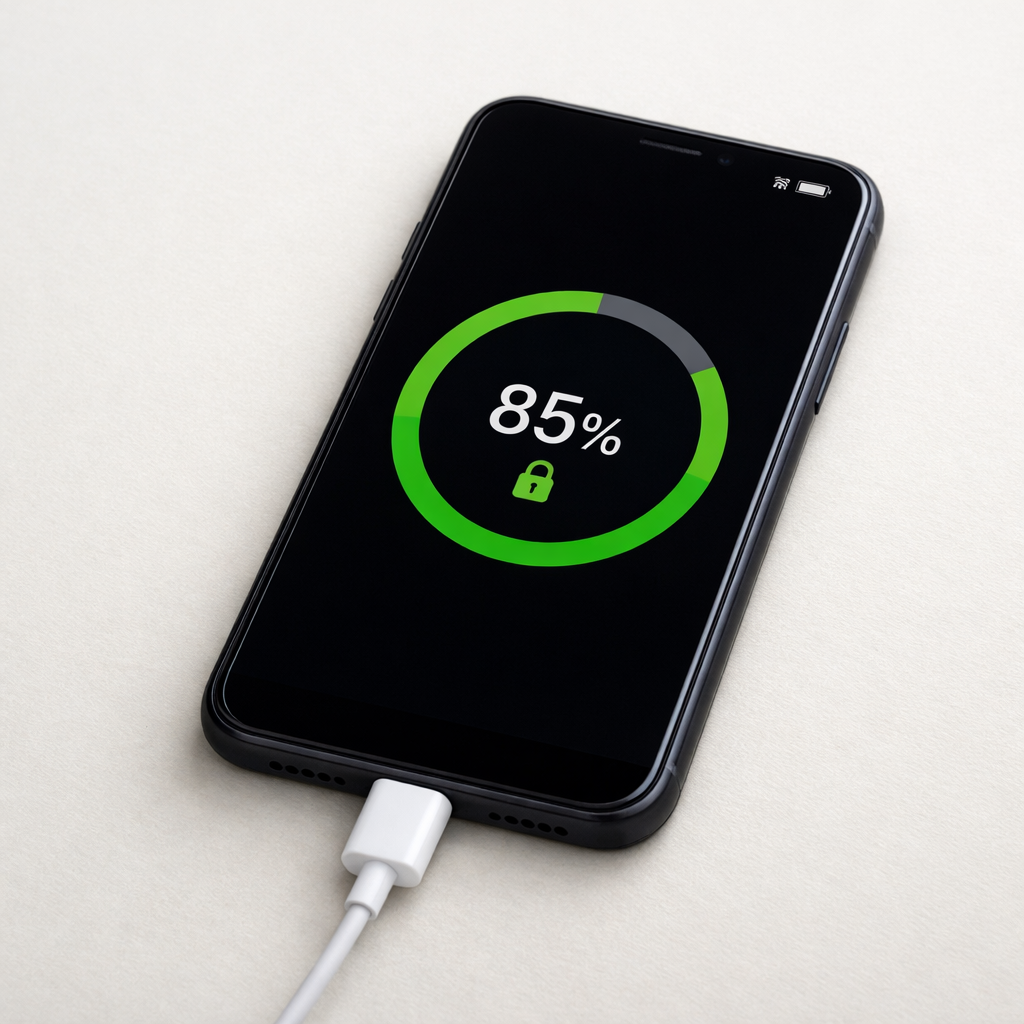
Many devices pause charging at certain levels due to battery protection features, especially around 80% or near full charge. If it resumes later on its own, it may be optimized charging rather than a hardware fault. If it stops and never resumes unless you replug, suspect an unstable charger, cable, or port.
Can a damaged cable really cause charging to stop, not just slow down?
Yes. A worn cable can briefly drop voltage when current demand rises, which can make the device disconnect and reconnect charging repeatedly. This is common with fast charging, where the cable is pushed harder and small defects show up as interruptions.
Is it safe to keep replugging when charging cuts out?
Occasional replugging is usually fine, but repeated stop-start cycles can increase heat at a poor connection point. If the connector gets hot, smells, or shows discoloration, stop using that charger/cable and switch to a known-good set. Ongoing intermittent charging is a good reason to have the port inspected before it worsens.
Understanding how batteries behave over time can make troubleshooting much easier. Mark Reynolds breaks these patterns down in simple terms. You can explore more in the full guide.
For a full overview of this issue and step-by-step solutions, read the complete troubleshooting guide.