Device Battery Percentage Jumping — Calibration Error or Sensor Failure?
Quick Answer
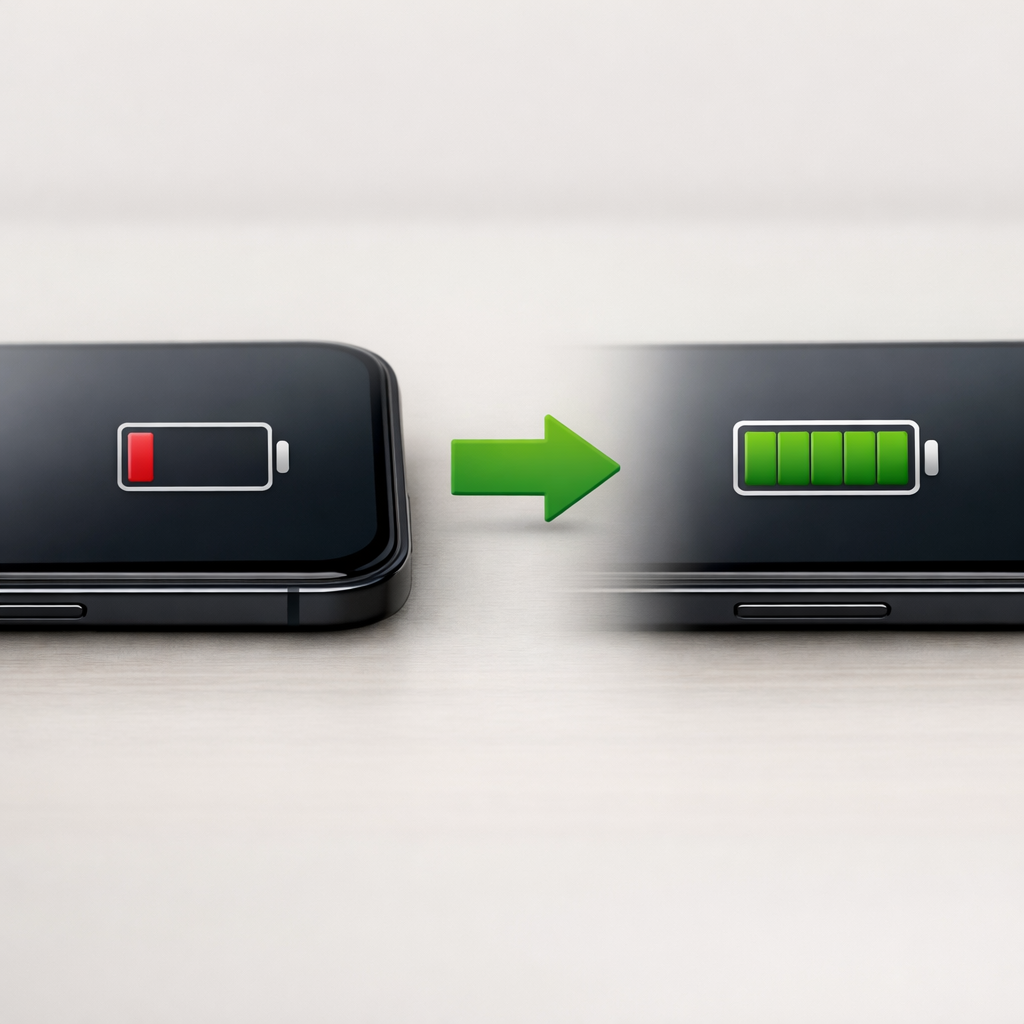
Most “battery percentage jumping” problems are caused by uneven standby drain: background services keep waking the device or a small hardware leak pulls power even when you think everything is idle. The battery level then updates in chunks, so it looks like it drops 5–20% at once.
This usually means your device is spending “sleep time” doing work (or losing power quietly), so the gauge catches up later. It’s most common after several hours in standby, overnight, or right after waking the screen and reconnecting to Wi‑Fi/cellular.
If you need a fast fix
Restart the device, then leave it locked for 30–60 minutes to see if the drain smooths out.
Turn on Airplane mode (or disable Wi‑Fi and mobile data) for one standby hour to check whether radios are causing the jump.
Lower screen brightness and turn off location/Bluetooth for the next few hours to reduce background wake-ups.
Quick Diagnosis Table
Symptom
Most likely cause
Battery drops a lot overnight while unused, then stabilizes during the day
Background services waking the phone (sync, push notifications, scans) or weak signal causing extra standby power
Battery percentage jumps down right after unlock or after turning on Wi‑Fi/cellular
Power use happened during standby; the gauge updates once the device wakes and recalculates
Battery climbs several percent quickly after plugging in, then charges normally
Calibration drift from many short charges; the estimate “snaps” to a new value
Percentage jitters up and down by 1–3% repeatedly
Unstable background load (app looping, notifications storm), or a worn battery that sags under small bursts
Big jumps plus unexpected shutdowns at 20–40%
Battery health is poor or the battery sensor/connection is failing under load
Why This Happens
Your device estimates battery percentage using voltage, current flow, temperature, and a “fuel gauge” model. In low-power standby, the screen is off but the device may still wake briefly for mail, messages, backups, app refresh, or network checks.
If a background service misbehaves, the device can wake far more often than normal. A weak cell signal can also increase standby draw because the radio works harder to stay connected, and this can happen even if you are not actively using the phone.
When that hidden drain happens, the percentage may not update smoothly while the device sleeps. Once you wake it, the system recalculates and the number “jumps” to match the energy that was already used, making it look like the battery suddenly dropped.
Most Common Causes (Ranked)
1) Background sync and push activity: Email, messaging apps, cloud photo backup, and social feeds can keep the device waking in standby, creating sudden percentage drops after you unlock.
2) Network scanning and weak signal: Poor LTE/5G/Wi‑Fi conditions increase radio power use; the phone may search, re-authenticate, or roam repeatedly, draining battery quietly.
3) App refresh loops or stuck services: A buggy app, VPN, accessibility service, or “device health” monitor can run repeatedly in the background and prevent deep sleep.
4) Hardware leak or aging battery behavior: As batteries wear, voltage sags more during small bursts (like notification checks), which can make the gauge correct itself in visible steps.
5) Calibration drift from many partial charges: Frequent top-ups can reduce the accuracy of the percentage estimate, making it “snap” after a reboot or after charging for a few minutes.
6) Battery sensor, connector, or power management issue: Less common, but a failing sensor or loose connection can cause erratic readings, often paired with heat or random shutdowns.
If the jumps become smaller after you reduce background activity and improve signal conditions, that gradual improvement usually indicates a software or standby-drain cause rather than a hard sensor failure.
How to Check the Problem Safely
Check 1: Review battery usage for the last 24 hours and look for apps with unusually high “background” time or activity while the screen was off.
Check 2: Do a controlled standby test: charge to around 80%, lock the screen, and leave it untouched for 60 minutes. Note the percentage before and after.
Check 3: Repeat the test with Airplane mode on (or with mobile data and Wi‑Fi off). If the drop improves a lot, radios or signal conditions are the main driver.
Check 4: Feel for warmth during standby (around the camera area or near the charging port). Warmth while idle often means background processing or a hardware leak.
Check 5: Plug in the charger and watch the first 5 minutes. If it “jumps up” quickly every time, calibration drift or voltage sag is likely.
Safety note: if the device gets hot in your pocket or while idle on a table, stop testing, remove the case, place it on a non-flammable surface, and avoid charging until it cools.
How to Fix It
Fix 1 (easiest): Restart, then update the OS and all apps. This clears stuck services and installs battery-related fixes that often reduce standby wake-ups.
Fix 2: Limit background activity: turn off background app refresh for non-essential apps, reduce push email frequency, and disable auto-sync for apps you rarely use. Fewer wake-ups means fewer percentage “catch-up” jumps.
Fix 3: Tackle radio drain: turn off Bluetooth and location scanning when not needed, forget and re-add problematic Wi‑Fi networks, and avoid low-signal areas when possible. Stable connections reduce invisible standby power.
Fix 4: Find the offender: temporarily uninstall or disable recently added apps, VPNs, battery savers, or accessibility tools. If the jumping stops, reintroduce apps one at a time to identify the trigger.
Fix 5 (advanced/last resort): Recalibrate the estimate once: use the device normally down to about 10–15%, then charge uninterrupted to 100% and leave it charging for an extra 30–60 minutes. If jumps persist with high idle drain, back up data and consider a factory reset to rule out software corruption.
Signs of Battery or Hardware Damage
Unexpected shutdowns even when the battery shows 20% or higher.
Rapid heating during light use or while the device is asleep.
Battery percentage jumps paired with charging that repeatedly starts/stops.
Swollen battery signs: screen lifting, back panel bulging, or the device rocking on a flat surface.
Noticeably reduced runtime that worsens week by week despite app changes.
Charging port feels loose, or the cable must be held at an angle to charge reliably.
Battery level drops several percent per minute under simple tasks (messaging, browsing) on a warm device.
When Repair Is No Longer Worth It
If the battery is swollen, the device overheats in standby, or it shuts down unpredictably, repair becomes more urgent than troubleshooting. In those cases, battery replacement (or device replacement) is the safest path.
As a rule, if a battery replacement plus labor costs more than a reasonable fraction of the device’s resale value, replacement is often smarter. If the device is otherwise in great condition and updates are still supported, a battery swap usually restores stable percentages and improves standby time.
How to Prevent This Problem in the Future
Keep apps and the operating system updated to avoid known background-drain bugs.
Reduce “always-on” background features you don’t use (constant location, continuous Bluetooth scanning, aggressive push email).
Use stable networks when possible and avoid leaving the phone in areas with very weak signal for long periods.
Review battery usage monthly and remove apps that show heavy background activity without clear benefit.
Charge with a reliable cable and charger to avoid power negotiation issues that can confuse battery estimates.
Avoid extreme heat, especially charging under a pillow or in direct sun, since heat accelerates battery aging and gauge instability.
Prefer moderate charging habits for longevity (for example, topping up during the day) but do an occasional uninterrupted full charge if your percentage estimate seems off.
FAQ
Is battery percentage jumping always a calibration error?
No. Calibration drift can cause jumps, but the most common reason is hidden standby drain from background services or network activity, with the gauge updating after the device wakes. If you see big overnight drops that improve in Airplane mode, it’s usually standby drain rather than a bad sensor.
How much battery drop overnight is normal?
For many devices in good health, 1–5% over 8 hours can be normal with minimal notifications and good signal. If you’re seeing 10–30% drops or the device is warm while idle, something is keeping it awake or the radio is working too hard.
When should I replace the battery?
Replace it if you have swelling, frequent unexpected shutdowns, or large percentage jumps combined with poor runtime despite reducing background activity. Also consider replacement if the device is a few years old and the problem appeared gradually, especially if charging and standby behavior both became unreliable.
Mark Reynolds focuses on everyday battery and charging problems, helping users understand what’s normal and what isn’t. For a full overview, check the battery troubleshooting guide.